
1. Įvadas
Welcome to the HyperX Armada 25 Gaming Monitor user manual. This document provides essential information for setting up, operating, maintaining, and troubleshooting your new monitor. The HyperX Armada 25 is designed for competitive gaming, featuring a 24.5-inch Full HD (1920x1080) IPS panel, a 240Hz refresh rate, and a 1ms response time, ensuring smooth and responsive visuals. It also includes NVIDIA G-SYNC compatibility to eliminate screen tearing and minimize input latency. A desk mount is included for convenient setup and to maximize desk space.
Pagrindinės funkcijos:
- „Viskas viename“ paketas: Includes an ergonomic arm and desk mount for easy setup and space-saving.
- Didelis atnaujinimo dažnis ir atsako laikas: 240Hz refresh rate and 1ms response time for ultra-smooth gaming.
- Vibrant IPS Panel: 24.5-inch Full HD (1920x1080) IPS panel delivers stunning visuals with accurate colors and wide viewkampų.
- Suderinamas su NVIDIA G-SYNC: Eliminates screen tearing and reduces stuttering for a fluid gaming experience.

Oficialus produkto vaizdo įrašas:
2. Sąranka
This section guides you through the initial setup of your HyperX Armada 25 Gaming Monitor, including assembly and connection to your computer.
2.1. Assembling the Desk Mount
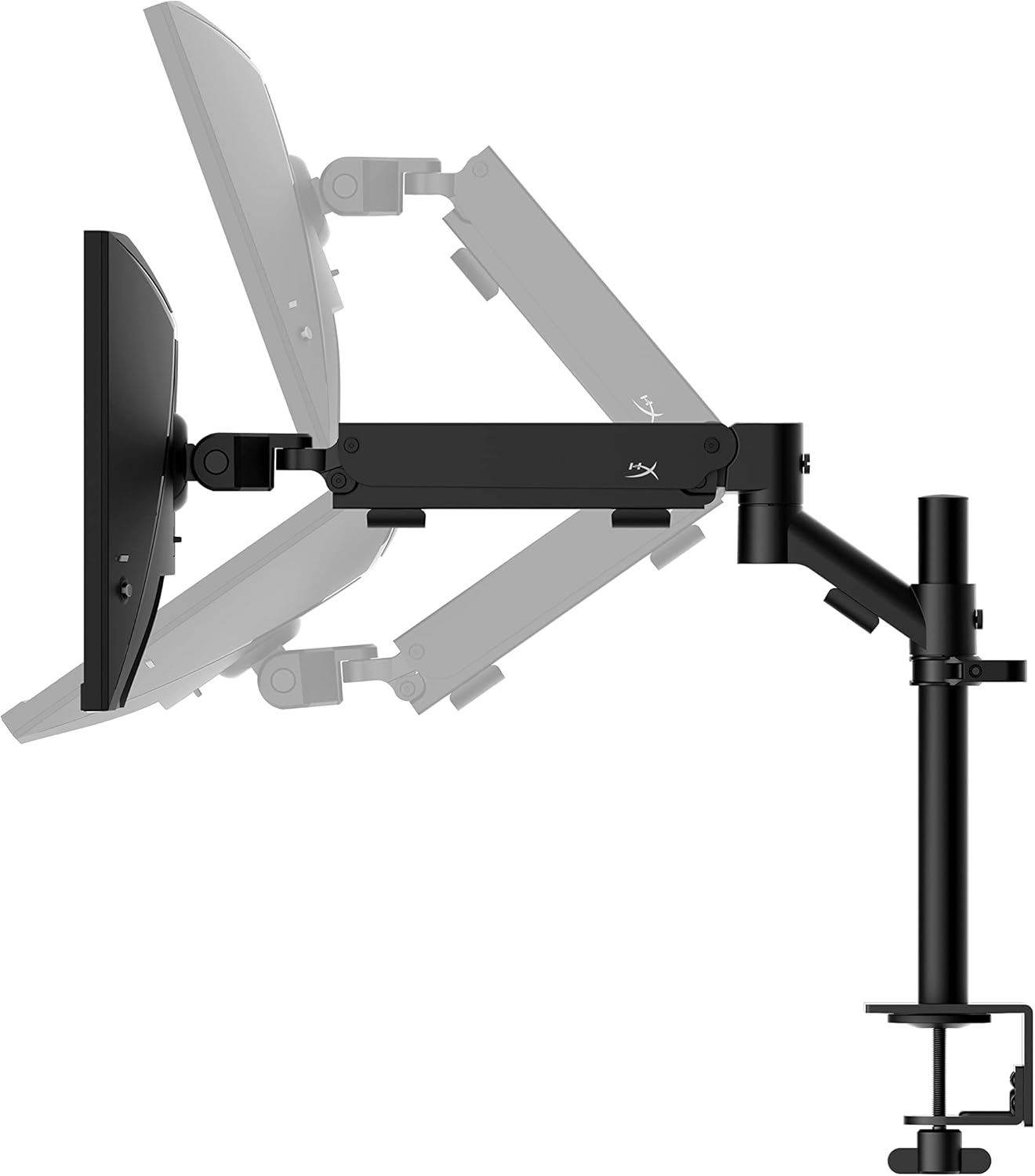
The HyperX Armada 25 comes with an integrated ergonomic desk mount. Follow the instructions provided in the separate quick start guide for detailed assembly steps. The monitor head easily snaps into the arm, allowing for quick and secure installation.

2.2. Monitoriaus prijungimas
Connect the monitor to your computer using the appropriate cables. The HyperX Armada 25 supports both HDMI and DisplayPort connections.
- Prijunkite vieną HDMI arba DisplayPort kabelio galą prie atitinkamo kompiuterio vaizdo plokštės prievado.
- Connect the other end of the cable to an available HDMI 2.0 or DisplayPort 1.4 port on the back of your monitor.
- Connect the power cord to the monitor and then to a power outlet.
- Norėdami įjungti monitorių, paspauskite maitinimo mygtuką.

3. Monitoriaus valdymas
This section covers basic operation and navigation of the monitor's On-Screen Display (OSD) menu.
3.1. Ekrano (OSD) naršymas
The OSD menu is controlled using a joystick located on the back of the monitor. This joystick allows you to power on/off the monitor and navigate through various settings.
- Paspauskite valdymo svirtį: Atidaryti ekrano meniu arba patvirtinti pasirinkimą.
- Move the joystick Up/Down/Left/Right: To navigate through menu options and adjust settings.
- Hold the joystick: To power off the monitor.

3.2. Monitoriaus padėties reguliavimas
The ergonomic desk mount allows for flexible positioning of your monitor. You can adjust the height, tilt, swivel, and pivot to find your optimal viewing kampas.

4. Priežiūra
Proper maintenance ensures the longevity and optimal performance of your HyperX Armada 25 Gaming Monitor.
- Ekrano valymas: Lengvai naudokite minkštą, nepūkuotą audinį dampened with water or a specialized screen cleaner. Avoid using harsh chemicals, abrasive materials, or direct spraying onto the screen.
- C valymasasing: Nuvalykite monitorių casing minkštu, sausu skudurėliu.
- Vėdinimas: Įsitikinkite, kad monitoriaus ventiliacijos angos nėra užblokuotos, kad jis neperkaistų.
- Išjunkite, kai nenaudojate: Išjunkite monitorių, kai jo nenaudojate ilgesnį laiką, kad taupytumėte energiją ir pailgintumėte jo tarnavimo laiką.
5. Problemų sprendimas
Jei kyla problemų dėl monitoriaus, žr. toliau pateiktus įprastus trikčių šalinimo veiksmus.
- Nėra galios:
- Patikrinkite, ar maitinimo laidas tvirtai prijungtas ir prie monitoriaus, ir prie maitinimo lizdo.
- Įsitikinkite, kad maitinimo lizdas veikia tinkamai.
- Paspauskite monitoriaus maitinimo mygtuką.
- Nėra signalo:
- Verify that the HDMI or DisplayPort cable is securely connected to both the monitor and your computer.
- Įsitikinkite, kad jūsų kompiuteris įjungtas ir nėra miego režime.
- Pasirinkite tinkamą įvesties šaltinį naudodami OSD meniu.
- Flickering Screen or Image Issues:
- Check the display cable for damage or loose connections.
- Įsitikinkite, kad jūsų grafikos plokštės tvarkyklės yra atnaujintos.
- Kompiuterio ekrano nustatymuose reguliuokite atnaujinimo dažnį.
- If G-SYNC is enabled, try disabling it temporarily to see if the issue persists.
- Buttons Not Responding (OSD Joystick):
- Įsitikinkite, kad monitorius yra įjungtas.
- Try restarting the monitor by unplugging and replugging the power cable.
- Clean around the joystick to ensure no debris is obstructing its movement.
6. Specifikacijos
Detailed technical specifications for the HyperX Armada 25 Gaming Monitor.
| Funkcija | Detalė |
|---|---|
| Gaminio matmenys | 21.94 x 25.79 x 31.12 colio; 16.98 svaro |
| Prekės modelio numeris | HyperX Armada 25 |
| Pasiekiama pirmoji data | 24 m. rugpjūčio 2022 d |
| Gamintojas | HP Inc. |
| ASIN | B0B2C1G356 |
| Ekrano dydis | 24.5 colių įstrižainė |
| Rezoliucija | Full HD (1920 x 1080) |
| Atnaujinimo dažnis | 240 Hz |
| Skydelio tipas | IPS skydelis |
| Reagavimo laikas | 1 ms |
| Sinchronizavimo technologija | Suderinamas su NVIDIA® G-SYNC® |
| Included Mount | Desk Mount Included |
| Ryšys | HDMI and Display Port |
7. Garantija ir palaikymas
For warranty information, technical support, or to access additional resources, please visit the official HyperX websvetainėje arba susisiekite su jų klientų aptarnavimo tarnyba.
- Official HyperX Websvetainė: www.hyperx.com
- Produkto palaikymo puslapis: Refer to the support section on the HyperX websvetainė, skirta jūsų konkrečiam modeliui.