
Įvadas
This manual provides detailed instructions for the setup, operation, maintenance, and troubleshooting of your Keychron V5 Wired Custom Mechanical Keyboard. The Keychron V5 is a 96% layout keyboard featuring QMK/VIA programmability, hot-swappable switches, double-shot PBT keycaps, and compatibility with macOS, Windows, and Linux systems.
Pakuotės turinys
Prašome patikrinti, ar pakuotėje yra visi reikalingi daiktai:
- „Keychron V5“ laidinė pasirinktinė mechaninė klaviatūra
- USB-C į USB-C laidas
- USB-A į USB-C adapterį
- Klaviatūros traukiklis
- Jungiklio traukiklis
- Additional Keycaps for Windows/macOS
Sąranka
Klaviatūros prijungimas
To connect your Keychron V5 keyboard:
- Raskite USB-C prievadą klaviatūros gale.
- Connect one end of the provided USB-C to USB-C cable to the keyboard.
- Connect the other end of the cable to a USB-C port on your computer. If your computer only has USB-A ports, use the provided USB-A to USB-C adapter.
- Jūsų operacinė sistema automatiškai atpažins klaviatūrą.
System Toggle (Mac/Windows)
The Keychron V5 includes a system toggle switch to ensure full compatibility with both macOS and Windows operating systems. This switch is typically located on the back or side of the keyboard.
To switch between operating systems:
- Locate the 'Win/Mac' toggle switch.
- Slide the switch to the 'Mac' position for macOS or 'Win' position for Windows.
- The keyboard will adjust its key mappings accordingly.

Vaizdas: Šoninė view of the Keychron V5 keyboard, highlighting the system toggle switch and USB-C port for system compatibility.
Ergonomic Angle Adjustment
The keyboard features adjustable feet to customize the typing angle for improved ergonomics.
To adjust the typing angle:
- Apverskite klaviatūrą, kad pasiektumėte apačioje esančias kojeles.
- Gently pull out the feet to extend them to your desired angle. There are usually two levels of adjustment.

Image: The Keychron V5 keyboard with its adjustable feet extended, demonstrating the ergonomic angle design.
Naudojimo instrukcijos
Pagrindinės funkcijos ir išdėstymas
The Keychron V5 features a 96% layout with 97 keys, efficiently retaining function keys and a num pad while saving desk space. The keyboard comes with pre-installed double-shot PBT keycaps in an OSA profile, designed for a comfortable fingertip feel and excellent oil resistance.
Paveikslėlis: pilnas view of the Keychron V5 keyboard, showcasing its 96% layout and keycap design.
QMK/VIA Customization
The Keychron V5 supports QMK/VIA firmware, allowing for comprehensive customization of key mappings, macros, and backlight effects. VIA is a graphical user interface that simplifies the programming process.
Norėdami pritaikyti klaviatūrą:
- Atsisiųskite VIA programinę įrangą iš oficialios „Keychron“ svetainės website or the VIA GitHub repository.
- Connect your keyboard to your computer.
- Launch the VIA software. The software should automatically detect your Keychron V5.
- Use the intuitive interface to remap keys, create macros, and adjust lighting settings across multiple layers.
For detailed instructions on using QMK/VIA, refer to the official Keychron documentation or community guides.

Image: A visual representation of the VIA software interface, demonstrating how users can customize key layouts and macros for the Keychron V5.
Programmable Knob
The Keychron V5 features a programmable rotary knob, which can be customized via QMK/VIA to control various functions such as volume, zoom, or scrolling.
To customize the knob's function:
- Open the VIA software.
- Navigate to the knob customization section.
- Assign desired functions for clockwise rotation, counter-clockwise rotation, and pressing the knob.

Vaizdas: Stambus planas view of the programmable rotary knob on the Keychron V5 keyboard, highlighting its textured surface.
Karštai keičiami jungikliai
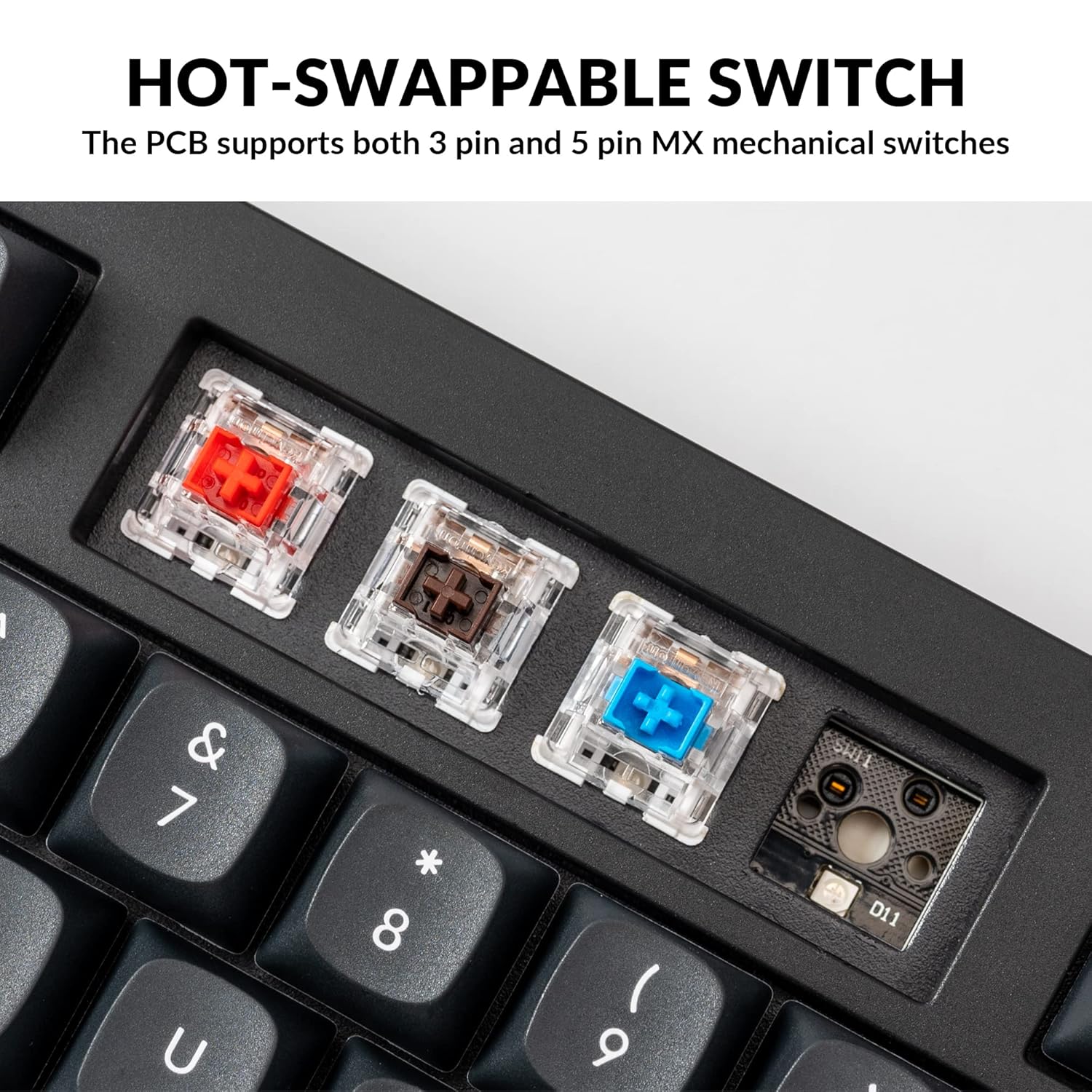
The Keychron V5 is equipped with hot-swappable sockets, allowing you to change mechanical switches without soldering. It supports most 3-pin and 5-pin MX mechanical switches (e.g., Cherry, Gateron, Kailh, Panda).
The keyboard comes with pre-lubed K Pro Red linear switches, offering a smooth and responsive typing experience with a lifespan of up to 50 million keystrokes.
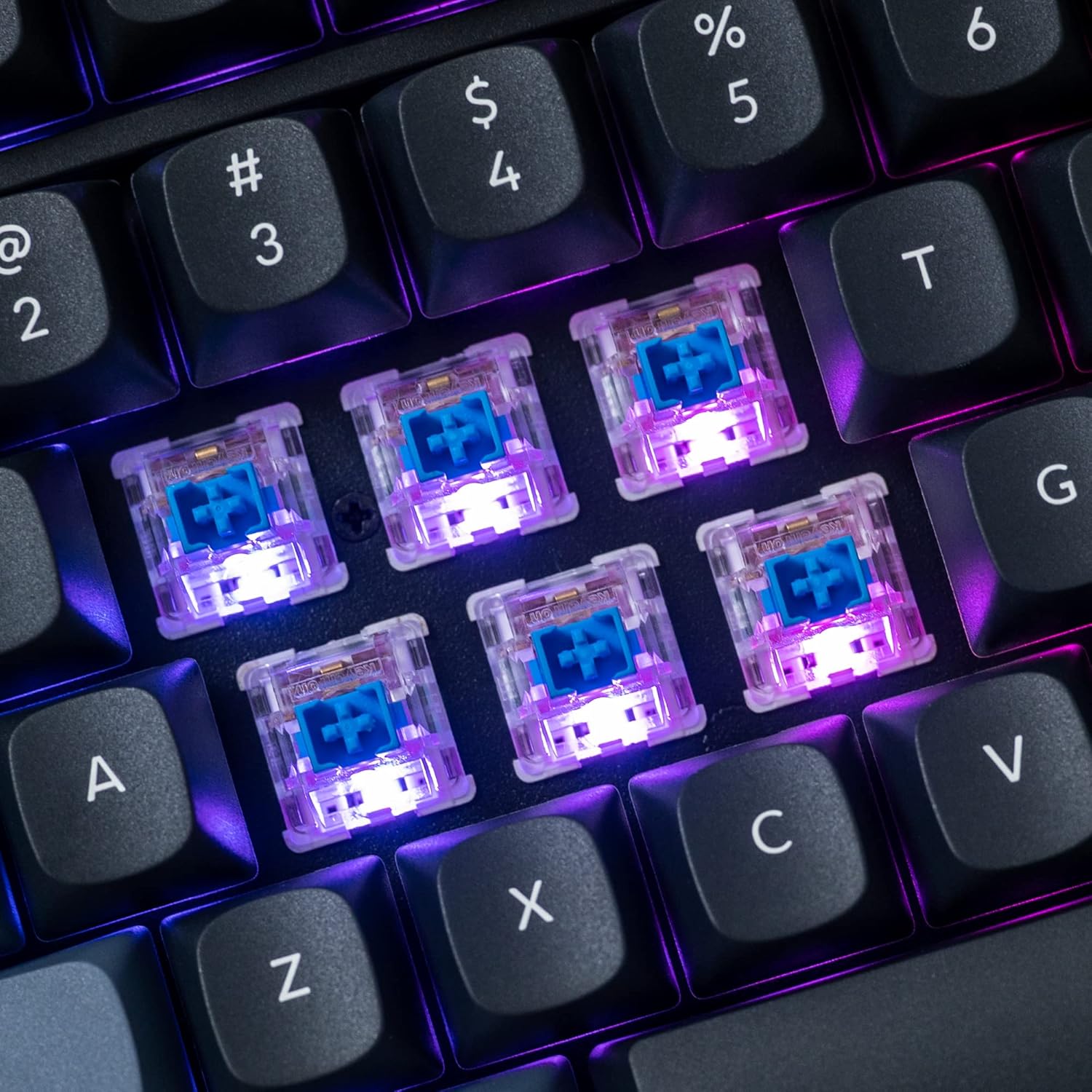
Paveikslėlis: detalus view of the hot-swappable mechanical switches on the Keychron V5 keyboard, illuminated by RGB backlighting.
Foninis apšvietimas
The V5 features south-facing RGB backlighting, designed to better illuminate the keyboard from the typist's angle and prevent interference when using Cherry-profile keycaps. You can customize the backlight effects and colors using the VIA software.

Image: A close-up of the double-shot PBT keycaps on the Keychron V5 keyboard, showcasing their texture and legends.
Priežiūra
Valymas
Norėdami palaikyti klaviatūros švarą ir ilgaamžiškumą:
- Klaviatūros dangteliai: Use a keycap puller to remove keycaps. Clean them with a mild soap solution and a soft cloth, then rinse and dry thoroughly before reattaching.
- Klaviatūros korpusas: Nuvalykite klaviatūros korpusą minkšta,amp audinys. Venkite naudoti stiprių cheminių medžiagų ar abrazyvinių medžiagų.
- Dulkės: Suslėgtu oru pašalinkite dulkes ir šiukšles tarp klaviatūros dangtelių ir jungiklių.
Jungiklio keitimas
Norėdami pakeisti jungiklį:
- Naudodami pateiktą klavišo dangtelio ištraukiklį, atsargiai nuimkite klavišo dangtelį nuo jungiklio, kurį norite pakeisti.
- Insert the switch puller tool around the top and bottom clips of the switch.
- Švelniai suspauskite spaustukus ir patraukite jungiklį tiesiai į viršų, kad jį nuimtumėte nuo PCB.
- Suderinkite naujo jungiklio kaiščius su spausdintinės plokštės skylėmis. Įsitikinkite, kad kaiščiai yra tiesūs.
- Press the new switch firmly into place until it clicks. Ensure it is seated properly and not bent.
- Uždėkite klavišo dangtelį.
Klaviatūros dangtelio keitimas
Norėdami pakeisti klavišų dangtelius:
- Švelniai nuimkite esamą klaviatūros dangtelį naudodami klaviatūros dangtelio traukiklį, užkabindami jį už dangtelio ir traukdami aukštyn.
- Align the new keycap with the cross-shaped stem of the switch.
- Press the new keycap firmly down until it is fully seated.
Trikčių šalinimas
- Klaviatūra nereaguoja:
Ensure the USB cable is securely connected to both the keyboard and the computer. Try a different USB port or cable. Verify the system toggle switch is set correctly for your operating system. - Neregistruojami raktai:
If specific keys are not working, the switch might be faulty or not fully seated. Try removing and re-inserting the switch. If the issue persists, replace the switch. - Foninio apšvietimo problemos:
Check VIA software settings to ensure backlighting is enabled and configured correctly. If only certain LEDs are not working, it might indicate a faulty LED or switch. - QMK/VIA Software Not Detecting Keyboard:
Ensure the keyboard is connected via USB. Close and reopen the VIA software. Make sure you have the correct firmware loaded if you have flashed custom firmware. - Keycaps Feel Loose:
Ensure keycaps are fully pressed onto the switch stems. If a keycap consistently feels loose, the switch stem might be damaged, or the keycap's cross-mount might be worn.
Specifikacijos
| Funkcija | Specifikacija |
|---|---|
| Prekės ženklas | Keychron |
| Modelis | V5 |
| Klaviatūros aprašymas | Mechaninis |
| Klaviatūros išdėstymas | QWERTY, 96% Layout (97 Keys) |
| Ryšio technologija | Laidinis (USB-C) |
| Suderinami įrenginiai | Kompiuteris („macOS“, „Windows“, „Linux“) |
| Jungiklio tipas | Linear (K Pro Red) |
| Hot-swappable Support | Yes (3-pin and 5-pin MX mechanical switches) |
| Klaviatūros | Double-shot PBT, OSA Profile |
| Foninis apšvietimas | Į pietus nukreiptas RGB |
| Korpuso medžiaga | Polibutileno tereftalatas, silikonas |
| Papildomos funkcijos | QMK/VIA Programmable, Programmable Knob, Screw-in Stabilizers |
Garantija ir palaikymas
Keychron products are typically covered by a limited warranty. For specific warranty terms, duration, and conditions, please refer to the warranty information provided with your product packaging or visit the official Keychron websvetainę.
For technical support, troubleshooting assistance, or to inquire about replacement parts, please contact Keychron customer service through their official website's support portal. When contacting support, please have your product model (Keychron V5) and purchase details ready.