
Įvadas
The OWC Thunderbolt Dock is designed to expand the connectivity of your computer, providing a comprehensive solution for connecting multiple peripherals through a single Thunderbolt cable. This dock adds three Thunderbolt 4 ports, four USB ports, Gigabit Ethernet, audio, and an SD card reader, enhancing your workflow and device management.
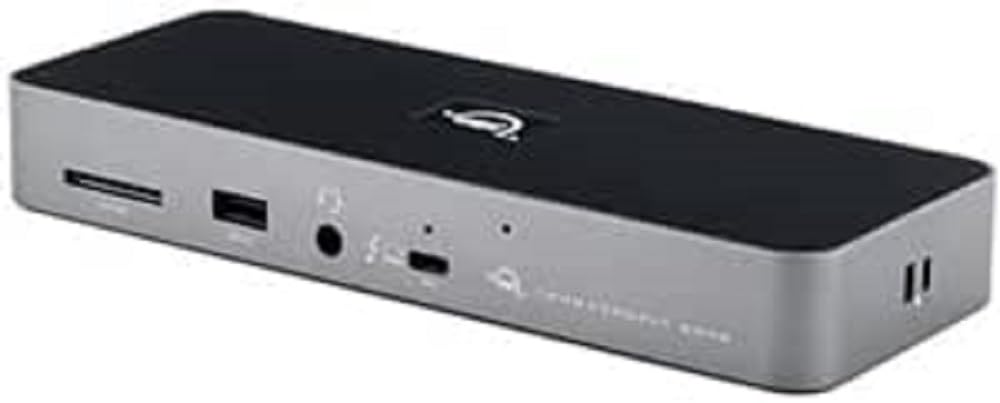
Figure 1: OWC Thunderbolt Dock, showing its compact design and front-facing ports.
Kas yra dėžutėje
Patikrinkite, ar pakuotėje yra visi reikalingi daiktai:
- OWC „Thunderbolt“ dokas
- Thunderbolt kabelis
- Maitinimas ir kabelis
- Greitos pradžios vadovas
Pagrindinės savybės
The OWC Thunderbolt Dock offers the following capabilities:
- Adds three full-speed and functional Thunderbolt 4 ports to your computer.
- Enables creation of multiple independent "tree branches" for device connectivity.
- Provides up to 96W of power delivery for laptop charging.
- Includes four USB ports for connecting and charging USB devices.
- Supports connection of various storage devices, up to two 4K displays, or one 5K/6K/8K display.
- Ensures device compatibility as if directly connected to your computer.
- Features Gigabit Ethernet for reliable network streaming and sharing.
- Integrated SD card reader for data transfer speeds up to 312MB/s.
- Audio combo jack for headphones and microphones.
- Adjustable LED for customizable illumination.
Sąranka
Follow these steps to set up your OWC Thunderbolt Dock:
- Prijunkite maitinimą: Connect the included power supply to the DC In port on the rear of the OWC Thunderbolt Dock and then plug the power cable into a wall outlet.

Figure 2: Rear ports of the OWC Thunderbolt Dock, including the DC In port on the left.
- Prisijunkite prie kompiuterio: Use the provided Thunderbolt cable to connect one of the Thunderbolt 4 ports on the dock (labeled with a computer icon) to a Thunderbolt 3 or Thunderbolt 4 port on your computer.
- Prijunkite išorinius įrenginius: Connect your external devices such as monitors, external drives, USB devices, Ethernet cable, and audio devices to the corresponding ports on the OWC Thunderbolt Dock.

Figure 3: Front ports of the OWC Thunderbolt Dock, including the SD card slot, USB 2.0 port, and audio combo jack.
- Maitinimas: The dock will power on automatically once connected to power and your computer. The LED indicator will illuminate.
Doko valdymas
Once set up, the OWC Thunderbolt Dock operates as an extension of your computer's ports. Devices connected to the dock will function as if they were directly connected to your computer.
- Ekrano jungiamumas: Connect up to two 4K displays at 60Hz, or a single 5K, 6K, or 8K display at 60Hz (or 4K at 120Hz) to the Thunderbolt 4 downstream ports using appropriate cables and adapters.
- USB įrenginiai: Utilize the USB-A ports for connecting keyboards, mice, external hard drives, and other USB peripherals. The USB 2.0 port is suitable for low-bandwidth devices like keyboards or mice.
- Tinklo prisijungimas: Plug an Ethernet cable into the Gigabit Ethernet port for a stable wired network connection.
- Garsas: Use the 3.5mm audio combo jack for headphones, speakers, or microphones.
- SD kortelių skaitytuvas: Insert an SD card into the front-facing slot to access photos, videos, and other data.
- Maitinimo tiekimas: The dock provides up to 96W of power to charge your connected laptop via the Thunderbolt cable.
Priežiūra
To ensure optimal performance and longevity of your OWC Thunderbolt Dock:
- Keep the dock in a well-ventilated area to prevent overheating.
- Clean the exterior with a soft, dry, lint-free cloth. Avoid using liquid cleaners or aerosols.
- Įsitikinkite, kad visi laidai yra tvirtai prijungti.
- Venkite dėti sunkių daiktų ant doko viršaus.
Trikčių šalinimas
If you encounter issues with your OWC Thunderbolt Dock, try the following solutions:
- No Power/Dock Not Responding:
- Verify that the power supply is securely connected to the dock and a working power outlet.
- Ensure the Thunderbolt cable is firmly connected to both the dock and your computer.
- Išbandykite kitą maitinimo lizdą.
- Prijungti įrenginiai neatpažinti:
- Disconnect and reconnect the problematic device from the dock.
- Try connecting the device to a different port on the dock, if available.
- Įsitikinkite, kad jūsų kompiuterio operacinė sistema ir „Thunderbolt“ tvarkyklės yra atnaujintos.
- Iš naujo paleiskite kompiuterį.
- Ekrano problemos (nėra signalo, mirgėjimas):
- Check the display cable connection between the monitor and the dock.
- Ensure the display is set to the correct input source.
- Išbandykite kitą ekrano kabelį arba adapterį.
- Reduce the display resolution or refresh rate to see if the issue persists.
- Tinklo ryšio problemos:
- Patikrinkite, ar eterneto kabelis yra tvirtai prijungtas prie doko ir maršrutizatoriaus / modemo.
- Patikrinkite savo kompiuterio tinklo nustatymus.
- Paleiskite maršrutizatorių / modemą iš naujo.
Specifikacijos
| Funkcija | Detalė |
|---|---|
| Gaminio matmenys | 8.66 x 3.15 x 1.18 colio |
| Svoris | 14.11 uncijos |
| Prekės modelio numeris | OWCTB4DOCK |
| Gamintojas | OWC |
| Jungties tipas | Ethernet, RJ45, USB Type A, USB Type C |
| Kabelio tipas | Perkūnas |
| Suderinami įrenginiai | Computer, Docking Station, External Display |
| Ypatinga funkcija | Didelis greitis |
| Maitinimo tiekimas | Up to 96W to host computer |
| Ekrano palaikymas | Up to two 4K displays @ 60Hz, or one 5K/6K/8K display @ 60Hz (or 4K @ 120Hz) |
| SD Card Reader Speed | Iki 312 MB/s |
Garantija ir palaikymas
OWC products are designed for reliability and performance. For information regarding warranty coverage, technical support, or service, please refer to the official OWC website or contact OWC customer support directly. Keep your proof of purchase for warranty claims.
Norėdami gauti naujausius pagalbos išteklius, apsilankykite: www.owcdigital.com/support