
1. Įvadas
Thank you for choosing the AUN AKEY6S Native Full HD 1080p Projector. This manual provides essential information for setting up, operating, maintaining, and troubleshooting your projector. Please read this manual thoroughly before use to ensure optimal performance and longevity of your device.
The AUN AKEY6S projector features native 1920x1080p resolution with 4K support, 8000 lumens brightness, a 12000:1 contrast ratio, and runs on Android 9.0. It offers versatile connectivity options including WiFi (2.4G/5G) and Bluetooth 5.2, making it suitable for various home cinema and presentation needs.
2. Sąranka
2.1 Išpakavimas ir pakuotės turinys
Atsargiai išimkite visus komponentus iš pakuotės. Įsitikinkite, kad yra visi toliau išvardyti daiktai:
- 1x AUN AKEY6S Projector
- 1x nuotolinio valdymo pultas
- 1x Naudotojo vadovas (šis dokumentas)
- 1x maitinimo šaltinis
2.2 Projektoriaus išdėstymas
Position the projector on a stable, flat surface or mount it securely. Ensure there is adequate ventilation around the device. The optimal projection distance and screen size are as follows:
- Projekcijos dydis: Nuo 50 iki 300 colių
- Projekcijos atstumas: Approximately 1.5 meters (50 inches) to 6.2 meters (300 inches)

Image: Illustration of the AUN AKEY6S projector demonstrating adjustable projection sizes from 50 to 300 inches based on distance from the screen.
2.3 Maitinimo jungtis
Connect the provided power supply cable to the projector's power input port and then plug it into a standard electrical outlet.
2.4 Pradinis įjungimas
Press the power button on the projector or the remote control to turn on the device. The projector will boot up and display the Android 9.0 interface.
2.5 Fokusavimo ir trapecijos koregavimas
- Fokusas: Sukite projektoriaus objektyvo fokusavimo žiedą, kol projektuojamas vaizdas taps aiškus ir ryškus.
- Keystone korekcija: The AKEY6S features an electronic keystone correction of ±40°. Access this setting through the projector's menu to adjust the image shape if it appears trapezoidal.
2.6 Montavimo parinktys
The projector supports multiple mounting configurations:
- Stalinis laikiklis: Padėkite projektorių ant lygaus paviršiaus.
- Montavimas ant lubų: Secure the projector to the ceiling using a compatible projector mount (not included). Ensure the image orientation is adjusted in the projector settings if mounted upside down.

Image: Visual representation of various mounting options for the AUN AKEY6S projector, including ceiling and desktop placements.
3. Naudojimo instrukcijos
3.1 User Interface Navigation (Android 9.0)
Navigate the Android 9.0 interface using the remote control. Use the directional buttons to move between icons and options, and the OK button to select. The Back button returns to the previous screen, and the Home button returns to the main menu.
3.2 Išorinių įrenginių prijungimas
The AKEY6S projector offers multiple ports for connecting various devices:

Vaizdas: Išsamus view of the AUN AKEY6S projector's rear panel, highlighting all available input and output ports for connectivity.
- HDMI (HD-IN): Connect devices like laptops, gaming consoles (X-BOX, PS4), TV sticks, or set-top boxes using an HDMI cable. Select the corresponding HDMI input source from the projector's menu.
- USB (USB-IN): Įdėkite USB atmintines, kad galėtumėte leisti mediją files (videos, photos, music) directly.
- AV (AV-IN): Prijunkite senesnius įrenginius naudodami AV kabelį.
- SD Card (SD Card-IN): Insert an SD card to access media files.
- 3.5 mm garso išvestis: Prijunkite išorinius garsiakalbius arba ausines.
- RJ45 (LAN): For wired internet connection (Android version only).
- VGA (VGA-IN): Connect computers or laptops using a VGA cable.
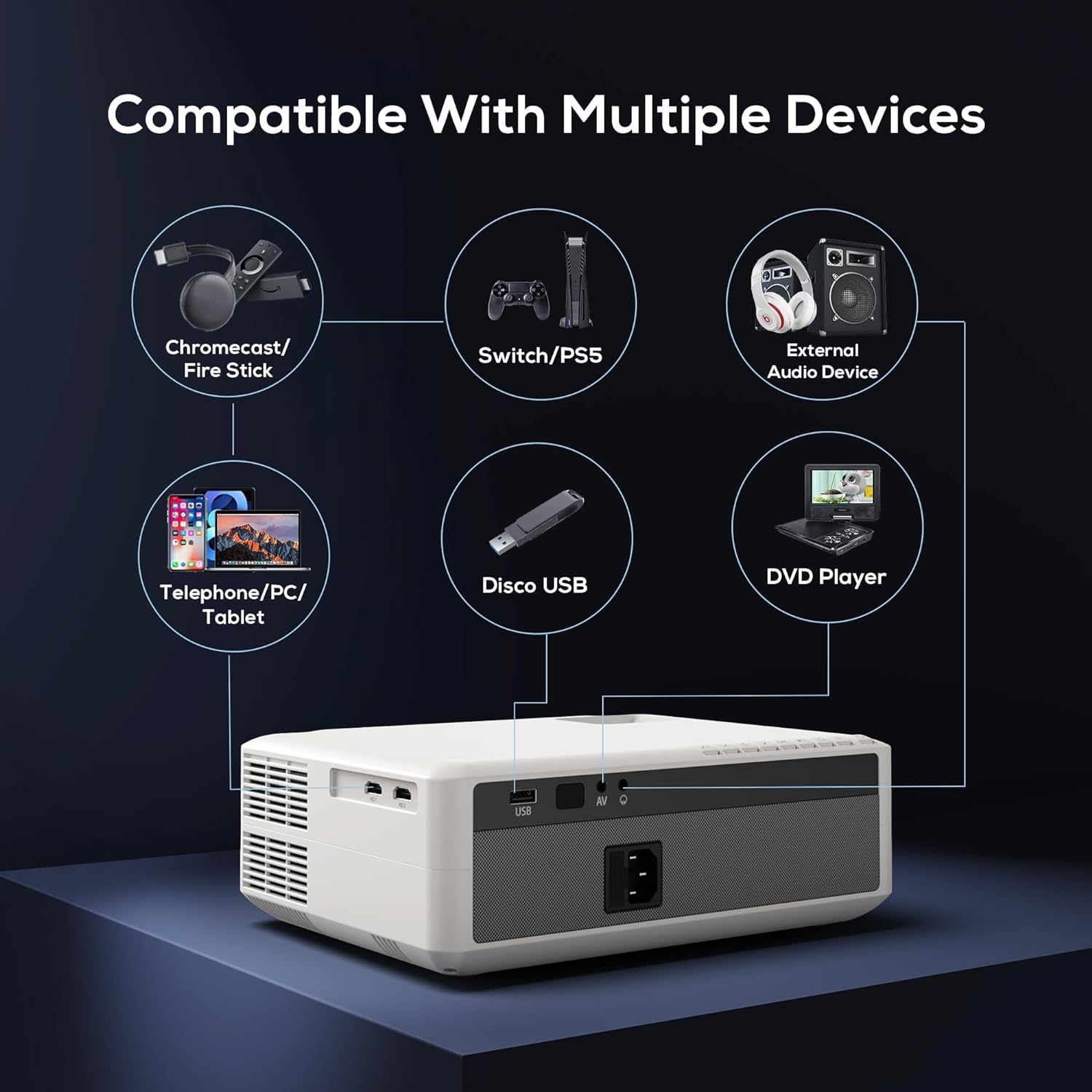
Image: Diagram illustrating the AUN AKEY6S projector's compatibility with a wide range of external devices such as streaming sticks, gaming consoles, audio systems, mobile devices, USB drives, and DVD players.
3.3 Wireless Connectivity (WiFi)
Norėdami prisijungti prie belaidžio tinklo:
- Go to the projector's settings menu.
- Pasirinkite Tinklas ir internetas.
- Įjungti Wi-Fi and select your desired 2.4G or 5G network from the list.
- Jei būsite paraginti, įveskite slaptažodį ir prisijunkite.
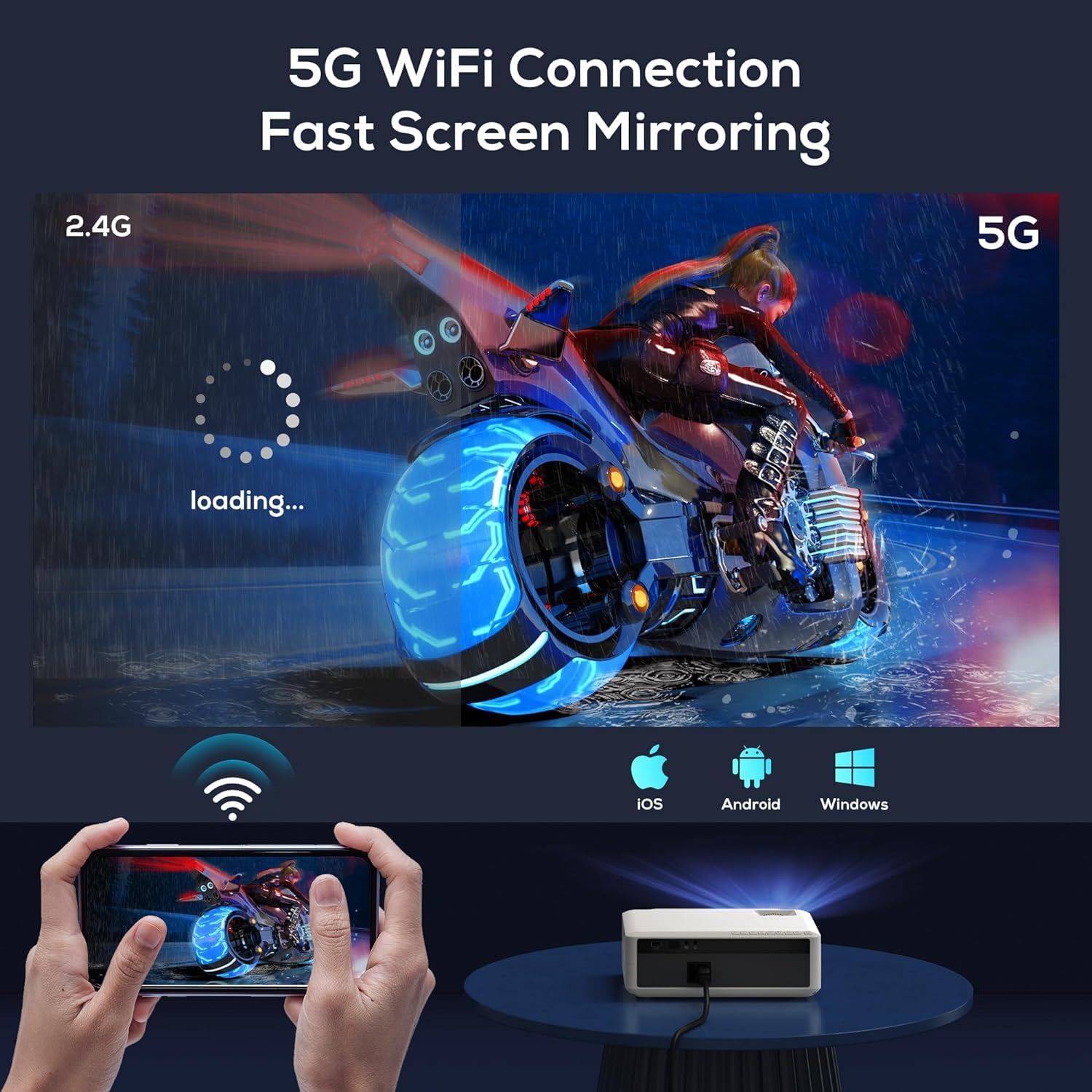
Image: The AUN AKEY6S projector displaying a loading screen, illustrating its 5G WiFi capability for fast screen mirroring from a mobile device.
3.4 „Bluetooth“ garso prijungimas
Pair Bluetooth speakers or headphones for enhanced audio:
- Go to the projector's settings menu.
- Pasirinkite Prijungti įrenginiai or Bluetooth.
- Įjunkite „Bluetooth“ ir perjunkite garso įrenginį į susiejimo režimą.
- Pasirinkite įrenginį iš sąrašo, kad prisijungtumėte.
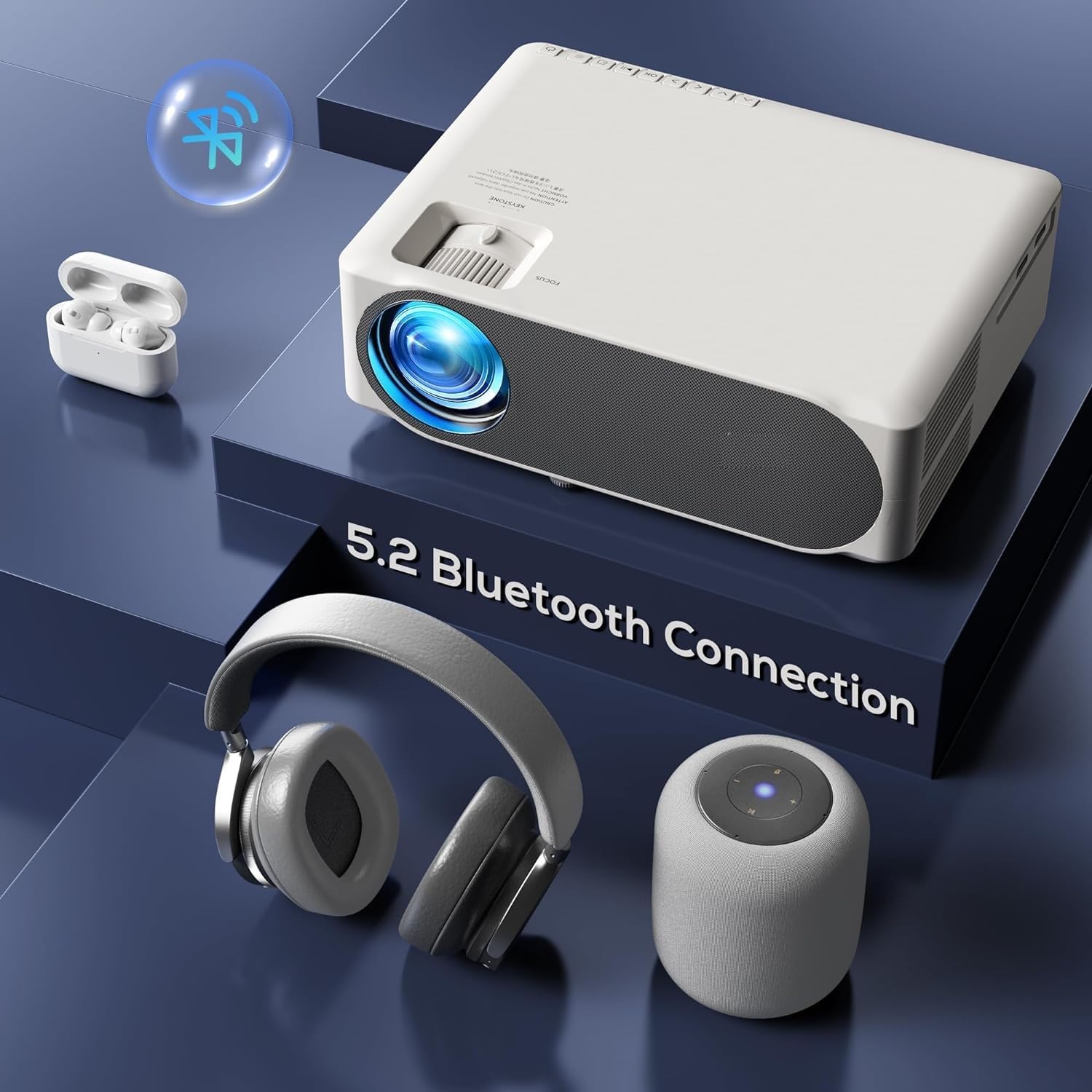
Image: The AUN AKEY6S projector shown with various Bluetooth audio devices, highlighting its Bluetooth 5.2 connectivity for wireless sound.
3.5 Ekrano atspindėjimas
The projector supports screen mirroring from iOS, Android, and Windows devices via WiFi. Refer to the specific screen mirroring application or setting on your device and follow the on-screen instructions to connect to the projector.
3.6 Programų valdymas
The AKEY6S comes with Android 9.0 and pre-installed applications. You can also install more apps:
- Iš anksto įdiegtos programos: YouTube, Netflix, Hotstar, Prime Video.
- Naujų programų diegimas:
- The projector supports Google Play Store and APK installation.
- To install Aptoide TV App Store: Open the browser, search for "Aptoide TV APK", download the APK, then open File Manager and install.
- Download other apps like Netflix, Hotstar, Prime Video from Aptoide TV App Store if not pre-installed or if updates are needed.
4. Priežiūra
4.1 Valymas
- Objektyvas: Naudokite minkštą, nepūkuotą šluostę, specialiai skirtą optiniams lęšiams. Nenaudokite abrazyvinių valiklių ar per didelės jėgos.
- Projektoriaus korpusas: Išorę nuvalykite minkšta, sausa šluoste. Jei nešvarumai sunkiai įveikiami, šiek tiek nuvalykite.amplt audinį supilkite vandeniu.
- angos: Regularly check and clean the ventilation openings to prevent dust buildup, which can affect cooling performance. Use a soft brush or compressed air.
4.2 Apsauga nuo dulkių
The AUN AKEY6S projector features an advanced dustproof design to minimize dust ingress and maintain image quality over time. Regular cleaning of external vents is still recommended.
4.3 Saugykla
When not in use for extended periods, store the projector in a cool, dry place, away from direct sunlight and extreme temperatures. Cover the lens with its cap to protect it from dust and scratches.
5. Problemų sprendimas
If you encounter issues with your AUN AKEY6S projector, refer to the following common problems and solutions:
5.1 Nėra galios
- Įsitikinkite, kad maitinimo laidas yra tvirtai prijungtas tiek prie projektoriaus, tiek prie maitinimo lizdo.
- Patikrinkite, ar maitinimo lizdas veikia, prijungdami prie jo kitą įrenginį.
- Check if the power indicator light on the projector is on.
5.2 Nėra vaizdo arba vaizdas neryškus
- Sureguliuokite objektyvo fokusavimo žiedą, kol vaizdas bus ryškus.
- Check the keystone correction settings if the image is trapezoidal.
- Ensure the input source is correctly selected (e.g., HDMI 1, USB).
- Verify that the connected source device (laptop, TV stick) is powered on and outputting a signal.
- Nuvalykite projektoriaus objektyvą, jei jis atrodo nešvarus.
5.3 Nėra garso
- Padidinkite garsumą tiek projektoriuje, tiek prijungtame šaltinio įrenginyje.
- Patikrinkite, ar išoriniai garsiakalbiai arba ausinės tinkamai prijungti arba suporuoti per „Bluetooth“.
- Ensure the audio output setting on the projector is correct.
- Verify that the source video/audio file is not muted or corrupted.
5.4 Nuotolinio valdymo pultas nereaguoja
- Pakeiskite nuotolinio valdymo pulto baterijas.
- Įsitikinkite, kad tarp nuotolinio valdymo pulto ir projektoriaus IR imtuvo nėra jokių kliūčių.
- Nukreipkite nuotolinio valdymo pultą tiesiai į projektoriaus IR imtuvą.
5.5 WiFi or Bluetooth Connectivity Issues
- Ensure WiFi/Bluetooth is enabled in the projector's settings.
- Paleiskite projektorių ir maršrutizatorių / „Bluetooth“ įrenginį iš naujo.
- Check if the WiFi password is entered correctly.
- Move the projector closer to the WiFi router or Bluetooth device to improve signal strength.
5.6 App Installation Issues
For issues related to app installation, refer to the following:
- How to Install YouTube? The projector comes with a preinstalled YouTube App.
- How to install Aptoide TV App Store?
- Open the Browser.
- Type for Aptoide TV APK.
- Download the APK to the Projector.
- Atidarykite File Manager and Install the Aptoide TV App Store.
- How to download Netflix, Hotstar, Prime Video Apps?
- Projector comes with preinstalled Netflix, Hotstar, Prime Video Apps.
- Otherwise, download the apps from Aptoide TV App Store.
6. Specifikacijos
| Funkcija | Detalė |
|---|---|
| Prekės ženklas | AUN |
| Modelis | AKEY6S |
| Gimtoji raiška | 1920 x 1080p Full HD |
| 4K palaikymas | Taip |
| Ryškumas | 8000 liumenų |
| Kontrasto santykis | 12000:1 |
| Projekcijos dydis | 50–300 colių |
| Krašto santykis | 16:9 |
| Lamp Gyvenimas | 30,000 valandų |
| Operacinė sistema | Android 9.0 |
| Atmintis (RAM / ROM) | 1 GB RAM / 8 GB ROM |
| CPU | 4-Cores ARM 64 |
| GPU | ARM A35 GPU |
| Wi-Fi | 2.4G / 5G |
| Bluetooth | Bluetooth 5.2 |
| Ryšys | 2x HDMI, AV, USB, SD Card, 3.5mm Audio Out, RJ45, VGA |
| Elektroninis Keystone | ±40° |
| Gaminio matmenys | 30 x 25 x 8 cm |
| Prekės svoris | 2 kg |
| Vattage | 150 vatų |
| Atnaujinimo dažnis | 60 Hz |
Pastaba: Specifikacijos gali būti keičiamos be išankstinio įspėjimo dėl produkto tobulinimo.
7. Garantija ir palaikymas
7.1 Gaminio garantija
The AUN AKEY6S Projector comes with a 1 metų garantija from the date of purchase. This warranty covers manufacturing defects and workmanship under normal use. Please retain your purchase receipt as proof of purchase.
7.2 Pagalba klientams
For technical assistance, warranty claims, or any product-related inquiries, please contact Megaa Electronics, the authorized support provider:
- El. paštas: support@megaaelectronics.com or megaaelectronics@gmail.com
- WhatsApp: 8328671337
Please provide your product model (AKEY6S) and purchase details when contacting support to facilitate a quicker resolution.