
DUODUOGO S7
DUODUOGO 5G WiFi Android 11 Tablet S7 User Manual
Modelis: S7
Brand: DUODUOGO
1. Įvadas
This user manual provides comprehensive instructions for the DUODUOGO 5G WiFi Android 11 Tablet S7. It covers product features, setup, operation, maintenance, and troubleshooting to ensure optimal use of your device. Please read this manual thoroughly before using the tablet.
2. Kas yra dėžutėje
- DUODUOGO 5G WiFi Android 11 Tablet (10.4 Inch)
- Nuimama klaviatūra
- C tipo USB kabelis
- Maitinimo adapteris
- Vartotojo vadovas (šis dokumentas)
3. Produktas baigtasview
The DUODUOGO S7 tablet features a 10.4-inch touchscreen display, powered by Android 11, and includes a detachable keyboard for enhanced productivity. It supports dual-band Wi-Fi (2.4G and 5G) and offers ample storage with 4GB RAM and 64GB internal storage, expandable up to 256GB.

Image: The DUODUOGO S7 tablet in blue, shown with its detachable keyboard and a hand interacting with the touchpad. The tablet screen displays "Android 11". A smaller inset image shows the tablet from the rear with its kickstand extended.
Pagrindinės funkcijos:
- Operacinė sistema: Android 11
- Ekranas: 10.4 colių IPS jutiklinis ekranas (1280 x 800 raiška)
- Atmintis: 4 GB RAM
- Saugykla: 64GB ROM (expandable up to 256GB)
- Kameros: Rear 8MP, Front 5MP
- Ryšys: Dual WiFi (2.4G/5G), Bluetooth, OTG, Type-C
- Baterija: 6500 mAh

Image: A stylized depiction of the Android 11 system, with a robotic hand reaching out from a tablet screen towards a small Android mascot holding the number 11. Text reads "Android 11 System" and "Visit your favorite apps, music, movies, books, etc".
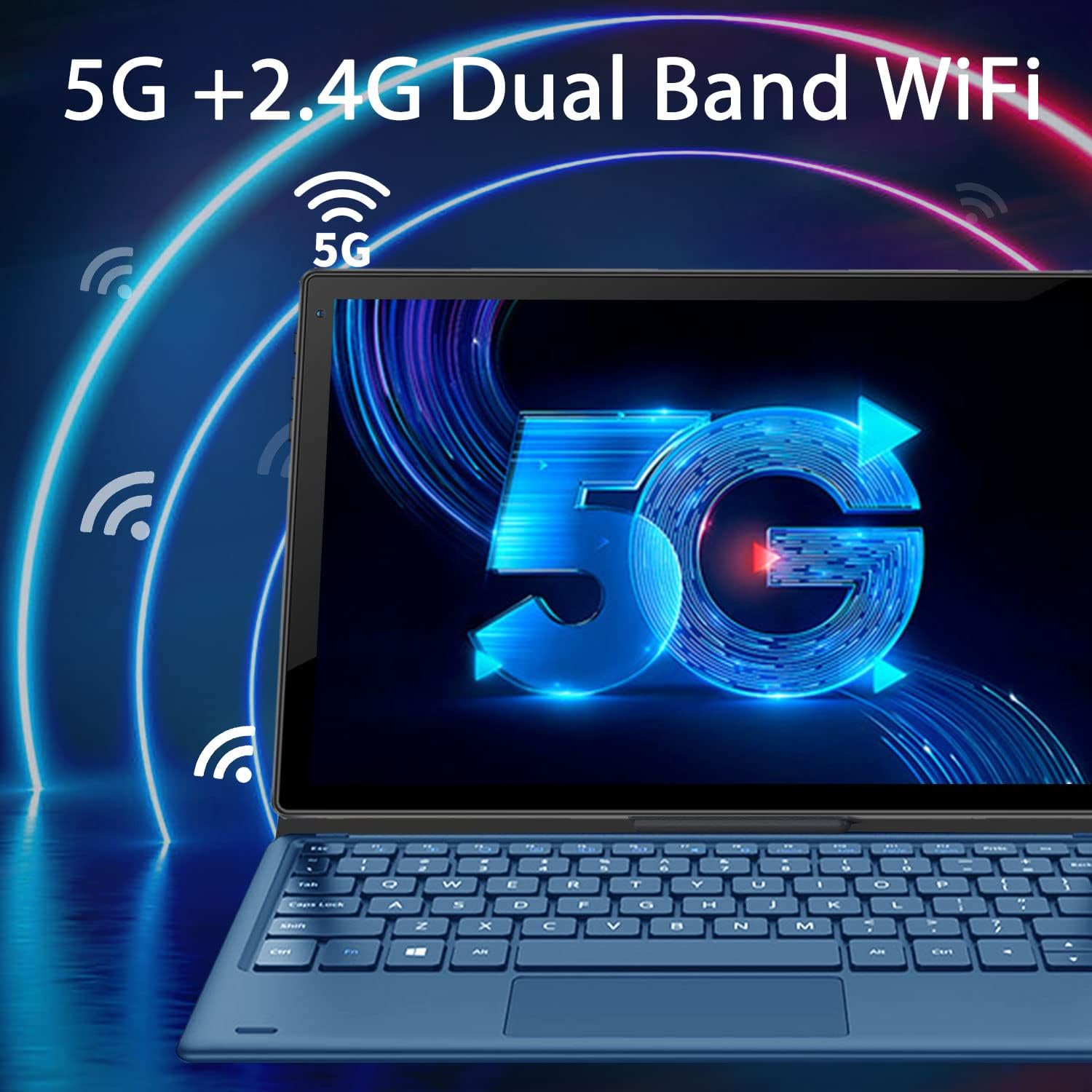
Image: The tablet screen displaying a large "5G" logo with Wi-Fi signals emanating from it, indicating dual-band 5G and 2.4G Wi-Fi connectivity. Text reads "5G + 2.4G Dual Band WiFi".

Image: Three tablets shown from the back, with the middle tablet displaying a photo gallery. Icons and text indicate "Large Capacity Battery", "4GB RAM", "64GB ROM", and "256GB Expand".
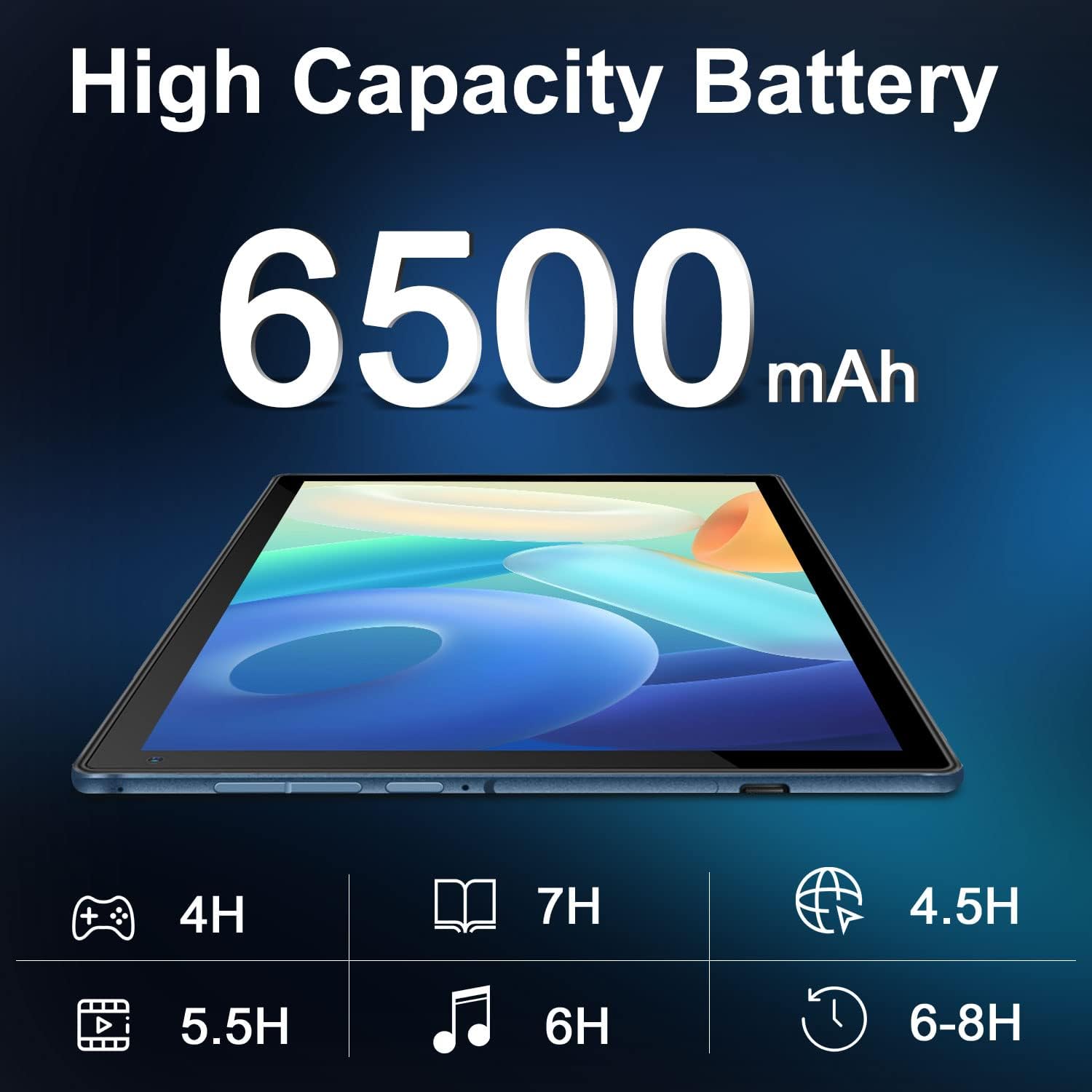
Image: A tablet lying flat, with a large "6500mAh" text overlay, indicating its high capacity battery. Below are icons and estimated usage times for various activities like gaming, reading, video playback, music, web browsing, and general use.

Image: A collage showing the tablet's camera capabilities (people on a beach, family on a boat) and its 10.4-inch IPS display quality (a surfer on a wave). Text highlights "Front 5MP Rear 8MP" and "10.4" IPS Display".

Image: A four-panel collage demonstrating different usage modes: a person using the tablet with keyboard, a child and adult using the tablet with a stand, and a child interacting with a learning app on the tablet. Text reads "Enjoy Different Mode".
4. Sąranka
4.1 Planšetinio kompiuterio įkrovimas
Before first use, fully charge the tablet. Connect the USB Type-C cable to the tablet's charging port and the other end to the power adapter. Plug the adapter into a wall outlet. The charging indicator will show the charging status. A full charge typically takes 3-4 hours.
4.2 Maitinimo įjungimas/išjungimas
- Norėdami įjungti: Press and hold the Power button (usually located on the side or top edge) for a few seconds until the DUODUOGO logo appears on the screen.
- Norėdami išjungti: Paspauskite ir palaikykite maitinimo mygtuką, kol pasirodys išjungimo meniu. Pasirinkite „Išjungti maitinimą“ arba „Išjungti“.
- Norėdami paleisti iš naujo: Išjungimo meniu pasirinkite „Paleisti iš naujo“.
4.3 Pradinio nustatymo vedlys
Pirmą kartą įjungus, „Android 11“ sąrankos vedlys padės atlikti pagrindinius nustatymus:
- Pasirinkite norimą kalbą.
- Prisijunkite prie „Wi-Fi“ tinklo.
- Sign in with your Google account or create a new one. This is necessary to download apps from Google Play Store.
- Nustatykite ekrano užraktą (PIN kodą, šabloną, slaptažodį).
- Review and accept Google services terms.
4.4 Klaviatūros prijungimas
The detachable keyboard connects magnetically to the tablet. Align the magnetic connector on the keyboard with the corresponding pins on the tablet's bottom edge. The keyboard will snap into place and connect automatically. No separate pairing is required.
5. Naudojimo instrukcijos
5.1 Naršymas „Android 11“ sistemoje
- Pagrindinis ekranas: Braukite kairėn arba dešinėn, kad pasiektumėte skirtingus pagrindinius ekranus.
- Programėlių stalčius: Braukite aukštyn iš ekrano apačios į view visos įdiegtos programos.
- Pranešimai ir greitieji nustatymai: Swipe down from the top of the screen to access notifications and quick settings toggles (Wi-Fi, Bluetooth, Brightness, etc.).
- Daugiafunkcinis darbas: Swipe up from the bottom and hold, then release to see recent apps. Tap an app to switch, or swipe it away to close.
5.2 „Wi-Fi“ ryšys
Norėdami prisijungti prie „Wi-Fi“ tinklo:
- Eikite į Nustatymai > Tinklas ir internetas > Wi-Fi.
- Perjungti „Wi-Fi“ On.
- Iš sąrašo pasirinkite norimą tinklą.
- Jei būsite paraginti, įveskite slaptažodį, tada palieskite Prisijunkite.
5.3 Fotoaparatų naudojimas
Planšetinis kompiuteris turi 5 MP priekinę kamerą ir 8 MP galinę kamerą.
- Atidarykite Fotoaparatas app from the home screen or app drawer.
- Norėdami perjungti priekinę ir galinę kameras, palieskite kameros perjungimo piktogramą.
- Palieskite užrakto mygtuką, kad nufotografuotumėte arba pradėtumėte / sustabdytumėte vaizdo įrašymą.
5.4 Saugojimo valdymas
The tablet comes with 64GB of internal storage. You can expand this using a microSD card (up to 256GB).
- Inserting a MicroSD Card: Locate the microSD card slot (usually on the side of the tablet). Gently insert the card until it clicks into place.
- Saugyklos valdymas: Eikite į Nustatymai > Sandėliavimas į view saugyklos naudojimas ir valdymas files.
6. Priežiūra
- Valymas: Planšetinio kompiuterio ekraną ir korpusą valykite minkštu, nepūkuotu audiniu. Nenaudokite skystų valiklių ar aerozolių tiesiai ant įrenginio.
- Akumuliatoriaus priežiūra: Venkite ekstremalių temperatūrų. Neleiskite akumuliatoriui dažnai visiškai išsikrauti. Ilgalaikiam laikymui įkraukite akumuliatorių maždaug iki 50 %.
- Programinės įrangos atnaujinimai: Periodiškai tikrinkite, ar yra sistemos atnaujinimų, Nustatymai > Sistema > Sistemos atnaujinimas siekiant užtikrinti optimalų našumą ir saugumą.
- Apsauga: Use the provided keyboard case to protect the tablet from scratches and minor impacts.
7. Problemų sprendimas
7.1 Planšetinis kompiuteris neįsijungia
- Įsitikinkite, kad planšetinis kompiuteris yra pakankamai įkrautas. Prijunkite jį prie įkroviklio bent 30 minučių.
- Paspauskite ir palaikykite maitinimo mygtuką 10–15 sekundžių, kad priverstumėte paleisti iš naujo.
7.2 „Wi-Fi“ ryšio problemos
- Check if Wi-Fi is enabled in Quick Settings or Network & internet settings.
- Paleiskite iš naujo „Wi-Fi“ maršrutizatorių.
- Planšetinio kompiuterio nustatymuose pamirškite tinklą ir prijunkite iš naujo.
- Įsitikinkite, kad esate „Wi-Fi“ signalo diapazone.
7.3 Klaviatūra nereaguoja
- Ensure the keyboard is properly aligned and connected to the magnetic pins on the tablet.
- Gently clean the magnetic pins on both the tablet and keyboard to ensure good contact.
- Iš naujo paleiskite planšetinį kompiuterį.
7.4 Programėlių strigimas arba užstrigimas
- Uždarykite programą ir vėl atidarykite.
- Išvalykite programos talpyklą ir duomenis Nustatymai > Programos ir pranešimai > [Programėlės pavadinimas] > Saugykla ir talpykla.
- Ensure the app is updated to its latest version from Google Play Store.
- Iš naujo paleiskite planšetinį kompiuterį.
8. Specifikacijos
| Funkcija | Specifikacija |
|---|---|
| Prekės ženklas | DUODUOGO |
| Modelio numeris | S7 |
| Operacinė sistema | Android 11 |
| Ekrano dydis | 10.4 colių |
| Ekrano raiška | 1280 x 800 |
| RAM | 4 GB |
| Vidinė saugykla | 64 GB |
| Išplečiama saugykla | Iki 256 GB („MicroSD“) |
| Galinė kamera | 8 MP |
| Priekinė kamera | 5 MP |
| Baterijos talpa | 6500 mAh |
| Ryšys | Dual WiFi (2.4G/5G), Bluetooth, OTG, Type-C |
| Gaminio matmenys (IxPxH) | 9.5 x 6.4 x 0.35 colio |
9. Garantija ir palaikymas
DUODUOGO provides comprehensive support for its products. For any issues or inquiries regarding your DUODUOGO S7 Tablet, please refer to the following:
- Garantija: The product comes with a one-month free replacement policy and 365 days of free repair in case of non-human damage.
- Klientų aptarnavimas: If you encounter any problems using your DUODUOGO device, you can contact us through Amazon. Our support team aims to reply to your message and resolve your problem within 12 hours until you are satisfied.
- Software & Apps: The DUODUOGO Device is GMS certified, allowing you to download applications directly from Google Play Store.
Ask a question about this manual
Ask about setup, troubleshooting, compatibility, parts, safety, or missing instructions. Manuals+ will review the question and use this page’s manual context to help answer it.