
Įvadas
The LINQ 9-Port Pro Studio USB-C Docking Station (Model LQ48020) is a versatile multiport hub designed to expand connectivity and storage for your USB-C enabled devices. This device integrates multiple essential ports and an NVMe M.2 SSD enclosure into a single, compact unit, providing high-speed data transfer, video output, network connectivity, and power delivery.

1 paveikslas: Baigėsiview of the LINQ 9-Port Pro Studio USB-C Docking Station with connected devices, highlighting its various ports and features.
Sąranka
Follow these steps to set up your LINQ 9-Port Pro Studio USB-C Docking Station:
- Prijungti prie pagrindinio įrenginio: Plug the integrated USB-C cable from the docking station into a compatible USB-C port on your laptop, tablet, or other host device. Ensure the USB-C port on your host device supports DisplayPort Alternate Mode (Alt Mode) and Power Delivery for full functionality.
- Maitinimo jungtis (nebūtina, bet rekomenduojama): For optimal performance and to charge your host device, connect a USB-C Power Delivery (PD) charger (up to 100W) to the docking station's USB-C PD input port.
- NVMe M.2 SSD Installation:
- Carefully open the NVMe enclosure cover on the docking station.
- Insert your NVMe M.2 SSD into the designated slot. Ensure it is properly seated.
- Secure the SSD with the provided fastener (if applicable).
- Close the enclosure cover securely.

2 paveikslas: Installation of an NVMe M.2 SSD into the docking station's dedicated enclosure.
- Prijunkite išorinius įrenginius: Connect your desired peripherals (monitor, keyboard, mouse, Ethernet cable, SD card, USB drives) to the corresponding ports on the docking station.
Naudojimo instrukcijos
The docking station provides a variety of ports for enhanced functionality:
- USB-C maitinimo tiekimo (PD) prievadas: Connect your USB-C power adapter to this port to charge your host device (up to 100W) and power the docking station simultaneously.
- HDMI 2.0 prievadas: Connect an HDMI cable from this port to an external monitor or display for video output up to 4K resolution at 60Hz.
- USB 3.2 2 kartos prievadai: Utilize the USB-A and USB-C data ports for connecting external storage devices, keyboards, mice, or other USB peripherals. These ports support data transfer speeds up to 10 Gigabits per second (10Gbps).
- 2.5Gbps Multi-Gigabit Ethernet Port: Connect an Ethernet cable to this port for a stable and high-speed wired network connection, supporting speeds up to 2.5 Gigabits per second (2.5Gbps).
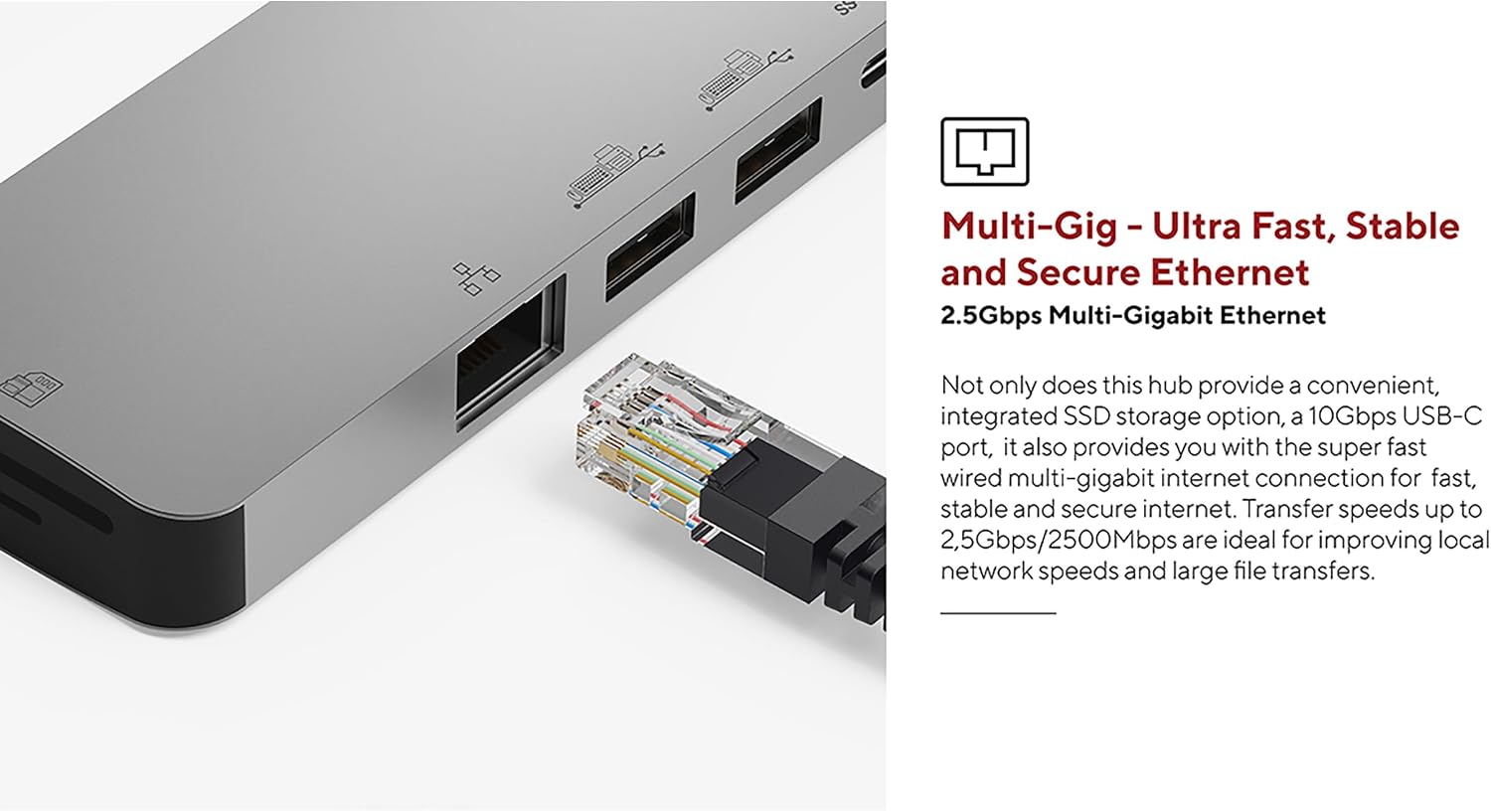
3 paveikslas: The 2.5Gbps Multi-Gigabit Ethernet port for high-speed wired network access.
- UHS-II SD 4.0 Card Reader: Insert an SD card into the card reader slot for fast data transfer, supporting speeds up to 300MB/s. This is ideal for photographers and videographers.

4 paveikslas: The UHS-II SD 4.0 Card Reader for high-speed memory card access.
- NVMe M.2 SSD Enclosure: The integrated NVMe M.2 SSD enclosure allows you to expand your storage with an NVMe SSD, providing data transfer speeds up to 10Gbps. This is suitable for fast backups and quick access to large files.

5 paveikslas: The docking station in use, demonstrating multiple connected peripherals.
Priežiūra
Norėdami užtikrinti įkrovimo stotelės ilgaamžiškumą ir optimalų veikimą, laikykitės šių priežiūros gairių:
- Valymas: Use a soft, dry, anti-static cloth to clean the exterior of the docking station. Avoid using liquid cleaners or solvents, as they may damage the finish or internal components.
- Saugykla: Kai nenaudojate, laikykite įkrovimo stotelę vėsioje, sausoje vietoje, toliau nuo tiesioginių saulės spindulių ir ekstremalių temperatūrų.
- Vėdinimas: Ensure the docking station has adequate airflow around it during operation to prevent overheating, especially when multiple high-power devices or an NVMe SSD are in use.
- Kabelio priežiūra: Avoid bending or twisting the integrated USB-C cable excessively. Always grasp the connector when plugging or unplugging to prevent damage to the cable or port.
Trikčių šalinimas
Jei kyla problemų dėl įkrovimo stotelės, žr. toliau pateiktas dažniausiai pasitaikančias problemas ir sprendimus:
- Nėra ekrano išvesties:
- Įsitikinkite, kad jūsų pagrindinio įrenginio USB-C prievadas palaiko „DisplayPort Alt“ režimą.
- Check that the HDMI cable is securely connected to both the docking station and the monitor.
- Patikrinkite, ar monitoriaus įvesties šaltinis nustatytas teisingai (pvz., HDMI 1, HDMI 2).
- Try connecting the monitor directly to your host device (if possible) to rule out monitor or cable issues.
- Neatpažinti USB įrenginiai:
- Įsitikinkite, kad įkrovimo stotelė tinkamai prijungta prie pagrindinio įrenginio.
- Pabandykite prijungti USB įrenginį prie kito doko stoties prievado.
- Prijunkite USB įrenginį tiesiai prie pagrindinio įrenginio, kad įsitikintumėte, jog jis veikia.
- If using high-power USB devices, ensure a power adapter is connected to the docking station's PD port.
- Mažas duomenų perdavimo greitis:
- Ensure your connected devices and cables support the advertised speeds (e.g., USB 3.2 Gen 2 for 10Gbps).
- Verify that your host device's USB-C port supports the necessary bandwidth.
- Avoid using excessively long or low-quality cables.
- Tinklo ryšio problemos:
- Patikrinkite Ethernet kabelio jungtį su įkrovimo stotele ir maršrutizatoriumi / modemu.
- Verify that your network drivers are up to date on your host device.
- Test your Ethernet cable and network connection with another device if possible.
- NVMe SSD Not Detected:
- Ensure the NVMe SSD is correctly installed and seated firmly in its slot.
- Check your operating system's disk management utility to see if the drive is detected but uninitialized or unformatted.
- Ensure the SSD is an NVMe M.2 drive; SATA M.2 SSDs are not supported.
Specifikacijos
| Funkcija | Specifikacija |
|---|---|
| Modelio numeris | LQ48020 |
| Matmenys (I x P x A) | 21.5 x 8 x 21.5 cm (approx. 4.6 x 7.92 x 0.95 cm for main unit) |
| Svoris | 119 gramų |
| Medžiaga | Aliuminis |
| Spalva | Pilka |
| Iš viso uostų | 9 |
| USB-C pagrindinio kompiuterio jungtis | 1 (integrated cable) |
| USB-C maitinimo tiekimas | Iki 100W |
| HDMI išvestis | 4K @ 60Hz (HDMI 2.0) |
| USB duomenų prievadai | Multiple (USB-A, USB-C) |
| USB duomenų perdavimo greitis | 10 Gigabits per second (USB 3.2 Gen 2) |
| Ethernet prievadas | 2.5Gbps Multi-Gigabit |
| Kortelių skaitytuvas | UHS-II SD 4.0 (up to 300MB/s) |
| NVMe M.2 SSD korpusas | Yes, up to 10Gbps (does not support SATA SSD) |
| Suderinamos operacinės sistemos | Linux (and generally macOS, Windows with USB-C Alt Mode support) |
Garantija ir palaikymas
This LINQ 9-Port Pro Studio USB-C Docking Station comes with a 2 metų gamintojo garantija.
For technical support, warranty claims, or further assistance, please contact your retailer or visit the official LINQ websvetainė kontaktinei informacijai.