
1. Produktas baigtasview
The havit GK59 Gaming Microphone is designed for clear audio capture during gaming, streaming, and voice communication. It features a condenser microphone for high-quality sound and a versatile design for ease of use.

1.1 pav.: priekis view of the havit GK59 Gaming Microphone, showcasing its main body, stand, and control buttons.
Pagrindinės funkcijos:
- Lengva naudoti: Simple plug-and-play functionality.
- Good Performance: Delivers clear and consistent audio.
- Good Quality: Patvari konstrukcija patikimam naudojimui.
- Nešiojamas dizainas: Kompaktiškas ir patogus transportuoti.
- Reguliuojamas stovas: Allows for flexible positioning.
2. Sąrankos instrukcijos
2.1 Pakuotės turinys
Patikrinkite pakuotę, ar joje yra šie daiktai:
- havit GK59 Gaming Microphone
- USB jungties kabelis
- Vartotojo vadovas (šis dokumentas)
2.2 Mikrofono prijungimas
The GK59 microphone offers versatile connectivity options for various devices.
- USB jungtis: Connect the provided USB cable to the USB-C port on the back of the microphone and the other end to an available USB port on your computer or gaming console. The microphone is plug-and-play and should be automatically recognized by most operating systems.
- 3.5mm Jack Connection: For devices supporting a 3.5mm auxiliary input, connect a 3.5mm audio cable (not included) to the 3.5mm jack on the back of the microphone and to your device's audio input.
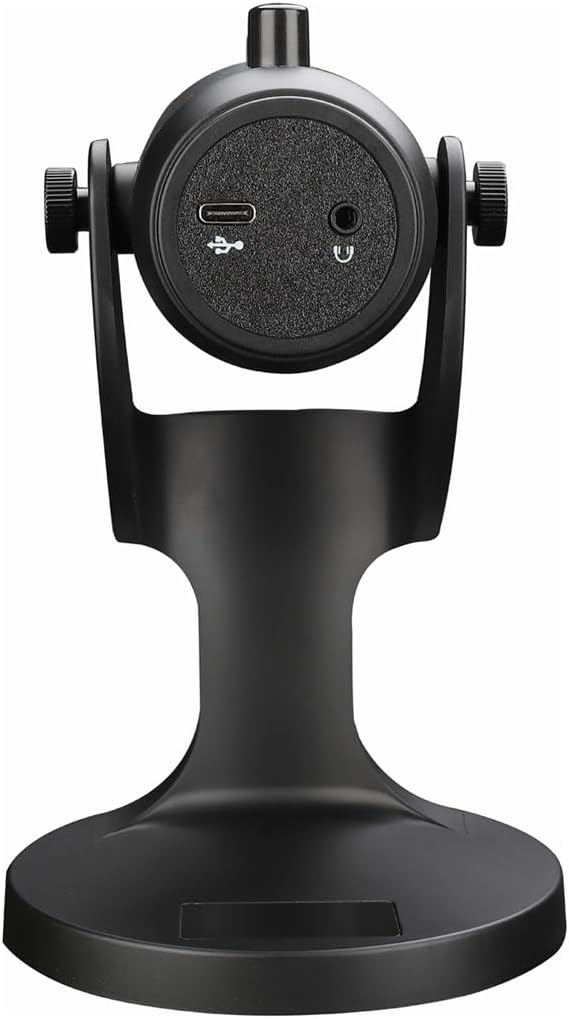
2.1 pav.: galinis view of the havit GK59 Gaming Microphone, highlighting the USB-C port for data and power, and the 3.5mm headphone jack for monitoring.
After connecting, ensure the microphone is selected as the default input device in your system's sound settings or your gaming/streaming software.
3. Naudojimo instrukcijos
3.1 Pagrindiniai valdikliai
The havit GK59 features intuitive controls located on the front of the microphone body:
- Nutildymo mygtukas: Press to mute or unmute the microphone. An indicator light will typically show the mute status.
- Mikrofono +/- mygtukai: Adjust the microphone input sensitivity (gain). Press '+' to increase, '-' to decrease.
- VOL +/- mygtukai: Adjust the headphone output volume for monitoring. Press '+' to increase, '-' to decrease.
- ECHO +/- mygtukai: Adjust the echo effect level. Press '+' to increase, '-' to decrease.
3.1 pav. Išsamus view of the microphone's control panel, including the mute button, microphone gain, volume, and echo adjustment buttons.
3.2 Adjusting Microphone Position
The microphone is equipped with an adjustable stand, allowing you to optimize its position for best sound capture and comfort.
- Gently hold the microphone body and the base of the stand.
- Tilt the microphone forward or backward to achieve the desired angle. The stand's design helps reduce vibration and abnormal sounds during use.
- Position the microphone approximately 6-12 inches (15-30 cm) from your mouth for optimal voice clarity.

Figure 3.2: The havit GK59 microphone demonstrating its adjustable tilt feature on the stand, designed for anti-vibration.
4. Priežiūra
4.1 Valymas
To maintain the microphone's performance and appearance:
- Disconnect the microphone from its power source before cleaning.
- Išoriniams paviršiams valyti naudokite minkštą, sausą šluostę.
- Nenaudokite skystų valiklių, aerozolių ar tirpiklių, nes jie gali pažeisti apdailą ar vidinius komponentus.
4.2 Saugykla
When not in use, store the microphone in a cool, dry place away from direct sunlight and extreme temperatures. Protect it from dust and moisture.
5. Problemų sprendimas
If you encounter issues with your havit GK59 Gaming Microphone, please refer to the following table for common problems and solutions:
| Problema | Galima priežastis | Sprendimas |
|---|---|---|
| No sound input from microphone | Mikrofonas netinkamai prijungtas Pasirinktas neteisingas įvesties įrenginys Mikrofonas nutildytas | Įsitikinkite, kad USB kabelis yra tvirtai prijungtas. Check system sound settings and select GK59 as input. Press the Mute button on the microphone to unmute. |
| Žemas mikrofono garsumas | Microphone gain too low System input volume too low | Press the 'MIC +' button on the microphone. Adjust input volume in your system's sound settings. |
| Iškraipytas arba neaiškus garsas | Microphone gain too high Mikrofonas per arti burnos Aplinkos triukšmas | Press the 'MIC -' button on the microphone. Adjust microphone position (6-12 inches from mouth). Sumažinkite foninį triukšmą savo aplinkoje. |
| No headphone monitoring sound | Ausinės neprijungtos Headphone volume too low | Ensure headphones are plugged into the 3.5mm jack. Press the 'VOL +' button on the microphone. |
6. Techninės specifikacijos
Below are the technical specifications for the havit GK59 Gaming Microphone:
| Funkcija | Specifikacija |
|---|---|
| Prekės ženklas | pasisekimas |
| Modelio numeris | 59 GK |
| Ryšio technologija | USB, 3.5 mm Jack (Auxiliary) |
| Rekomenduojami naudojimo būdai | Žaidimas |
| Polinis raštas | Vienakryptis |
| Mikrofono formos faktorius | Handheld (with desktop stand) |
| Prekės svoris | 429 gramų |
| Varža | 250 omai |
| Signalo ir triukšmo santykis | 18 dB |
| Garsinis triukšmas | 18 decibelų |
| Maitinimo šaltinis | Laidinis elektrinis (per USB) |
| Suderinami įrenginiai | Gaming Consoles, PCs |
| Prekės matmenys (IxPxH) | 5.59 x 4.92 x 9.06 colio |
| Spalva | Juoda |
7. Garantija ir palaikymas
7.1 Informacija apie garantiją
The havit GK59 Gaming Microphone comes with a standard manufacturer's warranty. Please refer to the warranty card included in your product packaging or visit the official havit websvetainėje, kurioje pateikiamos išsamios garantijos sąlygos.
7.2 Pagalba klientams
For technical assistance, troubleshooting not covered in this manual, or warranty claims, please contact havit customer support through their official channels. You can find more information and contact details on the „Havit“ parduotuvė „Amazon“ platformoje arba jų pareigūnas websvetainę.