
TENVIS IP602W
TENVIS IP602W Outdoor IP Camera User Manual
Model: IP602W
Prekės ženklas: TENVIS
Įvadas
The TENVIS IP602W is a robust outdoor IP camera designed for reliable surveillance. It offers broad compatibility, supporting not only Windows OS but also Mac OS and other platforms accessible via an internet browser. Its design facilitates easy installation, allowing for wall mounting and wireless connectivity.
Equipped with a 1/4 CMOS image sensor and a 6mm lens, the IP602W delivers video at a maximum frame rate of 30 frames per second, with a resolution of up to 640 x 480 pixels. For low-light and nighttime environments, the camera features 30 infrared LEDs, providing high levels of invisible light for clear visibility. Mobile viewing is supported across multiple platforms via 3G networks, including iPhone, Android, Windows Mobile, and Java phones, enabling remote monitoring from any location with internet access.
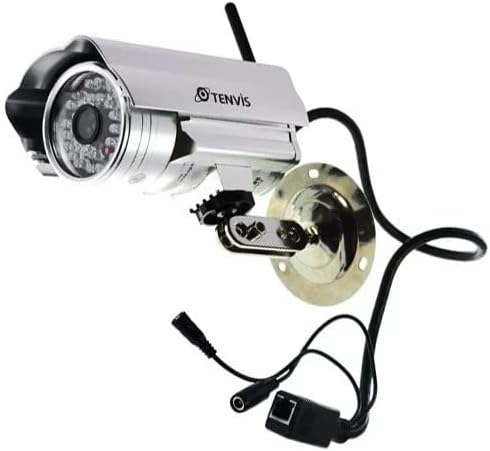
Image: The TENVIS IP602W Outdoor IP Camera, showcasing its durable build, integrated mounting bracket, and connectivity cables.
Kas yra dėžutėje
Atidarę pakuotę, patikrinkite, ar yra visi šie komponentai:
- 1 x IP602W WiFi IP Camera
- 1 x Power Adaptor (AU Plug)
- 1x WiFi antena
- 1 x montavimo kronšteinas
- 1 x CD (containing software/drivers)
- 1 x varžtų rinkinys tvirtinimui
- 1 x Vartotojo vadovas

Image: All components included in the TENVIS IP602W package, laid out for verification.
Produkto savybės
The TENVIS IP602W camera is equipped with several key features to enhance its performance and usability:
- Naktinė versija: Integrated infrared LEDs provide clear visibility in low-light and complete darkness.
- Belaidis palaikymas: Connects to your network via Wi-Fi for flexible placement.
- Metal and Waterproof Shell: Designed for outdoor use with a durable, weather-resistant casing.
- Judesio aptikimas: Configurable motion detection alerts for security monitoring.
- Suderinamumas su keliomis platformomis: Palaiko viewing and control from various operating systems and browsers, including Windows, Mac OS, Firefox, Chrome, and Safari.
- Mobilusis View: Access live feeds and controls from mobile devices via 3G network, supporting iPhone, Android, Windows Mobile, and Java phones.

Image: Visual representation of the TENVIS IP602W camera, emphasizing its key features such as night vision and wireless capabilities.
Sąranka ir diegimas
Komponento identifikavimas
Familiarize yourself with the camera's ports and components before installation:
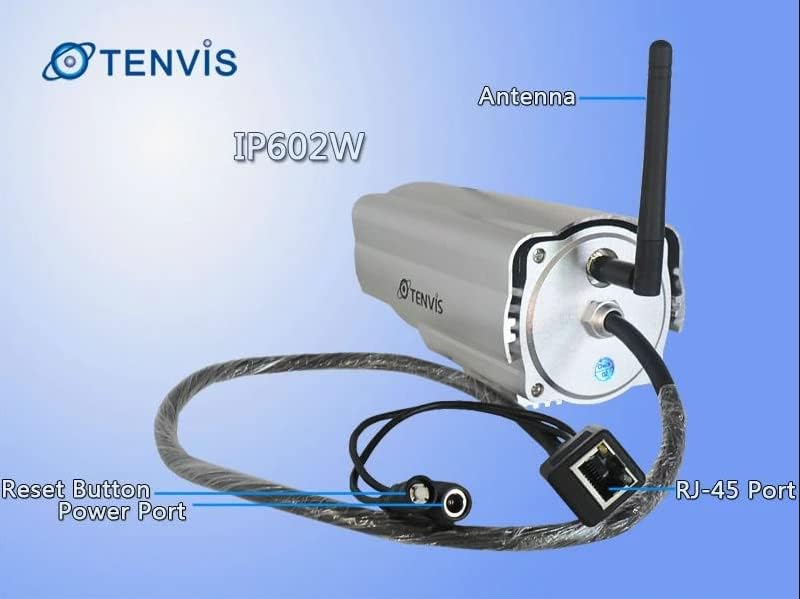
Vaizdas: Išsamus view of the TENVIS IP602W camera's rear, showing the antenna, RJ-45 Ethernet port, power input, and reset button.
- Antena: Dėl belaidžio tinklo ryšio.
- RJ-45 prievadas: For wired Ethernet connection to your router.
- Maitinimo prievadas: Čia prijunkite pridedamą maitinimo adapterį.
- Atkūrimo mygtukas: Naudojamas gamykliniams numatytiesiems nustatymams atkurti.
Tinklo ryšys
The IP602W can connect to your network wirelessly or via an Ethernet cable. For initial setup, a wired connection is often recommended for stability.

Image: Network diagram showing how the IP602W camera connects to a router, allowing access from a LAN PC, Internet PC, and 3G phone.
- Connect the camera to your router using an Ethernet cable (if using wired setup).
- Prijunkite maitinimo adapterį prie fotoaparato ir įjunkite jį į elektros lizdą.
- Allow the camera a few minutes to power on and initialize.
- Refer to the included CD or the TENVIS website for software installation and detailed network configuration instructions, especially for wireless setup.
Montavimas
The camera comes with a mounting bracket for easy installation on a wall or other suitable surface. Ensure the mounting location provides a clear view and is within range of your Wi-Fi signal or Ethernet cable.
- Choose a suitable outdoor location for mounting.
- Naudokite tvirtinimo laikiklį kaip šabloną gręžtoms skylėms pažymėti.
- Drill the necessary holes and insert wall anchors if required.
- Pritvirtinkite tvirtinimo laikiklį prie paviršiaus naudodami pateiktus varžtus.
- Attach the camera to the mounting bracket and adjust its angle for optimal viewing.
Operacija
Once the camera is set up and connected to your network, you can begin monitoring. The IP602W supports various viewing methods:
- PC/Mac Access: Use the provided software or a compatible web browser (Firefox, Chrome, Safari) to access the camera's live feed and settings from your computer.
- Mobile Device Access: Download the TENVIS mobile application (if available) or use a compatible mobile browser on your iPhone, Android, Windows Mobile, or Java phone to view the camera remotely via a 3G network connection.
- Vaizdo įrašo kokybė: The camera streams video at up to 640x480 resolution with a frame rate of 30fps, providing clear and smooth surveillance footage.
- Judesio aptikimas: Configure motion detection settings through the camera's interface to receive alerts when movement is detected in the monitored area.
Priežiūra
Regular maintenance helps ensure the longevity and optimal performance of your TENVIS IP602W camera:
- Valymas: Reguliariai valykite kameros objektyvą ir korpusą minkšta šluosteamp skudurėliu. Venkite abrazyvinių valiklių ar tirpiklių.
- Kabelio apžiūra: Check all cables (power, Ethernet) for any signs of wear, damage, or loose connections.
- Firmware atnaujinimai: Check the TENVIS official website periodically for any available firmware updates. Keeping the firmware updated can improve performance and security.
- Aplinkosaugos patikrinimai: Ensure the camera's mounting remains secure and that no obstructions are blocking its field of view.
Trikčių šalinimas
If you encounter issues with your IP602W camera, try the following steps:
- Nėra galios: Įsitikinkite, kad maitinimo adapteris yra tvirtai prijungtas tiek prie kameros, tiek prie veikiančio elektros lizdo.
- Nėra tinklo ryšio:
- Laidinio ryšio atveju patikrinkite Ethernet kabelio ir maršrutizatoriaus būseną.
- For wireless connection, ensure the Wi-Fi antenna is properly attached and the camera is within range of your router. Verify Wi-Fi settings in the camera's configuration.
- Nepavyksta pasiekti kameros: Verify the camera's IP address. Ensure your computer or mobile device is on the same network or has proper internet access for remote viewing. Check firewall settings on your computer.
- Prasta vaizdo kokybė: Ensure the lens is clean. Check network bandwidth and signal strength.
- Kameros nustatymas iš naujo: If issues persist, use the reset button (refer to Component Identification) to restore factory default settings. You will need to reconfigure the camera after a reset.
Specifikacijos
| Funkcija | Detalė |
|---|---|
| Modelio pavadinimas | IP602W |
| Prekės ženklas | TENVIS |
| Naudojimas viduje / lauke | Lauke |
| Ryšio technologija | Belaidis ryšys (Wi-Fi) |
| Valdiklio tipas | Android (and other platforms) |
| Montavimo tipas | Sieninis laikiklis |
| Vaizdo įrašymo raiška | 480p (640 x 480) |
| Kadrų dažnis | 30 kadrų per sekundę |
| Nuotraukų jutiklių technologija | CMOS (1/4 colio) |
| Objektyvas | 6 mm |
| Silpnos šviesos technologija | Night Color (Infrared LEDs) |
| Įspėjimo tipas | Tik judėjimas |
| Gaminio matmenys | 10 x 9.5 x 4 colio |
| GTIN | 06928446299816 |
Garantija ir palaikymas
For warranty information, technical support, or further inquiries regarding your TENVIS IP602W camera, please refer to the official TENVIS website or contact their customer service directly. The included CD may also contain support contact details.
You can visit the official TENVIS store for more information: TENVIS Store on Amazon
Ask a question about this manual
Ask about setup, troubleshooting, compatibility, parts, safety, or missing instructions. Manuals+ will review the question and use this page’s manual context to help answer it.