
1. Įvadas
This manual provides detailed instructions for the installation, operation, and maintenance of your Avision FB25 Flatbed Scanner. The FB25 is a high-resolution A4 color flatbed scanner designed for efficient document and ID card scanning. It features a 1200dpi Contact Image Sensor (CIS) and USB 2.0 connectivity, making it suitable for various scanning tasks. Please read this manual thoroughly before using the scanner to ensure proper operation and to maximize its performance.
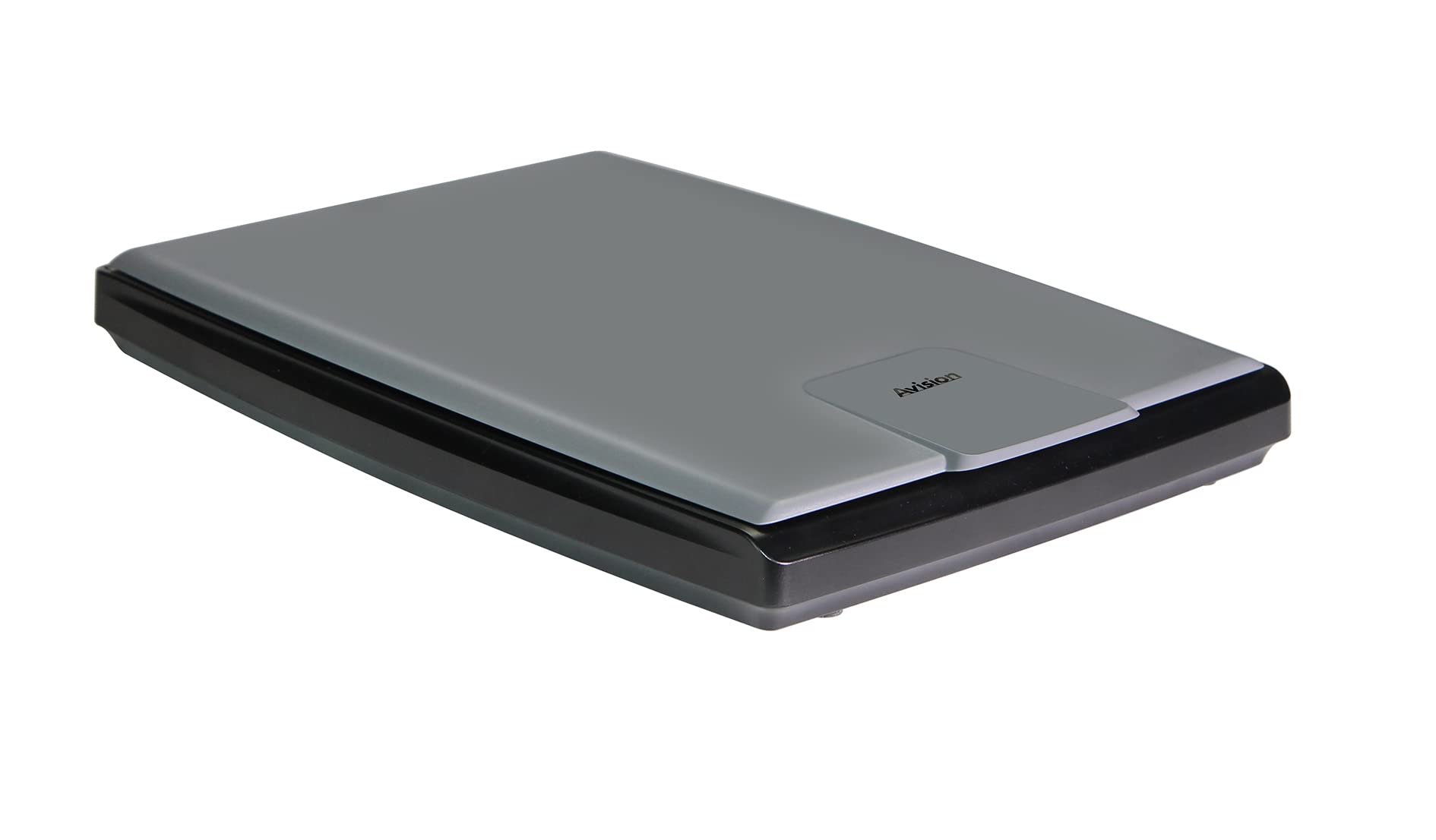
1.1 paveikslėlis: Iš viršaus į apačią view of the Avision FB25 Flatbed Scanner. The scanner features a dark gray base with a lighter gray lid, displaying the 'Avision' logo prominently on the lid's front section.
2. Saugos informacija
- Saugokite skaitytuvą nuo vandens ar drėgmės.
- Nebandykite ardyti ar modifikuoti skaitytuvo. Visus techninės priežiūros darbus patikėkite kvalifikuotiems darbuotojams.
- Naudokite tik su skaitytuvu pateiktą maitinimo adapterį.
- Place the scanner on a stable, level surface to prevent damage from falling.
- Skaitytuvą laikykite atokiau nuo tiesioginių saulės spindulių ir šilumos šaltinių.
- Užtikrinkite tinkamą vėdinimą aplink skaitytuvą, kad jis neperkaistų.
3. Pakuotės turinys
Patikrinkite, ar pakuotėje yra visi reikalingi daiktai:
- Avision FB25 Flatbed Scanner Unit
- USB 2.0 kabelis
- Maitinimo adapteris
- Greitos pradžios vadovas
- Software CD (or download instructions for TWAIN Driver and PaperPort SE14)
4. Produktas baigtasview
The Avision FB25 is a compact flatbed scanner. Its design includes a scanning bed for documents up to A4 size, a hinged lid, and a power/data interface.

Image 4.1: The Avision FB25 Flatbed Scanner shown with its approximate dimensions: 16.77 inches in length, 13.65 inches in width, and 3.12 inches in height.
4.1 Priekis View
The front of the scanner typically features the Avision logo on the lid. There are no physical buttons on the front.
4.2 Galinis View
The rear panel houses the power input port and the USB 2.0 port for connecting to your computer.
4.3 Scanning Bed
The flat glass surface where documents are placed for scanning. Ensure this surface is clean before each use.
5. Sąranka
5.1 Techninės įrangos prijungimas
- Padėkite skaitytuvą ant stabilaus, lygaus paviršiaus.
- Connect the power adapter to the scanner's power input port and then plug it into an electrical outlet.
- Connect one end of the USB 2.0 cable to the scanner's USB port and the other end to an available USB port on your computer.
- Power on the scanner (if it has a power button; otherwise, it powers on automatically when connected).
5.2 Programinės įrangos diegimas
The Avision FB25 requires driver software for proper operation. It supports Windows XP, Vista, 7, 8, 10, and 11.
- Insert the provided Software CD into your computer's CD/DVD drive. If your computer does not have a CD/DVD drive, download the latest drivers and software (TWAIN Driver and PaperPort SE14) from the official Avision support websvetainę.
- Follow the on-screen instructions to install the TWAIN driver. The TWAIN driver allows the scanner to communicate with various scanning applications.
- Install PaperPort SE14, the bundled document management software. This software provides an intuitive interface for scanning, organizing, and sharing documents.
- Restart your computer after the installation is complete to ensure all drivers are properly loaded.
6. Naudojimo instrukcijos
6.1 Placing Documents
- Pakelkite skaitytuvo dangtį.
- Place the document face-down on the scanning glass, aligning it with the corner guide (usually top-left).
- Gently close the scanner lid. Ensure the document lies flat against the glass.
6.2 Using the TWAIN Driver
The TWAIN driver allows you to scan directly from TWAIN-compliant applications (e.g., Adobe Photoshop, Microsoft Paint, or other document management software).
- Open your preferred TWAIN-compliant application.
- Navigate to the 'File' menu and select 'Import' or 'Acquire Image'.
- Choose the Avision FB25 scanner from the list of available devices.
- The TWAIN driver interface will appear, allowing you to adjust scanning settings such as resolution (up to 1200dpi), color mode (color, grayscale, black & white), and scan area.
- Click 'Scan' to initiate the scanning process. The FB25 can scan an A4 color page at 300 dpi in approximately 1.5 seconds.
- The scanned image will appear in your application.
6.3 Using PaperPort SE14
PaperPort SE14 provides a user-friendly environment for scanning and managing your documents.
- Launch PaperPort SE14 from your desktop or Start menu.
- In the PaperPort interface, locate the 'Scan' button or option.
- Select the Avision FB25 as your scanner.
- Adjust scanning settings as needed (e.g., resolution, color, document type).
- Click 'Scan' to begin. The scanned document will appear in your PaperPort workspace.
- You can then save the document in various formats including BMP, PNG, GIF, JPEG, Single-Page PDF, Multi-Page PDF, Multi-TIFF, TIFF, RTF, TXT, OCR, XPS, DOC, XLS, PPT, DOCS, XLSX, PPTX, and HTML.
7. Priežiūra
7.1 Skaitytuvo stiklo valymas
Dust or smudges on the scanner glass can affect scan quality.
- Išjunkite skaitytuvą ir atjunkite maitinimo adapterį.
- Atidarykite skaitytuvo dangtį.
- Gently wipe the glass surface with a soft, lint-free cloth dampnuvalykite švelniu stiklo valikliu. Nepurkškite valiklio tiesiai ant stiklo.
- Wipe dry with another clean, dry cloth.
- Close the lid and reconnect power.
7.2 Bendroji priežiūra
- Keep the scanner covered when not in use to prevent dust accumulation.
- Avoid placing heavy objects on the scanner lid.
8. Problemų sprendimas
If you encounter issues with your Avision FB25 scanner, refer to the following common problems and solutions:
| Problema | Galima priežastis | Sprendimas |
|---|---|---|
| Kompiuteris neaptiko skaitytuvo. | Loose USB cable, power not connected, driver not installed. | Check USB and power connections. Ensure the scanner is powered on. Reinstall the TWAIN driver. Try a different USB port. |
| Prasta nuskaitymo kokybė (dryžiai, neryškūs vaizdai). | Dirty scanner glass, incorrect resolution settings, document not flat. | Clean the scanner glass (refer to Section 7.1). Adjust resolution settings in the scanning software. Ensure the document is placed flat. |
| Scanning software crashes or freezes. | Outdated driver, software conflict, insufficient system resources. | Update the TWAIN driver and PaperPort SE14 to the latest versions. Close other applications. Restart the computer. |
| Skaitytuvas neįsijungia. | Neprijungtas maitinimo adapteris, sugedęs maitinimo lizdas. | Check power adapter connection to scanner and outlet. Try a different power outlet. Ensure the power adapter is functional. |
9. Specifikacijos
Key technical specifications for the Avision FB25 Flatbed Scanner:
- Skaitytuvo tipas: Document, ID Card Flatbed
- Optinio jutiklio technologija: NVS (kontaktinis vaizdo jutiklis)
- Šviesos šaltinio tipas: LED
- Optinė skiriamoji geba: 1200 dpi
- Spalvos gylis: 48-bit input, 24-bit output
- Grayscale Depth: 16-bit input, 8-bit output
- Scan Size (Max): A4 (216 x 297 mm)
- Nuskaitymo greitis: Approximately 1.5 seconds per A4 color page at 300 dpi (3.5 seconds including return)
- Ryšys: USB 2.0
- Gaminio matmenys (G x P x A): 16.93 colio x 13.78 colio x 3.15 colio (430 mm x 350 mm x 80 mm)
- Standartinė lapo talpa: 1 (flatbed)
- Minimalūs sistemos reikalavimai: „Windows XP“, „Vista“, 7, 8, 10, 11
- Komplektuojama programinė įranga: TWAIN Driver, PaperPort SE14
- Palaikoma File Formatai: BMP, PNG, GIF, JPEG, Single-Page PDF, Multi-Page PDF, Multi-TIFF, TIFF, RTF, TXT, OCR, XPS, DOC, XLS, PPT, DOCS, XLSX, PPTX, HTML
10. Garantija ir palaikymas
10.1 Gamintojo garantija
The Avision FB25 Flatbed Scanner comes with a 1 metų gamintojo garantijaŠi garantija taikoma medžiagų ir gamybos defektams, atsiradusiems įprasto naudojimo metu garantiniu laikotarpiu. Prašome išsaugoti pirkimo įrodymą, jei norėtumėte pateikti pretenzijas dėl garantijos.
10.2 Techninė pagalba
For technical assistance, driver updates, or further troubleshooting not covered in this manual, please visit the official Avision support website or contact their customer service department. Contact information can typically be found on the Avision websvetainėje arba prie jūsų produkto pridėtame greitojo paleidimo vadove.