
Įvadas
This user manual provides essential information for setting up, operating, maintaining, and troubleshooting your MI Xiaomi Notebook Ultra. Please read this manual thoroughly before using your device to ensure proper function and longevity. Keep this manual for future reference.
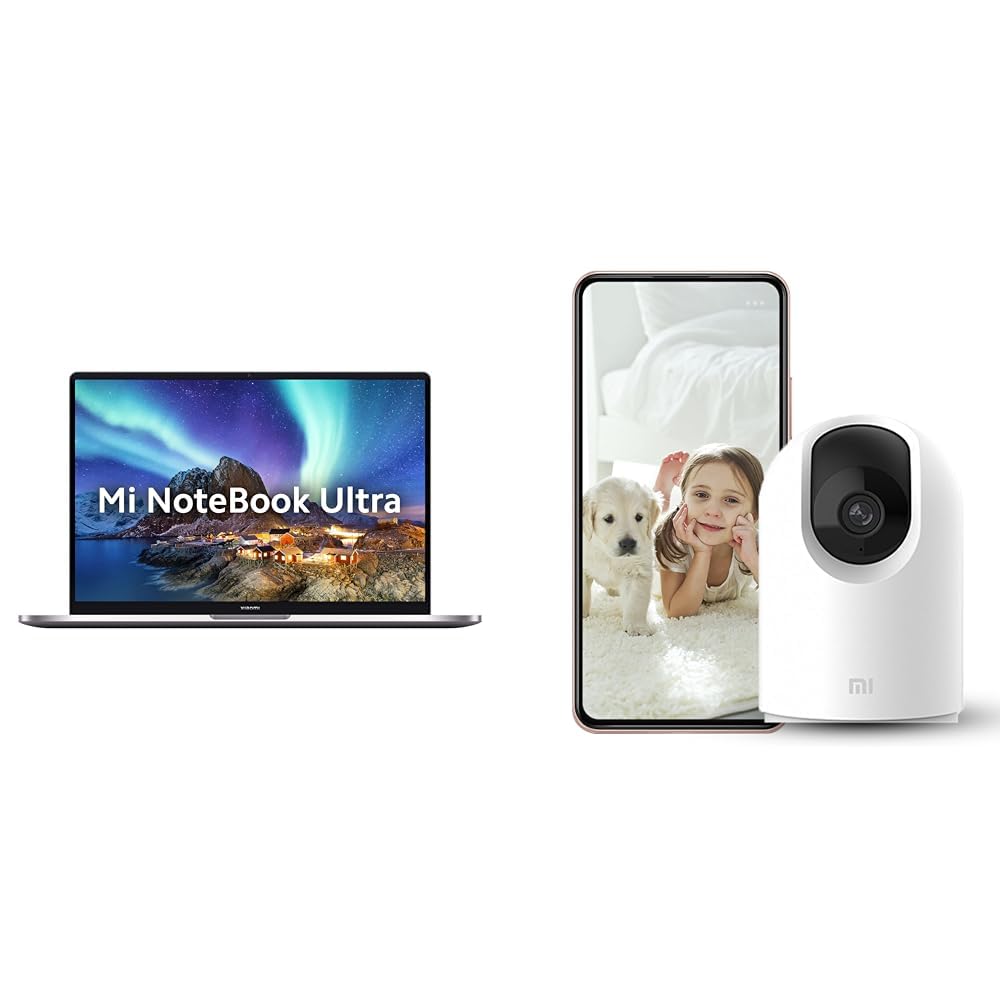
Image: The MI Xiaomi Notebook Ultra laptop, showcasing its display with a scenic wallpaper.
Produktas baigtasview
The MI Xiaomi Notebook Ultra is a thin and light laptop designed for performance and portability. It features an 11th Gen Intel Core i5-11320H processor, a high-resolution 3.2K IPS display, and integrated Intel Iris Xe Graphics. This section details the main components and features of your new laptop.
Pagrindinės funkcijos:
- Procesorius: 11th Gen Intel Tiger Lake Core i5-11300H processor with speeds up to 4.4 GHz, 4 cores, 8 threads, and 8 MB Cache.
- Ekranas: 39.62 cm (15.6-inch) IPS 3.2K resolution (3200x2000) with 16:10 aspect ratio, 100% sRGB, 90Hz refresh rate, 241 PPI, 1500:1 contrast ratio, anti-glare, and TUV Low blue light certification.
- Atmintis ir saugojimas: 8GB DDR4 3200 MHz RAM and 512GB PCIe NVMe M.2 SSD.
- Operating System & Software: Pre-installed Windows 11 Home and Microsoft Office Home and Student 2021.
- Grafika: Integrated Intel Iris Xe graphics.
- Ryšys: Dual Band Wi-Fi and Bluetooth.
- Saugumas: Fingerprint Recognition.
- Prievadai: Includes Thunderbolt 4 and USB Type-C ports.

Paveikslėlis: Viršview of the MI Xiaomi Notebook Ultra's key features, including its 3.2K display, all-metal design, 90Hz refresh rate, 12-hour battery, thin and light profile, Thunderbolt 4, USB Type-C, Intel Core i5/i7 H35 processor, 8/16GB RAM, 512GB SSD, Wi-Fi 6, and fingerprint reader.

Paveikslėlis: Šoninis profesionalasfile of the MI Xiaomi Notebook Ultra, highlighting the various ports including Thunderbolt 4 and USB Type-C.
Sąrankos vadovas
1. Išpakavimas ir pirminė apžiūra:
Carefully remove the laptop and all accessories from the packaging. Check for any visible damage. Ensure all components listed in the packaging are present.
2. Maitinimo prijungimas:
- Connect the power adapter to the laptop's USB Type-C charging port.
- Įkiškite maitinimo laidą į sieninį lizdą.
- Prieš pirmą kartą naudodami nešiojamąjį kompiuterį, leiskite jam įsikrauti bent 30 minučių arba tol, kol akumuliatoriaus indikatorius rodys pakankamą įkrovą.
3. Initial Boot and Windows Setup:
- Atidarykite nešiojamojo kompiuterio dangtį ir paspauskite maitinimo mygtuką.
- Vykdykite ekrane pateikiamus nurodymus, kad užbaigtumėte „Windows 11 Home“ sąrankos procesą. Tai apima regiono, kalbos pasirinkimą, prisijungimą prie „Wi-Fi“ tinklo ir vartotojo paskyros sukūrimą.
- Register your Microsoft account if prompted to activate Windows and Microsoft Office Home and Student 2021.
4. Periferinių įrenginių prijungimas:
You can connect external displays, wireless keyboards, mice, webcams, and other Bluetooth/Wi-Fi enabled devices. Refer to the device's specific instructions for pairing or connecting.
- USB įrenginiai: Use the available USB Type-C or Thunderbolt 4 ports.
- Bluetooth įrenginiai: Enable Bluetooth on your laptop via Windows settings and pair with your device.
- Išorinis ekranas: Connect an external monitor using a compatible cable to the Thunderbolt 4 port (which supports display output).
Naudojimo instrukcijos
Galios valdymas:
- Maitinimas: Paspauskite maitinimo mygtuką, esantį klaviatūros bloke.
- Miegojimo rezimas: Uždarykite dangtį arba „Windows“ meniu Pradėti pasirinkite „Miego režimas“.
- Išjungti: „Windows“ meniu Pradėti pasirinkite „Išjungti“.
- Paleisti iš naujo: „Windows“ meniu Pradėti pasirinkite „Paleisti iš naujo“.
Ekrano naudojimas:
Your laptop features a 3.2K IPS display with a 90Hz refresh rate. You can adjust display settings (resolution, refresh rate, brightness) through Windows Display Settings. The anti-glare coating helps reduce reflections, and TUV Low blue light certification aims to reduce eye strain.
Pirštų atspaudų atpažinimas:
The integrated fingerprint sensor allows for secure and quick login. To set up, navigate to Windows Settings > Accounts > Sign-in options and follow the instructions to register your fingerprint.
Klaviatūra ir jutiklinė dalis:
The laptop includes a full-sized keyboard and a precision touchpad. Customize touchpad gestures and keyboard backlight settings (if available) through Windows Settings.
Garsas:
The laptop is equipped with integrated speakers. Adjust volume using the function keys or Windows sound settings.
Webkumštelis:
Integruotas webcam can be used for video calls and conferences. Ensure the physical lens shield is open when using the webcam. Manage webKameros privatumo nustatymai sistemoje „Windows“.
Priežiūra
Valymas:
- Ekranas: Lengvai naudokite minkštą, nepūkuotą audinį dampnuplaukite vandeniu arba ekrano valikliu. Nepurkškite skysčio tiesiai ant ekrano.
- Klaviatūra ir korpusas: Naudokite minkštą, sausą šluostę. Įsisenėjusius nešvarumus lengvai nuvalykite.amp Galima naudoti audinį. Venkite stiprių cheminių medžiagų.
- Prievadai: Keep ports free of dust and debris. Use compressed air if necessary, but do so gently.
Akumuliatoriaus priežiūra:
- Venkite dažnai visiškai iškrauti akumuliatorių.
- Store the laptop in a cool, dry place if not used for extended periods, with the battery charged to around 50%.
- Naudokite tik originalų maitinimo adapterį, pateiktą kartu su nešiojamuoju kompiuteriu.
Programinės įrangos atnaujinimai:
Regularly update Windows, drivers, and other software to ensure optimal performance and security. You can check for updates via Windows Settings.
Trikčių šalinimas
Šiame skyriuje pateikiami dažniausiai pasitaikančių problemų, su kuriomis galite susidurti, sprendimai. Jei problema išlieka, susisiekite su klientų aptarnavimo tarnyba.
No Power / Laptop Not Turning On:
- Įsitikinkite, kad maitinimo adapteris yra tvirtai prijungtas tiek prie nešiojamojo kompiuterio, tiek prie veikiančio maitinimo lizdo.
- Patikrinkite, ar maitinimo lizdas veikia, prijungdami prie jo kitą įrenginį.
- Jei akumuliatorius visiškai išsikrovęs, prieš bandydami įjungti, leiskite jam įkrauti bent 30 minučių.
Rodymo problemos:
- Tuščias ekranas: Try connecting an external monitor to check if the laptop is outputting video. If the external monitor works, there might be an issue with the laptop's internal display.
- Blankus ekranas: Adjust brightness using the function keys or Windows Display Settings.
- Neteisinga skiriamoji geba: Adjust the display resolution in Windows Display Settings.
Wi-Fi / Bluetooth Connectivity Problems:
- Ensure Wi-Fi and Bluetooth are enabled in Windows Settings.
- Iš naujo paleiskite maršrutizatorių / modemą, jei kyla „Wi-Fi“ problemų.
- Jei naudojate „Bluetooth“, pabandykite įrenginį atjungti ir susieti iš naujo.
- Atnaujinkite tinklo plokštės tvarkykles per Įrenginių tvarkytuvę.
Lėtas našumas:
- Uždarykite nereikalingas programas, veikiančias fone.
- Patikrinkite, ar yra laukiančių „Windows“ naujinimų, ir įdiekite juos.
- Run a disk cleanup and defragmentation (for HDDs, though this laptop has SSD).
- Nuskaitykite, ar nėra kenkėjiškų programų ar virusų.
Included Accessory: Mi 360° Home Security Camera 2K Pro
Your MI Xiaomi Notebook Ultra package includes a Mi 360° Home Security Camera 2K Pro. This camera offers enhanced home surveillance with 2K resolution and smart features. Please refer to the separate user manual provided with the camera for detailed setup and operation instructions.
Key Features of the Camera:
- Rezoliucija: 2K Video Resolution Quality.
- Ryšys: Dviejų dažnių „Wi-Fi“.
- Saugumas: Physical lens shield.
- Garsas: Dual-microphone noise reduction.
- Išmaniosios funkcijos: AI Human Detection, Bluetooth gateway.
- Saugykla: Cloud Storage In India.

Image: The Mi 360° Home Security Camera 2K Pro, a white spherical camera with a black lens module.

Image: An illustration of the Mi 360° Home Security Camera 2K Pro's features, including physical shield, dual-microphone noise reduction, dual-band Wi-Fi, Bluetooth gateway, AI Human Detection, and Cloud Storage.

Image: A comparison demonstrating the 2K video resolution quality of the Mi 360° Home Security Camera 2K Pro, showing a clearer image at 1296p compared to 1080p.
Specifikacijos
| Funkcija | Detalė |
|---|---|
| Prekės ženklas | MI |
| Modelio pavadinimas | Xiaomi Notebook Ultra |
| CPU Model Number | 11 kartos „Intel Core i5-11320H“. |
| Procesoriaus greitis | 3.1 GHz (Base) - 4.4 GHz (Max) |
| Procesoriaus šerdys | 4 |
| Ekrano dydis | 39.62 Centimetres (15.6-inch) |
| Ekrano raiška | 3200 x 2000 (3.2K) |
| Ekrano tipas | IPS LED, Anti Glare Coating |
| Atnaujinimo dažnis | 90 Hz |
| Įdiegtos RAM atminties dydis | 8 GB DDR4 3200 MHz |
| Kietojo disko dydis | 512 GB PCIe NVMe M.2 SSD diskas |
| Operacinė sistema | Windows 11 Home |
| Grafikos koprocesorius | „Intel Iris Xe“ grafika (integruota) |
| Belaidė technologija | Bluetooth, Wi-Fi (Dual Band) |
| Biometrinis saugumas | Pirštų atspaudų atpažinimas |
| Prekės svoris | 1.7 kilogramo |
| Spalva | Metalinis |
| Įtraukta programinė įranga | Microsoft Office Home and Student 2021 |
| Baterijos elemento tipas | Ličio polimeras |
Garantija ir palaikymas
For warranty information and customer support, please refer to the warranty card included in your product packaging or visit the official MI support websvetainę. Kreipdamiesi į palaikymo tarnybą, laikykite po ranka pirkimo kvitą ir produkto serijos numerį.
Palaikymas internetu: MI India Support