
Įvadas
Thank you for choosing the AILRINNI 17.3 Inch Portable Monitor. This monitor is designed to provide a high-quality visual experience with its IPS FHD 1080P display, making it ideal for extending your display, gaming, or business presentations on the go. Its slim profile and lightweight design ensure maximum portability. This manual provides essential information for setting up, operating, maintaining, and troubleshooting your new portable monitor.
Kas yra dėžutėje
Patikrinkite pakuotės turinį, kad įsitikintumėte, jog yra visi reikalingi daiktai:
- 1 x AILRINNI 17.3 Inch Portable Monitor
- 1 x Foldable Monitor Smart Case
- 1x ekrano apsauga
- 1 x Mini HDMI į HDMI laidas
- 1 x USB Type-C į Type-C laidas
- 1 x USB-A to Type-C Cable (for power)
- 1 x Charging Head (Power Adapter)
- 1 x Vartotojo vadovas

Image: Package contents showing the portable monitor, smart case, various cables, power adapter, and user manual.
Produkto savybės
- 17.3 Inch IPS FHD 1080P Display: Enjoy crisp, clear visuals with a 1920x1080 resolution and a wide 178° viewing kampas.
- HDR technologija: Enhances image contrast and color for a more dynamic viewpatirtį.
- Dvigubi integruoti garsiakalbiai: Provides audio output without external speakers.
- Universalus ryšys: Features Mini HDMI and Full Function USB-C ports for broad compatibility.
- Nešiojamas dizainas: Plonas 0.4 colio profesionalusfile and lightweight for easy transport.
- Išmanusis dėklas: Included foldable case offers protection and multi-angle viewpasirinkimų.

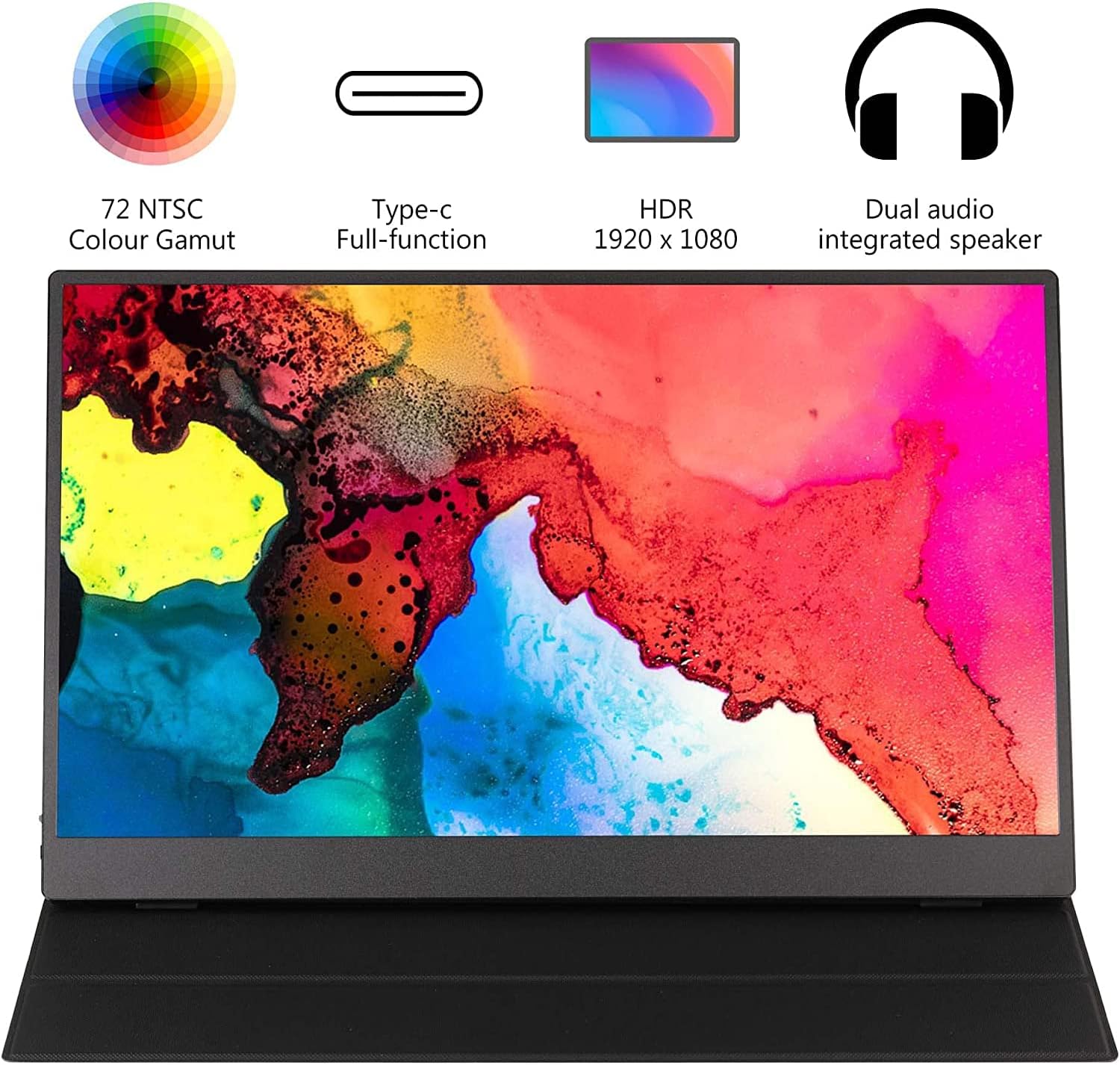
Image: Key features of the monitor, including 72% NTSC color gamut, full-function Type-C, HDR 1080P, and dual speakers.
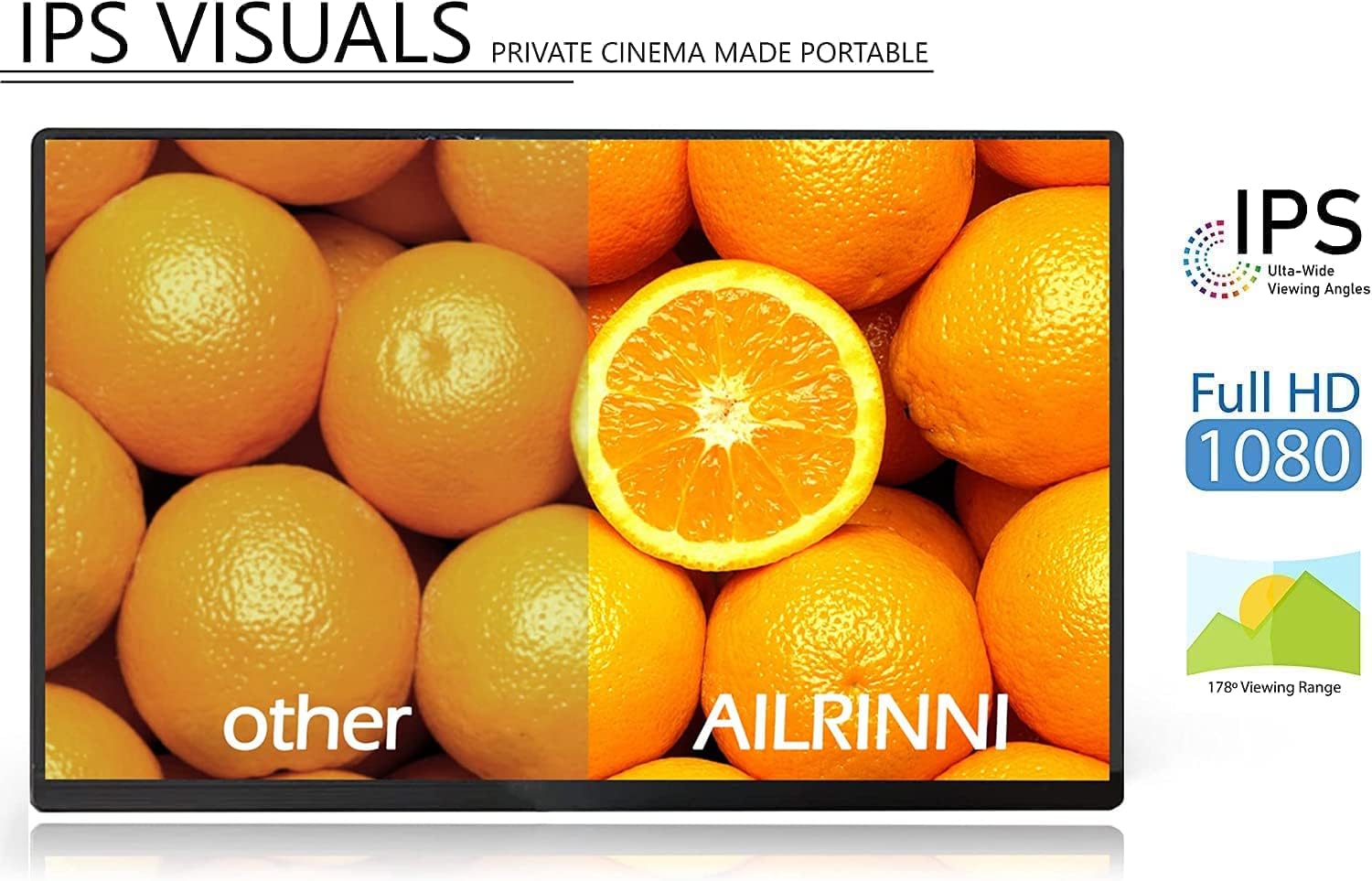
Image: Visual comparison demonstrating the quality of IPS visuals with a 178-degree viewing range and Full HD 1080P.
Sąranka
The AILRINNI portable monitor offers flexible connectivity options. Ensure your device supports the necessary output for optimal performance.
Prisijungimas prie įrenginių
- Using USB-C (Full Function):
If your laptop, phone, or tablet has a full-featured USB-C port (supporting video output and power delivery), connect the monitor using the provided USB Type-C to Type-C cable. This single cable can transmit both video signal and power.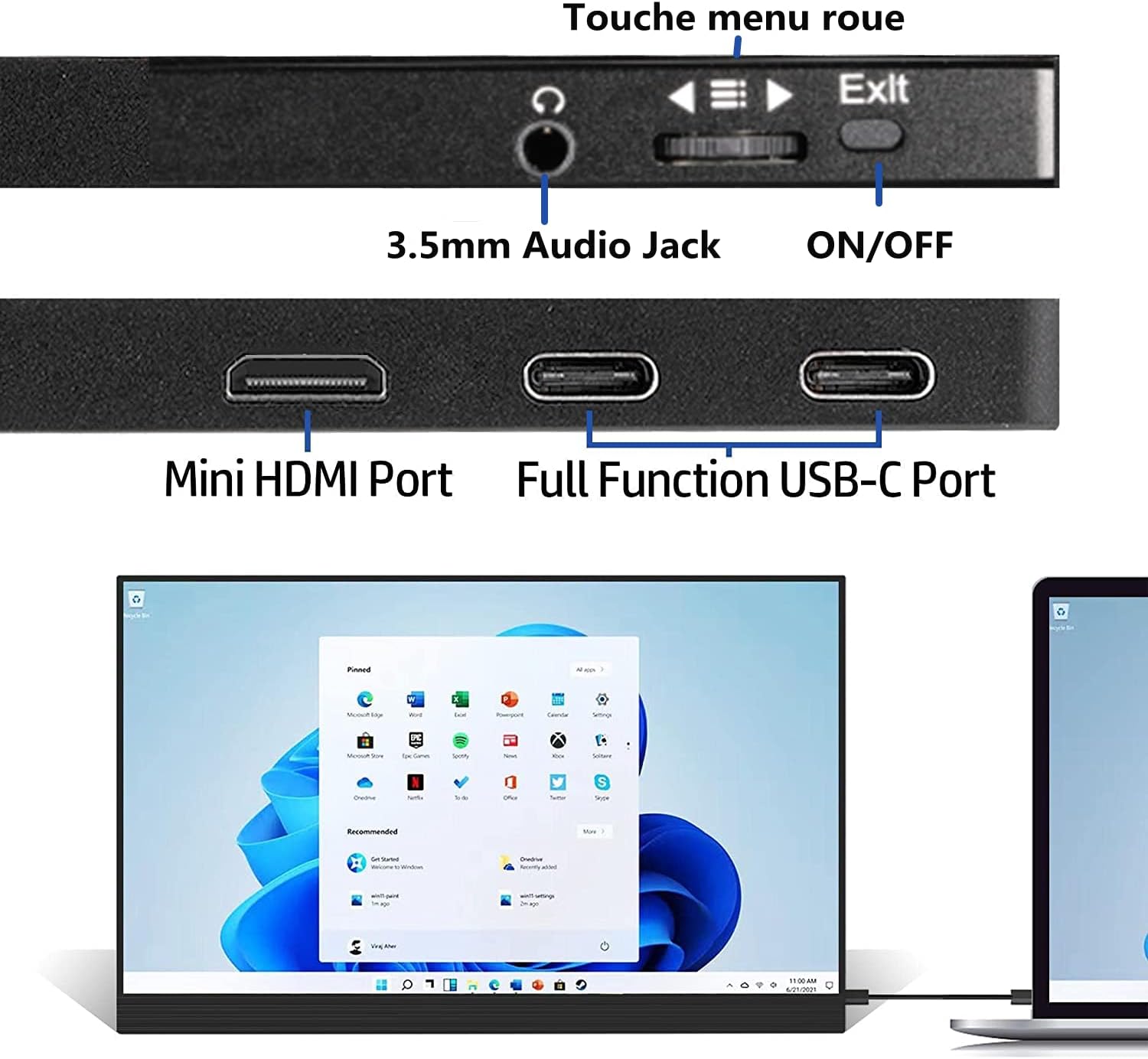
Image: Connecting the portable monitor to a laptop via USB-C for extended display.
- Naudojant mini HDMI jungtį:
For devices with an HDMI output (e.g., PC, gaming consoles like PS4, Xbox, Nintendo Switch), connect the monitor using the provided Mini HDMI to HDMI cable. You will also need to connect the USB-A to Type-C cable to the monitor for power, using the included charging head or another compatible USB power source.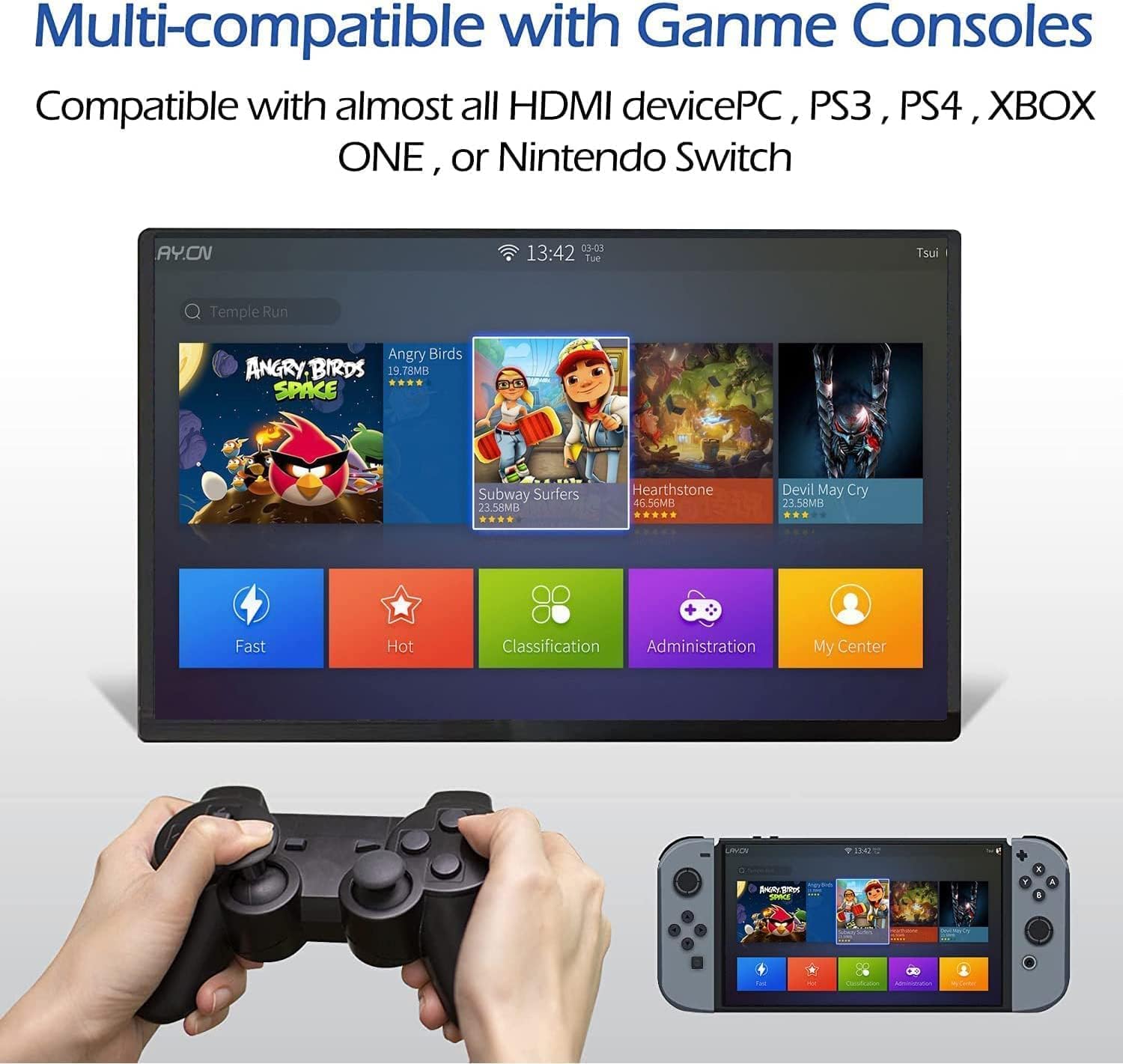
Image: Connecting the portable monitor to a gaming console (Nintendo Switch) via HDMI.
Monitoriaus maitinimas
The monitor can be powered via a full-function USB-C connection from your device or by connecting the USB-A to Type-C cable to the monitor's power input and plugging the USB-A end into the included charging head or a powered USB port.
Monitoriaus valdymas
Pagrindinė operacija
- Maitinimo įjungimas/išjungimas: Use the dedicated ON/OFF button located on the side of the monitor.
- Plug and Play: The monitor is designed for plug-and-play functionality, requiring no driver installation for most compatible devices.
- Ekrano režimai: Supports mirror mode and extended display mode to suit your workflow or entertainment needs.
Ekrano ekrano (OSD) meniu
The monitor features an intuitive OSD menu for adjusting settings such as brightness, contrast, color temperature, and input source. Navigate the menu using the control wheel or buttons usually located on the side of the monitor.
Vaizdas: Šoninė view of the monitor showing input ports (Mini HDMI, USB-C) and control buttons (ON/OFF, menu wheel, audio jack).
Priežiūra
Proper care will extend the life and performance of your portable monitor.
- Ekrano valymas: Šiek tiek naudokite minkštą, be pūkelių šluostę dampnuplaukite vandeniu arba ekrano valymo tirpalu. Venkite stiprių cheminių medžiagų ar abrazyvinių medžiagų.
- Kūno valymas: Wipe the monitor's exterior with a soft, dry cloth.
- Smart Case Care: The included smart case is designed to be anti-scratch and waterproof. Wipe it clean with a damp audinys pagal poreikį.
- Saugykla: When not in use, store the monitor in its smart case to protect it from dust and scratches. Avoid placing heavy objects on top of the monitor.

Image: The magnetic smart cover, demonstrating its protective and versatile features.
Trikčių šalinimas
Jei kyla problemų dėl monitoriaus, žr. šiuos dažniausiai pasitaikančius sprendimus:
- Nėra signalo monitoriuje:
- Ensure the connected device (phone, laptop, console) is powered on and outputting a video signal.
- Verify that the USB-C port on your device is a full-featured Type-C port that supports video output (DisplayPort Alternate Mode). Not all USB-C ports support video.
- Check if the laptop's video card drivers are up to date and functioning correctly.
- Įsitikinkite, kad monitoriaus OSD meniu pasirinktas teisingas įvesties šaltinis.
- Try using different cables or connecting to another device to rule out cable or source device issues.
- Monitorius neįsijungia:
- Ensure the power cable is securely connected to the monitor and a working power source.
- If using USB-C for power, ensure your device provides sufficient power. You may need to use the dedicated power adapter.
- Mirgantis ekranas:
- Patikrinkite kabelių jungtis, ar jos nėra atsilaisvinusios.
- Įsitikinkite, kad maitinimo šaltinis yra stabilus.
- Koreguokite prijungto įrenginio atnaujinimo dažnio nustatymus.
- Nėra garso:
- Check the volume settings on both the monitor and the connected device.
- Ensure the audio output is directed to the monitor from your source device.
Specifikacijos
| Funkcija | Specifikacija |
|---|---|
| Ekrano dydis | 17.3 colių |
| Skydelio tipas | IPS |
| Rezoliucija | 1920 x 1080 (FHD 1080P) |
| Krašto santykis | 16:9 |
| Kontrasto santykis | 800:1 |
| Ryškumas | 250 cd/m² |
| Atnaujinimo dažnis | 60 Hz |
| Reagavimo laikas | 10 ms |
| Viewing kampas | 178° (H/V) |
| Spalvų gama | 72% NTSC |
| Įvesties sąsajos | Mini HDMI, USB Type-C (Full Function) |
| Maitinimo įvestis | C tipo USB |
| Garsiakalbiai | Built-in (1W*2) |
| Ypatingos savybės | Built-In Speakers, Portable, Ultrawide Screen, HDR |
| Modelio numeris | b39df48b-38b9-4e1b-bb3f-e1881ddbdad1 |
Garantija ir palaikymas
The AILRINNI 17.3 Inch Portable Monitor comes with a 3 metų garantija from the date of purchase. This warranty covers manufacturing defects and ensures reliable performance under normal use.
For technical support, warranty claims, or any questions regarding your product, please refer to the contact information provided in your product packaging or visit the official AILRINNI support websvetainę.