
PTZOptics PT30X-4K-GY-G3_EDI_1
„PTZOptics Move 4K“ automatinio sekimo PTZ kameros naudojimo instrukcija
Model: PT30X-4K-GY-G3_EDI_1
Produktas baigtasview
The PTZOptics Move 4K 30x Auto-Tracking PTZ Camera is designed for high-quality video production, offering advanced features such as auto-tracking, auto-framing, and 4K resolution at 60 frames per second. It is suitable for various applications including education, conferences, and live broadcasts. This manual provides essential information for setting up, operating, and maintaining your camera.
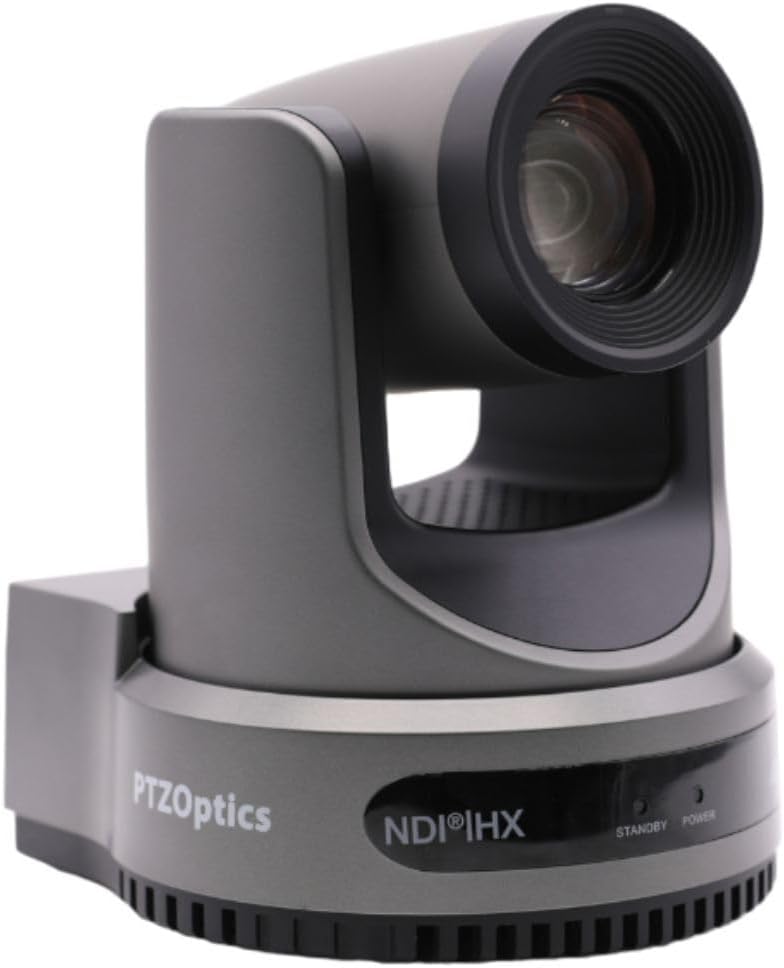
1 pav.: priekis view of the PTZOptics Move 4K Camera.
Išpakavimas ir pakuotės turinys
Upon unboxing your PTZOptics Move 4K camera, ensure all components are present. The package typically includes the following items:
- PTZOptics Move 4K Camera (30X model)
- 12V kintamosios srovės maitinimo šaltinis
- USB AA kabelis
- RS232 kabelis
- Greitos pradžios vadovas
- IR nuotolinio valdymo pultas
- (2) AA baterijos
Video 1: PTZOptics Move 4K Unboxing. This video demonstrates the unboxing process and highlights the included accessories.

2 pav.: šonas view of the PTZOptics Move 4K Camera, showcasing savo elegantišku dizainu.
Sąranka
Follow these steps to set up your PTZOptics Move 4K camera:
- Maitinimo jungtis: Connect the provided 12V AC Power Supply to the DC 12V port on the back of the camera. Alternatively, if your network supports Power over Ethernet (PoE), you can connect an Ethernet cable to the LAN port for both power and data.
- Resolution and Frame Rate Selection: Before powering on, select your desired video resolution and frame rate using the yellow dial labeled "SYSTEM SELECT" on the back of the camera. Refer to the Quick Start Guide or the table on the bottom of the camera for available options.
- Pradinis įjungimas: Once powered, the camera will perform an initial pan and tilt movement. The "POWER" light on the front will illuminate.
- Ryšys: Connect the camera to your live streaming, recording, or conferencing device using the appropriate output ports (USB 2.0, 3G-SDI, or HDMI).

3 pav.: galinis view of the camera, highlighting the various input/output ports including DC 12V, LAN (PoE), USB 2.0, 3G-SDI, HDMI, RS232, RS485, and audio line in/out.
Naudojimo instrukcijos
The PTZOptics Move 4K camera offers multiple control options and features for seamless operation:
- Auto-Tracking and Auto-Framing: Utilize the camera's built-in auto-tracking and auto-framing capabilities to automatically follow a subject or keep multiple subjects framed within the shot.
- Tally Light: A built-in tally light located above the lens indicates whether the camera is live (red) or in preview mode, helping talent stay in sync with the production.
- Valdymo parinktys: The camera can be controlled via the included IR remote, network connection, RS-232, RS-485, Web UI, PTZ Control App, or a Camera Management Platform.
- Vienalaikiai išėjimai: The camera provides simultaneous video outputs via NDI, USB, and IP, along with either SDI or HDMI, allowing for flexible integration into various production workflows.

Figure 4: This diagram illustrates how the PTZOptics camera can be used for live streaming directly to platforms like YouTube and Facebook Live, with audio input via 3.5mm.
Priežiūra
To ensure the longevity and optimal performance of your PTZOptics Move 4K camera, follow these general maintenance guidelines:
- Valymas: Fotoaparato korpusą valykite minkšta, sausa šluoste. Objektyvui valyti naudokite specializuotą objektyvo valymo šluostę ir tirpalą, kad išvengtumėte įbrėžimų. Nenaudokite stiprių cheminių medžiagų ar abrazyvinių medžiagų.
- Apsauga nuo dulkių: Keep the camera in a clean, dust-free environment when not in use. Consider using a dust cover.
- Temperatūra ir drėgmė: Operate and store the camera within recommended temperature and humidity ranges to prevent damage to internal components.
- Firmware atnaujinimai: Periodically check the PTZOptics official website for any available firmware updates. Keeping the firmware updated can improve performance, add new features, and resolve potential issues.
Trikčių šalinimas
If you encounter issues with your PTZOptics Move 4K camera, consider the following troubleshooting steps:
- Nėra galios: Ensure the power supply is securely connected and the power outlet is functional. If using PoE, verify your network switch provides sufficient power.
- Nėra vaizdo išvesties: Check all video cable connections (HDMI, SDI, USB, Ethernet). Verify the selected resolution and frame rate on the camera's system select dial are compatible with your receiving device.
- Valdymo problemos: Ensure the IR remote batteries are fresh and there are no obstructions between the remote and the camera. For network control, verify the camera's IP address and network settings.
- Vaizdo kokybės problemos: Check lighting conditions. Ensure the lens is clean and free from smudges or dust. Adjust white balance and exposure settings as needed.
- Kamera nereaguoja: Try pressing the "RESTORE" button on the back of the camera to reset it to factory defaults. This may resolve software-related glitches.
Specifikacijos
| Funkcija | Detalė |
|---|---|
| Gaminio matmenys | 5.6 x 6.6 x 6.5 colio |
| Prekės svoris | 8.33 svaro |
| ASIN | B0BSMM3VM3 |
| Prekės modelio numeris | PT30X-4K-GY-G3_EDI_1 |
| Baterijos | Reikalingos 2 AA baterijos. (įtraukta) |
| Pasiekiama pirmoji data | 18 m. sausio 2023 d |
| Gamintojas | PTZoptics |
| Prekės ženklas | PTZOptics |
| Nuotraukų jutiklių technologija | CMOS |
| Vaizdo įrašymo raiška | 4K |
| Maksimalus židinio nuotolis | 20 milimetrų |
| „Flash“ atminties tipas | SD |
| Vaizdo įrašymo formatas | MP4 |
| Palaikomas garso formatas | MP3, WAV, AAC |
| Ekrano dydis | 1.8 colių |
| Ryšio technologija | HDMI, USB |
| Spalva | Pilka |
Garantija ir palaikymas
For detailed warranty information, technical support, and additional resources, please visit the official PTZOptics website or refer to the documentation included with your product. You may also find helpful information and protection plans available on the PTZOptics Store on Amazon.
Ask a question about this manual
Ask about setup, troubleshooting, compatibility, parts, safety, or missing instructions. Manuals+ will review the question and use this page’s manual context to help answer it.