
1. Įvadas
This manual provides comprehensive instructions for the installation, operation, and maintenance of your owltron Home Security Camera. Please read this manual thoroughly before using the product to ensure proper functionality and safety. Keep this manual for future reference.
The owltron Home Security Camera is designed to provide reliable surveillance for your home, pets, or nursery. It features 2-way audio, WiFi connectivity, motion detection, and night vision capabilities.
2. Produktas baigtasview
The owltron Home Security Camera is a compact and versatile device. Below are its main components and features.

2.1 pav.: priekis view of the owltron Home Security Camera, showing the lens and main body.
Pagrindinės funkcijos:
- 1080p HD raiška: Pateikiamas aiškus ir išsamus vaizdo įrašastage.
- 2 krypčių garsas: Leidžia bendrauti realiuoju laiku per kamerą.
- WiFi ryšys: Enables wireless connection to your home network for remote access.
- Judesio aptikimas: Įspėja apie aptiktą judesį kameros matymo lauke view.
- Naktinis matymas: Ensures clear monitoring even in low-light or dark conditions.
- Kupolo formos faktorius: Designed for discreet placement and wide coverage.
- Montuojamas ant sienos: Can be securely mounted for optimal positioning.

Figure 2.2: The owltron camera is designed with an IP65 rating, indicating resistance to dust and water splashes, suitable for various indoor environments.

Figure 2.3: Illustration of the camera's night vision capabilities, providing clear images in low-light conditions.
3. Sąranka
Follow these steps to set up your owltron Home Security Camera:
- Išpakuokite fotoaparatą: Carefully remove all components from the packaging. Verify that all accessories are present.
- Maitinimas: Connect the power adapter to the camera's power port and plug it into a standard electrical outlet. The camera will power on and initiate its startup sequence.
- Atsisiųskite programą: Ieškokite the "owltron" app (or specified app in product documentation) on your smartphone's app store (iOS or Android) and install it.
- Sukurti paskyrą: Atidarykite programėlę ir vykdykite ekrane pateikiamus nurodymus, kad sukurtumėte naują vartotojo paskyrą arba prisijunkite, jei ją jau turite.
- Pridėti įrenginį: In the app, select "Add Device" or the '+' icon. Choose your camera model from the list.
- Prisijunkite prie „Wi-Fi“: Follow the app's instructions to connect the camera to your 2.4GHz Wi-Fi network. This typically involves scanning a QR code generated by the app with the camera's lens or entering Wi-Fi credentials.
- Sumontuokite fotoaparatą: Once connected, decide on the optimal mounting location. Use the provided mounting hardware to secure the camera to a wall or ceiling. Ensure the camera has a clear view ploto, kurį norite stebėti.
- Galutiniai koregavimai: Adjust the camera's angle and pan/tilt (if applicable) through the app to achieve the desired viewaprėptį.
For detailed visual guides, refer to the in-app tutorials or the manufacturer's official support websvetainę.
4. Naudojimo instrukcijos
Once your owltron Home Security Camera is set up, you can begin monitoring and utilizing its features through the mobile application.
4.1 Tiesiogiai View ir Įrašymas
- Prieiga prie tiesioginio srauto: Open the owltron app and select your camera from the device list to view tiesioginis vaizdo srautas.
- Rankinis įrašymas: Tiesioginio transliavimo metu palieskite įrašymo mygtuką view interface to manually start or stop video recording. Recordings are saved to your phone or the camera's storage (if a microSD card is installed).
- Ekrano kopija: Use the screenshot button to capture still images from the live feed.
4.2 Dvipusis garsas
- Kalbėkite: Gyvai view, press and hold the microphone icon to speak through the camera's speaker. Release to stop speaking.
- Klausyk: The camera's microphone is active by default, allowing you to hear audio from the camera's environment.
4.3 Judesio aptikimas ir įspėjimai
- Įjungti / išjungti: Navigate to the camera settings in the app to enable or disable motion detection.
- Jautrumas: Sureguliuokite judesio aptikimo jautrumą, kad sumažintumėte klaidingų aliarmų skaičių.
- Įspėjimai: Configure push notifications to receive alerts on your smartphone when motion is detected.
4.4 Naktinis matymas
The camera automatically switches to night vision mode in low-light conditions. Some models may offer different night vision modes (e.g., infrared, full-color night vision) which can be configured in the app settings.
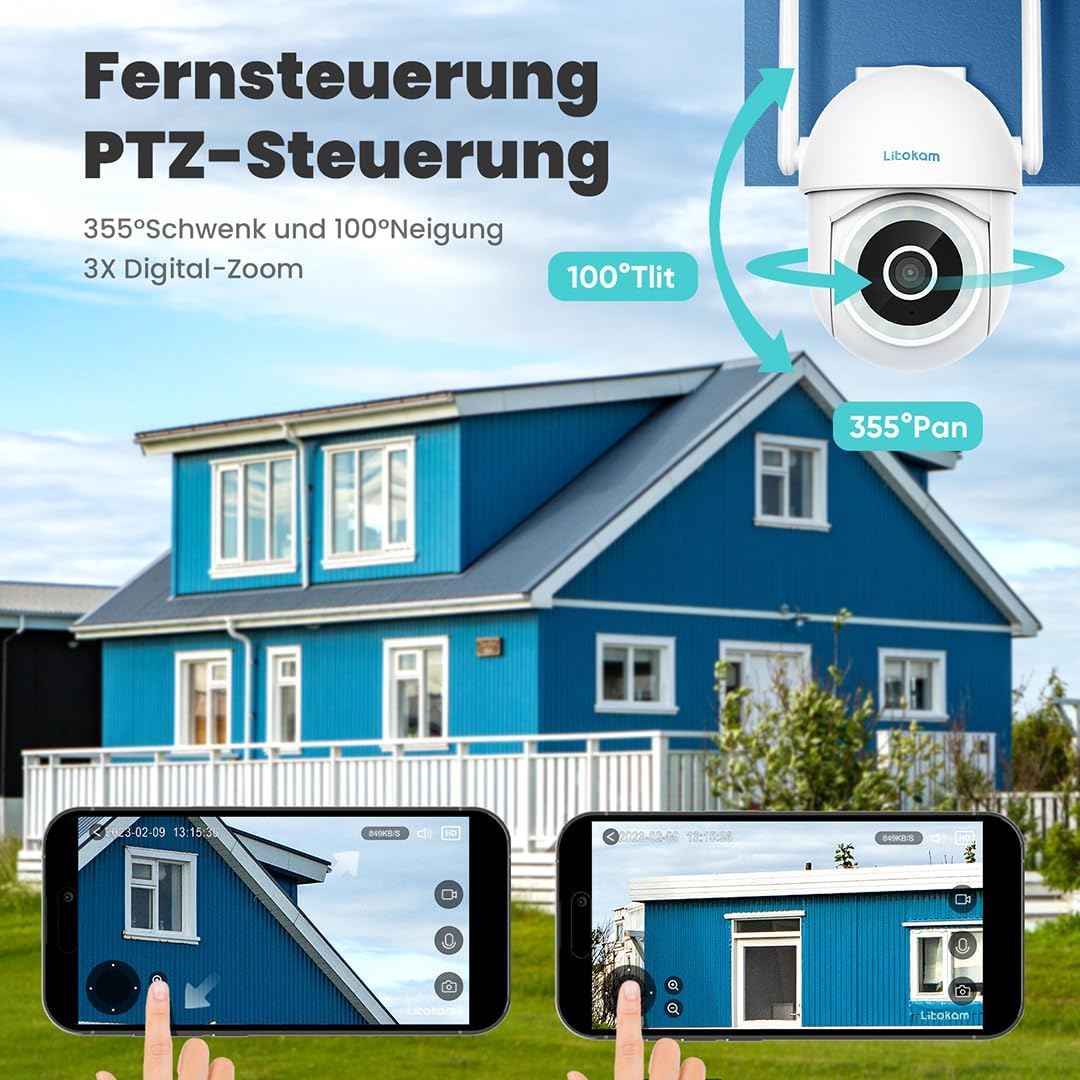
4.1 pav. Pvzample of the mobile application interface for controlling camera pan and tilt functions.
5. Priežiūra
Regular maintenance ensures the longevity and optimal performance of your owltron Home Security Camera.
- Nuvalykite objektyvą: Gently wipe the camera lens with a soft, dry, lint-free cloth to remove dust or smudges. Do not use harsh chemicals or abrasive materials.
- Patikrinkite jungtis: Periodically inspect all cable connections (power, network) to ensure they are secure.
- Programinės įrangos atnaujinimai: Keep the camera's firmware and the mobile app updated to the latest versions. Updates often include performance improvements and security enhancements. Check for updates within the app settings.
- Aplinkos sąlygos: Ensure the camera is operating within its specified temperature and humidity ranges. While rated IP65, avoid direct exposure to heavy rain or prolonged submersion.
6. Problemų sprendimas
If you encounter issues with your owltron Home Security Camera, refer to the following common problems and solutions:
| Problema | Galima priežastis | Sprendimas |
|---|---|---|
| Kamera neprisijungusi / Nepavyksta prisijungti prie „Wi-Fi“ | Weak Wi-Fi signal, incorrect Wi-Fi password, camera too far from router, router issues. |
|
| Prasta vaizdo kokybė | Dirty lens, insufficient lighting, weak network connection. |
|
| Judesio aptikimas neveikia arba per daug klaidingų aliarmų | Motion detection disabled, sensitivity too low/high, environmental factors (e.g., shadows, moving branches). |
|
| Dvipusio garso problemos | Microphone/speaker muted, app permissions, network latency. |
|
Jei problema išlieka, susisiekite su klientų aptarnavimo tarnyba.
7. Specifikacijos
| Funkcija | Detalė |
|---|---|
| Prekės ženklas | owltron |
| Modelio numeris | O1 |
| Efektyvi vaizdo raiška | 1080 pikselių |
| Belaidžio ryšio technologija | Wi-Fi |
| Ryšio protokolas | Wi-Fi |
| Formos faktorius | Kupolas |
| Montavimo tipas | Sieninis laikiklis |
| Įspėjimo tipas | Tik judėjimas |
| Tarptautinis apsaugos įvertinimas | IP65 |
| Prekės svoris | 1.34 svaro |
| Pakuotės matmenys | 7.44 x 7.01 x 4.37 colio |
| Vattage | 3 vatų |
| Reikalingos baterijos? | Nr |
| Rekomenduojami gaminio naudojimo būdai | Kūdikių stebėjimas |
| Suderinami įrenginiai | Išmanusis telefonas |
| Vaizdo įrašymo formatas | MPEG-4 |
| Kanalų skaičius | 2 |
| Vienetų skaičius | 1.0 Skaičius |
| Kambario tipas | Darželis |
| Pasiekiama pirmoji data | 5 m. rugsėjo 2023 d |
8. Garantija ir palaikymas
Informacija apie garantiją: The owltron Home Security Camera comes with a standard manufacturer's warranty. Please refer to the product packaging or the official owltron website for specific warranty terms and conditions, including coverage period and claim procedures.
Klientų aptarnavimas: For technical assistance, troubleshooting not covered in this manual, or warranty claims, please contact owltron customer support through the following channels:
- Oficialus Websvetainė: Visit the owltron official webDUK, pagalbos straipsnių ir kontaktinių formų svetainė.
- Pagalba el. paštu: Refer to your product documentation or the webklientų aptarnavimo el. pašto adreso svetainė.
- Pagalba programėlėje: Some issues can be resolved directly through the support section within the owltron mobile application.
When contacting support, please have your product model number (O1) and purchase information ready.