
1. Įvadas
Welcome to the user manual for your Havit Gaming Mouse MS1032. This document provides essential information for setting up, operating, maintaining, and troubleshooting your device. Please read it carefully to ensure optimal performance and longevity of your mouse.
The Havit MS1032 is a gaming mouse featuring six adjustable DPI settings, a comfortable ergonomic design, and a non-slip surface. It is engineered for smooth and quiet operation, aiming to reduce fatigue during extended use.
2. Sąranka
2.1 Pakuotės turinys
- Havit Gaming Mouse MS1032
- Vartotojo vadovas
2.2 Sistemos reikalavimai
- Operating System: Windows XP, Windows 7, Linux
- Galimas USB prievadas
2.3 Pelės prijungimas
- Unpack the Havit Gaming Mouse MS1032 from its packaging.
- Kompiuteryje raskite laisvą USB prievadą.
- Į USB prievadą įkiškite pelės USB jungtį.
- Jūsų operacinė sistema turėtų automatiškai aptikti ir įdiegti reikiamas tvarkykles. Šis procesas gali užtrukti kelias akimirkas.
- Kai diegimas bus baigtas, pelė bus paruošta naudoti.
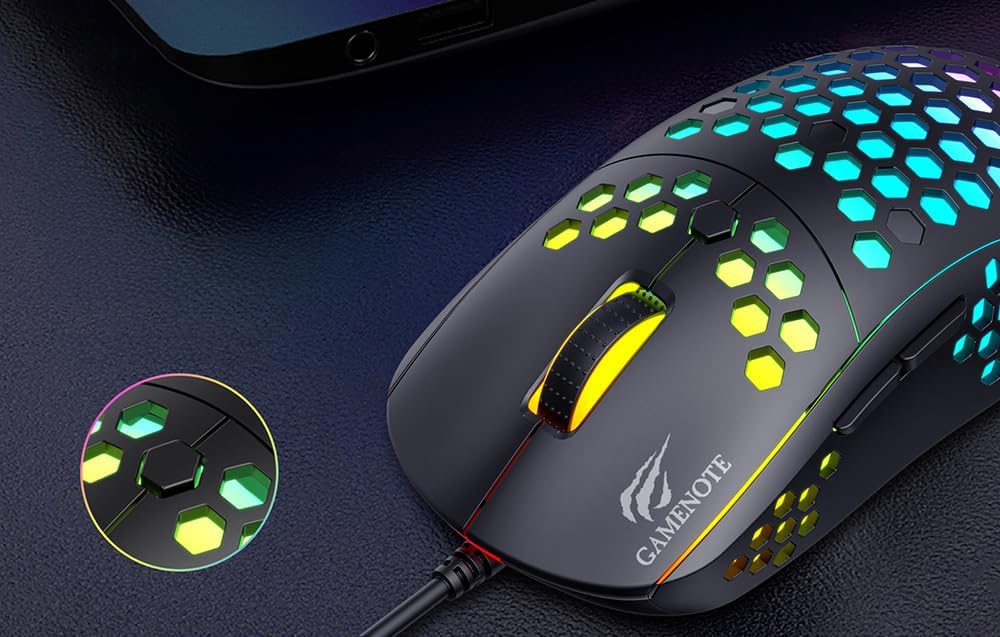
Figure 1: Havit MS1032 Gaming Mouse connected via USB.
3. Naudojimo instrukcijos
3.1 Pagrindinės funkcijos
- Kairysis spustelėjimas: Primary action, selection, activation.
- Dešiniuoju pelės mygtuku spustelėkite: Opens context menus, performs secondary actions.
- Slinkties ratukas: Scrolls up/down documents or web puslapiai. Taip pat galima paspausti, kad būtų įjungta vidurinio pelės mygtuko paspaudimo funkcija.
- Šoniniai mygtukai: Paprastai naudojamas navigacijai pirmyn / atgal web naršyklėse arba pritaikytose žaidimų funkcijose.
3.2 DPI reguliavimas
The Havit MS1032 features six adjustable DPI (Dots Per Inch) settings, allowing you to change the mouse sensitivity on the fly. This is useful for adapting to different tasks, such as precise aiming in games or fast navigation across multiple monitors.
To adjust the DPI, locate the DPI button, typically positioned behind the scroll wheel. Press this button to cycle through the available DPI settings. The LED lighting on the mouse may change to indicate the current DPI level, providing visual feedback for your selection.
Figure 2: Location of the DPI button (behind the scroll wheel).
4. Priežiūra
4.1 Valymas
Norėdami išlaikyti optimalų našumą ir išvaizdą, reguliariai valykite pelę:
- Prieš valydami atjunkite pelę nuo kompiuterio.
- Šiek tiek naudokite minkštą, be pūkelių šluostę dampnuplaukite vandeniu arba švelniu, neabrazyviniu valymo tirpalu.
- Gently wipe the surface of the mouse.
- For crevices and the optical sensor, use a cotton swab or compressed air to remove dust and debris.
- Avoid using harsh chemicals, abrasive cleaners, or excessive moisture, as these can damage the mouse's finish or internal components.
4.2 Saugykla
When not in use, store the mouse in a clean, dry environment away from direct sunlight and extreme temperatures to prevent damage.
4.3 Bendroji priežiūra
- Venkite pelės numetimo ir stiprių smūgių.
- Do not attempt to disassemble the mouse, as this will void the warranty and may cause irreparable damage.
- Keep the mouse away from liquids to prevent electrical damage.
5. Problemų sprendimas
If you encounter issues with your Havit Gaming Mouse MS1032, please refer to the following common solutions:
5.1 Pelė nereaguoja
- Patikrinkite USB jungtį: Įsitikinkite, kad USB laidas tvirtai prijungtas prie veikiančio kompiuterio USB prievado. Išbandykite kitą USB prievadą.
- Iš naujo paleiskite kompiuterį: Kartais paprastas kompiuterio paleidimas iš naujo gali išspręsti ryšio problemas.
- Bandymas kitame kompiuteryje: If possible, test the mouse on another computer to determine if the issue is with the mouse or your computer's setup.
5.2 Žymeklio judėjimas yra netolygus arba trūkčiojantis
- Švarus jutiklis: Ensure the optical sensor on the bottom of the mouse is clean and free of dust or debris.
- Patikrinkite paviršių: Pelę naudokite ant švaraus, neatspindinčio ir lygaus paviršiaus (pvz., pelės kilimėlio). Venkite stiklo ar stipriai atspindinčių paviršių.
- DPI reguliavimas: If the cursor is too fast or too slow, adjust the DPI setting using the DPI button.
5.3 Buttons Not Working
- Patikrinkite, ar nėra kliūčių: Įsitikinkite, kad po mygtukais nėra įstrigusių šiukšlių.
- Programinės įrangos konfliktas: If you have custom mouse software installed, try uninstalling it temporarily to see if it resolves the issue.
5.4 Neveikiančios LED lemputės
- Patikrinkite ryšį: Įsitikinkite, kad pelė tinkamai prijungta prie kompiuterio.
- Maitinimo ciklas: Disconnect and reconnect the mouse to reset its power.
6. Specifikacijos

Figure 3: Havit MS1032 Gaming Mouse design overview.
| Funkcija | Detalė |
|---|---|
| Modelis | MS1032 |
| Prekės ženklas | Havit |
| Matmenys | 15 x 8 x 5.2 cm |
| Svoris | 200g |
| DPI nustatymai | 6 reguliuojami lygiai |
| Operacinės sistemos | „Linux“, „Windows 7“, „Windows XP“ |
| Ryšys | Laidinis USB |
| Reikalingos baterijos | Nr |
7. Garantija ir palaikymas
For detailed warranty information and technical support, please refer to the official Havit website or contact your local retailer where the product was purchased. It is recommended to keep your purchase receipt as proof of purchase for any warranty claims.
Gamintojas: Havit
Modelio numeris: MS1032