
kinstone KST102MF
kinstone 10.1" Android Tablet User Manual
Model: KST102MF
1. Įvadas
This manual provides detailed instructions for the setup, operation, maintenance, and troubleshooting of your kinstone 10.1-inch Android Tablet. Please read this manual thoroughly before using the device to ensure proper functionality and to prevent damage.
The kinstone tablet is designed for versatile use, featuring an Octa-Core processor, 6GB RAM, 128GB ROM (expandable up to 1TB), dual-band Wi-Fi (2.4G+5G), Bluetooth 5.0, Widevine L1 support, and Face ID. It offers a 10.1-inch IPS HD display with a resolution of 1280x800 pixels and eye health mode for comfortable viewing.
2. Saugos informacija
- Nelaikykite planšetinio kompiuterio ekstremaliose temperatūrose, tiesioginiuose saulės spinduliuose ar didelėje drėgmėje.
- Venkite planšetinio kompiuterio numetimo ar stiprių smūgių.
- Use only the charger and accessories approved by kinstone.
- Nebandykite patys ardyti ar taisyti planšetinio kompiuterio. Kreipkitės į kvalifikuotus techninės priežiūros darbuotojus.
- Laikykite tabletę atokiau nuo vandens ir kitų skysčių.
- Planšetinį kompiuterį ir jo bateriją utilizuokite atsakingai, laikydamiesi vietinių taisyklių.
3. Pakuotės turinys
Patikrinkite, ar pakuotėje yra visi reikalingi daiktai:
- kinstone 10.1" Android Tablet
- C tipo USB kabelis
- Maitinimo adapteris (jei yra)
- Vartotojo vadovas (šis dokumentas)
4. Įrenginys baigtasview
Familiarize yourself with the tablet's physical features and ports.

Vaizdas: Priekinė ir galinė dalys view of the kinstone 10.1-inch Android Tablet, showcasing its blue finish and camera module.
- Priekinė kamera: Located on the top bezel when held horizontally.
- Galinė kamera: Located on the back panel, typically in the upper left corner.
- Maitinimo mygtukas: Used to turn the tablet on/off or put it to sleep/wake.
- Garsumo mygtukai: Naudojamas garso garsumui reguliuoti.
- C tipo USB prievadas: Įkrovimui ir duomenų perdavimui.
- MicroSD kortelės lizdas: For expanding storage up to 1TB.
- Garsiakalbiai: Dual smart BOX speakers for audio output.
5. Sąranka
5.1 Pradinis įkrovimas
Prieš pirmą kartą naudodami, visiškai įkraukite planšetinį kompiuterį. Prijunkite USB C tipo laidą prie planšetinio kompiuterio įkrovimo prievado, o kitą galą – prie maitinimo adapterio. Prijunkite adapterį prie sieninio lizdo. Ekrane esantis akumuliatoriaus indikatorius rodys įkrovimo eigą.

Image: The tablet connected to a charger, displaying a 100% charge indicator and highlighting its 6000mAh battery capacity.
5.2 Įjungimas / išjungimas
- Norėdami įjungti: Press and hold the Power button until the kinstone logo appears.
- Norėdami išjungti: Paspauskite ir palaikykite maitinimo mygtuką, kol pasirodys maitinimo parinkčių meniu, tada pasirinkite „Išjungti“.
- Miegui / pabudimui: Trumpai paspauskite maitinimo mygtuką.
5.3 Pradinio nustatymo vedlys
Pirmą kartą įjungus planšetinį kompiuterį, bus atliekami pradiniai nustatymai. Vykdykite ekrane pateikiamus nurodymus:
- Pasirinkite savo kalbą.
- Prisijunkite prie „Wi-Fi“ tinklo.
- Prisijunkite naudodami „Google“ paskyrą arba sukurkite naują.
- Set up screen lock (PIN, Pattern, Password, or Face ID).
- Review ir sutikite su sąlygomis ir nuostatomis.

Image: A visual representation of the Google Certified Android 12 OS interface on the tablet, showing various app icons and the Google Play Store.
5.4 „MicroSD“ kortelės įdėjimas (pasirinktinai)
To expand the tablet's storage, you can insert a MicroSD card (up to 1TB). Locate the MicroSD card slot on the side of the tablet. Gently insert the card with the gold contacts facing down until it clicks into place.

Image: The tablet displaying its memory specifications: 6GB RAM, 128GB internal storage, and the option for 1TB expandable storage via MicroSD card.
6. Planšetinio kompiuterio valdymas
6.1 Navigacija
- Lietimo gestai: Palietimas, braukimas ir priartinimas pirštais yra standartiniai „Android“ gestai.
- Pagrindinis ekranas: The main interface where you can access apps and widgets.
- Programėlių stalčius: Braukite aukštyn iš pagrindinio ekrano į view visos įdiegtos programos.
- Pranešimų skydelis: Braukite žemyn nuo ekrano viršaus, kad pasiektumėte pranešimus ir greituosius nustatymus.
6.2 „Wi-Fi“ ir „Bluetooth“ ryšys
The tablet supports dual-band Wi-Fi (2.4G and 5G) and Bluetooth 5.0 for stable and fast connections.
- „Wi-Fi“: Eikite į Nustatymai > Tinklas ir internetas > „Wi-Fi“Įjunkite „Wi-Fi“ ir pasirinkite norimą tinklą. Jei būsite paraginti, įveskite slaptažodį.
- Bluetooth: Eikite į Nustatymai> Prijungti įrenginiai> Ryšio nuostatos> „Bluetooth“Įjunkite „Bluetooth“ ir susiekite su suderinamais įrenginiais.
6.3 Ekrano nustatymai
The 10.1-inch IPS HD display offers vibrant colors and a 178-degree viewing angle. The tablet includes an Eye Health Mode to reduce blue light and eye strain.

Image: The tablet screen displaying a vibrant image, emphasizing its "Eye-Pleasing" 10.1-inch 1280x800 IPS display.
- Ryškumas: Adjust in Quick Settings or Nustatymai > Ekranas > Ryškumo lygis.
- Eye Health Mode: Enable or disable in Nustatymai > Ekranas to filter blue light.
- Ekrano skirtasis laikas: Set the duration before the screen turns off automatically in Nustatymai > Ekranas > Ekrano skirtasis laikas.
6.4 Garso nustatymai
The tablet is equipped with dual smart BOX speakers for an immersive audio experience.

Image: The tablet displaying a musical performance, highlighting its "Dual Smart BOX Speakers" for stunning sound.
- Garsumo valdymas: Use the physical volume buttons or adjust in Nustatymai > Garsas ir vibracija.
- Sound Profiles: Pasirinkite kitą garso profesionaląfiles (e.g., Silent, Vibrate, Ring) in Nustatymai > Garsas ir vibracija.
6.5 Veido ID
The tablet supports Face ID for convenient and secure unlocking.
- Setup Face ID: Eikite į Nustatymai > Saugumas ir privatumas > Įrenginio atrakinimas > Veido atrakinimas. Follow the on-screen instructions to register your face.
- Using Face ID: Simply look at the front camera when the screen is on to unlock the tablet.
6.6 „Widevine“ 1 lygio palaikymas
The tablet supports Widevine L1, allowing you to stream high-definition content from platforms like Netflix.
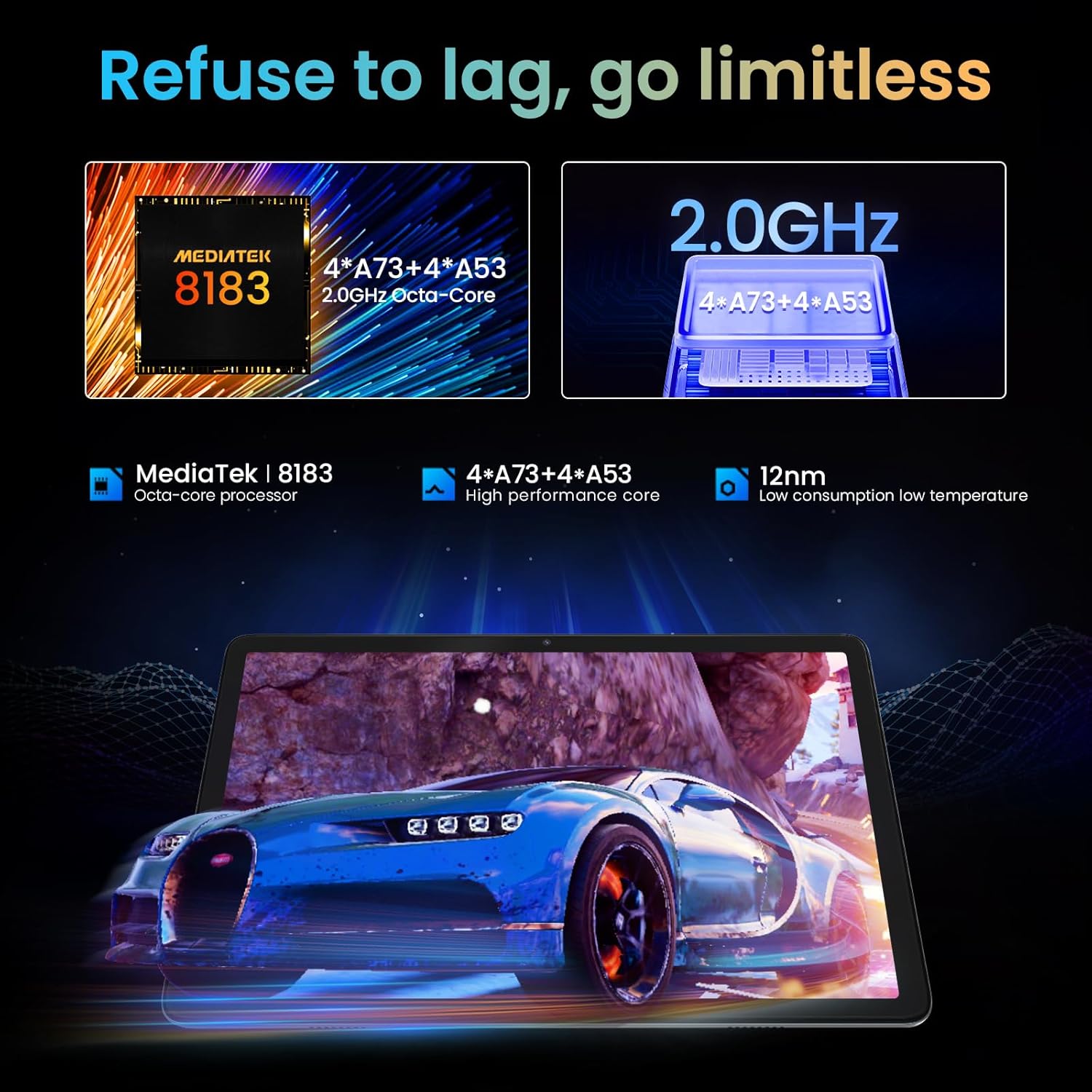
Image: A person watching a high-definition video on the tablet, illustrating its support for Netflix L1 and Widevine L1 for enhanced streaming quality.
7. Priežiūra
7.1 Planšetinio kompiuterio valymas
- Planšetinio kompiuterio ekraną ir korpusą valykite minkštu, nepūkuotu audiniu.
- Įsisenėjusioms dėmėms šiek tiek pamirkykiteampNuvalykite šluostę vandeniu arba ekrano valikliu, skirtu specialiai elektronikai.
- Venkite naudoti stiprias chemines medžiagas, abrazyvines medžiagas ar aerozolinius purškalus.
7.2 Akumuliatoriaus priežiūra
- Norėdami pailginti akumuliatoriaus veikimo laiką, venkite dažnai visiškai jį iškrauti.
- Do not leave the tablet connected to the charger for extended periods after it is fully charged.
- Store the tablet in a cool, dry place if not used for a long time.
7.3 Programinės įrangos naujiniai
Reguliariai tikrinkite, ar yra programinės įrangos atnaujinimų, ir juos įdiekite, kad užtikrintumėte optimalų našumą, saugumą ir prieigą prie naujų funkcijų.
- Eikite į Nustatymai > Sistema > Sistemos naujinimas , kad patikrintumėte, ar yra galimų atnaujinimų.
- Ensure the tablet has sufficient battery and a stable Wi-Fi connection before performing an update.
8. Problemų sprendimas
8.1 Bendrosios problemos ir sprendimai
| Problema | Galima priežastis | Sprendimas |
|---|---|---|
| Planšetinis kompiuteris neįsijungia. | Žema akumuliatoriaus įkrova; programinės įrangos gedimas. | Kraukite planšetinį kompiuterį bent 30 minučių. Paspauskite ir palaikykite maitinimo mygtuką 10–15 sekundžių, kad priverstumėte jį paleisti iš naujo. |
| „Wi-Fi“ ryšio problemos. | Neteisingas slaptažodis; maršrutizatoriaus problema; planšetinio kompiuterio „Wi-Fi“ išjungtas. | Ensure correct password. Restart router. Toggle Wi-Fi off/on on tablet. |
| Programėlės stringa arba užstringa. | Insufficient RAM; app bug; outdated app. | Uždarykite fonines programas. Išvalykite programų talpyklą (Nustatymai > Programos > [Programos pavadinimas] > Atmintis ir talpykla > Išvalyti talpyklą). Atnaujinkite programėlę iš „Google Play“ parduotuvės. |
| Lėtas veikimas. | Per daug veikiančių programų; mažai vietos saugykloje; pasenusi programinė įranga. | Close unused apps. Free up storage by deleting unnecessary files. Check for system updates. |
8.2 Gamyklinių parametrų atkūrimas
Jei problemos išlieka, gamyklinių parametrų atkūrimas gali jas išspręsti. Įspėjimas: Tai ištrins visus jūsų planšetiniame kompiuteryje esančius duomenis. Prieš tęsdami sukurkite svarbių duomenų atsarginę kopiją.
- Eikite į Nustatymai > Sistema > Atstatyti parinktys > Ištrinti visus duomenis (atkurti gamyklinius).
- Patvirtinkite savo sprendimą ir vykdykite ekrane pateikiamus nurodymus.
9. Specifikacijos
| Funkcija | Detalė |
|---|---|
| Modelio pavadinimas | KST102MF |
| Operacinė sistema | Android 12 |
| Procesorius | Octa-Core (Unisoc, 1.98 GHz) |
| RAM | 6 GB |
| Vidinė saugykla | 128 GB |
| Išplečiama saugykla | Iki 1 TB (MicroSD) |
| Ekrano dydis | 10.1 colių |
| Ekrano raiška | 1280 x 800 pikselių (IPS HD) |
| Grafikos žetonų rinkinys | ARM Mali-G72 MP3 |
| Wi-Fi ryšys | 802.11ac, 802.11b, 802.11g, 802.11n (2.4GHz + 5.0GHz Dual-band) |
| Bluetooth | Bluetooth 5.0 |
| Sąsaja | USB 3.1 Type C |
| Baterijos veikimo laikas | apytiksliai 10 valandas |
| Baterijos tipas | Ličio polimeras (į komplektą įeina) |
| Matmenys (I x P x A) | 30.48 x 17.78 x 3.56 cm |
| Svoris | 500 gramų |
| Ypatingos savybės | Stereo Speakers, USB OTG Support, Expandable Storage, Face ID, Widevine L1 |
10. Informacija apie garantiją
The kinstone tablet comes with a standard manufacturer's warranty. Please refer to the warranty card included in your product packaging for specific terms, conditions, and duration. Keep your purchase receipt as proof of purchase for warranty claims.
For warranty service, contact kinstone customer support or the retailer from whom you purchased the device.
11. Pagalba klientams
If you encounter any issues not covered in this manual or require further assistance, please contact kinstone customer support.
- Gamintojas: kinstone
- Pardavėjas: Kinstone-直営店 (Kinstone-Direct Store)
- For the most up-to-date support contact information, please visit the official kinstone website or the seller's page on Amazon.
Ask a question about this manual
Ask about setup, troubleshooting, compatibility, parts, safety, or missing instructions. Manuals+ will review the question and use this page’s manual context to help answer it.