
Vgate vLinker FS USB
Vgate vLinker FS USB OBD2 Diagnostic Tool User Manual
Model: vLinker FS USB
1. Įvadas
The Vgate vLinker FS USB is a high-performance OBD2 to USB car diagnostic tool designed to interface with your vehicle's On-Board Diagnostics system. It allows users to read and clear diagnostic trouble codes, view live data, and perform various vehicle-specific functions, particularly optimized for use with FORScan software. This manual provides comprehensive instructions for setting up, operating, and maintaining your vLinker FS USB device.

Figure 1: Vgate vLinker FS USB OBD2 Diagnostic Tool
2. Pagrindinės savybės
- Determines cause of Check Engine Light and clears DTCs.
- Reads live data and hard memory data.
- Collects vehicle information.
- Custom-designed for use with FORScan and recommended by the FORScan Team.
- MS-CAN & HS-CAN toggle switch for convenient access and configuration.
- Supports USB 2.0 and USB 3.0 interfaces.
- Transfer rate and baud rate up to 3Mpbs and 3Mhz, significantly faster than other devices.
- Compatible with a variety of third-party apps and software.
3. Pakuotės turinys
Atidarius pakuotę, patikrinkite, ar yra visi komponentai ir ar jie yra geros būklės:
- Vgate vLinker FS USB OBD2 Adapter
- Vartotojo vadovas / Greitos pradžios vadovas
1 vaizdo įrašas: Išpakavimas ir kitaview of the Vgate vLinker FS USB adapter and its included quick start guide.
4. Sąrankos vadovas
4.1 Tvarkyklės diegimas
Before connecting the vLinker FS USB to your computer, it is crucial to install the necessary drivers. Drivers can typically be found on the official Vgate website or the FORScan website, as recommended. Follow the on-screen instructions during installation.
- Download the latest drivers for your operating system (Windows XP/Vista/7/8/8.1/10 are supported).
- Paleiskite diegimo programą ir vykdykite nurodymus.
- Iš naujo paleiskite kompiuterį, jei būsite paraginti.
4.2 Prijungimas prie kompiuterio
Once drivers are installed, connect the vLinker FS USB to your computer using the integrated USB cable. The device should be recognized by your system.
4.3 Prisijungimas prie transporto priemonės
Locate your vehicle's OBD2 port, typically found under the dashboard on the driver's side. Plug the vLinker FS USB adapter firmly into the OBD2 port. Ensure a secure connection.
4.4 Software Installation (FORScan Example)
For optimal performance, especially with Ford, Mazda, Lincoln, and Mercury vehicles, it is recommended to use FORScan software. Download and install FORScan from their official websvetainę.
- Download the FORScan application for Windows.
- Įdiekite programą savo kompiuteryje.
- Launch FORScan. The software should detect the vLinker FS USB adapter.
- Pasukite automobilio uždegimo raktelį į „ON“ padėtį (variklis išjungtas).
- Follow the software prompts to connect to your vehicle and begin diagnostics.

Figure 2: Vgate vLinker FS USB connected for dealership-level diagnostics.
5. Naudojimo instrukcijos
5.1 Pagrindinės diagnostikos funkcijos
With the vLinker FS USB connected to your vehicle and computer, and your diagnostic software launched, you can perform various functions:
- Skaityti / išvalyti gedimų kodus: Access the "Diagnostic Trouble Codes" section of your software to read current, pending, and historic codes. Use the "Clear Codes" function to turn off the Check Engine Light after repairs.
- Tiesioginis duomenų srautas: Monitor real-time sensor data such as engine RPM, vehicle speed, oxygen sensor readings, fuel system status, etc. This is crucial for diagnosing intermittent issues.
- Fiksuoto kadro duomenys: View a snapshot of sensor readings at the moment a Diagnostic Trouble Code (DTC) was set, providing context for the fault.
- Informacija apie transporto priemonę: Retrieve vehicle identification number (VIN), calibration IDs, and calibration verification numbers.
5.2 MS-CAN & HS-CAN Toggle Switch
The vLinker FS USB features a toggle switch to select between MS-CAN (Medium Speed CAN) and HS-CAN (High Speed CAN) networks. This allows access to different modules within your vehicle, enabling comprehensive diagnostics and configuration of as-built data. Ensure the switch is in the correct position for the module you intend to access.
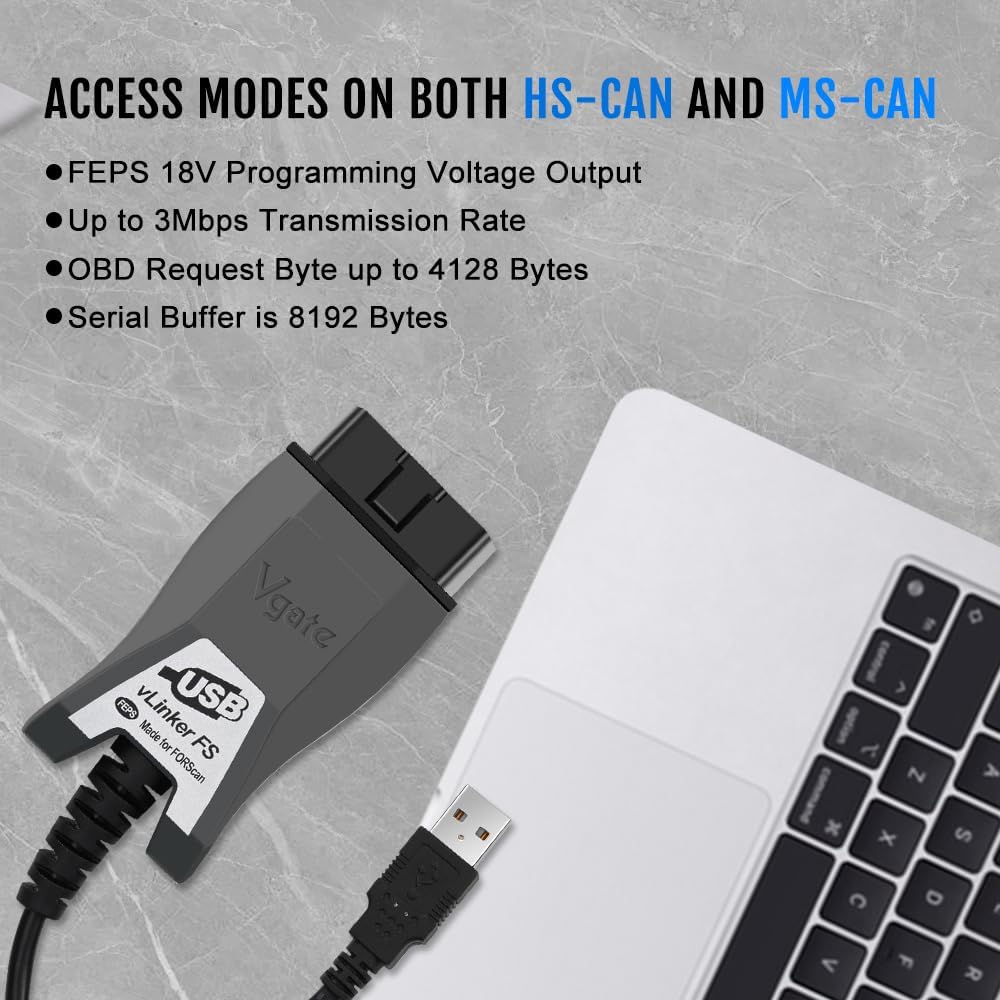
Figure 3: Device highlighting MS-CAN and HS-CAN access modes.
5.3 Palaikoma programinė įranga
Beyond FORScan, the vLinker FS USB is compatible with various third-party diagnostic applications. Always ensure the software you choose is compatible with the vLinker FS USB and your vehicle's make/model.

4 pav. Pvzamples of supported diagnostic software.
6. Priežiūra
- Laikykite prietaisą švarų, be dulkių ir drėgmės.
- Kai nenaudojate, laikykite vėsioje, sausoje vietoje.
- Avoid excessive force when connecting or disconnecting the adapter.
- Reguliariai tikrinkite gamintojo website for firmware updates for the vLinker FS USB and software updates for your diagnostic application to ensure optimal performance and compatibility.
7. Problemų sprendimas
Jei kyla problemų, žr. toliau pateiktas dažniausiai pasitaikančias problemas ir sprendimus:
| Problema | Galima priežastis | Sprendimas |
|---|---|---|
| Device not found / Not recognized by computer. | Missing or incorrect USB drivers; faulty USB port/cable. | Ensure USB drivers are correctly installed from the official website. Try a different USB port on your computer. Check the USB cable for damage. |
| Cannot connect to vehicle ECU. | Ignition not in "ON" position; loose OBD2 connection; incorrect software settings; vehicle not supported. | Turn ignition to "ON" (engine off). Ensure the adapter is firmly plugged into the OBD2 port. Verify software settings (e.g., COM port, baud rate). Confirm vehicle compatibility. |
| Slow data transfer or freezing. | Outdated drivers; software conflicts; high system load. | Update drivers to the latest version. Close unnecessary applications on your computer. Ensure your computer meets the software's minimum requirements. |
| "OBD plug hard to insert into port!" (from review) | Manufacturing tolerance; tight fit in specific vehicle ports. | Apply gentle, firm pressure. Ensure correct orientation. If consistently difficult, inspect the OBD port for obstructions. |
8. Specifikacijos
| Prekės ženklas | Vgate |
| Modelis | vLinker FS USB |
| Ryšys | USB 2.0, USB 3.0 |
| Palaikomi protokolai | SAE J1850-PWM, SAE J1850-VPW, ISO 9141-2, ISO 14230-4 (slow), ISO 14230-4 (fast), ISO 15765-4 (CAN), ISO 1939 (CAN), ISO 11898 (raw CAN), Medium Speed CAN (MS-CAN) |
| Perdavimo greitis | Iki 3 Mpbs |
| Perdavimo greitis | Iki 3Mhz |
| Palaikomos operacinės sistemos | Windows XP, Windows 2000/Vista/7/8/8.1/10 |
| Matmenys | 5.91 x 4.92 x 1.57 colio |
| Svoris | 5.3 uncijos |
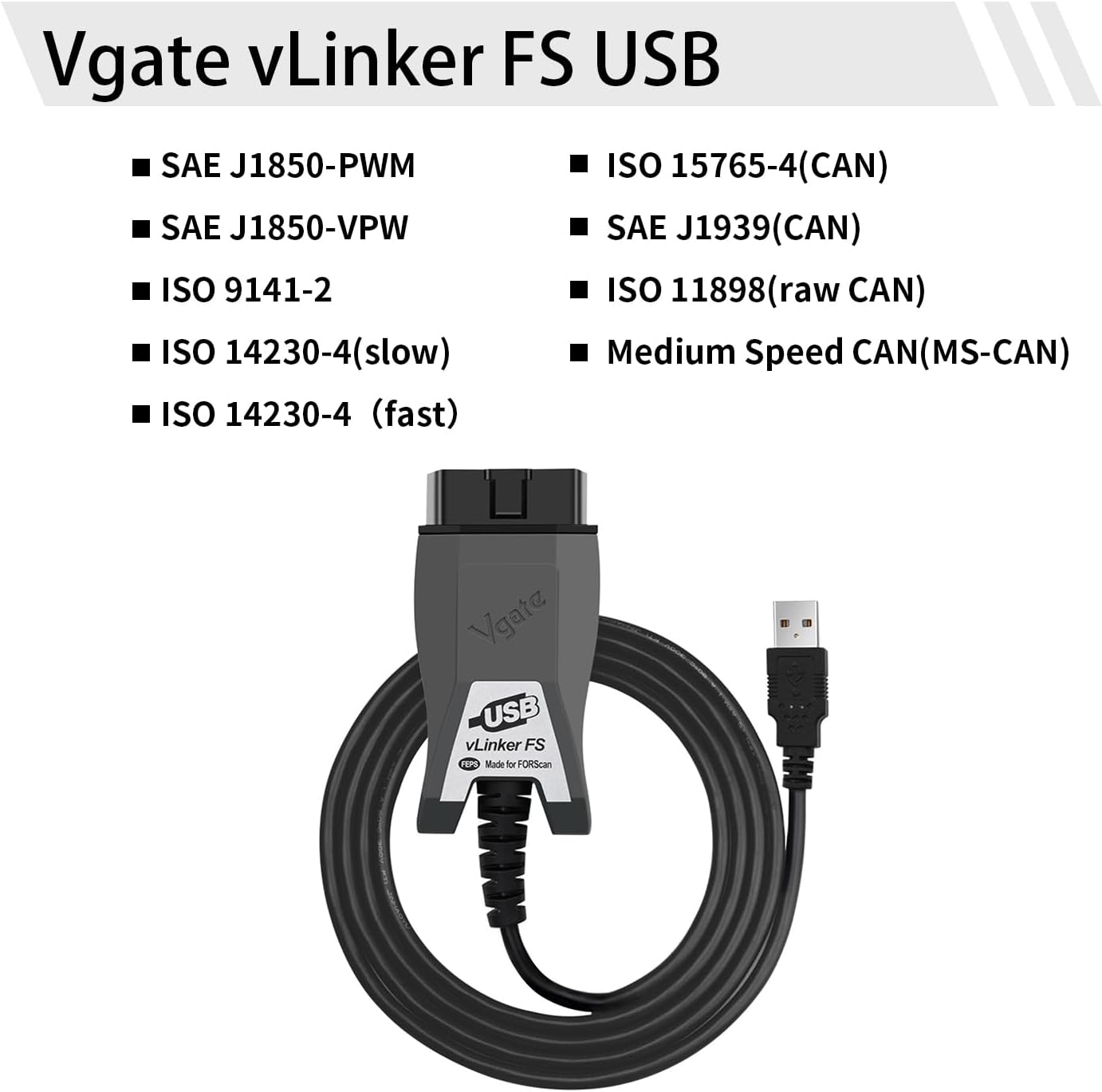
Figure 5: Supported communication protocols for vLinker FS USB.
9. Garantija ir palaikymas
Vgate products are designed for reliability and performance. For warranty information, technical support, or further assistance, please refer to the contact details provided on the product packaging or visit the official Vgate websvetainę. Išsaugokite pirkimo čekį garantiniams reikalavimams.
Susiję dokumentai - vLinker FS USB
 |
„Vgate vLinker MC+“ greito paleidimo vadovas, skirtas „iOS“ ir „Android“ Greitas „Vgate vLinker MC+ Bluetooth OBD2“ automobilio diagnostikos nuskaitymo įrankio pradžios vadovas, kuriame aprašoma „iOS“ ir „Android“ įrenginių sąranka, programų suderinamumas ir prijungimo procedūros. |
 |
Vgate vLinker MC Bluetooth OBD-II Code Reader: Functions & Operation Guide Detailed information on the Vgate vLinker MC Bluetooth OBD-II code reader, including its advanced functions, compatibility, typical applications, and step-by-step Android operation guide for automotive diagnostics. |
 |
Vgate vLinker MC+ OBD-II Adapter: Features, Protocols, and Connectivity Guide Discover the Vgate vLinker MC+ OBD-II adapter, a versatile car diagnostic tool compatible with a wide range of vehicles and applications. This guide details its features, supported protocols, connection methods (Bluetooth and WiFi), and typical uses for automotive diagnostics. |
 |
„Vgate vLinker FD“ OBD skaitytuvo „Bluetooth“ greito paleidimo vadovas Concise guide to setting up and using the Vgate vLinker FD OBD scanner tool with Bluetooth connectivity for Android and Windows devices. Learn how to download the app, connect, and pair the device. |
 |
„Vgate vLinker BM+ Bluetooth OBD2“ skaitytuvo greito paleidimo vadovas Žingsnis po žingsnio vadovas, kaip prijungti „Vgate vLinker BM+ Bluetooth OBD2“ skaitytuvą prie transporto priemonės diagnostikai ir programėlių integravimui. Palaiko „Android“ ir „iOS“ įrenginius. |
 |
Vgate vLinker MC/MC+ User Manual: OBD Scanner Guide Comprehensive user manual for the Vgate vLinker MC and MC+ Bluetooth OBD scanners. Learn about supported protocols, software compatibility, connection steps, and special functions for car diagnostics. |
Ask a question about this manual
Ask about setup, troubleshooting, compatibility, parts, safety, or missing instructions. Manuals+ will review the question and use this page’s manual context to help answer it.