
1. Įvadas
This manual provides essential instructions for setting up, operating, and maintaining your Tibuta Android 13 Tablet. Please read this guide thoroughly to ensure proper use and to maximize your device's performance.
The Tibuta 10-inch tablet features the Android 13 operating system, an Octa-Core processor, 8GB RAM, 64GB internal storage (expandable up to 1TB), a 7000mAh battery, and a 1280x800 IPS display. It supports Wi-Fi 6, Bluetooth 5.2, and Widevine L1 for enhanced streaming.

Image 1.1: Tibuta Android 13 Tablet overview, highlighting its 8GB+64GB configuration, Android 13 OS, Wi-Fi 6, 7000mAh battery, and Widevine L1 support.
2. Įrenginio išdėstymas
Familiarize yourself with the physical components and ports of your tablet.

2.1 paveikslas: Priekinė ir šoninė dalys view of the tablet with numbered components and dimensions.
Komponento identifikavimas:
- Maitinimo mygtukas: Naudojamas įrenginiui įjungti / išjungti arba ekranui pažadinti / užmigdyti.
- C tipo prievadas: For charging the tablet and data transfer.
- Garsumo mygtukai: Sureguliuokite garso garsumą.
- „Micro SD“ kortelės lizdas: Įdėkite „Micro SD“ kortelę, kad padidintumėte atmintį.
- Kamera: Galinė kamera.
- Atkūrimo mygtukas: A small pinhole button to force restart the device if unresponsive.
- Ausinių lizdas: 3.5 mm garso lizdas ausinėms.
- Garsiakalbiai: Garso išvestis.

2.2 pav.: Išsamus view of the tablet's ports and buttons, including front and rear cameras, speakers, and the 3.5mm headphone jack.
3. Darbo pradžia
3.1. Akumuliatoriaus įkrovimas
Before first use, fully charge the tablet's 7000mAh lithium polymer battery. Connect the provided Type-C cable to the tablet's Type-C port and the other end to the power adapter, then plug the adapter into a wall outlet. The charging indicator will show the charging status.

Image 3.1: Visual representation of the tablet's 7000mAh battery capacity and Type-C charging port.
3.2. Įjungimas/išjungimas
- Norėdami įjungti: Press and hold the Power Button until the Tibuta logo appears on the screen.
- Norėdami išjungti: Press and hold the Power Button until the power options menu appears, then select 'Power off'.
- Miegui / pabudimui: Trumpai paspauskite maitinimo mygtuką, kad planšetinis kompiuteris perjungtų į miego režimą arba jį pažadintumėte.
3.3. Pradinė sąranka
Upon first power-on, the tablet will guide you through an initial setup process. This includes selecting your language, connecting to a Wi-Fi network, and setting up your Google account. Follow the on-screen prompts to complete the setup.
4. Pagrindinės operacijos
4.1. Jutiklinio ekrano gestai
The tablet's 10.1-inch IPS touchscreen responds to various gestures:
- Bakstelėkite: Select an item or activate a button.
- Palieskite ir palaikykite: Access contextual menus or drag items.
- Perbraukimas: Navigate through screens or scroll lists.
- Žiupsnelis, norint priartinti: Priartinkite arba atitolinkite vaizdus ir web puslapių.
4.2. „Wi-Fi“ ryšys
Norėdami prisijungti prie „Wi-Fi“ tinklo:
- Eikite į Nustatymai > Tinklas ir internetas > Internetas.
- Įjunkite „Wi-Fi“.
- Iš sąrašo pasirinkite norimą tinklą ir, jei būsite paraginti, įveskite slaptažodį.
The tablet supports 2.4G/5G dual-band Wi-Fi 6 for stable and fast connections.
4.3. „Bluetooth“ poravimas
Norėdami susieti su „Bluetooth“ įrenginiu:
- Eikite į Nustatymai > Prijungti įrenginiai > Ryšio nuostatos > Bluetooth.
- Įjunkite Bluetooth.
- Įsitikinkite, kad jūsų „Bluetooth“ įrenginys veikia susiejimo režimu.
- Select the device from the 'Available devices' list and follow any on-screen prompts.
4.4. Kameros naudojimas
The tablet is equipped with an 8MP rear camera and a 5MP front camera. Open the Camera application to capture photos and videos.

4.1 pav.: pvz.amples of camera usage and the split-screen function for multitasking.
4.5. Sandėliavimo valdymas
The tablet comes with 64GB of internal storage. You can expand this by inserting a Micro SD card (up to 1TB) into the dedicated slot.
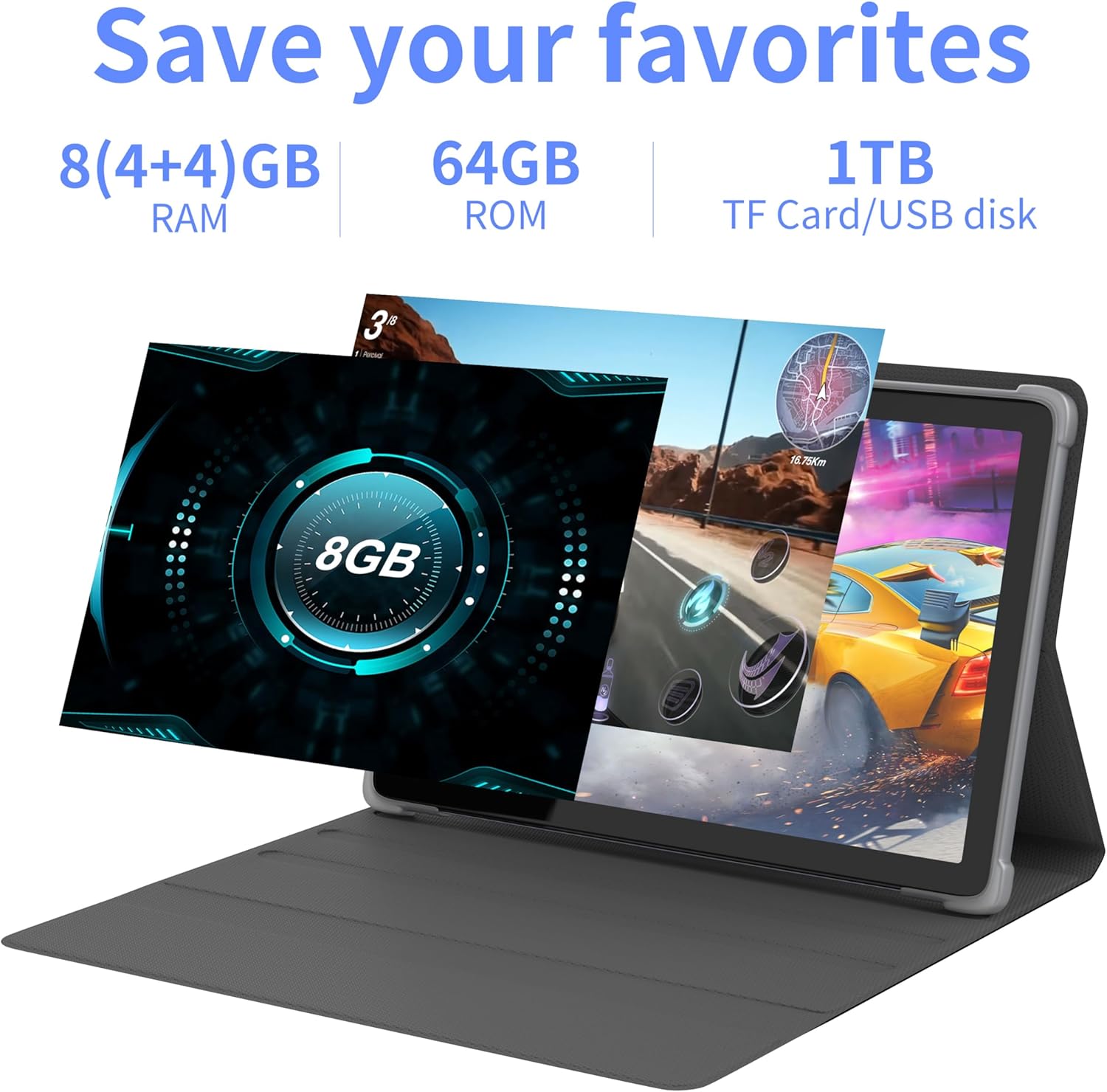
4.2 vaizdas: Baigtaview of the tablet's memory and storage capabilities, including RAM, ROM, and expansion options.
4.6. Padalintojo ekrano funkcija
Android 13 allows for split-screen multitasking. To activate, open an app, then swipe up from the bottom of the screen to view recent apps. Touch and hold the app icon at the top of the app's card, then select 'Split screen'. Choose a second app to use simultaneously.
5. Ekrano funkcijos
The tablet features a 10.1-inch IPS display with a resolution of 1280 x 800 pixels, providing clear visuals and wide viewkampų.

Image 5.1: The tablet's 10.1-inch HD IPS display, showcasing its resolution and wide-angle viewgebėjimus.
5.1. Widevine L1 Support
The tablet supports Widevine L1, enabling high-definition streaming content from compatible services.
6. Priežiūra
6.1. Prietaiso valymas
Planšetinio kompiuterio ekraną ir korpusą valykite minkštu, nepūkuotu audiniu. Venkite naudoti stiprias chemines medžiagas ar abrazyvines medžiagas.
6.2. Programinės įrangos atnaujinimai
Reguliariai tikrinkite, ar yra sistemos atnaujinimų, ir juos įdiekite, kad užtikrintumėte optimalų našumą ir saugumą. Eikite į Nustatymai > Sistema > Sistemos atnaujinimas.
6.3. Saugyklos optimizavimas
Norėdami išlaikyti našumą, periodiškai pašalinkite nereikalingus files and applications. Go to Nustatymai > Sandėliavimas , kad galėtumėte valdyti savo įrenginio saugyklą.
7. Problemų sprendimas
Šiame skyriuje aptariamos dažniausiai pasitaikančios problemos, su kuriomis galite susidurti.
| Problema | Sprendimas |
|---|---|
| Planšetinis kompiuteris neįsijungia. | Ensure the battery is charged. Connect the tablet to the charger for at least 30 minutes before attempting to power on again. |
| Tablet is unresponsive. | Use a thin pin or paperclip to press the Reset Button (refer to Device Layout section) to force a restart. |
| Nepavyksta prisijungti prie „Wi-Fi“. | Check if Wi-Fi is enabled in Settings. Ensure the Wi-Fi password is correct. Restart your router and the tablet. |
| Lėtas veikimas. | Uždarykite nenaudojamas programas. Išvalykite talpyklą ir laikinuosius files. Consider performing a factory reset if the issue persists (backup data first). |
8. Specifikacijos
Detailed technical specifications for the Tibuta Android 13 Tablet (Model: 8GB+64GB).
| Funkcija | Detalė |
|---|---|
| Prekės ženklas | Tibuta |
| Modelio numeris | 8GB + 64GB |
| Operacinė sistema | Android 13 |
| Procesorius | Octa-Core (Allwinner A523) |
| RAM | 8 GB (4GB + 4GB virtual) |
| Vidinė saugykla | 64 GB |
| Išplečiama saugykla | Up to 1TB (Micro SD card) |
| Ekrano dydis | 10.1 colių |
| Ekrano raiška | 1280 x 800 pikselių (IPS) |
| Galinė kamera | 8 MP |
| Priekinė kamera | 5 MP |
| Baterijos talpa | 7000 mAh ličio polimeras |
| Vidutinis baterijos veikimo laikas | Iki 8 valandų (priklausomai nuo naudojimo) |
| Ryšys | Wi-Fi 6 (802.11ac, b, g, n), Bluetooth 5.2 |
| Matmenys | 24.8 x 16.7 x 1.2 cm |
| Svoris | 539 g |
| Spalva | Pilka |
| Ypatingos savybės | Widevine L1, GMS Certified |
9. Parama
For technical assistance or if you encounter any issues with your Tibuta tablet, please contact our customer service team. Refer to your purchase documentation or the retailer's websvetainę, kurioje pateikiami konkretūs kontaktiniai duomenys.