
ROOFULL RF40-SU
ROOFULL External CD DVD Drive User Manual
Model: RF40-SU
1. Produktas baigtasview
The ROOFULL External CD DVD Drive is a multifunctional device designed to provide comprehensive disc reading and writing capabilities, along with expanded connectivity options for modern laptops and computers. This 8-in-1 unit supports various disc formats and offers high-speed data transfer, making it an essential accessory for users without built-in optical drives or those requiring additional USB and card reader ports.

Figure 1.1: ROOFULL External CD DVD Drive and accessories.
2. Kas yra dėžutėje
- 1 x ROOFULL External CD/DVD Drive (RF40-SU)
- 1 x USB Power Supply Cord
- 1 x Vartotojo vadovas

Figure 2.1: Package contents of the ROOFULL External CD DVD Drive.
3. Savybės
- 8 viename daugiafunkciškumas: Functions as a CD/DVD-ROM reader, CD/DVD burner, writer, rewriter, ripper, and recorder.
- True USB 3.0 & Dual Connectors: Supports up to 5 Gbps high-speed transfer with a full 9-wire cable and dedicated controller chip. Includes both USB Type-A and Type-C connectors for broad compatibility without adapters.
- Built-in Hub & SD Card Reader: Features multiple USB 3.0/2.0 Type-A ports and integrated SD/microSD card readers for connecting peripherals and importing media.
- Platus suderinamumas: Supports Windows 11/10/8.1/7/Vista/XP, Linux PCs, and Apple MacBook Pro, Air, iMac, Mac Studio, and Mac Mini with macOS 10.16 or later.
- Plug & Play: No manual driver installation required; automatically recognized by compatible systems.
- Plonas ir nešiojamas dizainas: Kompaktiškas ir lengvas, kad būtų patogu transportuoti ir laikyti.

Figure 3.1: Key features of the ROOFULL External CD DVD Drive.

Figure 3.2: Illustration of True USB 3.0 technology.
4. Suderinamumas
The ROOFULL RF40-SU is designed for broad compatibility with various operating systems and devices:
- Palaikomos operacinės sistemos: Windows 11, 10, 8.1, 7, Vista, XP; Linux OS; macOS 10.16 and later (for Apple MacBook Pro, Air, iMac, Mac Studio, Mac Mini).
- Palaikomi įrenginiai: Laptops, Desktops, All-in-one PCs.
- Unsupported Devices: Chromebooks (ChromeOS), smartphones, TVs, iPads, tablets, projectors, trucks, cars, some Surface models, Blu-ray/4K discs.

Figure 4.1: Wide compatibility with various operating systems.
5. Sąranka
Follow these steps for initial setup of your ROOFULL External CD DVD Drive:
- Išpakuokite diską: Remove the drive and all accessories from the packaging.
- Locate the Data Cable: The main data cable is conveniently stored underneath the drive. Gently pull it out from its slot.
- Prisijunkite prie savo įrenginio: Plug the data cable into an available USB port on your laptop or computer. The cable features both USB Type-A and Type-C connectors for versatile connection.
- Power Supply (if needed): If your computer's USB port cannot provide sufficient power, connect the included USB power supply cord to the drive's USB-C power port (not data port) and plug the other end into a USB power source (e.g., power bank, wall adapter).
- Automatinis atpažinimas: The drive should be automatically recognized by your operating system. No manual driver installation is typically required.

Figure 5.1: Connecting the drive to a laptop.
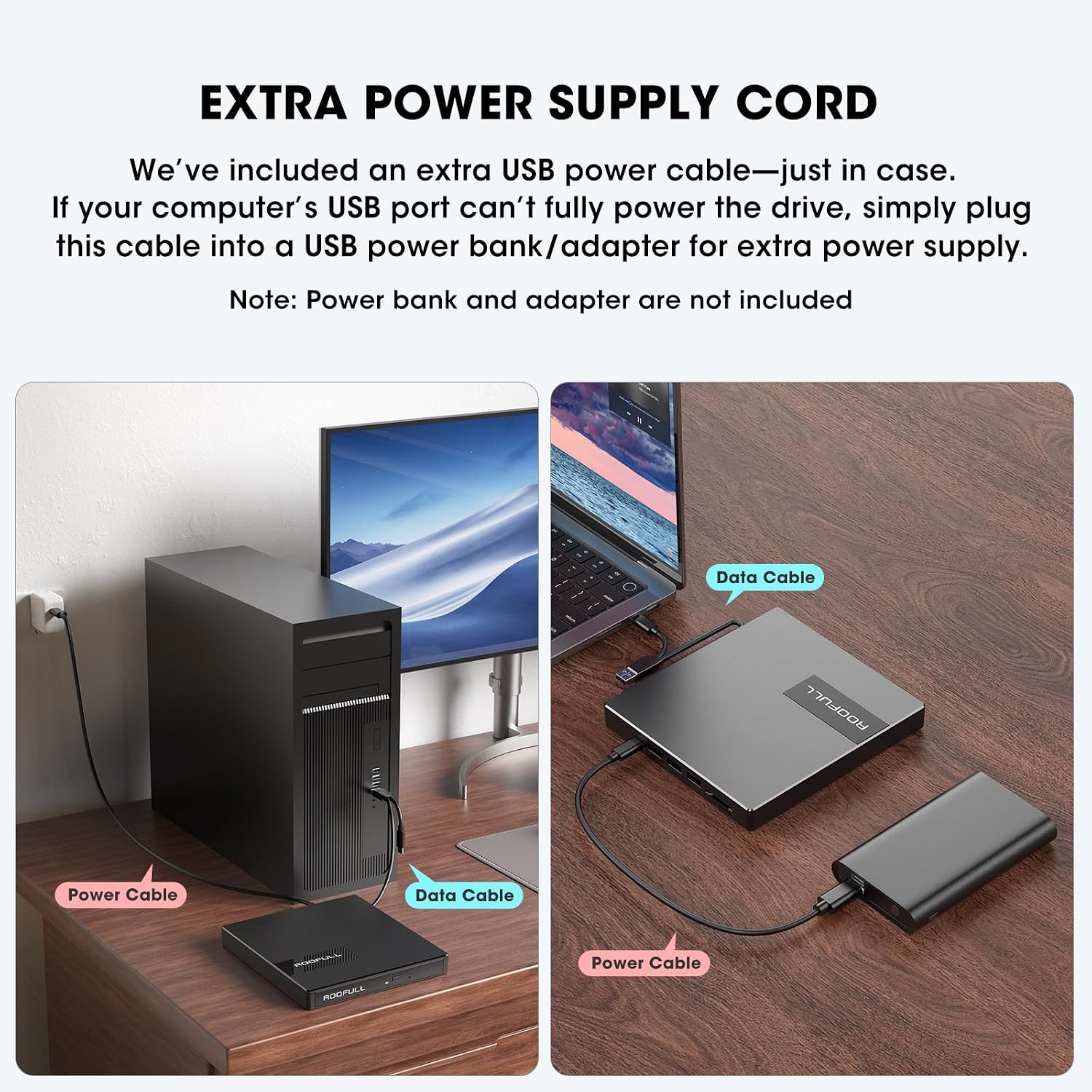
Figure 5.2: Using the extra power supply cord for stable operation.
DVD Region Code Setting
When inserting a DVD for the first time, your system may prompt you to select a DVD region. It is crucial to select the correct region corresponding to your DVD discs. Note that you can typically change the drive's region a limited number of times (e.g., 5 times). Refer to the map below for common DVD regions:

Figure 5.3: DVD Region Code Map.
| Regionas | Geographical Area |
|---|---|
| 1 regionas | Kanada, JAV |
| 2 regionas | Japan, Europe, South Africa, Middle East |
| 3 regionas | Pietryčių Azija, Rytų Azija (įskaitant Honkongą) |
| 4 regionas | Australia, New Zealand, Pacific Islands, Central America, Mexico, South America |
| 5 regionas | Eastern Europe, Russia, Indian Subcontinent, Africa, North Korea, and Mongolia |
| 6 regionas | Kinija |
| 7 regionas | Reserved for unspecified special use |
| 8 regionas | Air and oceanic travel |
6. Operacinis
Using the CD/DVD Drive
- Atidarykite disko dėklą: Norėdami atidaryti disko dėklą, paspauskite disko priekyje esantį išstūmimo mygtuką.
- Įdėkite diską: Carefully place your CD or DVD onto the tray, ensuring it is centered on the spindle.
- Uždarykite dėklą: Švelniai stumkite dėklą atgal į įrenginį, kol jis spragtelėdamas užsidarys.
- Pasiekite turinį: Your computer will typically recognize the disc automatically. Use your preferred media player software (e.g., Windows Media Player, VLC, iTunes) to play music CDs, movie DVDs, or access data discs. For burning or ripping, dedicated software is required (e.g., BurnAware, Nero, HandBrake).

Figure 6.1: Front panel features including Tray Loading Design, Indicator Light, Ejection Button, and Forced Ejection Hole.
Video 6.1: Official demonstration of the ROOFULL External CD DVD Drive, showing connection, disc insertion, and basic functions.
Using USB Ports and SD/TF Card Slots
The drive features additional ports for enhanced connectivity:
- USB 3.0 prievadas: Located on the side, this port can be used for high-speed data transfer with USB 3.0 devices.
- 3 USB 2.0 prievadai: These ports allow you to connect various USB peripherals such as wired mice, keyboards, flash drives, or 2.4G receivers.
- SD Card Slot & Micro-SD (TF) Card Slot: Insert your SD or microSD cards to import photos, videos, or access other data. Note that SD and TF cards cannot be used simultaneously.

6.2 pav.: šonas view showing USB ports, SD/TF card slots, and USB-C power port.
7. Priežiūra
- Valymas: Disko išorę valykite minkštu, sausu skudurėliu. Nenaudokite skystų valiklių ar abrazyvinių medžiagų.
- Disko priežiūra: Visada imkite diskus už kraštų, kad išvengtumėte pirštų atspaudų ir įbrėžimų. Kai nenaudojate, laikykite diskus apsauginiuose dėkluose.
- Saugykla: When not in use, store the drive in a cool, dry place. Ensure the data cable is neatly tucked into its storage slot underneath the drive.
- Venkite poveikio: Protect the drive from drops or impacts, as this can damage internal components.
8. Problemų sprendimas
- Diskas neatpažintas: Ensure the data cable is securely connected to both the drive and your computer. Try a different USB port. If using a desktop PC, connect to a rear USB port on the motherboard for a more stable power supply. If power is an issue, use the included extra power supply cord.
- Disc Not Reading/Burning: Check if the disc is clean and free of scratches. Ensure the disc is correctly placed on the tray. Verify that you have the necessary software installed for playing, burning, or ripping discs.
- Tray Cannot Be Opened via Button (macOS): Due to macOS limitations, the tray button may not function after playing or burning a disc. To eject a disc on a Mac, right-click the disc icon on your desktop and select "Eject," or go to "File" > "Eject" from the menu bar in the active application.
- No Power/Intermittent Operation: Connect the extra USB power supply cord to the drive and a reliable USB power source. Some USB ports (especially on older laptops or front panel desktop ports) may not provide enough power.
- Mažas perdavimo greitis: Ensure you are connected to a USB 3.0 port on your computer for optimal speed. Verify that the data cable is fully inserted.
- SD/TF kortelė neaptikta: Ensure only one card (either SD or TF) is inserted at a time, as they cannot be used simultaneously. Reinsert the card firmly.
9. Specifikacijos
| Funkcija | Detalė |
|---|---|
| Prekės ženklas | ROOFULL |
| Modelio numeris | RF40-SU |
| Optinio disko tipas | CD-ROM, CD-R, CD+/-RW, DVD-ROM, DVD+/-R, DVD+/-RW |
| Optinės atminties įrašymo greitis | Max 24xCD / 8xDVD |
| Techninės įrangos sąsaja | USB 3.0 Type A, USB 3.0 Type C |
| USB 3.0 prievadų skaičius | 1 |
| Operacinės sistemos suderinamumas | Windows 11/10/8/7, Mac, Linux |
| Aparatinės įrangos platforma | Nešiojamasis kompiuteris, kompiuteris |
| Prekės svoris | 10.6 uncijos |
| Gaminio matmenys (IxPxH) | 5.6 x 5.6 x 0.6 colio |
| Kilmės šalis | Kinija |
10. Garantija ir palaikymas
ROOFULL is committed to producing quality external CD/DVD-RW drives and offers comprehensive after-sales service.
- Garantija: The product comes with up to 2 years of comprehensive after-sales service.
- Techninė pagalba: If you experience any issues or require technical assistance, please contact ROOFULL customer support. Contact information can typically be found on the product packaging or the official ROOFULL websvetainę.
- Nemokamas pakeitimas: In case of product issues covered under warranty, a free replacement may be provided.
Susiję dokumentai - RF40-SU
 |
ROOFULL External CD DVD +/-RW Drive USB 3.0 User Manual User manual for the ROOFULL External CD DVD +/-RW Drive USB 3.0, detailing product description, compatibility, precautions, and usage instructions for Windows and Mac operating systems. |
 |
„ROOFULL“ išorinio CD / DVD įrenginio trikčių šalinimo vadovas, skirtas „Mac“ Išsamus „ROOFULL“ išorinių CD / DVD diskų įrenginių, skirtų „Mac“ kompiuteriuose, trikčių šalinimo vadovas, kuriame aptariamos dažniausiai pasitaikančios problemos, pvz., diskų atpažinimas, atkūrimo problemos ir dėklo išstūmimas. |
 |
Išorinis „ROOFULL“ diskas: naudojimo „Windows“ kompiuteriuose vadovas Išsamus vadovas, kaip prijungti, leisti, įrašyti ir kopijuoti CD ir DVD diskus naudojant išorinį ROOFULL diską sistemoje „Windows“. Įtrauktos programinės įrangos rekomendacijos, tokios kaip VLC, „HandBrake“, ir išsamios nuoseklios instrukcijos. |
 |
„ROOFULL“ išorinio CD / DVD įrenginio naudotojo vadovas, skirtas „Mac“: diegimo, atkūrimo, įrašymo ir kopijavimo vadovas This comprehensive guide details the installation, usage, and troubleshooting for the ROOFULL external CD/DVD drive on macOS. It covers playing audio CDs and video DVDs using various software like Apple Music, iTunes, VLC, IINA, and MPV Player, as well as instructions for burning CDs and DVDs and ripping discs using tools such as Burn App, DVDStyler, HandBrake, MakeMKV, XLD, and Fre:ac. |
 |
ROOFULL External CD/DVD Drive User Manual Comprehensive user manual for ROOFULL external CD/DVD drives, covering installation, troubleshooting, and step-by-step guides for playing, burning, and ripping media using various software. |
 |
ROOFULL External Optical Drive User Guide for Windows A comprehensive guide for setting up, playing, burning, and ripping CDs and DVDs using ROOFULL external optical drives on Windows. |
Ask a question about this manual
Ask about setup, troubleshooting, compatibility, parts, safety, or missing instructions. Manuals+ will review the question and use this page’s manual context to help answer it.