1. Įvadas
Thank you for choosing the arVin Mobile Gaming Controller D6. This manual provides detailed instructions for setting up, operating, and maintaining your controller to ensure an optimal gaming experience across various platforms. Please read this manual thoroughly before first use.

Image 1: arVin Mobile Gaming Controller D6 with a smartphone.
2. Produktas baigtasview
2.1 Pagrindinės savybės
- Kelių įrenginių suderinamumas: Supports iOS 13.0+, Android 6.0+, Windows 7.0+, Switch, PS3, PS4. (PS5 compatibility limited to PS4/PS3 games).
- Wide Game Support: Compatible with most cloud gaming services (Nvidia GeForce Now, Xbox Cloud, Amazon Luna, Google Stadia, Rainway, Moonlight), Apple Arcade, and MFi games.
- Remote Play Functionality: Supports streaming PC games via Steam Link, and console games via PS Remote Play and Xbox Remote Play.
- Išplėstiniai valdikliai: Features Hall Effect joysticks for high precision and durability, and 256-level analog triggers for precise input.
- Enhanced Feedback: Dual vibration motors and 6-axis gyroscope for immersive gameplay (features not supported on iOS/Android).
- Turbo funkcija: 3-level Turbo mode for customizable rapid-fire actions.
- Ergonomic & Stretchable Design: Accommodates phones from 5-7.1 inches, with a recessed design for phone lenses and bezel-less access to volume.
- Ilgas baterijos veikimo laikas: Built-in 600mAh rechargeable battery provides up to 15 hours of gaming.
2.2 Valdiklio komponentai

Image 2: Key Description of the arVin Mobile Gaming Controller D6.
Refer to Image 2 for the location of the following components:
- L3 Left Joystick: Left analog stick with push-down button.
- Direction Keys (D-Pad): Up, Down, Left, Right directional input.
- Switch Mode Button: For changing connection modes.
- V3 Mode Button: Specific mode button.
- Bluetooth Mode Button: „Bluetooth“ susiejimo inicijavimui.
- SELECT mygtukas: Pasirinkite funkciją.
- START mygtukas: Start function.
- TURBO mygtukas: Activates and sets Turbo function.
- R3 Right Joystick: Right analog stick with push-down button.
- A/B/X/Y klavišai: Standartiniai veiksmų mygtukai.
- LB/RB: Kairysis ir dešinysis buferio mygtukai.
- LT/RT: Kairysis ir dešinysis paleidimo mygtukai.
- Atkūrimo mygtukas: Small button for resetting the controller (located near the charging port).
- C tipo įkrovimo prievadas: Valdiklio įkrovimui.
- Indikatoriaus lemputė: Displays connection status and charging status.
3. Sąranka
3.1 Valdiklio įkrovimas
Before first use, fully charge the controller. Connect the provided Type-C charging cable to the controller's charging port and a suitable USB power source. The indicator light will show charging status and turn off when fully charged.

Image 3: Charging port and indicator light location.
3.2 Inserting Your Device
The controller features a stretchable design to accommodate mobile devices from 5 to 7.1 inches in length. Gently pull the two sides of the controller apart and carefully place your smartphone or tablet into the central slot. Ensure your device is securely seated.

Image 4: Stretchable design and phone case compatibility.
3.3 Bluetooth poravimas
Norėdami prijungti valdiklį prie įrenginio:
- Įsitikinkite, kad valdiklis įkrautas.
- Paspauskite ir palaikykite Bluetooth režimo mygtukas (refer to Image 2) until the indicator light flashes rapidly, indicating it is in pairing mode.
- On your device (iOS/Android phone/tablet, PC, Switch), go to Bluetooth settings and search for available devices.
- Select "arVin Controller D6" (or similar name) from the list to pair. The indicator light will become solid when successfully connected.
- For Switch, PS3/PS4, or Xbox connections, specific mode buttons (V3 Mode, Switch Mode) may need to be pressed in combination with the Bluetooth button. Refer to the quick start guide included in the product packaging for specific platform pairing instructions.
4. Naudojimo instrukcijos
4.1 Suderinamumas su keliomis platformomis
The arVin D6 controller is designed for broad compatibility:
- iOS/Android/PC: Prijunkite per „Bluetooth“.
- „Nintendo Switch“: Connect via Bluetooth using the Switch Mode.
- PS3 / PS4: Connect via Bluetooth. Note: For PS5, only PS4/PS3 games are supported.
- Xbox: Prijunkite per „Bluetooth“.

Image 5: Multi-platform compatibility overview.
4.2 Game Support and Remote Play
This controller supports a wide range of gaming options:
- Controller Supported App Games: Play popular titles like Call of Duty Mobile (CODM), Genshin Impact, Minecraft, Diablo Immortal, Asphalt 9: Legends, and Asphalt 8: Airborne.
- Žaidimai debesyje: Enjoy games on services such as Nvidia GeForce Now, Xbox Cloud, Amazon Luna, Google Stadia, Rainway, and Moonlight.
- Apple Arcade & MFi Games: Fully compatible with games designed for Apple Arcade and MFi standards.
- Nuotolinis paleidimas: Transform your mobile device into a portable console by using Steam Link for PC games, PS Remote Play for PlayStation games, and Xbox Remote Play for Xbox games. Ensure your phone and game console are connected to the same local area network (LAN) for remote play.

Image 6: Remote Play options.

Image 7: Supported app games and cloud gaming services.
4.3 Hall Effect Joysticks and Analog Triggers
The controller is equipped with advanced input mechanisms:
- Holo efekto valdymo svirtys: Provide 360° precise control with high accuracy and extended lifespan (up to 5 million uses), minimizing drift issues.
- Analoginiai trigeriai: Offer 256 levels of pressure sensitivity for fine control in racing and shooting games, ensuring low latency and fast feedback.

Image 8: Hall Effect Joysticks and Analog Triggers.
4.4 Turbo funkcija
The 3-level Turbo function allows for rapid, repeated input of a button press:
- To Set Turbo: Paspauskite ir palaikykite TURBO button, then press the desired function button (e.g., A button). The setting is complete.
- To Activate Auto Turbo: Paspauskite TURBO button and the function button again. The controller will automatically repeat the button press without continuous holding.
- To Cancel Turbo: Paspauskite TURBO button and the function button a third time to disable the auto-repeat function.

Image 9: Turbo Combo Function setup.
4.5 Dual Vibration and 6-Axis Gyroscope
For supported platforms (Switch, PS3/PS4, PC), the controller offers enhanced sensory feedback:
- Dvigubi vibracijos varikliai: Provide haptic feedback, immersing you further into the game.
- 6 ašių giroskopas: Enables high-precision directional control, allowing for quick reactions and an improved gaming experience.
Pastaba: These features (Dual Vibration and 6-Axis Gyroscope) are nepalaikoma on iOS and Android devices.
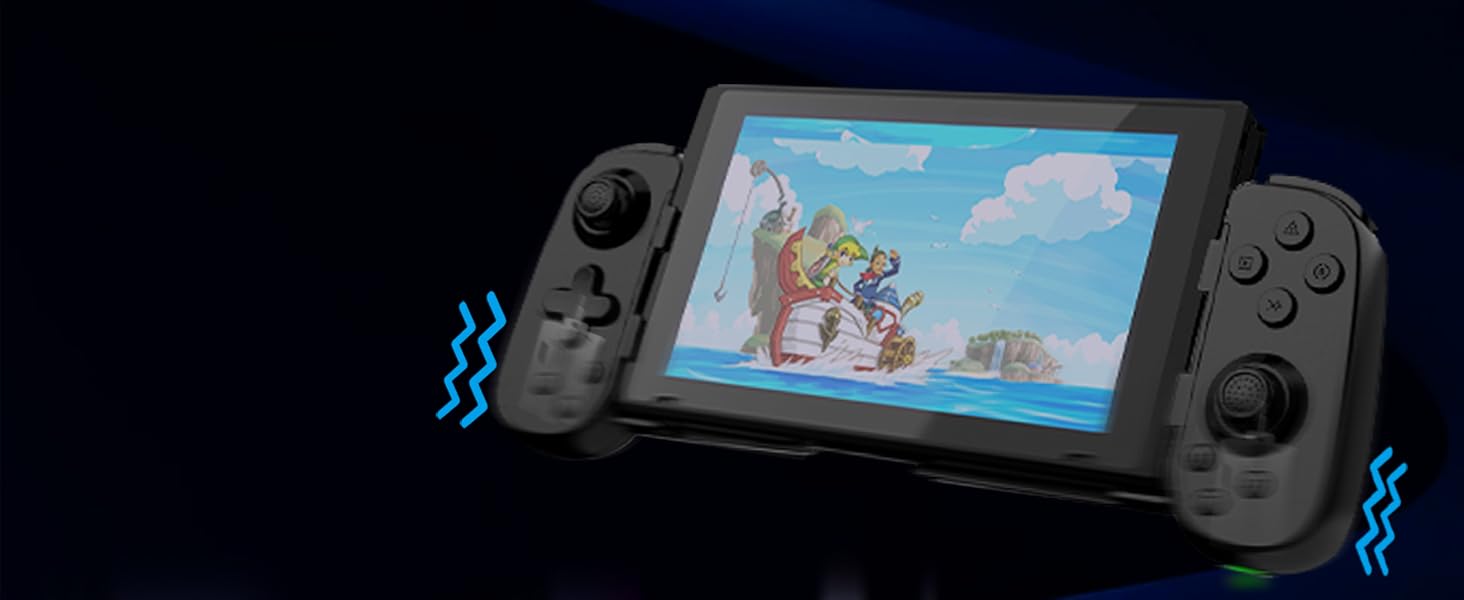
Image 10: Dual Vibration and 6-Axis Gyroscope features.
5. Priežiūra
Proper care will extend the life of your controller:
- Valymas: Valdiklį valykite minkšta, sausa šluoste. Venkite naudoti stiprias chemines medžiagas ar abrazyvines medžiagas.
- Saugykla: Laikykite valdiklį vėsioje, sausoje vietoje, apsaugotoje nuo tiesioginių saulės spindulių ir ekstremalių temperatūrų.
- Akumuliatoriaus priežiūra: To preserve battery health, avoid fully discharging the controller frequently. Charge it regularly, even if not in use for extended periods.
- Venkite poveikio: Nenumeskite ir nedarykite stipraus smūgio valdiklio, nes tai gali pažeisti vidinius komponentus.
6. Problemų sprendimas
If you encounter issues with your arVin Mobile Gaming Controller D6, please refer to the following common solutions:
- Valdiklis neprisijungia / nesusieja:
- Įsitikinkite, kad valdiklis yra visiškai įkrautas.
- Patikrinkite, ar jūsų įrenginyje įjungtas „Bluetooth“.
- Make sure the controller is in pairing mode (indicator light flashing rapidly).
- Try unpairing and re-pairing the controller from your device's Bluetooth settings.
- Restart both your device and the controller.
- Mygtukai / valdymo svirtys nereaguoja:
- Patikrinkite, ar valdiklis tinkamai prijungtas prie jūsų įrenginio.
- Įsitikinkite, kad žaidimas, kurį žaidžiate, palaiko valdiklio įvestį.
- If experiencing 'joystick drift' (unintended movement), try resetting the controller using the small reset button (refer to Image 3). If the issue persists, it may indicate a hardware fault.
- Turbo funkcija neveikia:
- Review the Turbo function setup steps in Section 4.4.
- Ensure you are pressing the correct combination of buttons.
- Vibration/Gyroscope Not Working on iOS/Android:
- These features are not supported on iOS and Android devices. This is normal operation.
- Remote Play Issues:
- Confirm that your mobile device and the console/PC are connected to the same local area network (LAN).
- Check your network connection stability.
Jei šie veiksmai neišsprendžia problemos, susisiekite su klientų aptarnavimo tarnyba.
7. Specifikacijos
| Modelis | D6 (Standard Version) |
| Matmenys | 8.66 x 3.98 x 1.93 colio (220 x 101 x 49 mm) |
| Prekės svoris | 8.5 uncijos (241 gramų) |
| Baterijos talpa | 600 mAh |
| Baterijos veikimo laikas | Iki 15 valandų (su pilnu įkrovimu) |
| Ryšys | Bluetooth 5.0 |
| Palaikomas įrenginio ilgis | 5–7.1 colio (127–180 mm) |
| Supported Phone Case Thickness | Iki 1.57 colių (40 mm) |
| Gamintojas | ShenZhen ShanWan Technology Co., Ltd. |
8. Garantija ir palaikymas
For warranty information, please refer to the documentation included with your product packaging or contact your retailer. If you require technical assistance or have questions not covered in this manual, please contact arVin customer support through the retailer's platform or the official arVin websvetainę.