
Star Micronics MCL32CBI
Star Micronics mC-Label3 MCL32CBI Direct Thermal Printer User Manual
Model: MCL32CBI
Įvadas
This manual provides essential information for the setup, operation, maintenance, and troubleshooting of your Star Micronics mC-Label3 MCL32CBI Direct Thermal Printer. Please read this manual thoroughly before using the printer to ensure proper and safe operation.
Pakuotės turinys
Patikrinkite, ar pakuotėje yra visi toliau išvardyti daiktai:
- mC-Label3 Multifunctional Printer
- Kintamosios srovės adapteris
- Maitinimo kabelis
- USB Cables (C-C 1.0m and C-A 1.8m)
- LAN kabelis (1 m)
- Simple Setup Sheet Safety Guide

Vaizdas: priekis view of the Star Micronics mC-Label3 printer, showcasing its compact design and label output slot.
Sąranka
1. Spausdintuvo prijungimas
The mC-Label3 MCL32CBI printer offers multiple connectivity options:
- USB-C: Connect the printer directly to your PC, Android, or iOS device using the provided USB-C to USB-C or USB-C to USB-A cables.
- Ethernet (LAN): For network connectivity, connect the printer to your router or network switch using the supplied LAN cable.
- Bluetooth: The MCL32CBI model supports Bluetooth connectivity for iOS and Android devices. Ensure Bluetooth is enabled on your device and pair with the printer.

Vaizdas: Galinis view of the mC-Label3 printer, highlighting the LAN, USB, and power ports for various connection types.
2. Laikmenų įdėjimas
The printer supports various media types, including linerless labels, die-cut labels, continuous labels, and thermal receipt paper.
- Open the top cover of the printer by lifting the latch.
- Place the media roll into the media compartment, ensuring the leading edge feeds out from the top.
- Pull a small amount of media past the print head and close the top cover securely.
- Ensure the media is properly aligned within the guides.

Vaizdas: Iš viršaus į apačią view of the mC-Label3 printer with its cover open, illustrating the internal mechanism for loading thermal paper or label rolls.
Naudojimo instrukcijos
1. Įjungimas/išjungimas
Connect the power cable to the printer and a power outlet. Press the power button located on the front of the printer to turn it on. The status indicator light will illuminate.
2. Printing Labels and Receipts
The mC-Label3 MCL32CBI printer is designed for efficient label and receipt printing. It supports various applications and cloud services.
- Programinės įrangos suderinamumas: Works seamlessly with PC, Android, and iOS applications.
- Debesų paslaugos: Utilize Star Micronics Cloud Services to design and manage labels.
- One Touch Label: This feature allows storing pre-made receipts and labels for quick and easy printing directly from the printer.
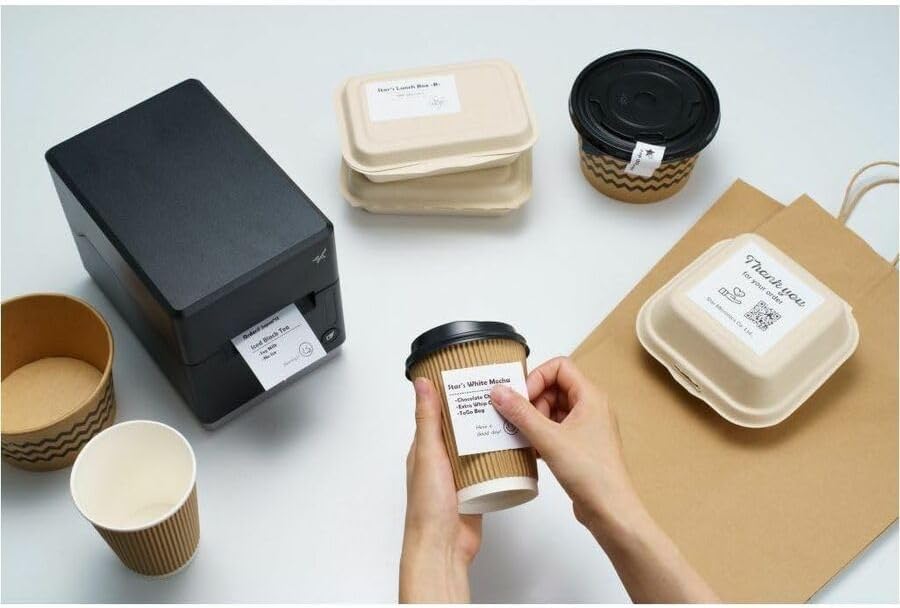
Image: A hand pressing the feed button on the mC-Label3 printer, demonstrating the printing of a 'Thank you' label.

Image: The mC-Label3 printer shown in a practical setting, printing labels for food containers and coffee cups, illustrating its versatility.
Priežiūra
1. Spausdintuvo valymas
Regular cleaning ensures optimal performance and extends the life of your printer.
- Naudokite minkštą, nepūkuotą audinį dampened with isopropyl alcohol to clean the print head.
- Nuvalykite spausdintuvo išorę minkštu, sausu skudurėliu.
- Nenaudokite abrazyvinių valiklių ar tirpiklių.
2. Replacing Media
When the media roll is depleted, follow the media loading instructions in the Setup section to replace it.
3. Effortless Repairs
The mC-Label3 is designed for effortless, no-tools-required repairs with minimal upkeep, simplifying any necessary component replacements.
Trikčių šalinimas
Šiame skyriuje pateikiami dažniausiai pasitaikančių problemų, su kuriomis galite susidurti, sprendimai.
| Problema | Galima priežastis | Sprendimas |
|---|---|---|
| Spausdintuvas neįsijungia | Maitinimo laidas neprijungtas; problema su maitinimo lizdu | Įsitikinkite, kad maitinimo laidas yra tvirtai prijungtas; Pabandykite naudoti kitą maitinimo lizdą. |
| Nėra spausdinimo išvesties | Out of media; Media loaded incorrectly; Driver issue | Load new media; Re-load media correctly; Reinstall printer drivers. |
| Prasta spausdinimo kokybė | Dirty print head; Low quality media | Clean the print head; Use recommended thermal media. |
| Ryšio problemos | Incorrect cable connection; Bluetooth not paired; Network configuration | Check USB/Ethernet cables; Re-pair Bluetooth; Verify network settings. |
Specifikacijos
| Funkcija | Detalė |
|---|---|
| Modelio pavadinimas | mC-Label3 |
| Prekės modelio numeris | MCL32CBI |
| Spausdinimo technologija | Tiesioginis terminis |
| Spausdintuvo išvestis | Vienspalvis |
| Didžiausias spausdinimo greitis, vienspalvis | 23 ppm |
| Maksimali juodai balto spausdinimo skiriamoji geba | 203 DPI (203 x 203 DPI) |
| Spausdinimo laikmena | Labels (Linerless, Die-Cut, Continuous), Thermal Receipt |
| Ryšio technologija | Bluetooth, Wired (USB, Ethernet) |
| Techninės įrangos sąsaja | USB-Ethernet |
| Suderinami įrenginiai | PC, Android, iOS |
| Valdiklio tipas | iOS, Android |
| Gaminio matmenys | 6.7 colio gylis x 5.6 colio plotis x 8.3 colio aukštis (17.0 x 14.2 x 21.1 cm) |
| Prekės svoris | 7.2 svaro (3.27 kg) |
| Atminties talpa | 64 MB |
| Spalva | Juoda |
| Gamintojas | STAR MICRONICS |
| Kilmės šalis | Kinija |
Informacija apie garantiją
The Star Micronics mC-Label3 MCL32CBI printer comes with a manufacturer's warranty. For specific terms and conditions, please refer to the warranty card included in your package or visit the official Star Micronics websvetainę.
Garantijos tipas: Gamintojas
Palaikymas
For further assistance, technical support, or to download the latest drivers and firmware, please visit the official Star Micronics support websvetainėje arba susisiekite su jų klientų aptarnavimo tarnyba.
Star Micronics Official Websvetainė: www.starmicronics.com
Palaikymo nuoroda: www.starmicronics.com/support
Ask a question about this manual
Ask about setup, troubleshooting, compatibility, parts, safety, or missing instructions. Manuals+ will review the question and use this page’s manual context to help answer it.