
1. Įvadas
This manual provides detailed instructions for the setup, operation, and maintenance of your KOORUI MG27K1Q 27-inch QHD 240Hz VA Mini LED Gaming Monitor. Please read this manual thoroughly before using the product to ensure proper functionality and to prevent damage.
2. Pakuotės turinys
Verify that all items listed below are included in your product package. If any items are missing or damaged, please contact KOORUI customer support.
- KOORUI MG27K1Q 27-inch Gaming Monitor
- Monitor Stand (Base and Support)
- Maitinimo adapteris
- DisplayPort (DP) kabelis
3. Sąranka
3.1 Stovo surinkimas
- Atsargiai išimkite monitoriaus ir stovo komponentus iš pakuotės.
- Attach the stand support to the monitor panel. Ensure it clicks securely into place or is fastened with screws if provided.
- Connect the stand base to the stand support. Tighten any screws to secure the assembly.
- Surinktą monitorių padėkite ant stabilaus, lygaus paviršiaus.
3.2 Prisijungimas prie įrenginių
The monitor offers multiple connectivity options for various devices. Ensure the monitor is powered off before making any connections.
- DisplayPort (DP 1.4): Connect the included DisplayPort cable from your computer's graphics card to the DisplayPort input on the monitor for optimal performance, including 240Hz refresh rate and Adaptive Sync.
- HDMI (HDMI 2.0): Connect an HDMI cable from your device (PC, gaming console) to one of the two HDMI 2.0 inputs on the monitor.
- Garso išvestis: Use the 3.5mm audio jack to connect external speakers or headphones.
Vaizdas: Galinis view of the monitor illustrating the available connection ports (DisplayPort 1.4, 2x HDMI 2.0, Audio Out) and VESA mount points. Examples of compatible devices like PS5, Xbox, Laptop, and Nintendo Switch are shown.
3.3 Maitinimo jungtis
- Prijunkite maitinimo adapterį prie monitoriaus maitinimo įvesties.
- Įkiškite maitinimo adapterį į sieninį lizdą.
4. Monitoriaus valdymas
4.1 Pagrindinės operacijos
- Maitinimo įjungimas/išjungimas: Norėdami įjungti arba išjungti monitorių, paspauskite maitinimo mygtuką, paprastai esantį monitoriaus gale arba apačioje dešinėje.
- Įvesties pasirinkimas: Use the On-Screen Display (OSD) menu to select the desired input source (DP, HDMI 1, HDMI 2).
4.2 Ekrano funkcijos
The KOORUI MG27K1Q monitor is equipped with advanced display technologies for an enhanced visual experience.
- QHD raiška (2560 x 1440): Pateikia ryškius ir detalius vaizdus.
- VA Mini LED Panel: Offers deep blacks, high contrast, and vibrant colors.
- HDR 1000: High Dynamic Range support for brighter whites and darker blacks, enhancing visual depth and realism.

Image: Visual comparison demonstrating the enhanced contrast and detail provided by HDR 1000 technology compared to a standard display.
4.3 Žaidimų našumas
Designed for gaming, this monitor delivers smooth and responsive gameplay.
- 240Hz atnaujinimo dažnis: Ensures ultra-smooth motion and reduced input lag.
- 1 ms atsako laikas: Sumažina judesio suliejimą ir šešėliavimą, kad būtų aiškūs, greito tempo veiksmo vaizdai.
- Adaptive Sync (G-SYNC Compatible): Sinchronizuoja monitoriaus atnaujinimo dažnį su GPU kadrų dažniu, kad būtų išvengta ekrano plyšinėjimo ir mirgėjimo.
- Exclusive Game Display Modes: Features like Crosshair, Timer, and FPS Counter can be enabled via the OSD for an advantage in gaming.

Image: The monitor displaying a high-speed racing game, emphasizing its 240Hz refresh rate and 1ms response time for a fluid gaming experience.
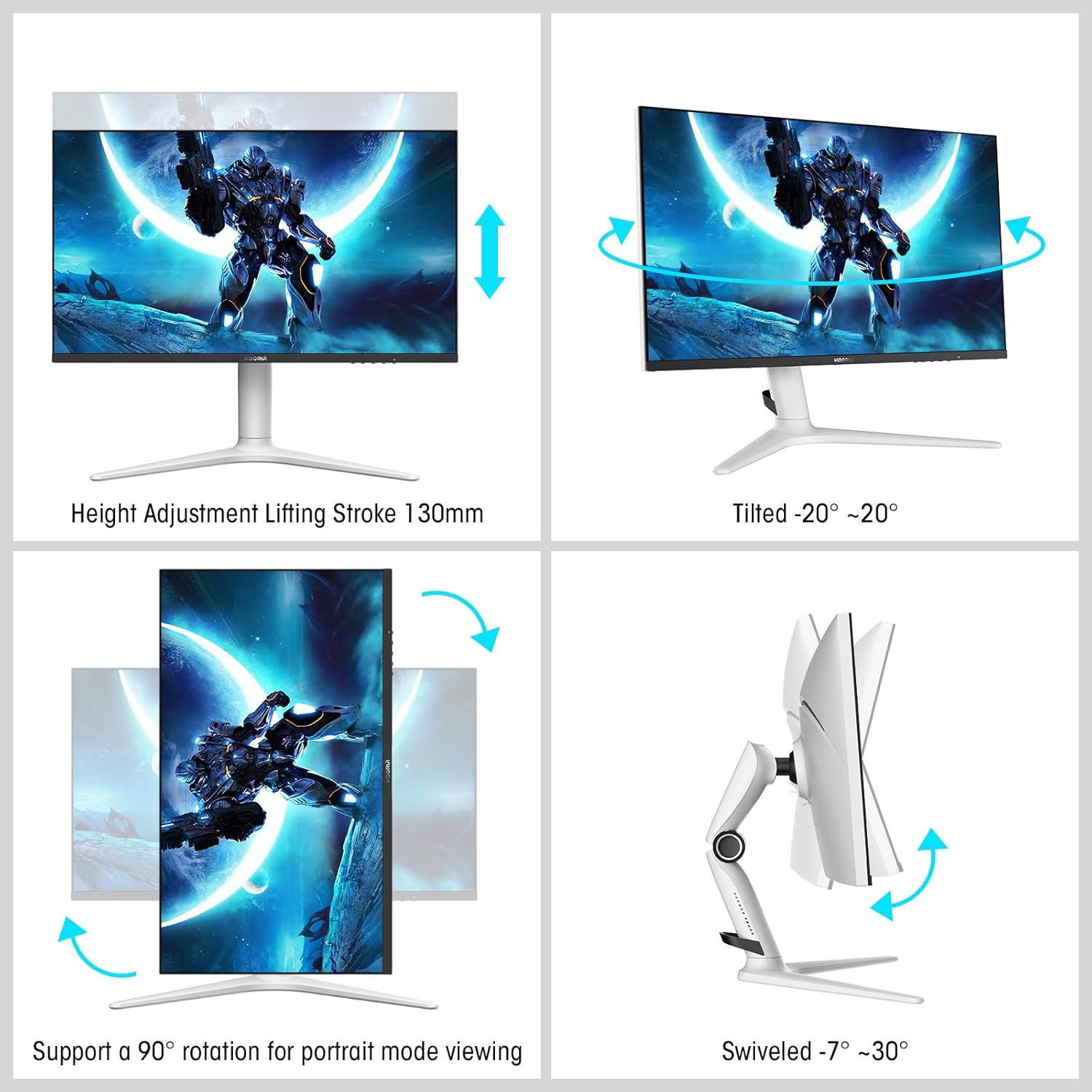
Image: A gaming scenario on the monitor, illustrating the 'Exclusive Game Display Mode' features such as Crosshair, Timer, FPS Counter, and RTS Counter, alongside Adaptive Sync functionality.
4.4 Akių priežiūros funkcijos
The monitor includes features to reduce eye strain during prolonged use.
- Mėlynos šviesos filtras: Reduces harmful blue light emissions. This can be adjusted or enabled/disabled through the OSD menu.
5. Koregavimai
The monitor stand allows for various ergonomic adjustments to optimize your viewkomfortas.
- Aukščio reguliavimas: Adjust the monitor height up to 130mm.
- Pakreipti: Tilt the screen from -7° (downward) to 30° (upward).
- Sukamasis: Rotate the monitor horizontally from -20° to 20°.
- Pivot: Pasukite ekraną 90° kampu, kad būtų galima naudoti portreto režimą viewing.
- VESA laikiklis: Compatible with VESA 75x75mm mounting solutions for alternative setups.

Image: Diagrams demonstrating the monitor's ergonomic adjustments, including height, tilt, swivel, and pivot for portrait mode.
6. Specifikacijos
| Funkcija | Specifikacija |
|---|---|
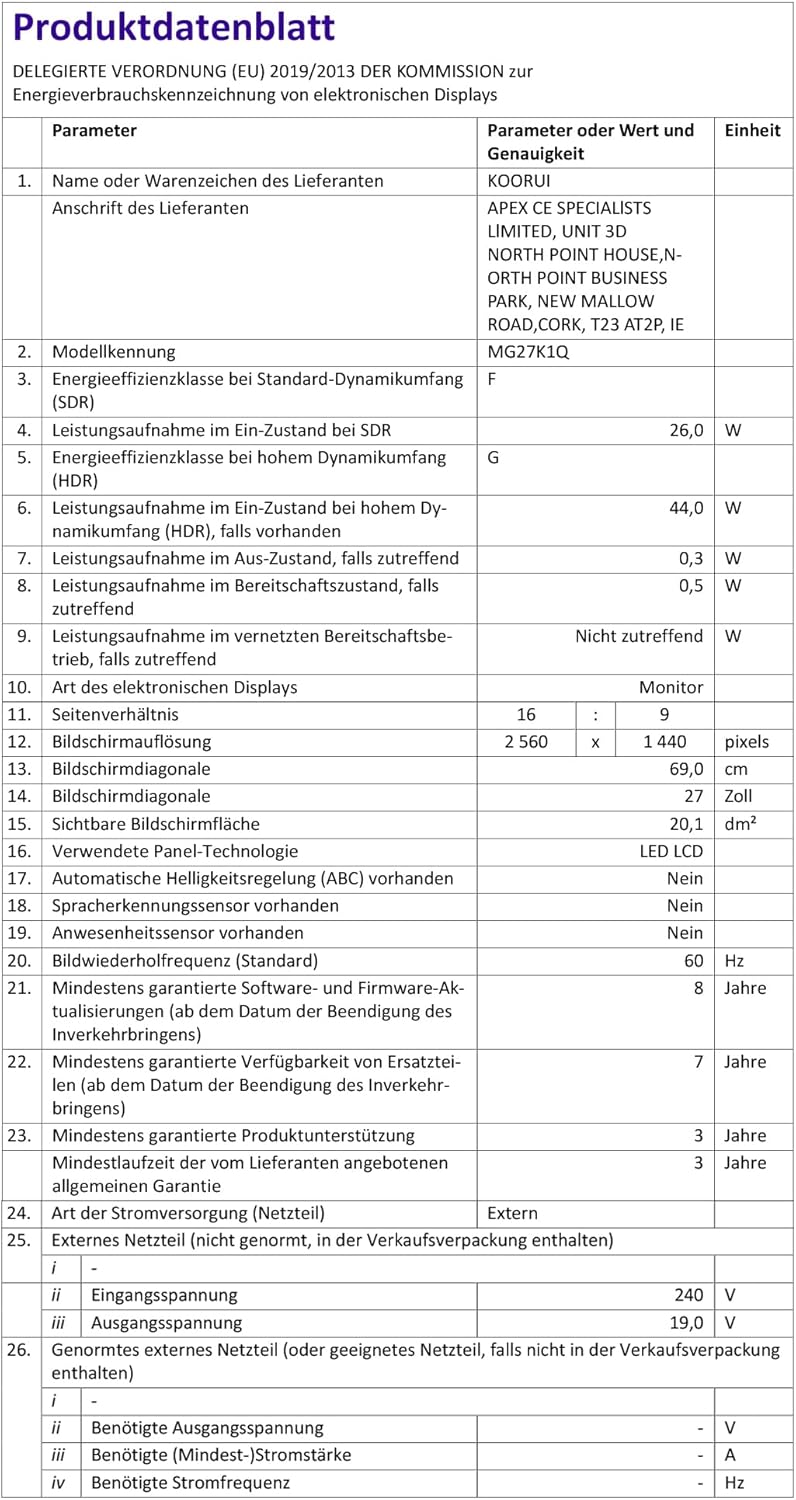
| Modelio numeris | MG27K1Q |
| Ekrano dydis | 27 colių |
| Skydelio tipas | VA Mini-LED |
| Rezoliucija | QHD (2560 x 1440) |
| Krašto santykis | 16:9 |
| Atnaujinimo dažnis | 240 Hz |
| Reagavimo laikas | 1 ms |
| Kontrastas (statinis) | 3000:1 |
| Kontrastas (dinaminis) | 20,000,000:1 |
| Ryškumas | 275 nitų |
| Viewing kampas | 178 laipsnių |
| HDR palaikymas | HDR 1000 |
| Adaptyvusis sinchronizavimas | Compatible with NVIDIA G-SYNC |
| Ryšys | 2x HDMI 2.0, 1x DisplayPort 1.4, garso išvestis |
| VESA kalnas | 75x75mm |
| Energijos suvartojimas | 90 vatų |
| Matmenys (G x P x A) | 32 x 61.3 x 52.3 cm |
| Svoris | 9.34 kilogramo |
| Ypatingos savybės | Blue Light Filter, Gaming Modes (Crosshair, Timer, FPS Counter) |
7. Problemų sprendimas
Jei kyla problemų dėl monitoriaus, vadovaukitės šiais įprastais trikčių šalinimo veiksmais:
- Nėra galios: Ensure the power adapter is securely connected to both the monitor and a working power outlet. Check if the power indicator light on the monitor is on.
- Nėra signalo: Verify that the video cable (DP or HDMI) is correctly connected to both the monitor and your computer/device. Ensure the correct input source is selected in the monitor's OSD menu. Try a different video cable or port.
- Mirgantis / iškreiptas vaizdas: Check the video cable connections. Ensure your graphics card drivers are up to date. Try reducing the refresh rate in your display settings to see if the issue persists.
- Adaptive Sync Not Working: Ensure Adaptive Sync (G-SYNC Compatible) is enabled in both the monitor's OSD settings and your graphics card control panel. Use a DisplayPort cable for optimal performance.
- Negyvi pikseliai: While rare, a small number of dead pixels may be considered within manufacturing tolerances. Refer to the warranty policy for specific details regarding pixel defects.
8. Garantija ir palaikymas
KOORUI provides comprehensive support for your product.
- Garantija: This monitor comes with a 3-year warranty from the date of purchase.
- Pakeitimo paslauga: A 1-year replacement service is offered for qualifying issues.
- Klientų aptarnavimas: If you encounter any damages, malfunctions, or find missing accessories, please do not hesitate to contact KOORUI customer support for assistance.