
1. Įvadas
This manual provides comprehensive instructions for the installation, operation, and maintenance of your CORN 1300Mbps USB Wifi Adapter. This device offers high-speed dual-band wireless connectivity for your computer, supporting both 2.4GHz and 5.8GHz frequencies.

Image: The CORN 1300Mbps USB Wifi Adapter featuring its rotatable 5dBi antenna, capable of 90 and 360-degree adjustments for optimal signal reception.
2. Pakuotės turinys
Patikrinkite, ar jūsų siuntinyje yra visi toliau išvardyti daiktai:
- 1300Mbps USB WiFi adapteris
- One Detachable 5dBi Antenna
- Vartotojo vadovas
- CD tvarkyklė
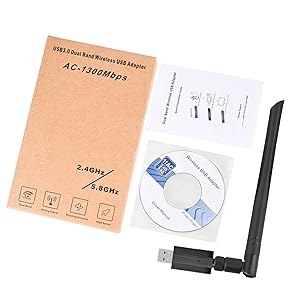
Image: Contents of the product package, showing the USB WiFi adapter, detachable antenna, user manual, and driver CD.
3. Pagrindinės savybės
- Dual Band 802.11ac: Supports up to 1300Mbps Wi-Fi speeds (867Mbps on 5GHz and 400Mbps on 2.4GHz) for reduced latency during streaming and gaming.
- Detachable 5dBi Antenna with Beamforming+ Technology: High-gain, long-range antenna designed to improve connectivity even in areas with weak signals.
- Super Speed USB 3.0: Offers data transfer rates up to 5.8Gbps, which is 10 times faster than USB 2.0, ensuring maximum throughput and a stable internet connection. It is also backward compatible with USB 2.0 and 1.1 devices.
- Platus suderinamumas: Compatible with Windows 11/10/8/8.1/7/Vista/XP/2000 and Mac OS 10.9-10.15. (Note: Not compatible with Mac OS 11.1 or newer versions, Linux, or TV operating systems).
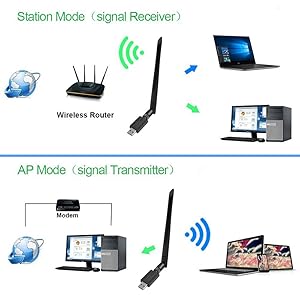
Image: Illustration of the 5dBi high gain antenna's enhanced signal penetration and coverage, demonstrating its ability to transmit through obstacles.

Image: Details on the secure technology, highlighting the 5dBi oxygen-free copper antenna for stable signal and WPS (Wi-Fi Protected Setup) for one-key encryption.

Image: A visual comparison demonstrating the superior speed of USB 3.0 (5120Mbps) compared to USB 2.0 (480Mbps).
4. Sąrankos vadovas
4.1 Aparatinės įrangos diegimas
- Gently attach the 5dBi antenna to the USB Wifi Adapter by screwing it into the connector.
- Plug the USB Wifi Adapter into an available USB 3.0 port on your computer. For optimal performance, use a USB 3.0 port if available.

Image: The USB Wifi Adapter connected to a laptop, illustrating its compact design and antenna.
4.2 Tvarkyklės diegimas
Diegimo procesas skiriasi priklausomai nuo jūsų operacinės sistemos:
- „Windows 11/10“: No drivers are required. The adapter is plug-and-play. Your system should automatically detect and install the necessary drivers.
- For Windows 8/8.1/7/Vista/XP/2000 and Mac OS 10.9-10.15:
- Įdėkite pateiktą tvarkyklės kompaktinį diską į kompiuterio CD-ROM įrenginį.
- Vykdykite ekrane pateikiamas instrukcijas, kad įdiegtumėte tvarkykles.
- If your computer does not have a CD-ROM drive, please visit the CORN support website (if available) to download the latest drivers.
- Įdiegę, jei būsite paraginti, paleiskite kompiuterį iš naujo.
5. Naudojimo instrukcijos
5.1 Prisijungimas prie „Wi-Fi“ tinklo
- Once the adapter is installed and drivers are recognized, open your computer's network settings.
- Locate the list of available wireless networks.
- Select your desired Wi-Fi network (SSID) and click 'Connect'.
- Jei būsite paraginti, įveskite tinklo saugos raktą (slaptažodį).
- The adapter will connect to the network, and you should have internet access.
5.2 Dviejų dažnių veikimas
The adapter supports both 2.4GHz and 5.8GHz (often displayed as 5GHz) frequency bands. You can choose the band that best suits your needs:
- 2.4 GHz dažnių juosta: Offers wider coverage and better penetration through walls, suitable for general browsing and devices further from the router.
- 5.8 GHz dažnių juosta: Provides faster speeds and less interference, ideal for high-bandwidth activities like online gaming and HD video streaming, especially when closer to the router.
5.3 Operating Modes (Station Mode & AP Mode)
The adapter can function in two primary modes:
- Station Mode (Signal Receiver): The adapter acts as a client, connecting your computer to an existing wireless router to access the internet. This is the most common use case.
- AP Mode (Signal Transmitter): The adapter can create a Wi-Fi hotspot, allowing other devices to connect to your computer's internet connection. This requires specific software configuration on your computer.
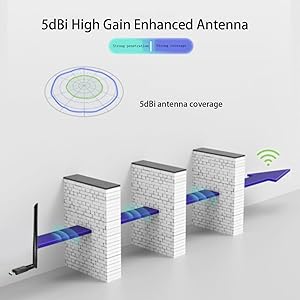
Image: A diagram illustrating the two operational modes: Station Mode, where the adapter receives Wi-Fi from a router, and AP Mode, where it transmits Wi-Fi from a modem-connected computer.
6. Priežiūra
To ensure the longevity and optimal performance of your CORN USB Wifi Adapter, follow these maintenance guidelines:
- Adapterį laikykite švarų ir be dulkių. Valymui naudokite minkštą, sausą šluostę.
- Saugokite adapterį nuo ekstremalių temperatūrų, drėgmės ar tiesioginių saulės spindulių.
- Nenumeskite adapterio ir nedarykite jam fizinių smūgių.
- Įsitikinkite, kad antena tvirtai pritvirtinta, bet neperveržkite.
- When not in use for extended periods, consider unplugging the adapter.
7. Problemų sprendimas
If you encounter issues with your CORN USB Wifi Adapter, please refer to the following common solutions:
- Nėra „Wi-Fi“ ryšio:
- Įsitikinkite, kad adapteris yra tvirtai prijungtas prie USB prievado.
- Verify that the drivers are correctly installed (refer to Section 4.2).
- Patikrinkite, ar jūsų kompiuteryje įjungtas „Wi-Fi“ ryšys.
- Paleiskite kompiuterį ir belaidį maršrutizatorių iš naujo.
- Lėtas interneto greitis:
- Ensure you are connected to the appropriate Wi-Fi band (5GHz for faster speeds, if available).
- Move closer to your wireless router to improve signal strength.
- Patikrinkite, ar netrukdo kiti elektroniniai prietaisai.
- Atnaujinkite savo maršrutizatoriaus programinę-aparatinę įrangą.
- Adapter Not Recognized / Driver Issues:
- Try plugging the adapter into a different USB port, preferably a USB 3.0 port.
- Reinstall the drivers from the provided CD or the manufacturer's websvetainę.
- Ensure your operating system is supported (Mac OS 11.1+ and Linux are not supported).
- Check Device Manager (Windows) or System Information (Mac) to see if the adapter is listed without errors.
- Pertraukiamas ryšys:
- Adjust the antenna's position for better signal reception.
- Ensure there are no physical obstructions between the adapter and the router.
- Check for conflicting network adapters or software.
8. Specifikacijos
| Modelio numeris | 5Bdi-1200Mbps USB wifi adapter |
| Techninės įrangos sąsaja | USB 3.0 |
| Duomenų perdavimo sparta | 1300 megabitų per sekundę (Mbps) |
| Duomenų nuorodos protokolas | IEEE 802.11ac |
| Dažnių juostos | 2.4 GHz, 5.8 GHz |
| Antenos Pelnas | 5dBi |
| Suderinami įrenginiai | Laptop, Desktop, PC |
| Palaikoma OS | Windows 11/10/8/8.1/7/Vista/XP/2000, Mac OS 10.9-10.15 |
| Gaminio matmenys | 0.75 x 0.49 x 0.06 colio (adapterio korpusas) |
| Prekės svoris | 2.4 uncijos |
| Spalva | Juoda |
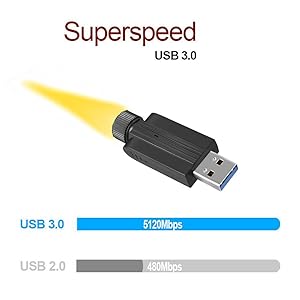
Image: Detailed dimensions of the USB Wifi Adapter, including the USB connector width, adapter body length, and total length with the antenna.
9. Informacija apie garantiją
Specific warranty details for this product may vary by region and retailer. Please refer to the warranty card included in your package or contact your point of purchase for detailed warranty terms and conditions.
10. Pagalba klientams
For further assistance, technical support, or inquiries regarding your CORN 1300Mbps USB Wifi Adapter, please contact the retailer or manufacturer directly. Refer to the product packaging or the manufacturer's official websvetainė kontaktinei informacijai.