
1. Įvadas
Welcome to the user manual for your new SGIN E10P 10-inch Kids Tablet. This guide provides essential information on setting up, operating, maintaining, and troubleshooting your device. Please read this manual thoroughly to ensure proper use and to maximize your tablet's features.
Kas yra dėžutėje
Išpakuodami patikrinkite, ar yra visi toliau išvardyti daiktai:
- SGIN E10P Kids Tablet (with protective case)
- Vartotojo vadovas
- C tipo USB kabelis
- Maitinimo adapteris (įkroviklis)
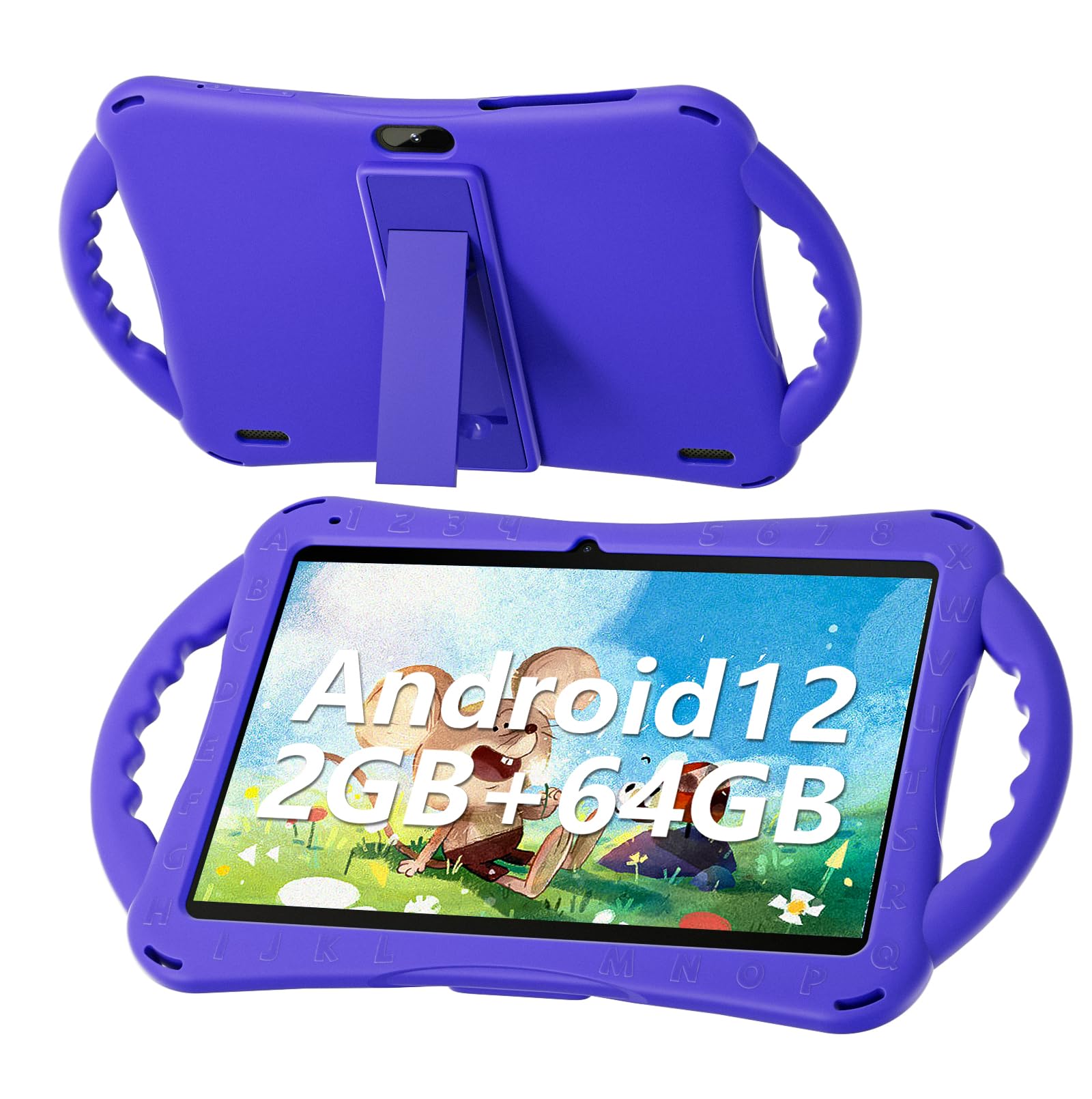
Figure 1: SGIN E10P Kids Tablet with its protective case.
2. Produktas baigtasview
Familiarize yourself with the physical components of your SGIN E10P Kids Tablet.

Figure 2: Labeled diagram of the SGIN E10P Kids Tablet components.
- Priekinė kamera: Vaizdo skambučiams ir asmenukėms.
- Galinė kamera: Nuotraukų ir vaizdo įrašų darymui.
- Garsiakalbiai: Garso išvestis.
- C tipo prievadas: Įkrovimui ir duomenų perdavimui.
- TF kortelės lizdas: For expanding storage with a microSD card.
- Ausinių lizdas: Laidinių ausinių prijungimui.
- Padidinti garsumą: Button to raise the audio level.
- Sumažinti garsumą: Button to lower the audio level.
- Bracket (Kickstand): Integruotas stovas laisvų rankų įrangai viewing.
- Armrest (Handle): Ergonomic handles on the protective case for easy gripping.
3. Sąranka
3.1 Planšetinio kompiuterio įkrovimas
Before first use, fully charge the tablet. Connect the USB Type-C cable to the tablet's Type-C port and the other end to the power adapter. Plug the power adapter into a wall outlet. The battery indicator on the screen will show charging status. A full charge typically takes several hours.
3.2 Įjungimas / išjungimas
- Norėdami įjungti: Press and hold the Power button (usually located on the side or top edge) until the SGIN logo appears on the screen.
- Norėdami išjungti: Press and hold the Power button until a menu appears. Select "Power off" from the options.
- Norėdami paleisti iš naujo: Press and hold the Power button until a menu appears. Select "Restart" from the options.
3.3 Pradinė sąranka
The first time you power on the tablet, you will be guided through an initial setup process:
- Kalbos pasirinkimas: Pasirinkite pageidaujamą kalbą.
- „Wi-Fi“ ryšys: Pasirinkite savo „Wi-Fi“ tinklą ir įveskite slaptažodį, kad prisijungtumėte prie interneto.
- Google paskyra: Sign in with an existing Google account or create a new one. This is necessary for downloading apps from the Google Play Store.
- Data ir laikas: Nustatykite teisingą datą ir laiką arba leiskite tinklui juos nustatyti automatiškai.
- Tėvų kontrolė: Configure Google Kids Space or other parental control features to manage content and screen time for children.
4. Planšetinio kompiuterio valdymas
4.1 Pagrindinė navigacija
The SGIN E10P tablet uses a touch-sensitive screen for navigation:
- Bakstelėkite: Norėdami atidaryti programėlę, pasirinkti elementą arba paspausti mygtuką, vieną kartą palieskite ekraną.
- Palieskite ir palaikykite: Paspauskite ir palaikykite elementą, kad pasiektumėte papildomas parinktis arba jį perkeltumėte.
- Perbraukimas: Norėdami slinkti puslapiais arba sąrašais, braukite pirštu per ekraną.
- Žiupsnelis, norint priartinti: Uždėkite du pirštus ant ekrano ir išskleiskite juos, kad priartintumėte, arba suglauskite, kad atitolintumėte.
4.2 „Wi-Fi“ ryšys
To connect or manage Wi-Fi networks:
- Eikite į Nustatymai > Tinklas ir internetas > Wi-Fi.
- Perjungti „Wi-Fi“ On.
- Iš sąrašo pasirinkite norimą tinklą ir, jei būsite paraginti, įveskite slaptažodį.

Figure 3: The tablet supports both 2.4GHz and 5GHz Wi-Fi for stable connections.
4.3 Applications and Content
The tablet runs on Android 12 and comes with access to the Google Play Store, allowing you to download a wide range of applications. It is pre-configured for children's use, supporting apps like YouTube Kids, educational games, and other child-friendly content.

Figure 4: The Android 12 interface with various pre-installed and downloadable kids' apps.
4.4 Tėvų kontrolė
Utilize the built-in parental control features to manage your child's tablet experience. This includes setting screen time limits, filtering content, and approving app downloads. Access these settings through the Google Family Link app or directly in the tablet's settings under "Digital Wellbeing & parental controls."
5. Priežiūra
5.1 Valymas
- Ekranas: Naudokite minkštą, nepūkuotą šluostę, specialiai skirtą elektronikai. Įsisenėjusias dėmes šiek tiek nuvalykiteampen the cloth with water or a screen cleaner solution (do not spray directly onto the screen).
- Atvejis: The silicone protective case can be wiped with a damp cloth and mild soap if necessary. Ensure it is completely dry before reattaching it to the tablet.
- Prievadai: Keep all ports (USB-C, headphone jack, TF card slot) free of dust and debris. Use a soft brush or compressed air if needed.
5.2 Akumuliatoriaus priežiūra
The tablet is equipped with a 5000mAh battery, providing extended usage time.

Figure 5: The tablet features a 5000mAh battery for prolonged use.
- Venkite ekstremalių temperatūrų, nes jos gali pabloginti akumuliatoriaus veikimo laiką.
- Naudokite tik pridėtą įkroviklį ir laidą, kad nepažeistumėte įrenginio.
- Norėdami užtikrinti optimalų akumuliatoriaus tarnavimo laiką, venkite dažnai visiškai iškrauti akumuliatorių ir ilgai nelaikyti jo įkrauto 100 %.
5.3 Saugykla
Store the tablet in a cool, dry place away from direct sunlight and moisture when not in use.
6. Problemų sprendimas
This section addresses common issues you might encounter with your SGIN E10P tablet.
6.1 Planšetinis kompiuteris neįsijungia
- Ensure the tablet is sufficiently charged. Connect it to the charger for at least 30 minutes before attempting to power it on again.
- Paspauskite ir palaikykite maitinimo mygtuką 10–15 sekundžių, kad atliktumėte priverstinį paleidimą iš naujo.
6.2 „Wi-Fi“ ryšio problemos
- Check if Wi-Fi is enabled in the tablet's settings.
- Patikrinkite, ar jūsų „Wi-Fi“ maršrutizatorius veikia tinkamai ir ar kiti įrenginiai gali prisijungti.
- Forget the network in the tablet's Wi-Fi settings and reconnect.
- Restart both the tablet and your Wi-Fi router.
6.3 Programėlių strigimas arba užstrigimas
- Uždarykite ir vėl atidarykite programą.
- Išvalykite programos talpyklą ir duomenis Nustatymai > Programėlės > [Programėlės pavadinimas] > Saugykla ir talpykla.
- Ensure the app is updated to its latest version via the Google Play Store.
- Iš naujo paleiskite planšetinį kompiuterį.
6.4 Lėtas veikimas
- Uždarykite nereikalingas fonines programas.
- Išvalykite talpykloje saugomus duomenis iš programų ir sistemos.
- Ensure there is sufficient storage space available. Delete unused apps or files.
- Kraštutiniu atveju apsvarstykite galimybę atkurti gamyklinius nustatymus (Pastaba: This will erase all data on the tablet. Back up important file(pirmas).
7. Specifikacijos
Key technical specifications for the SGIN E10P Kids Tablet:
| Funkcija | Specifikacija |
|---|---|
| Prekės ženklas | SGIN |
| Modelio numeris | E10P |
| Ekrano dydis | 10 colių |
| Ekrano raiška | 1280 x 800 |
| Procesorius | 1.5 GHz Allwinner Quad-core A133 |
| RAM | 2 GB |
| Saugykla (ROM) | 64 GB |
| Išplečiama saugykla | TF Card Slot (for additional expansion) |
| Operacinė sistema | Android 12 |
| Galinis Webkumštelio raiška | 5 MP |
| Priekinė kamera | 2 MP |
| Baterijos talpa | 5000 mAh |
| Ryšys | 2.4G/5G belaidis internetas, „Bluetooth 4.2“ |
| Matmenys (IxPxH) | 10.1 x 6 x 0.4 colio |
| Prekės svoris | 2.27 svaro |
8. Garantija ir palaikymas
SGIN provides a 1-year maintenance period from the date of purchase for this product. If you encounter any issues or require assistance, please contact SGIN customer support.
For further support, please refer to the contact information provided with your purchase documentation or visit the official SGIN websvetainę.