
1. Produktas baigtasview
The LETSUNG GoLite 11 Mini PC is a compact and powerful computing solution designed for daily office tasks, home entertainment, and entry-level industrial applications. Powered by an Intel Celeron N4020C processor, it offers reliable performance in a small form factor. This manual provides essential information for setting up, operating, maintaining, and troubleshooting your device.

1 pav.: Priekinė ir šoninė dalys view of the LETSUNG GoLite 11 Mini PC, highlighting its compact design and various ports.
2. Sąrankos vadovas
2.1 Pakuotės turinys
Prašome įsitikinti, kad pakuotėje yra visi daiktai:
- LETSUNG GoLite 11 Mini PC
- Maitinimo adapteris
- VESA tvirtinimo laikiklis ir varžtai
- Vartotojo vadovas (šis dokumentas)
2.2 Pradinė sąranka
Follow these steps to set up your Mini PC:
- Prijunkite išorinius įrenginius: Prijunkite klaviatūrą, pelę ir kitus USB įrenginius prie galimų USB 3.2 prievadų.
- Prijungti ekraną: Connect your monitor(s) to the HDMI ports. The device supports up to two displays simultaneously.
- Prisijunkite prie tinklo: For wired connection, connect an Ethernet cable to the RJ45 LAN port. For wireless connection, ensure your Wi-Fi network is available.
- Prijunkite maitinimą: Insert the power adapter into the DC jack on the Mini PC, then plug the adapter into a power outlet.
- Maitinimas: Paspauskite maitinimo mygtuką, esantį „Mini PC“ priekyje.

2 pav. Išsamus view of the Mini PC's ports, including USB 3.2, HDMI, LAN, 3.5mm headphone jack, DC jack, and power button.
3. Naudojimo instrukcijos
3.1 Įjungimas / išjungimas
- Norėdami įjungti: Vieną kartą paspauskite maitinimo mygtuką.
- Norėdami išjungti: From the Windows 11 Pro desktop, click the Start button, then Power, and select "Shut down."
- Norėdami paleisti iš naujo: From the Windows 11 Pro desktop, click the Start button, then Power, and select "Restart."
3.2 Ekranų prijungimas
The GoLite 11 supports dual display output via its two HDMI 1.4 ports, allowing for a resolution of up to 1920x1080@60Hz on each screen. Simply connect your HDMI cables from the Mini PC to your monitors.

Figure 3: The LETSUNG GoLite 11 Mini PC supporting a dual display setup for enhanced productivity.
3.3 Saugyklos išplėtimas
The Mini PC comes with a 128GB M.2 SATA SSD. For additional storage, the device supports expansion up to 512GB. Refer to the detailed instructions for M.2 SSD installation if you wish to upgrade the storage capacity.

Figure 4: Visual representation of the 128GB M.2 2280 SATA SSD, which can be expanded up to 512GB.
3.4 Tinklas ir jungiamumas
The Mini PC supports Dual WiFi 5 for high-speed wireless internet access and Bluetooth 4.2 for connecting wireless peripherals such as keyboards, mice, and headphones.
4. Priežiūra
4.1 Valymas
To maintain optimal performance and appearance, regularly clean the exterior of the Mini PC with a soft, dry cloth. Avoid using liquid cleaners or abrasive materials. Ensure the ventilation openings are free from dust and debris.
4.2 Aušinimo sistema
The GoLite 11 features a low-power, low-noise cooling system designed for steady, long-lasting operation. Ensure adequate airflow around the device by not blocking the ventilation holes.
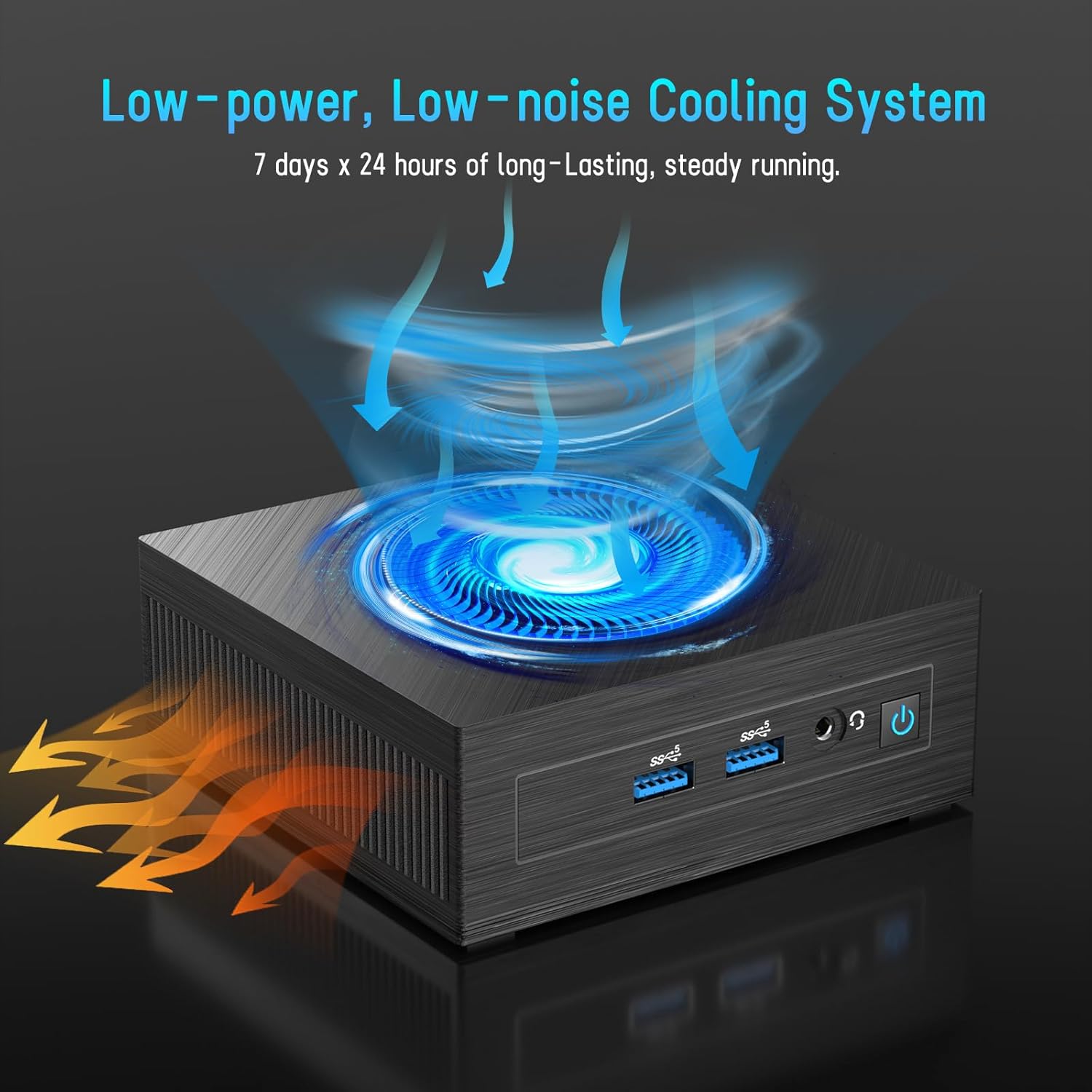
Figure 5: Illustration of the efficient low-power, low-noise cooling system integrated into the Mini PC.
5. Problemų sprendimas
If you encounter issues with your LETSUNG GoLite 11 Mini PC, refer to the common problems and solutions below:
- Nėra ekrano išvesties:
- Ensure the HDMI cables are securely connected to both the Mini PC and the monitor.
- Verify the monitor is set to the correct input source (HDMI 1, HDMI 2, etc.).
- Try connecting to a different monitor or using different HDMI cables.
- Maitinimo problemos:
- Check if the power adapter is properly connected to the Mini PC and the power outlet.
- Įsitikinkite, kad maitinimo lizdas veikia.
- If the device does not power on, try a different power outlet.
- Tinklo ryšio problemos:
- For Wi-Fi, ensure the Wi-Fi adapter is enabled in Windows settings and you are connected to the correct network.
- For wired LAN, check the Ethernet cable connection. Note that the LAN port on this model supports up to 100 Mbps, not Gigabit Ethernet.
- Paleiskite maršrutizatorių / modemą iš naujo.
- Lėtas našumas:
- Uždarykite nereikalingas programas, veikiančias fone.
- Ensure Windows 11 Pro is up to date.
- Check for sufficient free space on the SSD.
6. Techninės specifikacijos
| Funkcija | Specifikacija |
|---|---|
| Procesorius | Intel Celeron N4020C (Dual-Core, up to 2.8 GHz) |
| Grafika | Intel UHD Graphics 600 |
| RAM | 6GB LPDDR4 (Integrated, Dual Channel) |
| Sandėliavimas | 128GB M.2 SATA SSD (Expandable up to 512GB) |
| Operacinė sistema | „Windows 11 Pro“ (iš anksto įdiegta) |
| Vaizdo išvestis | 2 x HDMI 1.4 (Supports Dual Display up to 1920x1080@60Hz) |
| USB prievadai | 4 x USB 3.2 |
| Tinklas | Dual WiFi 5, RJ45 LAN (100 Mbps) |
| Bluetooth | Bluetooth 4.2 |
| Garsas | 1 x 3.5 mm ausinių lizdas |
| Maitinimo įvestis | DC lizdas |
| Matmenys | 4.53 x 4.43 x 1.61 colio (115 mm x 112 mm x 41 mm) |
| Svoris | Apytiksliai 9.66 uncijos (274 g) |
7. Garantija ir palaikymas
The LETSUNG GoLite 11 Mini PC comes with a vienerių metų garantija nuo įsigijimo datos. Ši garantija taikoma gamybos defektams ir užtikrina, kad gaminys atitinka nurodytas eksploatacines savybes. Išsaugokite pirkimo įrodymą, jei prireiktų pateikti pretenziją dėl garantijos.
For any questions, technical assistance, or troubleshooting not covered in this manual, LETSUNG customer support is available 24/7 to assist you. Please refer to the contact information provided with your product packaging or visit the official LETSUNG websvetainėje, kur rasite išsamios pagalbos.