
1. Įvadas
The HUGEROCK G60F is a rugged mobile tablet designed for high-precision surveying, mapping, and GIS applications. It integrates advanced GNSS (Global Navigation Satellite System) and RTK (Real-Time Kinematic) technology to provide accurate positioning data in challenging environments. This manual provides essential information for the proper setup, operation, and maintenance of your G60F device.
2. Saugos informacija
- Prieš naudodami įrenginį atidžiai perskaitykite visas instrukcijas.
- Nebandykite ardyti ar modifikuoti įrenginio. Neleistini pakeitimai gali panaikinti garantiją ir kelti pavojų saugumui.
- Naudokite tik patvirtintus įkroviklius ir priedus.
- Avoid exposing the device to extreme temperatures, direct sunlight for prolonged periods, or corrosive chemicals.
- Ensure all ports are properly sealed when operating in wet or dusty conditions to maintain IP67 rating.
- Saugokite įrenginį nuo stiprių magnetinių laukų.
3. Produktas baigtasview
The HUGEROCK G60F features a robust design with a 5.5-inch IPS/AFFS 1080*1920 FHD display. It is equipped with a multi-model high-precision GNSS/RTK positioning board and an external antenna for enhanced signal reception. The device is built to withstand harsh conditions, meeting IP67, MIL-STD-810G, and IK05 industrial protection standards.

3.1 paveikslas: Priekyje ir gale view of the HUGEROCK G60F Rugged Tablet, highlighting the external antenna connection point.

3.2 paveikslas: Physical dimensions of the HUGEROCK G60F Rugged Tablet, showing approximate measurements of 195mm (height), 98mm (width), and 22mm (thickness).
4. Sąranka
4.1 Išpakavimas ir pakuotės turinys
Carefully unpack your HUGEROCK G60F tablet and verify all components are present. The standard package typically includes:
- HUGEROCK G60F Rugged Tablet
- Išorinė antena
- Maitinimo adapteris
- USB kabelis
- Rankinis dirželis
- User Guide (this document or similar)

4.1 paveikslas: Contents included in the HUGEROCK G60F product package, showing the tablet, antenna, charger, USB cable, hand strap, and user guide.
4.2 Įrenginio įkrovimas
Before initial use, fully charge the tablet's built-in 9000mAh battery. Connect the provided USB cable to the tablet's charging port and the power adapter, then plug the adapter into a power outlet. The charging indicator will illuminate. A full charge may take several hours.
4.3 Pradinis įjungimas
Press and hold the power button located on the side of the device until the HUGEROCK logo appears on the screen. Follow the on-screen prompts to complete the initial Android operating system setup, including language selection, Wi-Fi connection, and Google account setup.
4.4 Antenos montavimas
Carefully screw the external antenna into the designated port at the top of the tablet. Ensure it is securely fastened but do not overtighten. The antenna is crucial for optimal GNSS/RTK performance.
4.5 SIM/SD Card Installation (Optional)
If your model supports cellular connectivity or requires expandable storage, locate the SIM/SD card slot (usually protected by a waterproof cover). Use the provided tool (if any) or your fingernail to open the cover. Insert the Nano-SIM card and/or microSD card into their respective slots, ensuring correct orientation. Close the cover firmly to maintain the device's waterproof rating.
5. Naudojimo instrukcijos
5.1 Pagrindinė navigacija („Android“ OS)
The G60F runs on the Android operating system. Navigate using touch gestures: swipe to scroll, tap to select, pinch to zoom. The physical buttons on the device provide additional functionality, such as power, volume, and programmable function keys (F1, F2, etc.) which can be customized for quick access to specific applications or features.
5.2 GNSS/RTK Operation
The G60F is equipped with Ublox-F9P and TDXL-GGBR7I05 modules, supporting multi-model high-precision GNSS/RTK positioning. To achieve optimal accuracy:
- Naudojimas lauke: Operate the device in an open area with a clear view of the sky to maximize satellite reception.
- Antenos jungtis: Ensure the external antenna is securely connected.
- GNSS Application: Launch the pre-installed GNSS or surveying application. This application will display satellite status, signal strength, and positioning accuracy.
- RTK Correction Data: For milli-level accuracy, the device requires RTK correction data. This can be received via network connection (NTRIP) or a local base station. Configure the RTK settings within your surveying application.

5.1 paveikslas: The HUGEROCK G60F tablet displaying real-time satellite connection and signal strength, crucial for accurate positioning.

5.2 paveikslas: The G60F displaying detailed GPS status information, including visible satellites and solution type, alongside an RTK centering rod for precise point positioning.
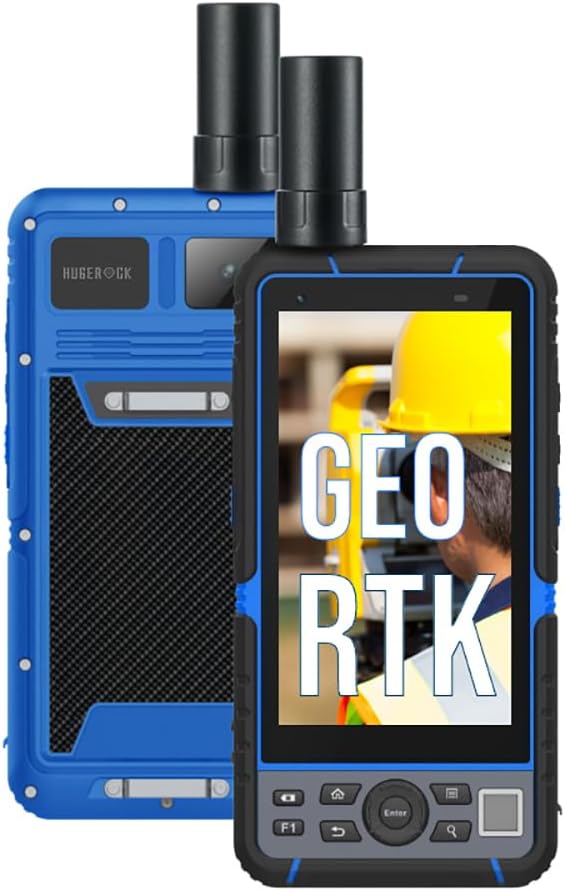
5.3 paveikslas: The HUGEROCK G60F demonstrating its GEO RTK capabilities, essential for geographical information system applications.

5.4 paveikslas: The HUGEROCK G60F being used in an outdoor surveying and mapping scenario, highlighting its high-precision capabilities.
5.3 Ryšys
- „Wi-Fi“: Connect to available Wi-Fi networks via the Android settings menu for internet access and data transfer.
- Bluetooth: Pair with external Bluetooth devices such as external sensors, headphones, or other peripherals through the Bluetooth settings.
- USB: Use the USB-C port for charging, data transfer to a computer, or connecting compatible USB accessories.
5.4 Duomenų valdymas
The G60F comes with 8GB RAM and 128GB internal storage. Utilize the built-in file manager or connect to a computer to manage your surveying data, maps, and other files. Regularly back up important data to prevent loss.

5.5 paveikslas: The HUGEROCK G60F highlighting its 8GB RAM and 128GB storage, along with key features like GNSS RTK, GPS Surveying, GEO RTK, and GNSS Receiver capabilities.
6. Priežiūra
6.1 Valymas
Nuvalykite prietaisą minkšta, damp cloth. For stubborn dirt, use a mild soap solution. Ensure all port covers are sealed before cleaning with liquids. Do not use harsh chemicals, abrasive cleaners, or solvents.
6.2 Akumuliatoriaus priežiūra
- Venkite dažnai visiškai iškrauti akumuliatorių.
- Jei ilgą laiką nenaudojate įrenginio, laikykite jį dalinai įkrautą (apie 50 %).
- Nelaikykite akumuliatoriaus itin karštyje ar šaltyje.
6.3 Programinės įrangos naujiniai
Periodically check for and install system updates to ensure optimal performance, security, and access to new features. Connect to a stable Wi-Fi network before initiating updates.
6.4 Atsparumo gairės
While the G60F is IP67 waterproof, dustproof, and shockproof (MIL-STD-810G, IK05), proper care is still necessary:
- Prieš sušlapinant ar dulkinant, įsitikinkite, kad visi prievadų dangteliai yra sandariai uždaryti.
- Avoid intentional drops or impacts, especially on hard surfaces.
- Do not submerge the device beyond its rated depth or for longer than specified.
7. Problemų sprendimas
- Įrenginys neįsijungia: Ensure the battery is charged. Connect to the charger and try again. If unresponsive, perform a forced restart (refer to device-specific instructions, usually holding power button for 10-15 seconds).
- Poor GNSS signal: Ensure the external antenna is properly connected and you are in an open area with a clear view dangaus. Patikrinkite, ar nėra kliūčių.
- RTK accuracy issues: Verify that RTK correction data is being received and configured correctly in your surveying application. Check network connectivity if using NTRIP.
- Jutiklinis ekranas nereaguoja: Paleiskite įrenginį iš naujo. Jei problema išlieka, susisiekite su palaikymo tarnyba.
- Ryšio problemos („Wi-Fi“ / „Bluetooth“): Ensure Wi-Fi/Bluetooth is enabled in settings. Try toggling them off and on. Restart the device and/or the router/paired device.
8. Specifikacijos
| Funkcija | Specifikacija |
|---|---|
| Modelio pavadinimas | G60F |
| Ekrano dydis | 5.5 colių |
| Rezoliucija | 1080 1920 x XNUMX XNUMX (FHD) |
| Operacinė sistema | Android |
| Procesorius | 8-core 2.0 GHz A73 |
| Atmintis (RAM) | 8 GB |
| Saugykla (ROM) | 128 GB |
| Baterijos talpa | 9000 mAh |
| Baterijos veikimo laikas | Iki 7 valandų (įprastas naudojimas) |
| GNSS Modules | Ublox-F9P, TDXL-GGBR7I05 |
| Apsaugos lygis | IP67, MIL-STD-810G, IK05 |
| Ryšys | „Bluetooth“, „Wi-Fi“ |
9. Garantija ir palaikymas
The HUGEROCK G60F Rugged Tablet comes with a standard manufacturer's warranty. Please refer to the warranty card included in your package or visit the official HUGEROCK websvetainėje, kurioje pateikiamos išsamios garantijos sąlygos.
For technical support, service, or inquiries, please contact HUGEROCK customer service through their official channels. Keep your purchase receipt and product serial number handy when seeking support.