
1. Įvadas
This manual provides detailed instructions for the setup, operation, and maintenance of your HUNSN RJ47 Micro Firewall Appliance. The RJ47 is a compact, fanless mini PC designed for network security applications, supporting various open-source firewall solutions like OPNsense and pfSense, as well as Linux distributions and Windows operating systems.
Equipped with an Intel 12th Gen Alder Lake-N N200 processor and multiple 2.5GbE network interfaces, this appliance offers robust performance for network routing and security tasks.
2. Produkto ypatybės
- Procesorius: Intel 12th Gen Alder Lake-N N200 with AES-NI support.
- Atmintis: 1 x SO-DIMM DDR5 4800 MT/s slot, supporting up to 32GB RAM.
- Saugykla: 2 x M.2 2280 NVMe x1 SSD slots and 1 x 2.5-inch SATA SSD/HDD bay.
- Tinklo sąsajos: 6 x Intel 2.5GbE I226-V LAN ports.
- Vaizdo įrašo išvestis: 2 x HDMI 2.1 ports and 1 x Type-C port for display.
- USB prievadai: 1 x USB 3.2, 4 x USB 2.0, and 1 x Type-C (data/display).
- Additional I/O: TF slot for data storage/system boot, Power ON/OFF button, RST button, DC_IN.
- Aušinimas: Fanless design for silent operation.
- Sistemos suderinamumas: Supports 5.10.x and above core-based FreeBSD router systems, Linux distributions, and Windows OS. UEFI support only.
- Galios valdymas: Supports hardware auto power-on (enabled by default), network wake-up, and system power management.
3. Sąrankos vadovas
3.1 Pakuotės turinys
Prieš tęsdami įsitikinkite, kad pakuotėje yra visi reikalingi daiktai:
- HUNSN RJ47 Firewall Appliance
- Power Supply (12V3A)
- Maitinimo laidas
- Garantijos kortelė
3.2 Aparatūra baigtaview

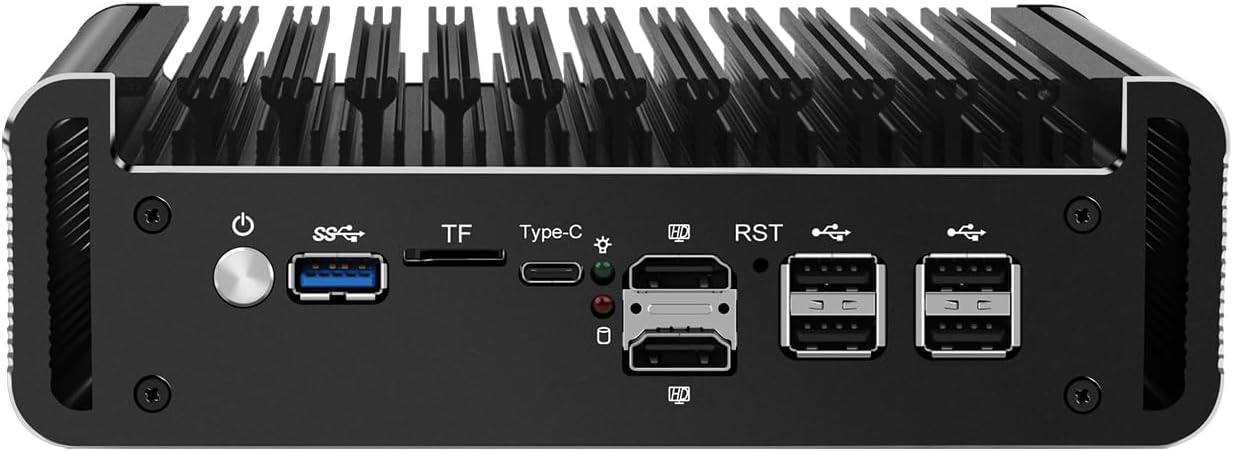
1 pav.: Priekinis skydelisview
This image displays the front panel of the HUNSN RJ47, featuring the power button, USB 3.2 port, TF card slot, Type-C port, two HDMI 2.1 ports, RST button, and four USB 2.0 ports.
2 pav.: Galinio skydelio viršusview
This image illustrates the rear panel of the HUNSN RJ47, showing the DC 12V power input and six 2.5 Gigabit Ethernet (LAN) ports labeled ETH0 to ETH5.
3.3 Pradinis prisijungimas
- Prijungti ekraną: Connect a monitor to one of the HDMI 2.1 ports or the Type-C port using an appropriate cable.
- Prijunkite išorinius įrenginius: Connect a USB keyboard and mouse to the available USB ports.
- Prijunkite tinklą: Connect your network cables to the 2.5GbE LAN ports as required for your network configuration.
- Prijunkite maitinimą: Connect the power supply to the DC_IN port on the appliance and then plug the power cord into an electrical outlet.
- Maitinimas: Press the power button on the front panel to turn on the appliance.
3.4 Operacinės sistemos diegimas
The HUNSN RJ47 supports various operating systems, including FreeBSD-based router systems (e.g., OPNsense, pfSense), Linux distributions, and Windows OS. It supports UEFI boot only.
- Prepare a bootable USB drive with your chosen operating system.
- Insert the bootable USB drive into a USB port on the appliance.
- Power on the appliance and access the BIOS/UEFI settings (usually by pressing DEL or F2 during startup) to set the boot order or select the USB drive as the boot device.
- Vykdykite ekrane pateikiamas instrukcijas, kad įdiegtumėte operacinę sistemą.
4. Naudojimo instrukcijos
4.1 Maitinimo įjungimas/išjungimas
- Maitinimas: Press the power button on the front panel. The system will automatically power on if configured in BIOS.
- Įprastas išjungimas: Initiate a shutdown through your installed operating system.
- Priverstinis išjungimas: Press and hold the power button for approximately 5 seconds. Use this only when a normal shutdown is not possible.
4.2 Tinklo konfigūracija
The RJ47 features six 2.5GbE LAN ports. After installing your operating system, configure the network interfaces according to your specific network topology and firewall requirements. Refer to the documentation of your chosen operating system (e.g., OPNsense, pfSense) for detailed network setup instructions.
4.3 BIOS / UEFI nustatymai
To access the BIOS/UEFI settings, power on the appliance and repeatedly press the DEL or F2 key. Here you can configure boot options, enable/disable features, and manage power settings such as "Auto Power On" and "Network Wake-up".
5. Priežiūra
5.1 Valymas
Due to its fanless design, the RJ47 requires minimal cleaning. Periodically wipe the exterior with a soft, dry cloth to remove dust. Ensure the ventilation fins are clear of obstructions to maintain optimal passive cooling.
- Nenaudokite skystų valiklių ar aerozolinių purškalų tiesiai ant įrenginio.
- Prieš valydami įsitikinkite, kad prietaisas yra išjungtas ir atjungtas.
5.2 Aplinkos sąlygos
To ensure longevity and stable operation, operate the appliance within the specified environmental conditions:
- Darbinė temperatūra: -10°C iki 70°C
- Laikymo temperatūra: 0°C iki 70°C
- Santykinė oro drėgmė: nuo 5% iki 85% (nekondensuojantis)
6. Problemų sprendimas
- Nėra galios:
- Ensure the power adapter is securely connected to the appliance and the electrical outlet.
- Patikrinkite, ar maitinimo lizdas veikia.
- Patikrinkite, ar maitinimo mygtukas paspaustas teisingai.
- Nėra ekrano išvesties:
- Confirm the monitor is powered on and connected to the correct HDMI or Type-C port.
- Išbandykite kitą ekrano kabelį arba monitorių.
- Įsitikinkite, kad monitoriuje pasirinktas teisingas įvesties šaltinis.
- Tinklo ryšio problemos:
- Check all Ethernet cable connections to the LAN ports.
- Verify network settings within your installed operating system.
- Ensure your router/switch is functioning correctly.
- Operating System Installation Failure:
- Confirm your bootable USB drive is created correctly and is recognized in BIOS/UEFI.
- Remember that the appliance supports UEFI boot only. Ensure your OS installer is configured for UEFI.
- Check the integrity of your OS image.
7. Techninės specifikacijos
| Funkcija | Specifikacija |
|---|---|
| Modelio numeris | RJ47 |
| CPU | Intel Processor N200 (12th Gen Alder Lake-N), 6M Cache, up to 3.70 GHz |
| AES-NI Support | Taip |
| Atmintis | 1 x SO-DIMM DDR5 4800 MT/s, up to 32GB |
| Sandėliavimas | 2 x M.2 2280 NVMe x1 SSD, 1 x 2.5 Inch SATA SSD/HDD |
| Tinklo plokštė | 6 x Intel 2.5GbE I226-V |
| I/O sąsaja | Power ON/OFF, USB 3.2, TF slot, Type-C (display/data), 2 x HDMI 2.1, RST, 4 x USB 2.0, DC_IN, 6 x LAN |
| Išsiplėtimas | Built-in reserved TPM header, 1 x COM pin, 1 x GPIO pin |
| Maitinimo įvestis | DC 100-240V AC/50-60Hz, 12V3A |
| Darbinė temperatūra | -10°C iki 70°C |
| Laikymo temperatūra | 0°C iki 70°C |
| Santykinė drėgmė | 5% ~ 85% nekondensuojantis |
| TDP | 6W |
| Aušinimo sistema | Be ventiliatoriaus |
| Matmenys | 178.3 x 126.5 x 55 mm |
| Svoris | 1.3 kgs (Appliance), 2 kg (Shipping Weight) |
| Sistemos suderinamumas | FreeBSD router systems (5.10.x+), Linux distros, Windows OS (UEFI support only) |
| Baterijos | 1 CR2032 baterija (pridedama) |
8. Informacija apie garantiją
The HUNSN RJ47 Firewall Appliance includes a warranty card in its packaging. Please refer to this card for specific details regarding warranty coverage, terms, and conditions. Retain your proof of purchase for warranty claims.
9. Parama
For technical assistance, product inquiries, or support, please contact HUNSN directly.
- Gamintojas: Shenzhen Shi Han Song Ke Ji You Xian Gong Si
- Telefonas: (86) 13613019665
- Faksas: (86) 0755-23057094
- Internetinė parduotuvė: Aplankykite pareigūną HUNSN Store on Amazon daugiau produktų ir informacijos.