
AVMATRIX SHARK S4
AVMATRIX SHARK S4
Multi Camera Video Switcher Mixer for Live Streaming
1. Įvadas
The AVMATRIX SHARK S4 is a compact and versatile multi-camera video switcher and mixer designed for live streaming applications. It integrates 4-channel video inputs (2x HDMI, 2x 3G-SDI), a 6-channel audio mixer, and multiple output options including HDMI PGM, HDMI Multiview, USB Type-C, and LAN for streaming. This device supports various professional features such as Chroma Key, Luma Key, Logo overlay, DSK, and a range of transition effects, making it suitable for broadcast, education, conference, live sports, church, concert, and wedding productions.
2. Saugos informacija
Please read and understand all safety instructions before operating the device. Failure to follow these instructions may result in electric shock, fire, or damage to the equipment.
- Maitinimas: Use only the provided power adapter. Ensure the power source matches the device's requirements (DC 12V).
- Vėdinimas: Neužblokuokite ventiliacijos angų. Užtikrinkite pakankamą oro cirkuliaciją aplink įrenginį, kad jis neperkaistų.
- Drėgmė: Keep the device away from water, rain, and excessive humidity. Do not operate with wet hands.
- Valymas: Prieš valydami atjunkite maitinimą. Naudokite sausą, minkštą šluostę. Nenaudokite skystų ar aerozolinių valiklių.
- Aptarnavimas: Nemėginkite patys aptarnauti šio gaminio. Visą techninę priežiūrą patikėkite kvalifikuotam aptarnavimo personalui.
- Vieta: Place the device on a stable, flat surface. Avoid placing it in direct sunlight or near heat sources.
3. Pakuotės turinys
Patikrinkite, ar pakuotėje yra visi reikalingi daiktai:
- AVMATRIX SHARK S4 Video Switcher
- Maitinimo adapteris (12V 2A)
- USB-A į USB-C laidas
- Tally jungtis
- Vartotojo vadovas (šis dokumentas)
4. Produktas baigtasview
The SHARK S4 features a robust design with clearly labeled controls and a comprehensive set of input/output ports. Understanding the layout is crucial for effective operation.
4.1 Priekinio skydelio valdikliai
The front panel provides access to input selection buttons, transition controls (T-bar, Auto, Cut), audio controls, and various effect buttons.

Figure 4.1: Top and Rear View of the AVMATRIX SHARK S4. The top view displays the control surface with input selection buttons, T-bar, and effect controls. The rear view shows all connectivity ports.
4.2 Galinio skydelio jungtys
The rear panel houses all essential input and output ports for video, audio, data, and power.

Figure 4.2: Detailed Rear Panel Connections. This diagram highlights the location and function of each port, including SD Card Slot, SDI IN (1, 2), HDMI IN (3, 4), PGM OUT, Multiview OUT, USB REC, USB OUT, LAN, TALLY, and DC 12V IN.
- SD kortelės lizdas: For recording PGM output to an SD card.
- SDI IN (1, 2): Two 3G-SDI inputs for professional video sources.
- HDMI IN (3, 4): Two HDMI inputs for various video sources.
- PGM OUT (HDMI): Program output for the main switched video feed.
- MULTIVIEW OUT (HDMI): Output for monitoring all inputs, program, and preview on a single screen.
- USB REC (USB-A): For recording PGM output to a USB disk.
- USB OUT (USB Type-C): For USB video capture to a computer for streaming.
- LAN: Ethernet port for IP streaming (RTMP/SRT) and PC remote control.
- TALLY: Connector for Tally light system.
- DC 12 V IN: Elektros įvestis.
- MIC/LINE IN (1, 2): Two 3.5mm audio inputs.
- AUSINIŲ IŠJUNGIMAS: 3.5mm audio output for monitoring.
5. Sąranka
Follow these steps to set up your AVMATRIX SHARK S4 for operation.
5.1 Maitinimo jungtis
- Connect the provided 12V power adapter to the "DC 12V IN" port on the rear panel.
- Įkiškite maitinimo adapterį į tinkamą elektros lizdą.
- Įrenginys įsijungs automatiškai.
5.2 Vaizdo įvesties jungtys
The SHARK S4 supports up to four video inputs.
- Connect your SDI cameras or video sources to the "SDI IN 1" and "SDI IN 2" ports.
- Connect your HDMI cameras, computers, or other video sources to the "HDMI IN 3" and "HDMI IN 4" ports.
- Ensure all video sources are set to compatible resolutions and frame rates. The switcher supports up to 1080p 60Hz.
5.3 Garso įvesties jungtys
The switcher features a 6-channel audio mixer, including embedded audio from HDMI/SDI inputs and external analog inputs.
- Connect microphones or line-level audio devices to the "MIC/LINE IN 1" and "MIC/LINE IN 2" 3.5mm ports.
- Embedded audio from connected HDMI and SDI sources will be automatically detected.
5.4 Išvesties jungtys
- Programos išvestis: Connect a display or recording device to the "PGM OUT" HDMI port for the main switched video feed.
- Keliview Išvestis: Connect a monitor to the "MULTIVIEW OUT" HDMI port to view all inputs, preview, and program simultaneously.

Figure 5.1: Configurable Multiview Output. The multiview display allows monitoring of all active video inputs, the program output, and audio levels on a single screen.
- USB fiksavimas: Connect the "USB OUT" (USB Type-C) port to a computer for direct video and audio capture using software like OBS, vMIX, ZOOM, Teams, Skype, or VLC.

Figure 5.2: USB Capture for Streaming. The USB Type-C output enables the SHARK S4 to function as a webcam, allowing direct streaming to popular software and platforms.
- LAN Output: Connect an Ethernet cable from the "LAN" port to your network for RTMP(S) and SRT protocol streaming.
- Ausinių išvestis: Connect headphones to the "EARPHONE OUT" port for audio monitoring.
5.5 PC Remote Control Setup
The SHARK S4 can be controlled remotely via PC software.
- Connect the "LAN" port of the switcher to your computer's network port or a network switch.
- Download and install the latest PC control software from the official AVMATRIX websvetainę.
- Launch the software and follow the on-screen instructions to connect to the SHARK S4.
6. Naudojimo instrukcijos
This section details the primary functions and operations of the AVMATRIX SHARK S4.
6.1 Pagrindinis perjungimas
- Įvesties pasirinkimas: Press the numbered buttons (1-4) on the program row to select the input currently live on the program output. Use the preview row buttons to select the next input to be transitioned to.
- T-baras: Smoothly transition between the preview and program sources by moving the T-bar fader.
- AUTO mygtukas: Initiates an automatic transition between the preview and program sources using the selected transition effect and duration.
- CUT Button: Performs an instant, hard cut between the preview ir programų šaltiniai.
6.2 Perėjimo efektai
The SHARK S4 offers various transition effects to enhance your live production.
- WIPE: Select from 9x2 patterns of wipe transitions.
- MIX: A smooth dissolve transition.
- DIP: A transition that dips to a color before revealing the new source.
- Adjust transition speed using the dedicated controls.
6.3 Audio Mixing and Monitoring
Control audio levels for all 6 channels (2x HDMI embedded, 2x SDI embedded, 2x MIC/Line in).
- Use the audio mixer controls on the device or via PC software to adjust individual channel volumes.
- The "EARPHONE OUT" allows for real-time audio monitoring.
- Audio delay is available for synchronization.
6.4 Keying Effects (Chroma Key, Luma Key, DSK)
The switcher supports up to 6 layers of effects, including advanced keying.
- Chroma raktas: Used to remove a specific color (e.g., green screen) from a video source, allowing another background to be inserted. Access settings to fine-tune color range, spill suppression, and edge adjustments.

Figure 6.1: Chroma Key Functionality. This image demonstrates the ability to remove a background color (like green) and replace it with another video source or image, enabling virtual sets and layered compositions.
- Luma raktas: Used to key out areas based on brightness levels.
- DSK (Downstream Key): For overlaying graphics, titles, or logos over the program output.
6.5 PIP/POP Mode and Logo Overlay
Enhance your production with picture-in-picture, picture-out-picture, and custom logo overlays.
- PIP/POP: Display multiple video sources simultaneously on the screen. PIP (Picture-in-Picture) places a smaller video feed within the main program. POP (Picture-out-Picture) displays multiple sources side-by-side.
- Logo Overlay: Import and overlay your custom logo or graphic onto the program output.

Figure 6.2: Functional Diversity. This image illustrates various advanced features including Picture-in-Picture (PIP) and Picture-out-Picture (POP) modes, custom logo overlay, dynamic transition effects, and the PC control interface for remote operation.
6.6 Media Library
The built-in media library stores patterns, imported images, and captured images.
- Access 49 default patterns, 16 imported images, and 16 captured images.
- Import custom images via USB for use as backgrounds or overlays.
6.7 Įrašymas
Record your program output directly to a USB disk or SD card.
- Insert a formatted USB disk into the "USB REC" port or an SD card into the "SD Card Slot".
- Navigate to the recording settings (via device menu or PC software) to start/stop recording.
- Palaikoma file formats: MP4/TS. Bitrate up to 32Mbps.
6.8 Tiesioginis srautas
The SHARK S4 offers multiple ways to stream your content.
- LAN Streaming (RTMP/SRT): Configure streaming parameters (RTMP/SRT server URL, stream key) via the device menu or PC software. Connect the LAN port to your network and initiate streaming.
- USB Capture Streaming: Connect the USB Type-C port to a computer. The switcher will appear as a webcam. Use streaming software (OBS, vMIX, etc.) on your computer to stream the video and audio.
7. Priežiūra
Proper maintenance ensures the longevity and optimal performance of your SHARK S4.
- Valymas: Regularly wipe the exterior with a soft, dry, lint-free cloth. Do not use abrasive cleaners or solvents.
- Vėdinimas: Ensure the ventilation slots are clear of dust and debris. Use compressed air to gently clear any blockages.
- Saugykla: Kai prietaisas ilgą laiką nenaudojamas, laikykite jį vėsioje, sausoje vietoje, toliau nuo tiesioginių saulės spindulių ir ekstremalių temperatūrų.
- Firmware atnaujinimai: Periodically check the AVMATRIX official website for firmware updates. Keeping the firmware updated can improve performance and add new features.
8. Problemų sprendimas
Šiame skyriuje pateikiami dažniausiai pasitaikančių problemų, su kuriomis galite susidurti, sprendimai.
| Problema | Galima priežastis | Sprendimas |
|---|---|---|
| Nėra vaizdo išvesties PGM arba Multi režimuoseview. | Incorrect cable connection; input source not active; output display not powered on or set to correct input. | Check all HDMI/SDI cable connections. Ensure input sources are active and output displays are correctly configured. Verify input selection on the switcher. |
| SDI inputs not recognized. | Incompatible SDI signal; faulty cable; switcher settings. | Ensure SDI sources are 3G-SDI compatible. Try different SDI cables. Check switcher settings for input detection. (Note: Some users have reported issues with SDI input recognition; ensure firmware is up to date and contact support if issue persists.) |
| No audio output or distorted audio. | Audio levels too low/high; incorrect audio input selected; faulty cables. | Adjust audio levels on the mixer. Verify correct audio input is enabled. Check audio cables and connections. Ensure audio delay is not excessively set. |
| Chroma Key not working effectively. | Poor lighting on green screen; incorrect color selection; fine-tuning needed. | Ensure even, bright lighting on your green/blue screen. Adjust the chroma key settings (color, tolerance, spill) carefully within the switcher's menu or PC software. |
| USB streaming not detected by computer. | Incorrect USB cable; driver issue; software not configured. | Use the provided USB Type-C cable. Ensure your computer's operating system (Windows, Linux, Mac) recognizes the device. Check settings in your streaming software (OBS, vMIX) to select the SHARK S4 as the video/audio input device. |
| Recording to USB/SD card fails. | Unsupported format; insufficient storage; card/disk error. | Ensure USB disk/SD card is formatted to FAT32/exFAT/NTFS. Check available storage space. Try a different USB disk or SD card. |
9. Specifikacijos
Detailed technical specifications for the AVMATRIX SHARK S4.
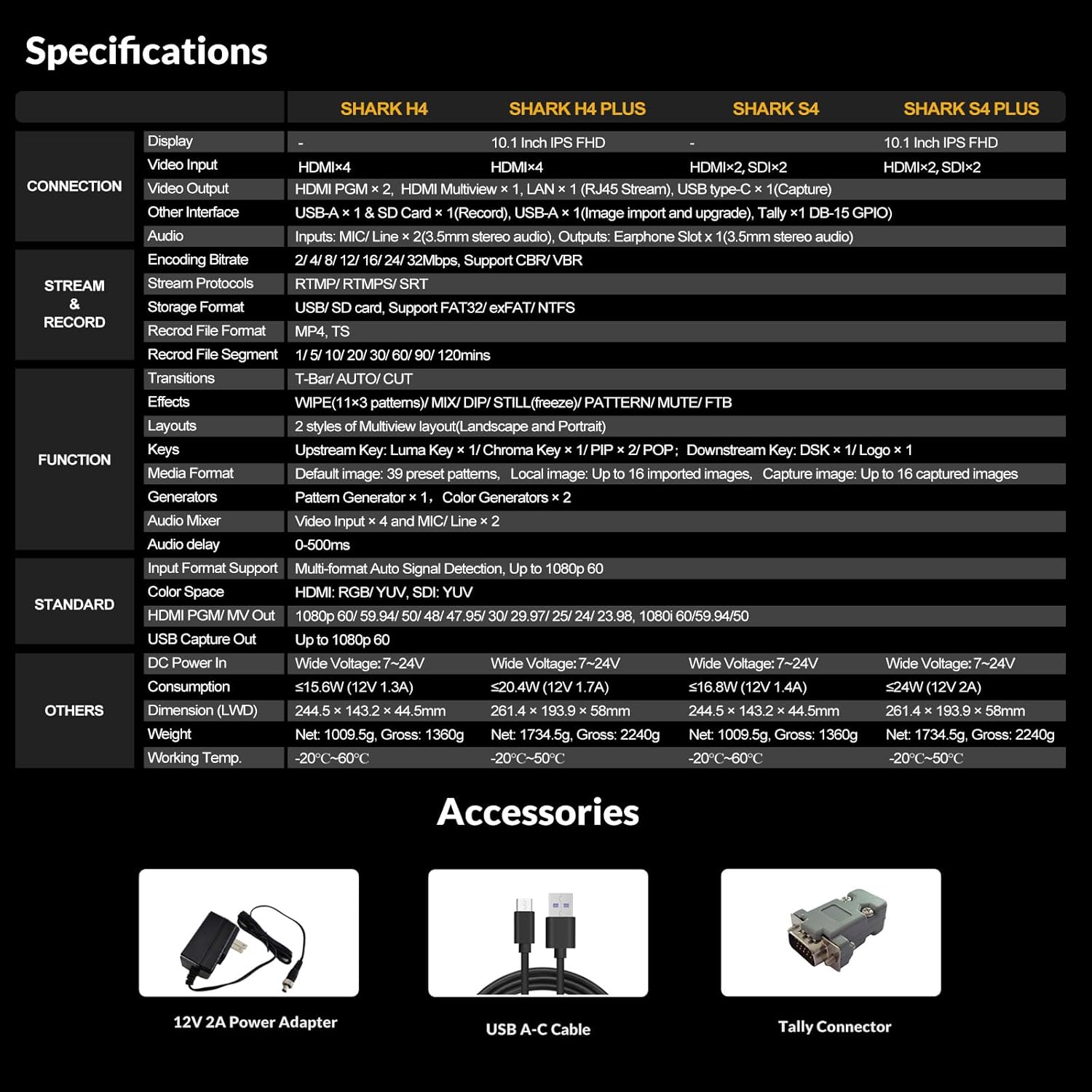
Figure 9.1: Comprehensive Specifications Table. This table provides detailed technical specifications for the SHARK S4, including display, connections, streaming, recording, functions, and physical characteristics, alongside other SHARK series models for comparison.
| Funkcija | Detail (SHARK S4) |
|---|---|
| Gaminio matmenys | 9.6 x 5.6 x 1.7 colio |
| Prekės svoris | 3.34 svaro |
| Prekės modelio numeris | RYKLYS S4 |
| Gamintojas | AVMATRIX |
| Kilmės šalis | Kinija |
| Spalva | Juoda |
| Jungties tipas | HDMI, USB-C |
| Suderinami įrenginiai | Asmeninis kompiuteris |
| Kabelio tipas | Ethernet, USB, HDMI |
| Vaizdo įrašų įėjimai | 2x HDMI, 2x 3G-SDI |
| Vaizdo išvestys | 2x HDMI PGM, 1x HDMI Multiview, 1x USB Type-C, 1x LAN |
| Garso įėjimai | 2x MIC/Line In (3.5mm), Embedded HDMI/SDI audio |
| Įrašymo formatas | MP4/TS (USB Disk & SD Card) |
| Srautinio perdavimo protokolai | RTMP(S), SRT |
| Efektai | WIPE (9x2 patterns), MIX, DIP, Chroma Key, Luma Key, Logo, DSK, PIP/POP |
10. Garantija ir palaikymas
AVMATRIX produktai sukurti patikimumui ir našumui užtikrinti. Dėl garantijos informacijos ir techninės pagalbos kreipkitės į oficialią AVMATRIX svetainę. websvetainėje arba susisiekite tiesiogiai su jų klientų aptarnavimo tarnyba.
- Oficialus Websvetainė: www.avmatrix.net (Prašome patikrinti naujausią kontaktinę informaciją ir pagalbos išteklius.)
- Klientų aptarnavimas: Žr. kontaktų skiltį oficialioje svetainėje websvetainę, kurioje galite gauti palaikymą el. paštu arba telefonu.
- Firmware atnaujinimai: Regularly check the support section of the AVMATRIX website for the latest firmware and software updates.
Pastaba: garantijos sąlygos gali skirtis priklausomai nuo regiono. Prašome išsaugoti pirkimo įrodymą, jei norėtumėte pateikti pretenzijas dėl garantijos.
Ask a question about this manual
Ask about setup, troubleshooting, compatibility, parts, safety, or missing instructions. Manuals+ will review the question and use this page’s manual context to help answer it.