The AEEZO Digital Picture Frame PF107 offers a modern way to display and share your cherished photos and videos. Featuring a 10.1-inch 1280x800 IPS touch screen, it provides clear visuals and intuitive navigation. With built-in Wi-Fi, you can easily share media directly from your smartphone using the AiMOR app. The frame includes 16GB of internal storage and supports auto-rotation for flexible display options.
Figure 1: AEEZO Digital Picture Frame PF107 in black, displaying a photo of a mother and child.
2. Sąrankos vadovas
2.1. Pakuotės turinys
Prieš pradėdami, įsitikinkite, kad pakuotėje yra visi komponentai:
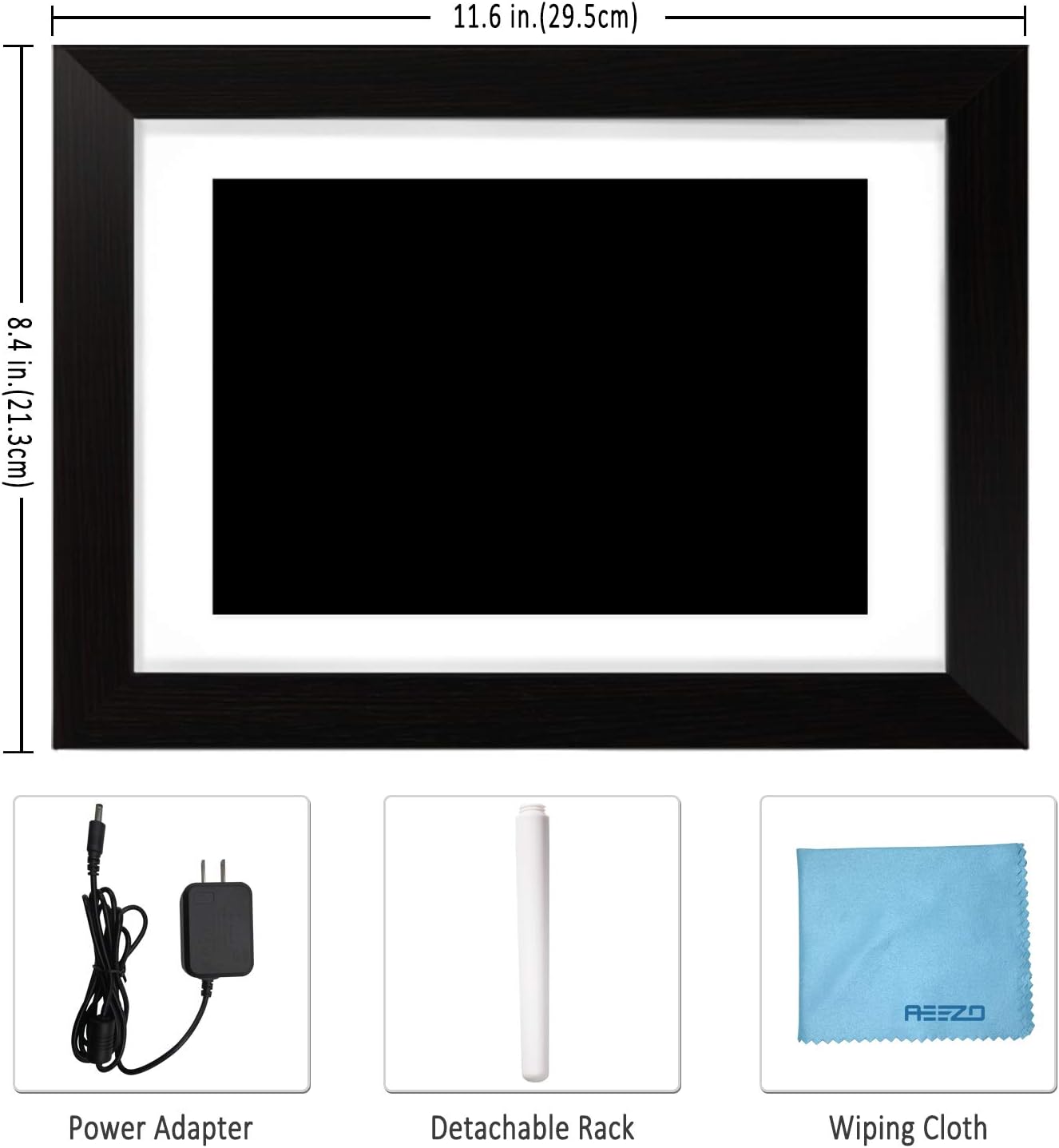
AEEZO Digital Picture Frame PF107
Maitinimo adapteris
Nuimamas stovas
Valymo šluostė
Vartotojo vadovas (šis dokumentas)
Figure 2: Included accessories: power adapter, detachable stand, and wiping cloth.
2.2. Maitinimo prijungimas
Locate the power adapter.
Connect the power adapter cable to the DC port on the back of the frame.
Prijunkite adapterį į standartinį elektros lizdą.
Rėmelis įsijungs automatiškai.
Video 1: Demonstrates connecting the power adapter to the digital picture frame and its flexible stand for horizontal and vertical display.
2.3. Initial Wi-Fi and App Setup
Upon first power-on, follow the on-screen prompts to select your language and connect to a Wi-Fi network.
Download the "AiMOR" app on your Android or iOS smartphone. Ieškokite "AiMOR" in the Google Play Store or Apple App Store.
Open the AiMOR app and create an account.
On the frame, navigate to the "Add Friend" or "My Frame" section to obtain a unique code.
In the AiMOR app, enter this code to link your smartphone with the digital picture frame.
Figure 3: The AiMOR app facilitates easy photo and video sharing with the frame.
2.4. Stand and Mounting Options
The detachable stand allows for both horizontal (landscape) and vertical (portrait) orientation. Simply insert the stand into the appropriate slot on the back of the frame. The frame also features mounting holes for wall installation (screws not included).
3. Naudojimo instrukcijos
3.1. Sharing Photos and Videos
Once your frame is connected to the AiMOR app, you can share photos and short videos (up to 15 seconds) directly from your smartphone. The frame supports unlimited photo uploads. You can also invite friends and family to share their moments by providing them with your frame's unique code.
Via AiMOR App: Select photos/videos in the app and send them to your linked frame. Note that some advanced batch upload features may require a yearly subscription.
Via USB/SD Card: Insert a USB drive or SD card into the designated slots on the frame to import media directly.
Figure 4: Family members sharing photos and videos to the frame via the AiMOR app.
3.2. Touch Screen Navigation and Settings
The 10.1-inch IPS touch screen allows for easy interaction with the frame's features:
Perbraukimas: Braukite kairėn arba dešinėn, kad naršytumėte nuotraukas ir vaizdo įrašus.
Bakstelėkite: A quick tap on a photo will reveal options for managing the media.
Ilgas paspaudimas: A longer press on a photo may bring up additional editing or deletion options.
Key settings accessible via the touch screen include:
Koreguoti nuotrauką: Rotate or zoom photos to fit the frame.
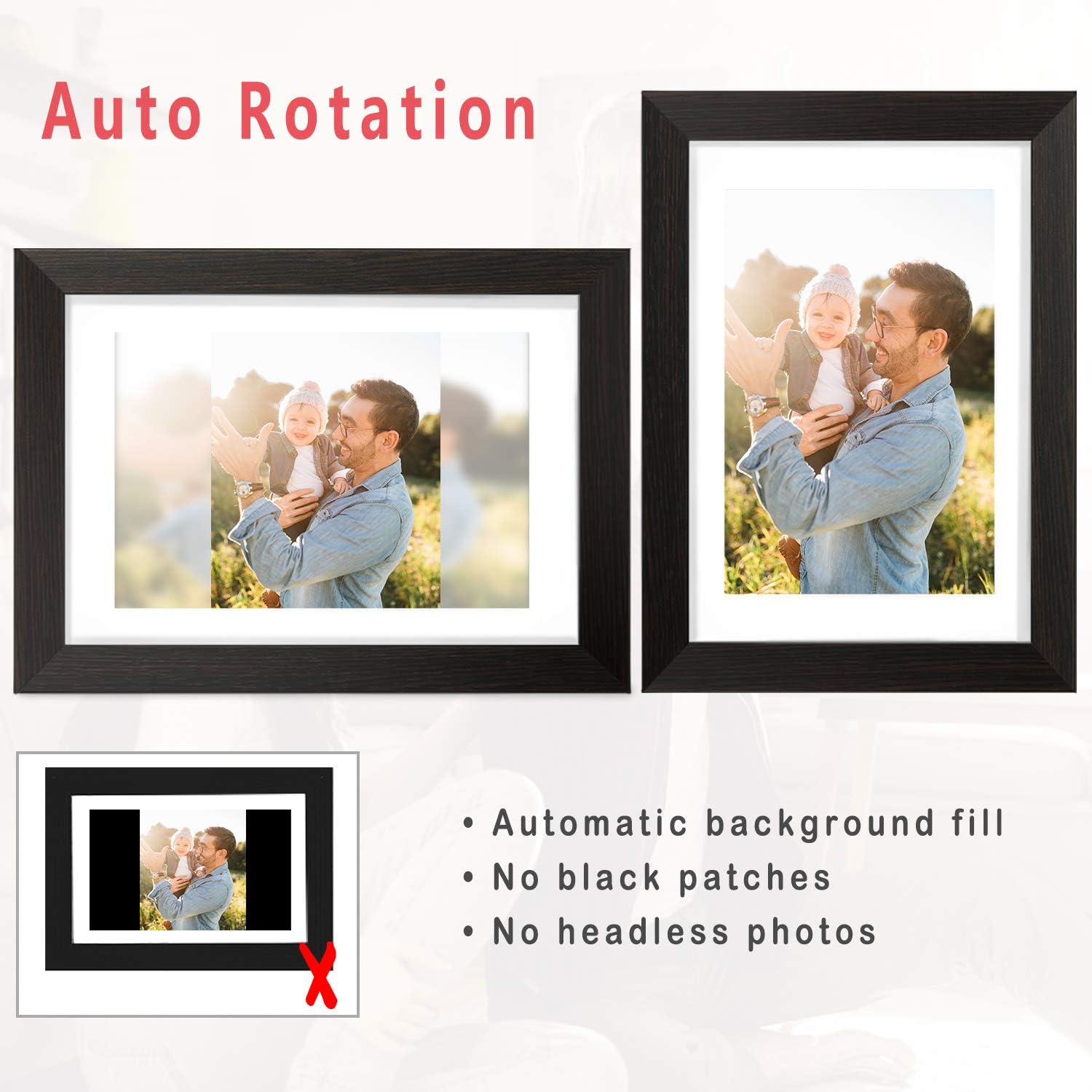
Fill Frame/Automatic: Choose to fill the entire screen or automatically adjust the photo with a blurred background for non-standard aspect ratios.
Galerija: Access all stored photos and videos.
Grojaraštis: Manage the order and selection of media in your slideshow.
Greiti nustatymai: Adjust brightness, sleep mode, display order, and other preferences.
Figure 5: The auto-rotation feature automatically adjusts photos to fit the frame, filling backgrounds to avoid black bars.
3.3. Display Modes and Customization
Tinkinkite savo viewing experience with various display options:
Skaidrių demonstravimo intervalas: Nustatykite kiekvienos nuotraukos rodymo trukmę.
Perėjimo efektai: Choose from different visual transitions between photos.
Caption Display: Enable or disable captions for photos.
Clock and Weather: Display current time and weather information on the screen.
Miegojimo rezimas: Schedule the frame to automatically turn off and on at specific times to conserve energy.
Video 3: Demonstrates various display settings, including clock styles, music playback, and general frame controls.
4. Priežiūra
4.1. Cleaning the Frame
Use the provided soft wiping cloth to gently clean the screen and frame. Avoid using abrasive cleaners or sprays directly on the screen.
4.2. Sandėliavimo valdymas
The frame comes with 16GB of internal storage. For additional storage or to transfer large batches of photos, you can use a USB drive or SD card. Ensure proper ejection of external storage devices to prevent data corruption.
5. Problemų sprendimas
5.1. Frame Not Powering On
Įsitikinkite, kad maitinimo adapteris yra tvirtai prijungtas tiek prie rėmelio, tiek prie veikiančio elektros lizdo.
Patikrinkite, ar maitinimo lizdas veikia, prijungdami prie jo kitą įrenginį.
5.2. „Wi-Fi“ ryšio problemos
Check if your Wi-Fi network is active and within range.
Paleiskite rėmelį ir „Wi-Fi“ maršrutizatorių iš naujo.
Įsitikinkite, kad įvestas teisingas „Wi-Fi“ slaptažodis.
5.3. Photos Not Displaying Correctly
Check the photo resolution and aspect ratio. Use the "Adjust Photo" or "Fill Frame" options.
Ensure the photo files are in a supported format (e.g., JPEG, PNG).
If using external storage, ensure the files nėra sugadinti.
5.4. Programėlės ryšio problemos
Įsitikinkite, kad ir jūsų išmanusis telefonas, ir rėmelis yra prijungti prie interneto.
Verify that the AiMOR app is updated to the latest version.
Re-link the frame with the app using the unique code if the connection is lost.
5.5. Sleep Mode Malfunction
If the sleep timer is not functioning as expected (e.g., frame not waking up), double-check the time zone and sleep timer settings in the Quick Settings menu.
If the issue persists, a factory reset may be necessary, but note this will erase all data.
5.6. Power Disconnection Warning
If a "Never disconnect power when Frameo is running" message appears, it indicates an unexpected power interruption. This can occur due to power surges or accidental unplugging.
Always use the power button on the device to turn the frame off before disconnecting power to prevent potential issues.
5.7. Programinės įrangos problemos
If the frame displays messages like "Frameo has stopped working," try restarting the device.
Ensure the frame's firmware is updated to the newest version via the settings menu.
6. Specifikacijos
Funkcija
Detalė
Gaminio matmenys
11.46 x 8.3 x 0.99 colio
Prekės svoris
2.94 svaro
Modelio numeris
AEEZO Memory 01 Black (PF107)
Prekės ženklas
AEEZO
Spalva
Juoda
Rezoliucija
1280x800 IPS HD Display
Ekrano dydis
10.1 colių
Vidinė saugykla
16 GB
Suderinami įrenginiai
Smartphone (Android & iOS via AiMOR App)
Ryšys
Wi-Fi, USB, SD Card
7. Garantija ir palaikymas
The AEEZO Digital Picture Frame PF107 typically includes a 1-year free warranty. Please refer to the instruction on the Thank You Card included in your package to activate your warranty within 14 days of receiving the product.
For technical support or warranty claims, please contact AEEZO customer service through their official websvetainę arba mažmenininką, iš kurio buvo pirktas produktas.
Ask a question about this manual
Ask about setup, troubleshooting, compatibility, parts, safety, or missing instructions. Manuals+ will review the question and use this page’s manual context to help answer it.