
1. Įvadas
Welcome to the instruction manual for your new Xiaomi Curved Gaming Monitor G34WQi. This guide provides essential information for the safe and optimal setup, operation, and maintenance of your monitor. Please read this manual thoroughly before use to ensure you get the best experience from your device.
The Xiaomi G34WQi features a 34-inch UWQHD (3440x1440) ultrawide curved display with a 1500R curvature, designed to provide an immersive viewing experience. It boasts a high 180Hz refresh rate and a rapid 1ms response time (MPRT) for smooth, fluid gameplay. With FreeSync Premium technology, it minimizes screen tearing and stuttering. The monitor also offers a wide color gamut (95% DCI-P3, 100% sRGB) and a low blue light mode for eye comfort.
2. Sąranka
2.1 Pakuotės turinys
Prieš surinkdami patikrinkite, ar yra visi komponentai:
- Xiaomi Curved Gaming Monitor G34WQi
- Monitoriaus stovas (pagrindas ir svirtis)
- Maitinimo adapteris ir laidas
- „DisplayPort“ laidas
- HDMI kabelis
- Vartotojo vadovas
2.2 Stovo surinkimas
- Atsargiai padėkite monitorių ekranu žemyn ant minkšto, švaraus paviršiaus, kad nesubraižytumėte.
- Attach the stand arm to the back of the monitor using the provided screws. Ensure it is securely fastened.
- Connect the stand base to the arm and tighten the thumb screw at the bottom of the base.
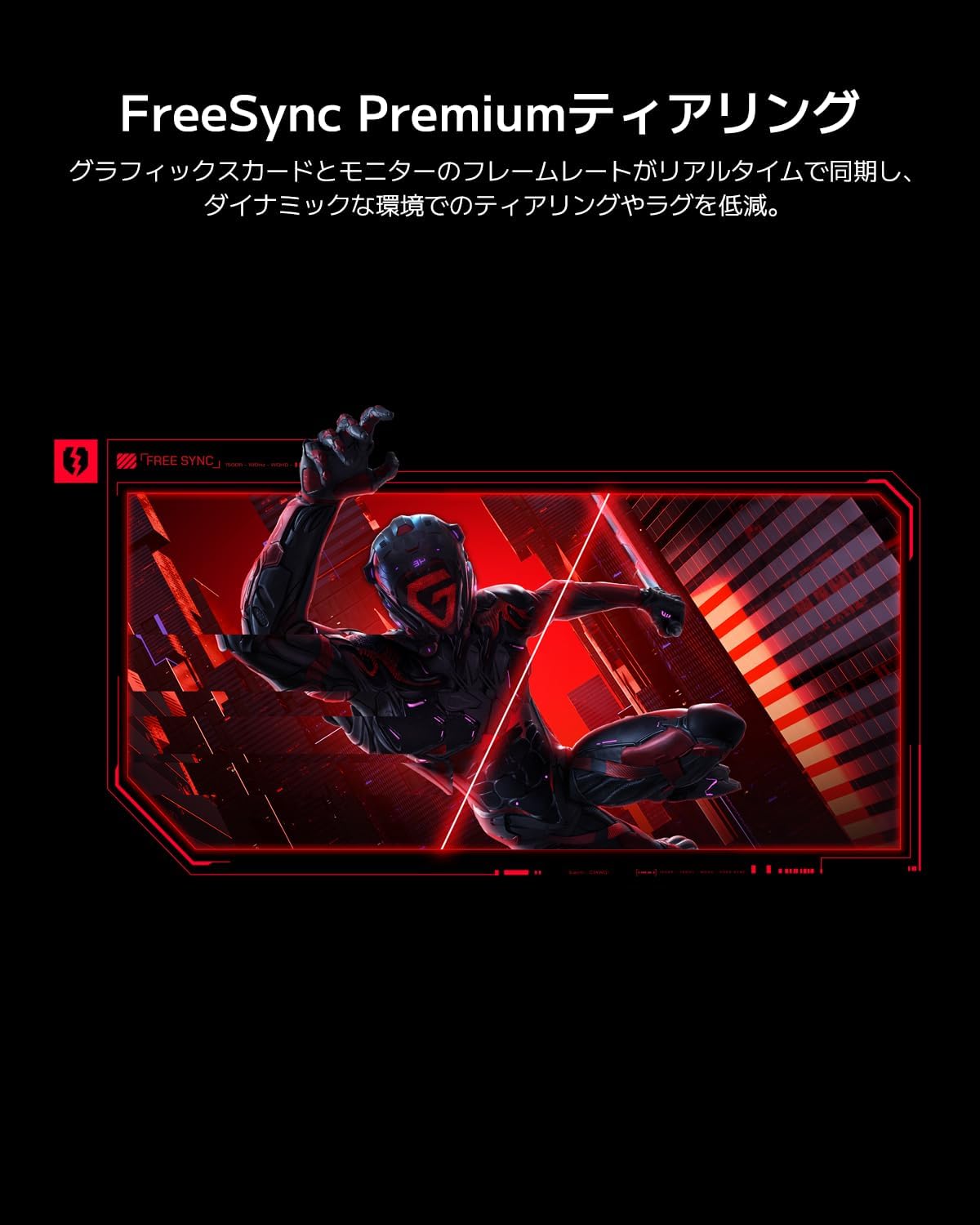
Image: The Xiaomi G34WQi monitor securely mounted on its adjustable stand.
2.3 Jungiamieji kabeliai
Prijunkite reikiamus laidus prie monitoriaus galinių prievadų:
- Maitinimo kabelis: Prijunkite maitinimo adapterį prie monitoriaus maitinimo įvesties, tada įjunkite maitinimo laidą į sieninį lizdą.
- DisplayPort (Recommended for Gaming): For optimal performance, including 180Hz refresh rate and FreeSync Premium, connect the DisplayPort cable from your computer's graphics card to the monitor's DisplayPort input.
- HDMI: Alternatively, connect an HDMI cable from your computer to one of the monitor's HDMI inputs. Note that HDMI may have limitations on refresh rate at UWQHD resolution compared to DisplayPort.
- Garso išvestis: Jei pageidaujate, prijunkite išorinius garsiakalbius arba ausines prie 3.5 mm garso išvesties lizdo.

Vaizdas: Galinis view of the monitor highlighting the input ports for connectivity.
2.4 Pradinis įjungimas
After connecting all cables, press the power button, usually located on the back or bottom of the monitor, to turn it on. The monitor should automatically detect the input signal. If not, you may need to manually select the input source using the OSD menu.
3. Naudojimo instrukcijos
3.1 Maitinimo įjungimas/išjungimas
Press the power button to turn the monitor on or off. A status indicator light will show the monitor's power state.
3.2 Ekrano meniu (OSD)
The OSD menu allows you to adjust various monitor settings. It is typically controlled by a joystick or a set of buttons located on the back or bottom of the monitor.
Navigacija:
- Norėdami atidaryti OSD meniu, paspauskite valdymo svirtį / centrinį mygtuką.
- Move the joystick (up/down/left/right) or use the directional buttons to navigate through menu options.
- Norėdami pasirinkti parinktį arba patvirtinti nustatymą, dar kartą paspauskite valdymo svirtį / centrinį mygtuką.
- Move the joystick left or press a dedicated 'Back' button to exit a sub-menu or the OSD.
3.3 Pagrindiniai nustatymai
- Ryškumas / kontrastas: Koreguokite šiuos nustatymus pagal savo viewaplinką.
- Spalvų nustatymai: Fine-tune color temperature, gamma, and saturation. The monitor supports 95% DCI-P3 and 100% sRGB for accurate color reproduction.
- Atnaujinimo dažnis: Ensure your refresh rate is set to 180Hz in both the monitor's OSD and your computer's display settings for the smoothest experience.
- Atsakymo laikas: The monitor offers a 1ms MPRT (Moving Picture Response Time). This can often be adjusted in the OSD, sometimes referred to as 'Overdrive' or 'Response Speed'.
- FreeSync Premium: Enable FreeSync Premium in the OSD menu and in your AMD graphics card settings to synchronize the monitor's refresh rate with your GPU's frame rate, eliminating screen tearing and stuttering.

Image: Visual representation of FreeSync Premium preventing screen tearing.
- Žemos mėlynos šviesos režimas: Activate this mode to reduce blue light emissions, which can help reduce eye strain during prolonged use.

Image: The monitor displaying content with low blue light mode enabled for eye protection.
4. Priežiūra
4.1 Ekrano valymas
Norėdami išvalyti ekraną, švelniai nuvalykite jį minkštu, nepūkuotu skudurėliu. Jei dėmės sunkiai pašalinamos, lengvai nuvalykiteampNuvalykite šluostę vandeniu arba specializuotu ekrano valikliu. Niekada nepurkškite skysčio tiesiai ant ekrano.
4.2 Cleaning the Monitor Body
Use a soft, dry cloth to wipe the monitor's body. Avoid using abrasive cleaners or solvents, as they can damage the surface.
4.3 Bendroji priežiūra
- Venkite dėti sunkių daiktų ant monitoriaus ar jo laidų.
- Laikykite monitorių atokiau nuo tiesioginių saulės spindulių, šilumos šaltinių ir per didelės drėgmės.
- Užtikrinkite tinkamą vėdinimą aplink monitorių, kad išvengtumėte perkaitimo.
5. Problemų sprendimas
Jei kyla problemų dėl monitoriaus, žr. šias dažniausiai pasitaikančias problemas ir sprendimus:
5.1 Nėra maitinimo / Nėra ekrano
- Patikrinkite, ar maitinimo laidas tvirtai prijungtas ir prie monitoriaus, ir prie maitinimo lizdo.
- Patikrinkite, ar maitinimo adapteris veikia tinkamai.
- Paspauskite monitoriaus maitinimo mygtuką, kad įsitikintumėte, jog jis įjungtas.
5.2 Nėra signalo
- Įsitikinkite, kad vaizdo kabelis („DisplayPort“ arba HDMI) yra tvirtai prijungtas prie monitoriaus ir kompiuterio vaizdo plokštės.
- Patikrinkite, ar jūsų kompiuteris įjungtas ir ar jis nėra miego režime.
- Use the OSD menu to manually select the correct input source (e.g., DisplayPort 1, HDMI 1).
- Try a different video cable or port on your graphics card/monitor to rule out a faulty connection.
5.3 Flickering or Tearing Screen
- Ensure FreeSync Premium is enabled in both the monitor's OSD and your graphics card settings.
- Patikrinkite, ar jūsų vaizdo plokštės tvarkyklės yra atnaujintos.
- Check the video cable. Some users have reported better stability with DisplayPort cables for high resolutions and refresh rates compared to HDMI.
- If using multiple monitors, ensure your system can handle the combined load, as some configurations might cause instability.
5.4 Incorrect Resolution or Refresh Rate
- Eikite į kompiuterio ekrano nustatymus (pvz., „Windows“ ekrano nustatymus, „NVIDIA“ valdymo skydą, „AMD Radeon“ programinę įrangą) ir nustatykite skiriamąją gebą į 3440x1440, o atnaujinimo dažnį – į 180 Hz.
- Ensure you are using a DisplayPort cable, as some HDMI versions may not support UWQHD at 180Hz.
5.5 Image Reflection
- The monitor has a non-glare (VA) panel, but reflections can still occur in brightly lit environments. Adjust the monitor's position or room lighting to minimize reflections.
6. Specifikacijos
| Funkcija | Specifikacija |
|---|---|
| Prekės ženklas | Xiaomi |
| Modelio numeris | G34WQi |
| Ekrano dydis | 34 colių |
| Rezoliucija | UWQHD (3440 x 1440 pixels) |
| Krašto santykis | 21:9 |
| Kreivumas | 1500R |
| Skydelio tipas | VA (Non-glare) |
| Atnaujinimo dažnis | 180 Hz |
| Reagavimo laikas | 1 ms (MPRT) |
| Spalvų gama | 95 % DCI-P3, 100 % sRGB |
| Ryšys | HDMI, DisplayPort, 3.5mm Audio Out |
| Galia ttage | 12 voltų |
| Gaminio matmenys (D x P x A) | 99.1 x 18.8 x 46 cm (apytiksliai) |
| Produkto svoris | 6.9 kg |
| Montavimo tipas | Sieninis laikiklis (suderinamas su VESA) |
7. Informacija apie garantiją
This Xiaomi Curved Gaming Monitor G34WQi comes with a 1 metų gamintojo garantija. Please retain your proof of purchase for warranty claims. For detailed terms and conditions, refer to the warranty card included in your product packaging or visit the official Xiaomi support websvetainę.
8. Parama
For further assistance, technical support, or service inquiries, please contact Xiaomi customer service:
- Pagalba telefonu: 0120-767-378 (Reception hours: 9:00-18:00, excluding year-end and New Year holidays)
- Pagalba el. paštu: service.jp@support.mi.com
You can also visit a Xiaomi Service Center for in-person support:
Xiaomi Service Center Akihabara Store
Address: 4-6-7 Kanda Sakumacho, Chiyoda-ku, Tokyo
Business Hours: 10:00-19:00
Closed: Wednesdays
(Last reception is at 18:00)

Image: A collection of Xiaomi products, showcasing the brand's commitment to smart living.


