
1. Įvadas
The One For All Smart Control Pro 8 (URC7981) is a universal remote control designed to manage up to eight different home entertainment devices. This remote simplifies your control experience by combining multiple remotes into one, offering features like a free advanced setup app, a learning function, and smart activities for seamless device interaction.
It is compatible with a wide range of devices including TVs, Set-Top Boxes (satellite/cable/DVB-T2), DVD/Blu-ray players, Audio systems, Soundbars, IR Game Consoles, and Media Players.

Image 1.1: The One For All Smart Control Pro 8 Universal Remote Control, showcasing its sleek design and button layout.
2. Sąranka
2.1. Akumuliatoriaus įdėjimas
Before first use, insert 2x AAA alkaline batteries (not included) into the remote control. Ensure correct polarity (+/-) as indicated inside the battery compartment.
2.2. Device Setup using the OFA Advanced App
The recommended method for setting up your Smart Control Pro 8 is by using the free One For All Advanced App. This app provides a guided setup process for all your devices.
- Download the 'OFA Advanced' app from your smartphone's app store (available for iOS and Android).
- Open the app and follow the on-screen instructions to pair your remote control via Bluetooth (if applicable) or to manually enter device codes.
- The app will guide you through selecting your device types (TV, STB, etc.) and brands, then testing the functionality.

Image 2.1: The One For All Smart Control Pro 8 remote control displayed alongside a smartphone running the OFA Advanced setup application.
2.3. Mokymosi funkcija
The learning function allows you to copy any function directly from your original remote control to the Smart Control Pro 8. This is useful for functions not covered by the pre-programmed codes or for specific buttons you wish to customize.
- Place the Smart Control Pro 8 and your original remote on a flat surface, facing each other, approximately 1-2 inches apart.
- Follow the specific instructions in the OFA Advanced App or the remote's quick start guide to activate the learning mode.
- Press the button on the Smart Control Pro 8 where you want to store the function, then press the corresponding button on your original remote.
- The remote will indicate successful learning (e.g., LED flash). Repeat for all desired functions.

Image 2.2: Graphic representing the learning function, where the universal remote copies signals from an original remote.
3. Nuotolinio valdymo pulto valdymas
3.1. Įrenginio pasirinkimas
At the top of the remote, you will find dedicated buttons for different device types (TV, STB, DVD, BLU, AUD, GAME, MEDIA, S.BAR). Press the corresponding button to select the device you wish to control.

3.1 vaizdas: priekis view of the remote control, highlighting the device selection buttons at the top.
3.2. Smart Activities
The Smart Control Pro 8 features five smart activities that allow you to control multiple devices simultaneously for common scenarios:
- Žiūrėti televizorių: Configures your TV and Set-Top Box.
- Žiūrėti filmą: Configures your TV, Blu-ray/DVD player, and Audio system.
- Play Game: Configures your TV and Game Console.
- Klausykitės muzikos: Configures your Audio system.
- Pasirinktinis: A customizable activity for your specific needs.
These activities provide seamless control without needing to switch between device types manually.

Image 3.2: Graphic illustrating the concept of smart activities, simplifying control across multiple devices.
3.3. Quick Access App Buttons
Dedicated buttons for popular streaming services like Netflix, Amazon Prime Video, and YouTube provide instant access to your favorite content. These buttons can also be customized to launch other streaming applications.
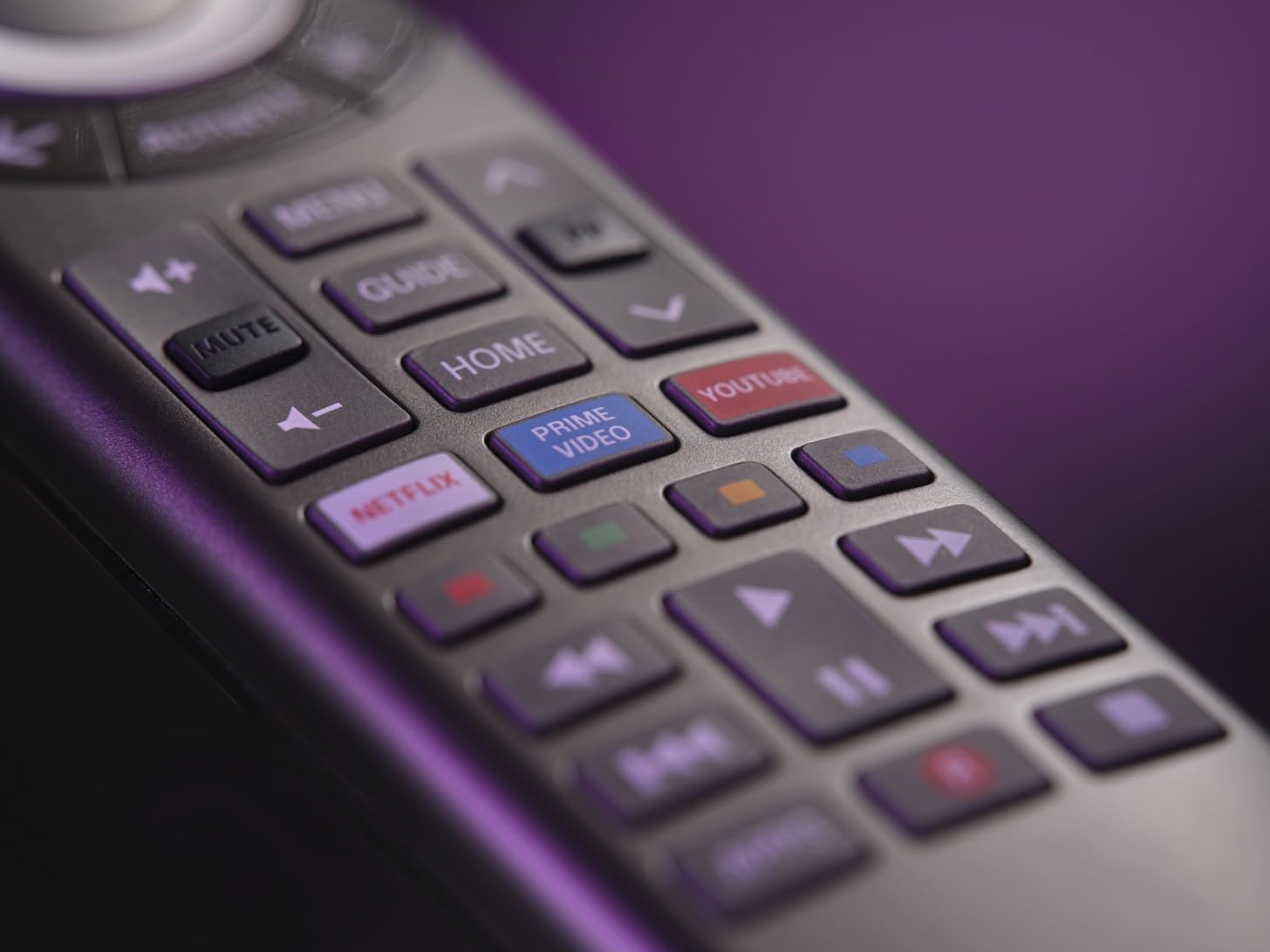
3.3 paveikslėlis: Stambus planas view of the remote's quick access buttons for Netflix, Prime Video, and YouTube.
3.4. Advanced Features: Macros and Volume Lock
The OFA Advanced App allows for further customization, including setting up macros (sequences of commands) and enabling a volume lock feature. Volume lock ensures that the volume control always operates a specific device (e.g., your TV or AV Receiver), regardless of which device is currently selected.

Image 3.4: Screenshot of the OFA Advanced App showing the 'Set Up Macro' interface.

Image 3.5: Screenshot of the OFA Advanced App demonstrating the 'Volume Lock' setting.
4. Priežiūra
4.1. Baterijos keitimas
When the remote's performance degrades or the indicator light flashes, it is time to replace the batteries. Always replace both AAA batteries with new alkaline batteries. Do not mix old and new batteries, or different types of batteries.
4.2. Valymas
To clean the remote control, use a soft, dry cloth. Do not use abrasive cleaners, solvents, or wet cloths, as these can damage the remote's surface or internal components.
5. Problemų sprendimas
5.1. Nuotolinio valdymo pultas nereaguoja
- Įsitikinkite, kad tinkamai įdėtos naujos baterijos.
- Check that you have selected the correct device mode (e.g., TV button for TV functions).
- Įsitikinkite, kad tarp nuotolinio valdymo pulto ir įrenginio nėra kliūčių.
- Verify that the device code is correctly programmed. Re-run the setup process via the OFA Advanced App if necessary.
5.2. Mokymosi funkcijos problemos
- Įsitikinkite, kad originalios nuotolinio valdymo pulto baterijos yra naujos.
- Make sure the remotes are positioned correctly, facing each other at a short distance (1-2 inches).
- Try pressing the button on the original remote for a longer duration during the learning process.
5.3. Programėlės ryšio problemos
- Įsitikinkite, kad jūsų išmaniajame telefone įjungtas „Bluetooth“ ryšys.
- Restart the OFA Advanced App and try connecting again.
- Check for app updates in your smartphone's app store.
6. Specifikacijos
| Funkcija | Detalė |
|---|---|
| Prekės ženklas | Vienas už visus |
| Modelio pavadinimas | URC7981 |
| Spalva | Juoda |
| Ryšio technologija | Infraraudonųjų spindulių (IR) |
| Ypatinga funkcija | Foninis apšvietimas |
| Maksimalus palaikomų įrenginių skaičius | 8 |
| Suderinami įrenginiai | TV, Set-Top Box, DVD/Blu-ray, Audio, Soundbar, IR Game Console, Media Player |
| Baterijos tipas | Alkaline (AAA) |
7. Garantija ir palaikymas
One For All products are designed for reliability and performance. For specific warranty information, please refer to the documentation included with your purchase or visit the official One For All website. For technical support, frequently asked questions, and additional resources, please visit the One For All support page online.
Official One For All Websvetainė: www.oneforall.com