
1. Produktas baigtasview & Funkcijos
The NIIMBOT D110 Upgraded Version Mini Label Maker is a compact, portable Bluetooth thermal printer designed for efficient labeling in various environments, including home, office, kitchen, and school. Its lightweight design (149g) allows for easy portability, fitting into a pocket for on-the-go labeling.
- New Upgraded Design: Smaller and smarter than previous versions, offering true portability.
- Smart Label Rewinds: Features automatic paper rewind and calibration upon startup, preventing printing offset and label waste.
- Platus pritaikymas: Supports label tapes up to 15mm width, suitable for diverse uses such as jar stickers, food dates, cosmetics, barcodes, name tags, cable identification, and price tags.
- High-Quality Thermal Printing: Utilizes 203DPI direct thermal technology, eliminating the need for ink or toner. Equipped with a 1500mAh rechargeable battery for up to 4 hours of continuous printing.
- Easy to Use with App: Compatible with iOS & Android phones via Bluetooth. The "NIIMBOT" app offers multiple creative functions and templates (fonts, texts, symbols, icons, borders, logos) for customized label creation.
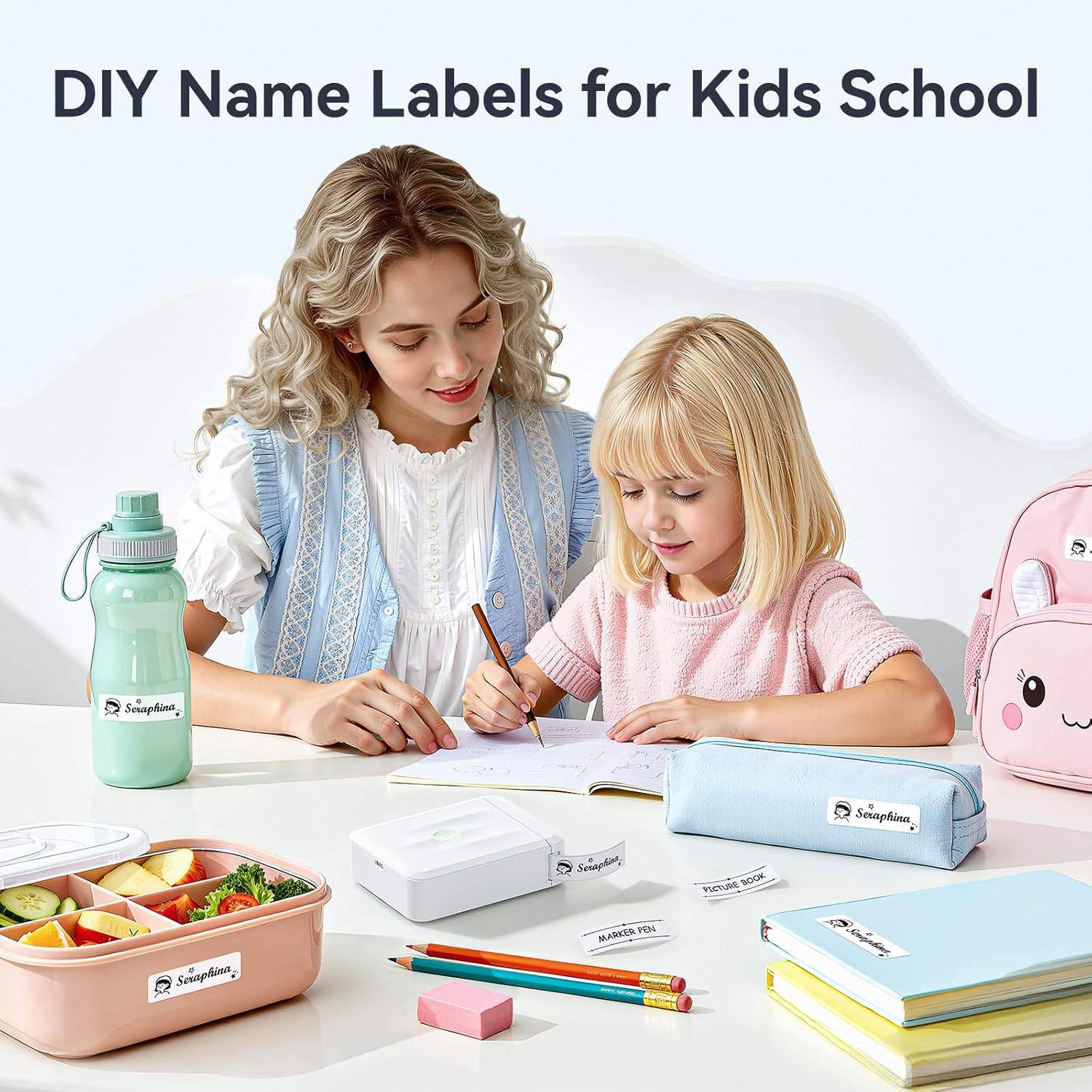
Image: A child and adult labeling school supplies with the NIIMBOT D110 Mini Label Maker.

Image: The NIIMBOT D110 Mini Label Maker used for various home organization tasks.
2. Pakuotės turinys
Patikrinkite, ar pakuotėje yra visi reikalingi daiktai:
- 1 × NIIMBOT D110 Mini Label Maker
- 1 × Roll label tape (12×40mm, pre-installed inside the machine)
- 1 × C tipo kabelis
- 1 × Vartotojo vadovas

Image: All items included in the NIIMBOT D110 Mini Label Maker package: the printer, a roll of label tape, a Type-C cable, and a user manual.
3. Sąranka
3.1 Įrenginio įkrovimas
Before first use, fully charge your NIIMBOT D110 Label Maker using the provided Type-C cable. The device features a 1500mAh rechargeable battery.
3.2 App Download & Installation
Download the official "NIIMBOT" app from your device's app store:
- For iOS devices: Search "NIIMBOT" in the App Store.
- For Android devices: Search "NIIMBOT" in Google Play.
3.3 Etikečių juostos įdėjimas
- Slide the 'OPEN' switch to open the label compartment cover.
- Insert the label roll with the printing side facing down. Ensure the label is fed through the slot.
- Close the cover firmly until it clicks into place. The printer will automatically calibrate the label position.
Svarbu: Do not tear or destroy the printing sensor chip on the side of the label roll, as this will affect printing quality and functionality.
3.4 Bluetooth ryšys
- Long press the power button on the label maker to turn it on. The indicator light will illuminate.
- Open the "NIIMBOT" app on your smartphone.
- In the app, navigate to the device connection interface (usually indicated by a Bluetooth icon or a 'Connect' button).
- Select your NIIMBOT D110 from the list of available devices. The indicator light will turn solid green upon successful connection.

Image: A visual guide showing the three main steps for using the NIIMBOT D110: downloading the app, connecting via Bluetooth, and editing/printing labels.

Image: Diagram explaining the NIIMBOT D110's indicator light statuses: Blue (Powered on, not connected/Firmware upgrading), Green (Bluetooth connected/Printing), Red (Device abnormality).
4. Naudojimo instrukcijos
4.1 Etikečių kūrimas programėlėje
The NIIMBOT app offers a user-friendly interface for designing your labels:
- Teksto įvestis: Easily type and customize text with various fonts, sizes, and styles.
- Piktogramos ir simboliai: Choose from over 1,500 icons and symbols to enhance your labels.
- Borders & Templates: Utilize over 100 borders and 160+ templates for quick and creative designs.
- Ypatingos savybės: Add barcodes, QR codes, images, and even use AI design features.
- Data ir laikas: Automatically add production dates or other time-related information.

Image: Screenshot of the NIIMBOT app showcasing multiple creative templates, fonts, icons, and borders available for label design.

Image: Screenshots illustrating advanced app features like image recognition, table printing, text recognition, and scan code recognition for labels.
4.2 Etikečių spausdinimas
Kai etiketės dizainas bus baigtas:
- Tap the 'Print' button in the app.
- Adjust print settings such as 'Print Copy' (number of labels) and 'Print Density' (darkness).
- Confirm your settings and tap 'Print' again to send the job to the label maker.
Video: Official NIIMBOT HK video demonstrating the Mini D110 Upgraded Version Label Maker for home use, including app interaction and printing.
4.3 Etikečių klijavimas
Carefully tear off the printed label from the printer's output slot. The labels are designed for easy peeling and strong adhesion without leaving residue when removed.

Vaizdas: pvzamples of various label styles and applications, including white, patterned, colored, transparent, and cable labels.
5. Priežiūra
5.1 Spausdinimo galvutės valymas
Norėdami išlaikyti optimalią spausdinimo kokybę, periodiškai valykite spausdinimo galvutę. Naudokite minkštą, nepūkuotą šluostę, lengvai nuvalytąampened with isopropyl alcohol. Gently wipe the print head surface.
5.2 Etikečių saugojimas
Store label rolls in a cool, dry place away from direct sunlight and extreme temperatures to preserve their quality and adhesive properties.
5.3 Akumuliatoriaus priežiūra
For long-term battery health, avoid fully discharging the device frequently. Charge the device regularly, even if not in constant use.
5.4 Sensor Chip Warning
As mentioned in setup, do not remove or damage the RFID sensor chip on the side of the label roll. This chip is crucial for the printer to recognize label type and size, ensuring proper print effect and quality.

Image: Illustration highlighting the RFID chip technology on NIIMBOT label tape and a warning not to damage it.
6. Problemų sprendimas
6.1 Printing Offset
The D110 features automatic paper rewind positioning. If you experience printing offset, ensure the label roll is correctly installed and the printer has completed its automatic calibration upon startup.
6.2 Ryšio problemos
If the printer fails to connect via Bluetooth:
- Ensure the label maker is powered on and within range of your smartphone.
- Check your phone's Bluetooth settings to confirm it's enabled and the printer is paired.
- Restart both the label maker and your smartphone, then try connecting again.
6.3 Prasta spausdinimo kokybė
If labels are faint or unclear:
- Check the 'Print Density' setting in the app and increase it if necessary.
- Ensure the label roll is correctly installed and the sensor chip is not damaged.
- Išvalykite spausdinimo galvutę, kaip aprašyta skyriuje „Priežiūra“.
7. Specifikacijos
| Funkcija | Detalė |
|---|---|
| Prekės ženklas | NIIMBOT |
| Modelio numeris | D110M |
| Ryšio technologija | Bluetooth |
| Spausdinimo technologija | Šiluminis |
| Spausdintuvo išvestis | Vienspalvis |
| Didžiausias spausdinimo greitis, vienspalvis | 40.0 mm/s |
| Rezoliucija | 203 x 203 XNUMX DPI |
| Prekės svoris | 149 gramų |
| Gaminio matmenys (D x P x A) | 3.86 "D x 2.99" P x 1.18" A |
| Baterijos talpa | 1500 mAh |
| Suderinami įrenginiai | Išmanieji telefonai („iOS“ ir „Android“) |
| Techninės įrangos sąsaja | C tipo USB |
8. Garantija ir palaikymas
The NIIMBOT D110 Mini Label Maker comes with a 2 metų ribota garantija from the manufacturer, NIIMBOT. For support or warranty claims, please contact NIIMBOT customer service directly.