
1. Įvadas
This manual provides essential information for setting up, operating, and maintaining your Tibuta A70W 10.1-inch Kids Tablet. Designed specifically for children, this tablet features a durable design, parental controls, and a user-friendly Android 13 operating system. Please read this manual thoroughly to ensure proper use and to maximize your child's learning and entertainment experience.

Image: The Tibuta 10.1-inch Kids Tablet, highlighting its 1280x800 display, Android 13 OS, Quad-core 1.8GHz processor, 4GB+32GB memory, 2MP+5MP cameras, and 5000mAh battery.
2. Produktas baigtasview
2.1 Pagrindinės savybės
- Ekranas: 10.1-inch 1280x800 IPS Full HD touchscreen.
- Operacinė sistema: Android 13 with GMS certification.
- Procesorius: 1.8 GHz Quad-core.
- Atmintis: 4GB RAM (2+2GB), 32GB ROM, expandable up to 128GB via Micro SD.
- Kameros: Dual cameras (Front 2MP, Rear 5MP).
- Baterija: 5000 mAh for extended use.
- Ryšys: Wi-Fi (802.11b/g/n) and Bluetooth.
- Patvarumas: Food-grade silicone shockproof case with an integrated stand.
- Tėvų kontrolė: Built-in features for screen time limits and content filtering.
- Iš anksto įdiegtos programos: Includes YouTube, Kids Space, and more.
2.2 Planšetinio kompiuterio komponentai
Familiarize yourself with the physical components of your tablet:

Image: A diagram illustrating the tablet's functional details, including the front camera, speakers, power ON/OFF button, volume buttons, reset button, rear camera, 3.5mm headphone port, TF Card slot, and USB 2.0 OTG port.
- Priekinė kamera: Vaizdo skambučiams ir asmenukėms.
- Garsiakalbiai: Dėl garso išvesties.
- Įjungimo/išjungimo mygtukas: To turn the tablet on or off, or to put it to sleep.
- Garsumo mygtukai: Norėdami sureguliuoti garso lygį.
- Atkūrimo mygtukas: For system reset in case of unresponsiveness (use a pin).
- Galinė kamera: Nuotraukų ir vaizdo įrašų darymui.
- 3.5 mm ausinių prievadas: Ausinėms prijungti.
- TF kortelės lizdas: For inserting a Micro SD card to expand storage.
- USB 2.0 OTG prievadas: Įkrovimui ir duomenų perdavimui.
3. Sąranka
3.1 Pradinis įkrovimas
Before first use, fully charge the tablet. Connect the provided USB-C cable to the tablet's USB port and the other end to a power adapter. The battery indicator on the screen will show charging status.
3.2 Įjungimas / išjungimas
- Norėdami įjungti: Paspauskite ir palaikykite įjungimo / išjungimo mygtuką, kol ekranas užsidegs.
- Norėdami išjungti: Press and hold the Power ON/OFF button, then select "Power off" from the options.
- Miegui / pabudimui: Briefly press the Power ON/OFF button.
3.3 Pradinė konfigūracija
Upon first startup, follow the on-screen prompts to configure basic settings:
- Pasirinkite norimą kalbą.
- Prisijunkite prie „Wi-Fi“ tinklo.
- Prisijunkite naudodami „Google“ paskyrą arba sukurkite naują. Tai būtina norint atsisiųsti programėles iš „Google Play“ parduotuvės.
- Set up parental controls as desired (refer to Section 5 for details).
3.4 Micro SD kortelės įdėjimas
To expand storage, insert a Micro SD card (up to 128GB) into the TF Card slot. Ensure the tablet is powered off before inserting or removing the card.
4. Naudojimo instrukcijos
4.1 Pagrindinė navigacija
- Bakstelėkite: Norėdami pasirinkti elementą arba atidaryti programėlę.
- Perbraukimas: Norėdami slinkti per ekranus arba sąrašus.
- Žiupsnelis: Norėdami priartinti arba atitolinti vaizdus ir web puslapių.
- Ilgas paspaudimas: Norėdami pasiekti kontekstinius meniu arba perkelti piktogramas.
4.2 „Wi-Fi“ ryšys
- Eikite į Nustatymai > Tinklas ir internetas > Wi-Fi.
- Įjunkite „Wi-Fi“.
- Iš sąrašo pasirinkite norimą tinklą ir, jei būsite paraginti, įveskite slaptažodį.
4.3 Programų atsisiuntimas
The tablet runs on Android 13 and supports the Google Play Store. You can download a wide range of educational and entertainment apps.

Image: The tablet screen displaying the Google Android 13 interface with various app icons, indicating access to a wide range of applications from the Google Play Store.
- Atidarykite Google Play parduotuvė programėlė.
- Ieškokite norimą programėlę.
- Tap "Install" to download and install the app.
4.4 Fotoaparatų naudojimas
The tablet features a front (2MP) and rear (5MP) camera.
- Atidarykite Fotoaparatas programėlė.
- Norėdami perjungti priekinę ir galinę kameras, palieskite kameros perjungimo piktogramą.
- Palieskite užrakto mygtuką, kad nufotografuotumėte arba pradėtumėte / sustabdytumėte vaizdo įrašymą.
4.5 Akumuliatoriaus valdymas
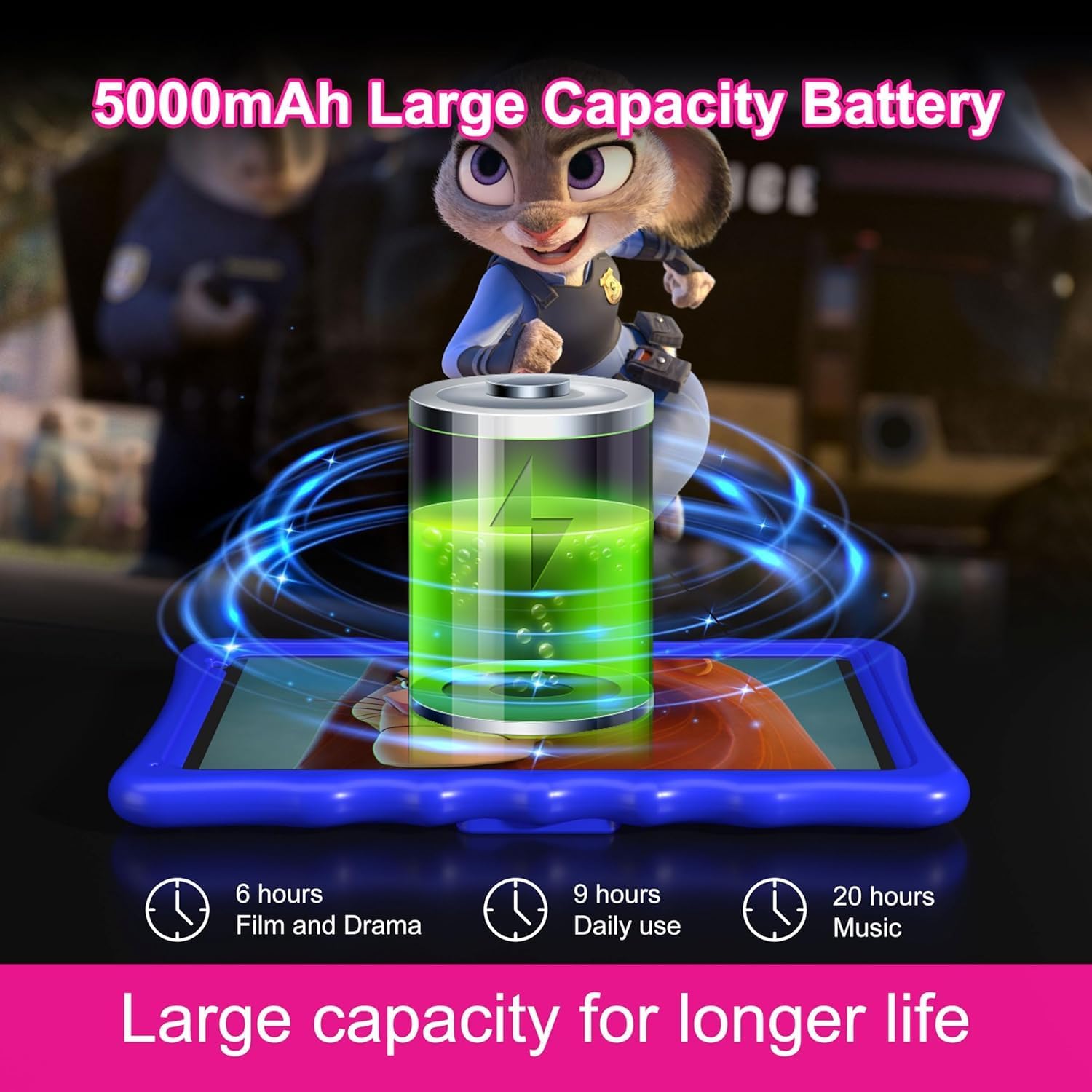
Image: An illustration of the tablet's 5000mAh battery capacity, showing estimated usage times: 6 hours for film/drama, 9 hours for daily use, and 20 hours for music.
5000 mAh baterija užtikrina ilgesnį veikimą. Norėdami optimizuoti baterijos veikimo laiką:
- Sumažinkite ekrano ryškumą.
- Išjunkite „Wi-Fi“ ir „Bluetooth“, kai jų nenaudojate.
- Uždarykite nenaudojamas programas, veikiančias fone.
- Charge the tablet regularly, avoiding complete discharge.
5. Tėvų kontrolė
The Tibuta A70W tablet includes robust parental control features to ensure a safe and educational environment for children. You can switch between normal and child modes.
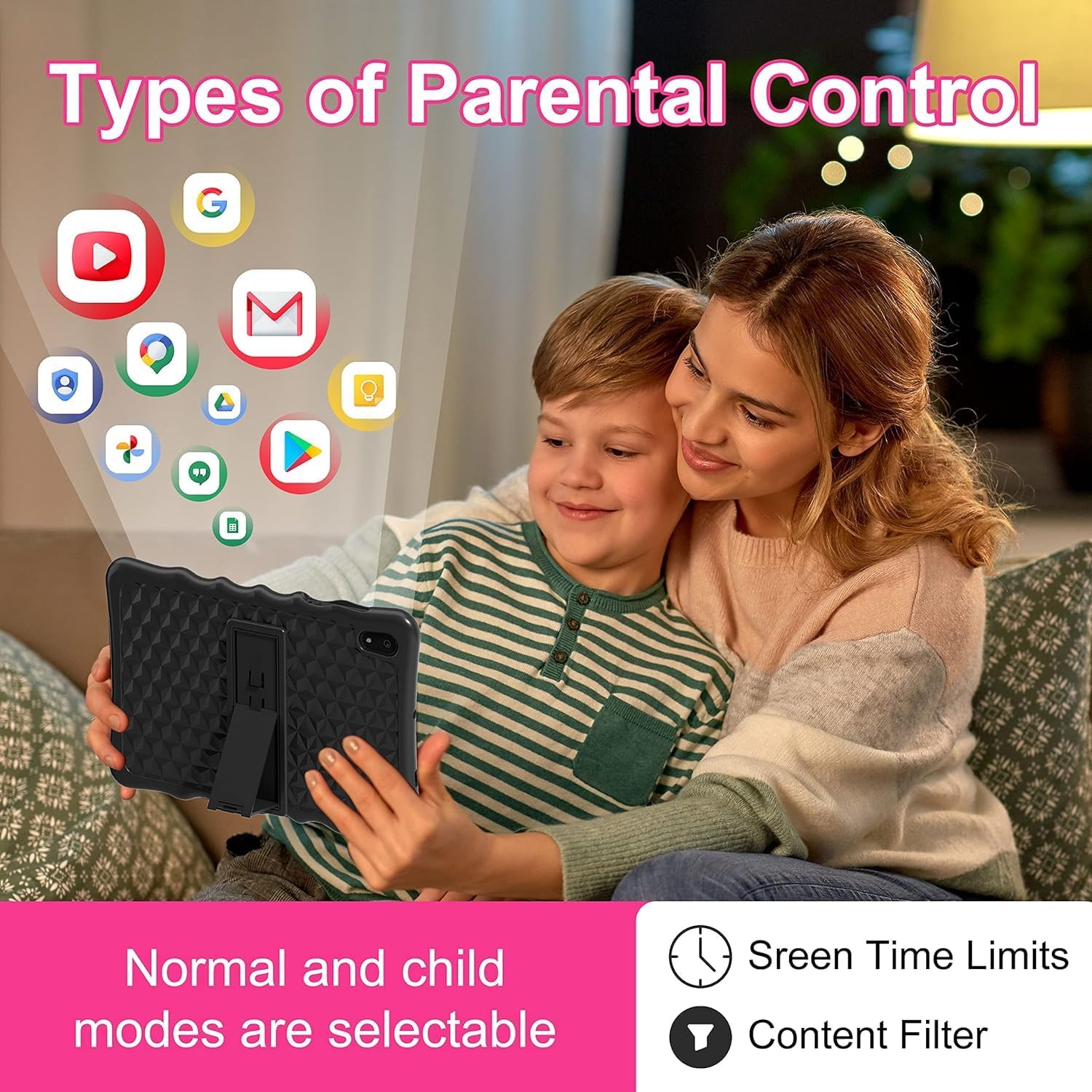
Image: A visual representation of parental control features, including options for setting screen time limits and applying content filters, with various app icons floating above the tablet.
5.1 Tėvų kontrolės nustatymas
Access parental control settings through the dedicated "Kids Space" app or via the tablet's main settings menu. Here you can:
- Set Screen Time Limits: Define daily usage limits for the tablet.
- Manage Content: Filter inappropriate content and approve specific apps, websites, and videos.
- Control App Access: Select which applications your child can use.
- Stebėjimo veikla: Review your child's tablet usage.

Image: The tablet displaying the interface for pre-installed Kids Apps like YouTube and Kids Space, showing various educational and entertainment content categories within Google Kids Space.
The tablet comes with pre-installed educational apps and access to Google Kids Space, offering a curated selection of age-appropriate content.
6. Priežiūra
6.1 Planšetinio kompiuterio valymas
- Ekranui ir korpusui valyti naudokite minkštą, nepūkuotą šluostę.
- Venkite naudoti stiprių cheminių medžiagų ar abrazyvinių medžiagų.
- Prieš valydami įsitikinkite, kad planšetinis kompiuteris yra išjungtas.
6.2 Programinės įrangos naujiniai
Reguliariai tikrinkite, ar yra programinės įrangos atnaujinimų, kad užtikrintumėte optimalų našumą ir saugumą. Eikite į Nustatymai > Sistema > Sistemos atnaujinimas.
6.3 Shockproof Case Care
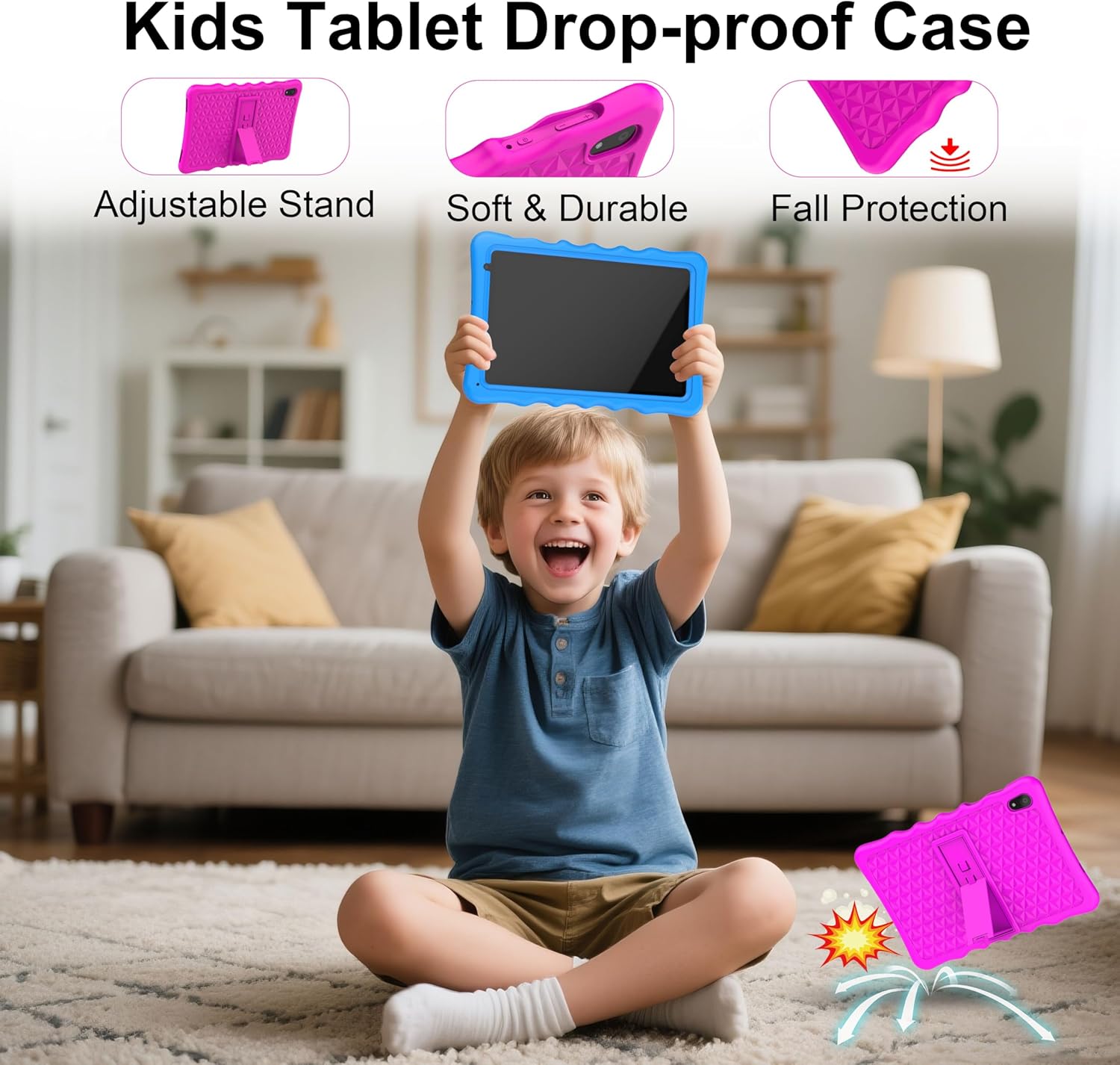
Image: A child happily holding the tablet in its blue shockproof case, with insets illustrating the case's adjustable stand, soft and durable material, and fall protection features.
The food-grade silicone case provides protection. Clean it with mild soap and water if necessary. Ensure it is completely dry before reattaching it to the tablet.
7. Problemų sprendimas
| Problema | Galima priežastis | Sprendimas |
|---|---|---|
| Planšetinis kompiuteris neįsijungia. | Žema akumuliatoriaus įkrova; sistemos gedimas. | Charge the tablet for at least 30 minutes. If unresponsive, press the reset button with a pin. |
| „Wi-Fi“ ryšio problemos. | Neteisingas slaptažodis; už diapazono ribų; maršrutizatoriaus problema. | Verify password. Move closer to the router. Restart the router and tablet. |
| Programos veikia lėtai arba stringa. | Too many apps running; low storage; outdated app. | Close background apps. Clear app cache. Update apps. Free up storage. |
| Ekranas nereaguoja. | Laikinas programinės įrangos triktis. | Perform a soft reset by holding the power button for 10-15 seconds, or use the reset pinhole. |
| Parental controls not working as expected. | Incorrect settings; app not configured. | Review parental control settings in the Kids Space app or tablet settings. Ensure all apps are managed. |
8. Specifikacijos
| Funkcija | Detalė |
|---|---|
| Prekės ženklas | Tibuta |
| Modelio numeris | A70W |
| Operacinė sistema | Android 13 |
| Procesoriaus prekės ženklas | Allwinner |
| Procesoriaus greitis | 1.5 GHz (Note: Feature bullets state 1.8 GHz, using 1.5 GHz from specifications for consistency) |
| Ekrano dydis | 10.1 colių |
| Ekrano raiška | 1280 x 800 pikselių |
| RAM Installed Size | 4 GB |
| Atminties talpa | 32 GB (išplečiama iki 128 GB naudojant „Micro SD“ kortelę) |
| Grafikos mikroschemų rinkinio prekės ženklas | PowerVR GE8300 |
| Ryšio tipas | Bluetooth, Wi-Fi (802.11b/g/n) |
| Baterija | 1 Lithium-polymer (included) - 5000 mAh |
| Prekės matmenys (I x P x A) | 24.2 x 16.1 x 0.84 cm |
| Prekės svoris | 1.04 kilogramo |
| Ypatingos savybės | Shockproof case, pre-installed educational apps, parental control |
9. Garantija
The Tibuta A70W Kids Tablet comes with a 1 metų gamintojo garantijaŠi garantija taikoma medžiagų ir gamybos defektams, atsiradusiems įprasto naudojimo sąlygomis. Išsaugokite pirkimo įrodymą, jei galėtumėte pateikti pretenzijas dėl garantijos.
Išsamias garantijos sąlygas ir nuostatas rasite prie gaminio pridėtoje dokumentacijoje arba susisiekite su klientų aptarnavimo tarnyba.
10. Pagalba klientams
If you encounter any problems with your Tibuta A70W Kids Tablet or require technical assistance, please do not hesitate to contact us. Our support team is ready to help.
- Kontaktinis būdas: You can reach us via our official store email or through Amazon's messaging system.
- Atsakymo laikas: We aim to respond quickly and provide comprehensive technical support.
Please provide your product model (A70W) and a detailed description of the issue when contacting support to facilitate a faster resolution.