
1. Įvadas
This manual provides detailed instructions for the Headwolf WPad5 Android 14 Tablet. Please read this guide thoroughly before using your device to ensure proper operation and to maximize its features. Keep this manual for future reference.
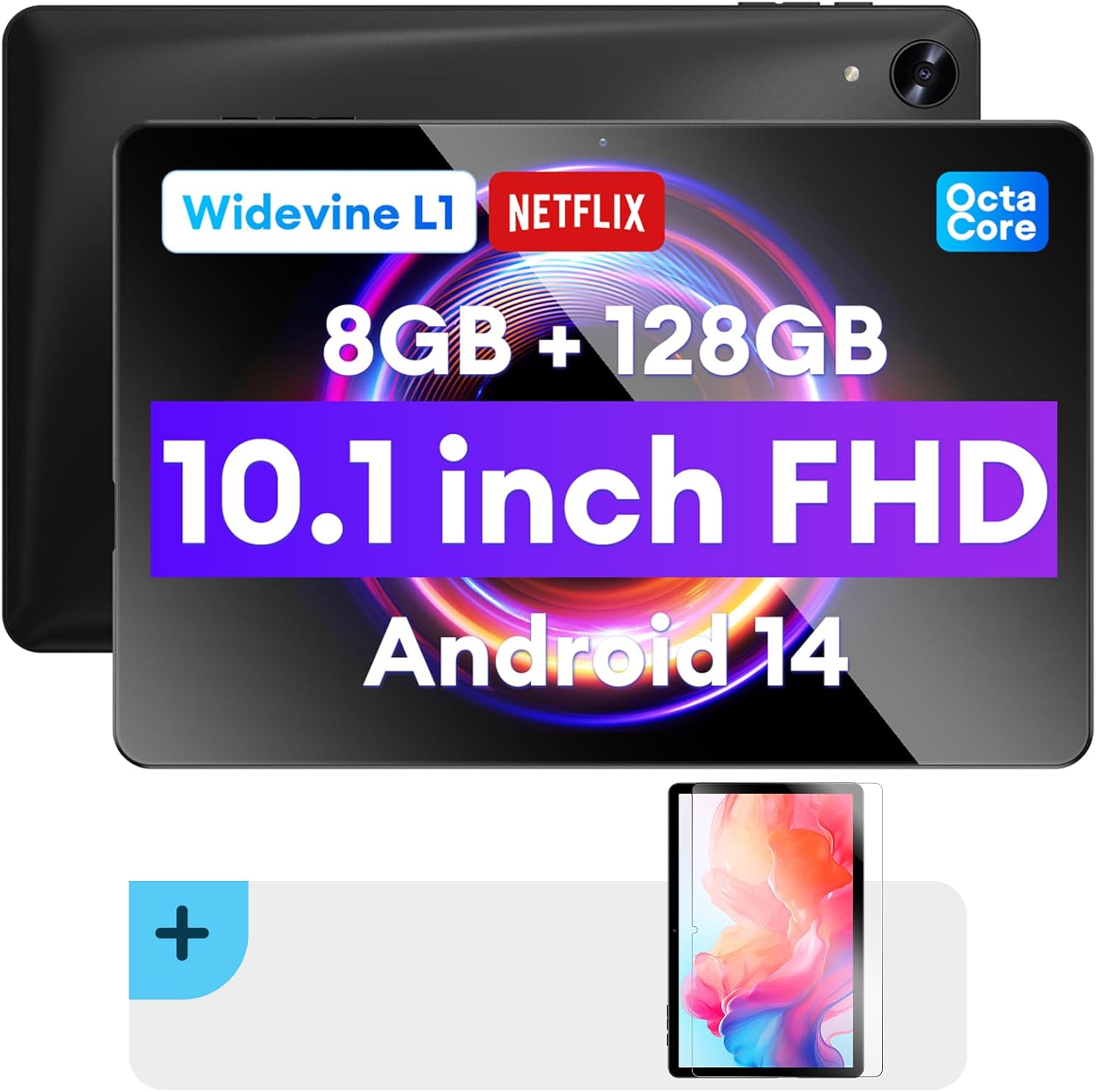
Vaizdas: Priekinė ir galinė dalys view of the Headwolf WPad5 tablet, showcasing its 10.1-inch FHD display, 8GB RAM + 128GB ROM, Widevine L1 support, Octa-Core processor, and Android 14 operating system.

Paveikslėlis: Viršview of the Headwolf WPad5 tablet's main features, including its 10.1-inch 1920x1200 IPS FHD display, Unisoc T606 Octa-Core CPU, 8GB RAM + 128GB ROM, 5500mAh battery, 2.4G/5G WiFi, Android 14, dual stereo speakers, dual camera, and Widevine L1 support for Netflix.
2. Sąranka
2.1 Kas yra dėžutėje
Upon unboxing your Headwolf WPad5 tablet, please verify that all the following items are included:
- Headwolf WPad5 Tablet
- C tipo kabelis
- Kintamosios srovės adapteris
- Vartotojo vadovas
- 2-pack Screen Protector

Image: A visual representation of the Headwolf WPad5 tablet and its accessories (manual, Type-C cable, AC adapter). It also highlights the tablet's physical features such as the 3.5mm headphone jack, rear camera, power button, volume buttons, TF card slot, and Type-C port.
2.2 Planšetinio kompiuterio įkrovimas
Before initial use, fully charge your tablet. Connect the Type-C cable to the tablet's Type-C port and the other end to the AC adapter. Plug the AC adapter into a power outlet. The battery indicator on the screen will show charging status.
2.3 Įjungimas / išjungimas
- Norėdami įjungti: Press and hold the Power button located on the side of the tablet until the Headwolf logo appears on the screen.
- Norėdami išjungti: Paspauskite ir palaikykite maitinimo mygtuką, kol pasirodys maitinimo meniu. Iš parinkčių pasirinkite „Išjungti“.
- Norėdami paleisti iš naujo: Maitinimo meniu pasirinkite „Paleisti iš naujo“.
2.4 Screen Protector Installation
Your tablet comes with two screen protectors. Follow these steps for installation:
- Clean the tablet screen thoroughly with a microfiber cloth to remove dust and smudges.
- Peel off the protective film from the adhesive side of the screen protector.
- Carefully align the screen protector with the tablet's screen, ensuring the cutouts for the camera and sensors match.
- Gently lay the protector onto the screen, starting from one edge and slowly lowering it.
- Use a soft card (e.g., a credit card wrapped in cloth) to smooth out any air bubbles, pushing them towards the edges.
- Remove the top protective film (if present).

Image: The Headwolf WPad5 tablet with an "Ultra Clear" advanced HD clarity tempered glass screen protector being shown, indicating its protective function and clear display.
3. Planšetinio kompiuterio valdymas
3.1 „Android 14“ operacinė sistema
The Headwolf WPad5 runs on the latest Android 14 operating system, offering enhanced performance, improved privacy features, and a customizable user interface.
- GMS Free App Download: Access millions of applications through the Google Play Store.
- Padalinto ekrano funkcija: Enhance productivity by using two apps simultaneously.
- Vartotojo sąsajos pritaikymas: Personalize your interface with various themes, widgets, and settings.
- Privatumo apsauga: Advanced features to ensure your personal data remains secure and confidential.
- Personalized Screen Settings: Empower all users with enhanced usability options.

Image: A graphic illustrating the key features of the Android 14 system on the Headwolf WPad5, such as GMS free app download, UI customization, personalized screen settings, and privacy protection, enhancing user experience.
3.2 Display and Widevine L1 Certification
The tablet features a 10.1-inch FHD 1920x1200 IPS display, providing clear and vibrant visuals. With Widevine L1 certification, you can stream high-definition content from popular platforms like Netflix, Amazon Prime Video, Disney+, and YouTube without interruptions or quality degradation.

Image: A visual demonstrating the Widevine L1 certification on the Headwolf WPad5 tablet, showing high-quality streaming from services like YouTube, Netflix, Amazon Prime Video, Disney+, and Hulu, ensuring a premium viewpatirtį.
3.3 Našumas ir saugykla
Powered by an octa-core Unisoc T606 CPU, the WPad5 ensures smooth multitasking and gaming. It comes with 8GB RAM (achieved via 4GB physical RAM + 4GB expansion) and 128GB of internal storage. The storage can be expanded up to 2TB using a microSD card (not included).

Image: A diagram detailing the Unisoc T606 Octa-Core CPU with 2.0 GHz peak frequency and Mali-G57 GPU, highlighting its high performance, efficient processing, and low heat generation for gaming and high-quality display.

Image: A graphic illustrating the generous storage capacity of the Headwolf WPad5, featuring 8GB RAM (4+4GB) and 128GB ROM, expandable up to 2TB via TF card, suitable for storing software, photos, music, videos, and e-books.
3.4 Ryšys
The WPad5 offers versatile connectivity options:
- „Wi-Fi“: Dual-band (2.4GHz/5GHz) 802.11ac for fast and stable internet connection.
- Bluetooth: 5.0 versija, skirta belaidžių priedų prijungimui.
- 3.5 mm ausinių lizdas: Laidinei garso išvesčiai.
- GPS: 4-mode satellite positioning for precise location services. For offline navigation, download maps via Wi-Fi before traveling to areas without internet access.

Image: The Headwolf WPad5 tablet displaying a navigation map, illustrating its 4-mode satellite positioning capability for precise location services and route guidance.
3.5 fotoaparatai
The tablet is equipped with dual cameras:
- Galinė kamera: 8MP for capturing photos and videos.
- Priekinė kamera: 5MP, ideal for video calls and online meetings.

Paveikslėlis: koliažo parodaasing the capabilities of the Headwolf WPad5's 8MP rear camera for capturing landscapes and moments, and the 5MP front camera for video conferencing and meetings, demonstrating its versatility.
3.6 Baterijos veikimo laikas
The WPad5 is powered by a 5500mAh battery, providing approximately 6-8 hours of playtime per charge, depending on usage.
3.7 Papildomos funkcijos
- Padalintas ekranas: Run two applications side-by-side for enhanced productivity.
- Atrakinimas pagal veidą: Saugiai atrakinkite planšetinį kompiuterį naudodami veido atpažinimo funkciją.
- Ekrano dubliavimas: Cast your tablet's display to a larger screen wirelessly.
- Dual Box Stereo Speakers: Enjoy immersive audio with enhanced sound quality.
Paveikslėlis: Grafinis demonstravimasasing various features of the Headwolf WPad5 tablet, including Split Screen functionality for multitasking, 2.4G/5G Dual Band WiFi for connectivity, Face Unlock for security, and Screen Mirroring for casting content to external displays.
4. Priežiūra
4.1 Akumuliatoriaus priežiūra
- Venkite dažnai visiškai iškrauti akumuliatorių.
- Nelaikykite planšetinio kompiuterio ekstremaliose temperatūrose.
- Naudokite tik pateiktą įkroviklį arba sertifikuotą suderinamą įkroviklį.
- The 5500mAh battery includes overcurrent, short circuit, over-discharge, and output protection for safety.

Image: A visual highlighting the 5500mAh battery of the Headwolf WPad5 and its built-in protection features: overcurrent protection, short circuit protection, over-discharge protection, and output protection, ensuring safe and reliable power.
4.2 Planšetinio kompiuterio valymas
- Planšetinio kompiuterio ekraną ir korpusą valykite minkštu, nepūkuotu audiniu.
- Įsisenėjusioms dėmėms šiek tiek pamirkykiteampNuvalykite šluostę vandeniu arba ekrano valikliu, skirtu specialiai elektronikai.
- Venkite naudoti stiprias chemines medžiagas, abrazyvines medžiagas ar aerozolinius purškalus.
4.3 Programinės įrangos naujiniai
Regularly check for and install software updates to ensure your tablet has the latest features, security patches, and performance improvements. You can usually find this option in the tablet's Settings menu under "System" or "About tablet".
5. Problemų sprendimas
5.1 Bendrosios problemos ir sprendimai
| problema | Galimas sprendimas |
|---|---|
| Planšetinis kompiuteris neįsijungia | Įsitikinkite, kad akumuliatorius įkrautas. Prijunkite įkroviklį ir palaukite kelias minutes, prieš bandydami vėl įjungti. Jei įrenginys nereaguoja, paspauskite ir 10–15 sekundžių palaikykite nuspaudę maitinimo mygtuką, kad priverstumėte įrenginį paleisti iš naujo. |
| Wi-Fi ryšio problemos | Restart your Wi-Fi router and the tablet. Forget the Wi-Fi network on your tablet and reconnect. Ensure you are within range of the Wi-Fi signal. |
| Programėlės stringa arba užstringa | Išvalykite programėlės talpyklą ir duomenis skiltyje „Nustatymai“ > „Programos“. Atnaujinkite programėlę į naujausią versiją. Jei problema išlieka, pašalinkite programėlę ir įdiekite ją iš naujo. |
| Lėtas veikimas | Close unnecessary background apps. Clear cache data regularly. Consider uninstalling unused apps. Ensure sufficient free storage space. |
| Ekranas nereaguoja | Paleiskite planšetinį kompiuterį iš naujo. Jei problema išlieka, atlikite gamyklinių parametrų atkūrimą (duomenys bus prarasti). |
5.2 Gamyklinių parametrų atkūrimas
Gamyklinių parametrų atkūrimas ištrins visus planšetinio kompiuterio duomenis ir atkurs pradinius gamyklinius nustatymus. Prieš tęsdami sukurkite visų svarbių duomenų atsargines kopijas.
- Eikite į Nustatymai.
- Eikite į Sistema > Iš naujo nustatyti parinktis.
- Pasirinkite Ištrinti visus duomenis (atkurti gamyklinius).
- Patvirtinkite savo pasirinkimą ir vykdykite ekrane pateikiamus nurodymus.
6. Specifikacijos
| Funkcija | Detalė |
|---|---|
| Modelio pavadinimas | WPad5 |
| Operacinė sistema | Android 14 |
| Ekrano dydis | 10.1 colių |
| Ekrano raiška | 1920 1200 x XNUMX XNUMX (FHD) |
| Procesorius | „Unisoc T606“ aštuonių branduolių procesorius |
| RAM | 8 GB (4 GB + 4 GB išplėtimo galimybė) |
| Vidinė saugykla | 128 GB |
| Išplečiama saugykla | Iki 2 TB per „microSD“ kortelę |
| Galinė kamera | 8 MP |
| Priekinė kamera | 5 MP |
| Baterijos talpa | 5500 mAh |
| Belaidis ryšys | 802.11ac (Dual-band 2.4GHz/5GHz) |
| Bluetooth | Bluetooth 5.0 |
| Uostai | Type-C, 3.5mm Headphone Jack |
| Spalva | Juoda |
| Ypatingos savybės | Widevine L1, GPS, Face Unlock, Dual Stereo Speakers, Split Screen, Screen Mirroring |
7. Garantija ir palaikymas
Headwolf provides a one-year repair and replacement warranty for your WPad5 tablet. For any technical assistance, product inquiries, or warranty claims, please contact our dedicated customer service and technical support team.
- Klientų aptarnavimas: Available 24 hours. Please refer to the contact information provided with your purchase or on the official Headwolf websvetainę.
- Techninė pagalba: Available for assistance with setup, troubleshooting, and feature usage.
- Internetiniai ištekliai: Aplankykite Headwolf Store on Amazon dėl papildomos informacijos apie gaminį ir pagalbos.