
Įvadas
Thank you for choosing the TECKNET TK-MS317 Bluetooth Wireless Mouse. This manual provides detailed instructions for setting up, operating, and maintaining your mouse to ensure optimal performance. Please read this manual thoroughly before use and retain it for future reference.
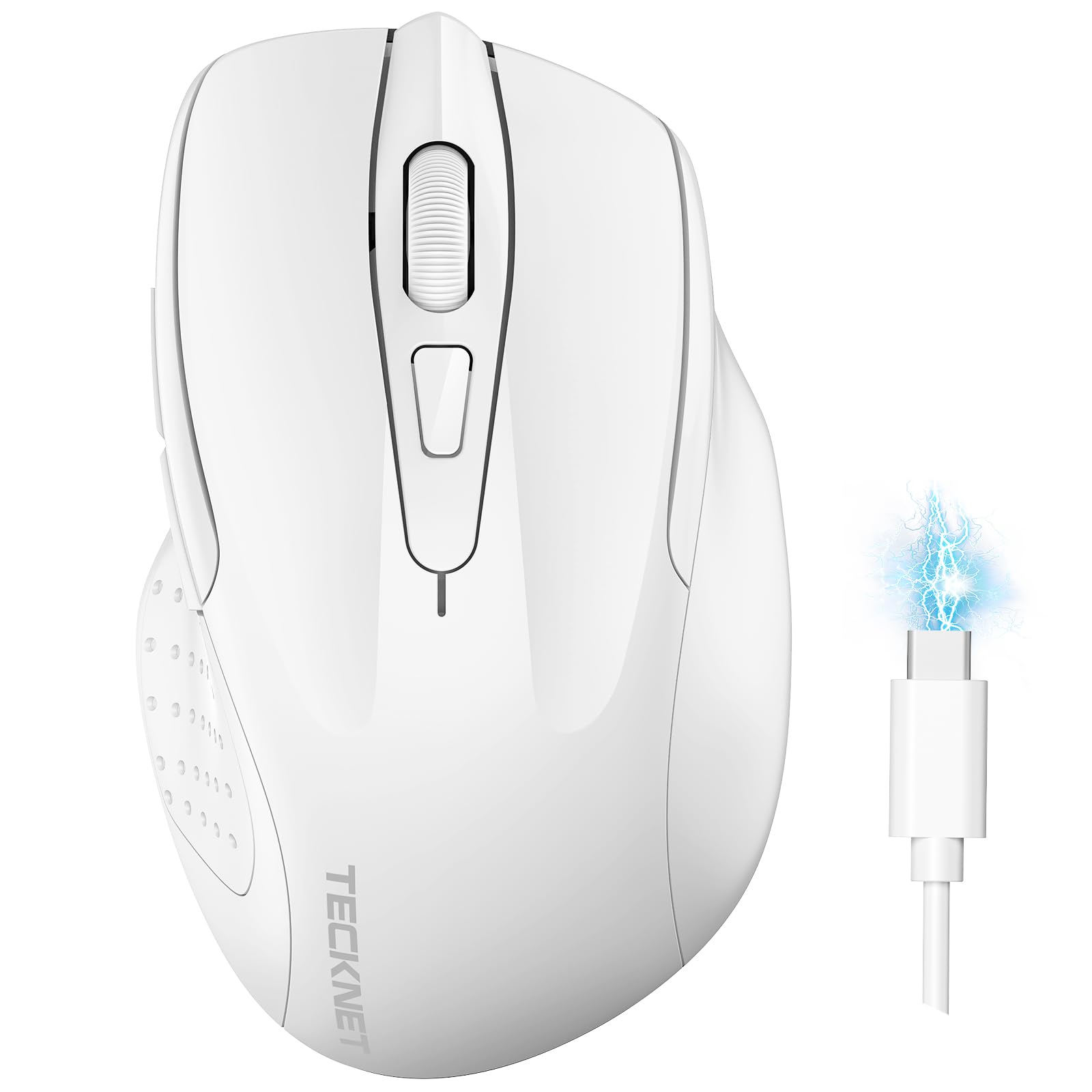
Image: The TECKNET TK-MS317 Bluetooth Wireless Mouse, showcasing its ergonomic design and sleek white finish.
Produkto savybės
- Trigubi ryšio režimai: Supports Bluetooth 5.0, Bluetooth 3.0, and 2.4GHz wireless connectivity, allowing seamless switching between up to two devices.
- Reguliuojamas DPI: Six adjustable DPI levels (800/1200/1600/2400/3200/4800) for precise control and adaptability to various tasks.
- Įkraunama baterija: Equipped with a 700 mAh rechargeable battery, providing extended usage on a single charge. Can be used while charging via USB-C.
- Tylūs paspaudimai: Designed for quiet operation, reducing click noise by 90% for a focused work environment.
- Ergonomiškas dizainas: Contoured shape fits comfortably in the palm, reducing hand fatigue during prolonged use.
- Energijos taupymas: Features a key-wake function and automatic sleep mode to conserve battery life.
- Visuotinis suderinamumas: Compatible with Windows 11/10/8/7/XP/Vista, Mac OS, Linux, Android, and iOS (BT 5.0 for iOS 10.4+).

Image: Illustration highlighting the silent click feature of the mouse, showing a quiet work environment.

Image: Diagram illustrating the ergonomic curvature of the TECKNET TK-MS317 mouse, designed for comfortable hand fit.
Sąrankos instrukcijos
1. Pelės įkrovimas
Before first use, or when the battery is low, connect the mouse to a power source using the provided USB-C cable. The charging indicator light will illuminate. A full charge typically takes about two hours and can last for 1 to 2 months of intensive use.

Image: The TECKNET TK-MS317 mouse connected via a USB-C cable for charging, highlighting its 700mAh battery capacity.
2. Prijungimas per 2.4 GHz belaidį ryšį
- Locate the USB 2.4G receiver, usually stored in a compartment on the underside of the mouse.
- Prijunkite USB imtuvą prie laisvo kompiuterio USB-A prievado.
- Switch the mode selector on the bottom of the mouse to the "2.4G" position.
- The mouse should automatically connect to your computer. If not, try moving the mouse or restarting your computer.
3. Prisijungimas per „Bluetooth“ (BT5.0 / BT3.0)
- Switch the mode selector on the bottom of the mouse to either "BT5.0" or "BT3.0" position.
- Press and hold the Bluetooth pairing button (usually located near the mode switch) for 3-5 seconds until the indicator light starts flashing, indicating pairing mode.
- On your device (computer, laptop, tablet, smartphone), go to Bluetooth settings.
- Ieškokite new devices. You should see "TECKNET Mouse" or a similar name appear in the list.
- Select the mouse to pair. Once connected, the indicator light on the mouse will stop flashing.
- To switch between paired Bluetooth devices or to the 2.4G mode, simply use the mode selector switch on the bottom of the mouse.

Image: Diagram showing the three connection modes (2.4G, Bluetooth 5.0, Bluetooth 3.0) of the TECKNET TK-MS317 mouse, connecting to a laptop and a tablet.
Naudojimo instrukcijos
1. DPI reguliavimas
The mouse features a DPI button, typically located behind the scroll wheel. Press this button to cycle through the six available DPI settings: 800, 1200, 1600, 2400, 3200, and 4800. Select the DPI that best suits your task and preference for cursor speed and precision.

Image: Visual representation of the TECKNET TK-MS317 mouse highlighting its 6 levels of adjustable DPI, up to 4800 DPI.
2. Režimo perjungimas
Use the physical switch on the underside of the mouse to select your desired connection mode: 2.4G, BT5.0, or BT3.0. This allows you to quickly switch between different devices without re-pairing.
3. Energijos taupymo režimas
The mouse will automatically enter sleep mode after a period of inactivity to conserve battery. To wake the mouse, simply move it or click any button.
Priežiūra
1. Valymas
Pelę valykite minkšta, sausa šluoste. Įsisenėjusius nešvarumus galima lengvai nuvalyti.amp Galima naudoti šluostę su švelniu muilu, užtikrinant, kad skystis nepatektų į pelę. Venkite naudoti stiprias chemines medžiagas ar abrazyvines medžiagas.
2. Akumuliatoriaus priežiūra
- Venkite dažnai visiškai iškrauti akumuliatorių.
- Kai ilgesnį laiką nenaudojate pelės, laikykite ją vėsioje, sausoje vietoje.
- Įkrovimui naudokite tik pridedamą USB-C laidą arba sertifikuotą lygiavertį laidą.
Trikčių šalinimas
- Pelė nereaguoja:
- Įsitikinkite, kad pelė įkrauta.
- Check if the mode switch is set correctly (2.4G, BT5.0, or BT3.0).
- For 2.4G mode, ensure the USB receiver is securely plugged in.
- „Bluetooth“ režimui įsitikinkite, kad jūsų įrenginyje įjungtas „Bluetooth“ ryšys ir pelė susieta. Jei reikia, pabandykite susieti iš naujo.
- Try connecting the mouse to a different USB port or device to rule out port/device issues.
- Pertraukiamas ryšys:
- Move the mouse closer to the receiver/device.
- Venkite naudoti pelę ant metalinių paviršių, nes tai gali trukdyti belaidžio ryšio signalams.
- Ensure there are no other strong wireless interference sources nearby.
- Žymeklio judėjimas yra netolygus:
- Nuvalykite optinį jutiklį pelės apačioje.
- Pabandykite naudoti pelę ant kito paviršiaus arba pelės kilimėlio.
- Adjust the DPI setting to a lower value.
Specifikacijos
| Modelio numeris | TK-MS317 |
| Prekės ženklas | TECNET |
| Ryšio režimai | 2.4 GHz belaidis ryšys, „Bluetooth 5.0“, „Bluetooth 3.0“ |
| DPI lygiai | 800, 1200, 1600, 2400, 3200, 4800 |
| Mygtukų skaičius | 6 |
| Baterijos tipas | Built-in 700 mAh Rechargeable Lithium Battery |
| Įkrovimo prievadas | USB-C |
| Svoris | 150 gramų |
| Suderinamumas | Windows 11/10/8/7/XP/Vista, Mac OS, Linux, Android, iOS (10.4+ for BT 5.0) |
Garantija ir palaikymas
TECKNET offers a 36-month warranty for registered users of this product. If you encounter any issues with your TECKNET TK-MS317 Bluetooth Wireless Mouse, please do not hesitate to contact our professional customer service team for assistance.
For warranty claims or technical support, please visit the official TECKNET websvetainėje arba žr. kontaktinę informaciją, pateiktą ant produkto pakuotės.