
1. Įvadas
The APEX VR70 Pro FPV Drone Kit is designed for both beginners and experienced pilots, offering an immersive First-Person View (FPV) flight experience. This manual provides essential information for safe operation, setup, and maintenance of your drone kit. Please read it thoroughly before first use.
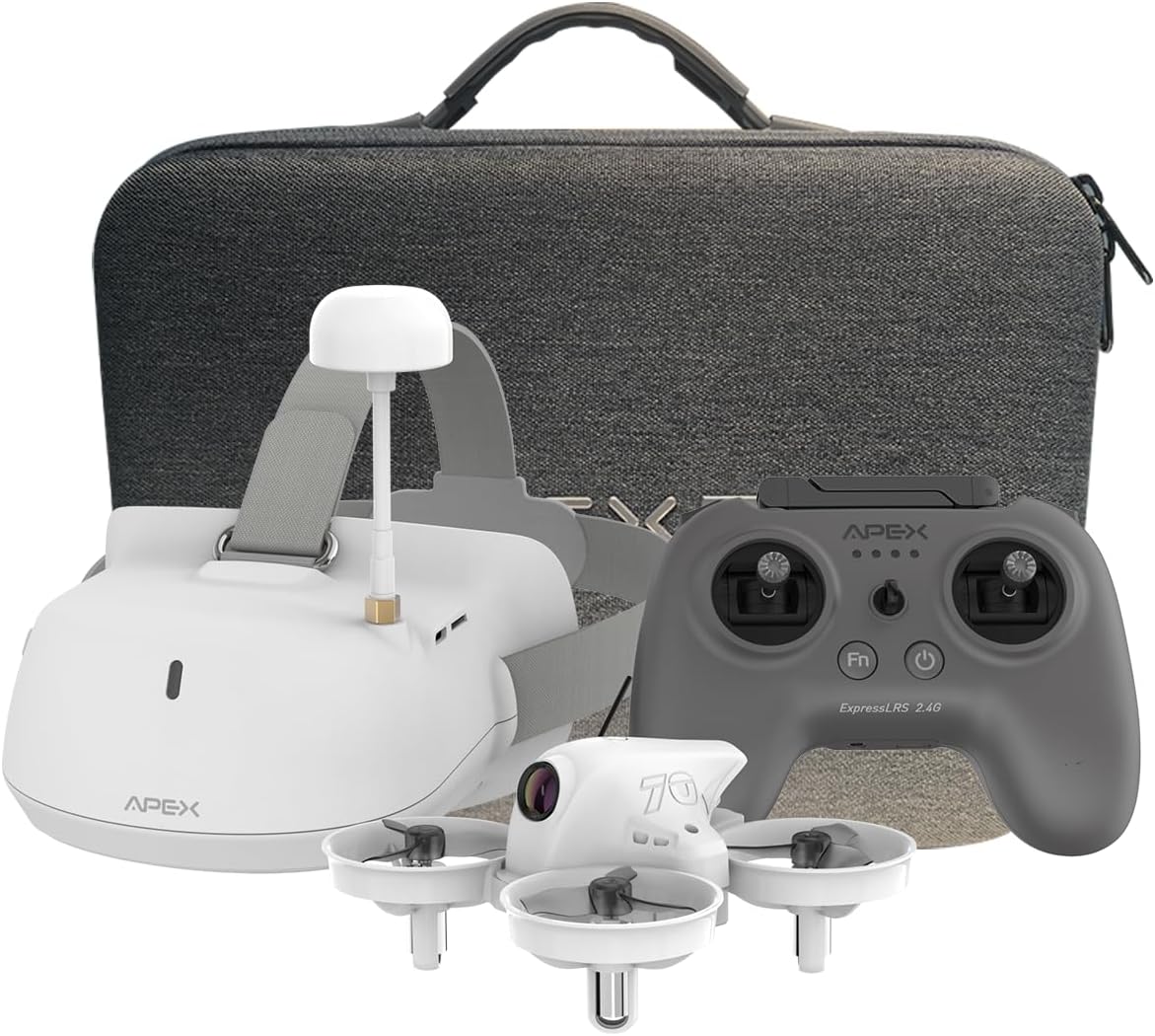
Image: The APEX VR70 Pro FPV Drone Kit, showcasing the drone, remote control, and FPV goggles.
2. Kas yra dėžutėje
Your APEX VR70 Pro FPV Drone Kit includes the following components:
- 1 x VR70 Pro Brushless Quadcopter
- 1 x ELRS Edition Remote Control
- 1 x FPV VR Goggles
- 2 x 3.75V 400mAh LiPo Batteries
- 1 x USB įkrovimo laidas (C tipo)
- 1 x 3.5mm Male-to-Male AUX Audio Cable
- 1 x Propelerio šalinimo įrankis
- 4 x 3-Blade Propellers (spare)
- 1x įkrovimo dėklas
- 1 x Vartotojo vadovas
- 1 x nešiojamas krepšys

Image: All components of the APEX VR70 Pro FPV Drone Kit neatly arranged in the carrying case.
3. Produkto ypatybės
- FPV VR70 Pro Kit: Designed for beginners and teenagers, offering stable hovering capabilities for safe and easy flight.
- High-Precision Barometer: Integrated for altitude detection and automatic hovering, ensuring high stability.
- Head Tracking Motion Control: FPV VR goggles allow control of drone direction by tilting the head, providing an immersive experience.
- Vėžlio režimas: Advanced technology to flip the drone back upright if it lands upside down.
- Enhanced Transmitter: Offers extended range, joystick calibration, and firmware updates. Supports FPV simulator practice.
- 5.8G Video Transmission: High-power, low-latency video transmission for stable real-time FPV.
- Multifunctional Drone: Features include image/video transmission, one-button takeoff/landing, headless mode, one-button return, altitude hold, 3 speeds, and 3 flight modes (Beginner, ATTI, Manual).
- Įmontuotas garsinis signalas: Helps locate the drone if connection is lost or it lands in tall grass.

Image: The APEX VR70 Pro drone hovering indoors, demonstrating its stable flight capabilities.
4. Saugos gairės
Always prioritize safety when operating the APEX VR70 Pro FPV Drone Kit. Failure to follow these guidelines may result in injury, damage to property, or legal issues.
- Patikra prieš skrydį: Ensure all components are in good working order, batteries are charged, and propellers are securely attached.
- Aplinkosauginis sąmoningumas: Fly in open areas, away from people, animals, buildings, and power lines. Avoid flying in strong winds or adverse weather conditions.
- Matymo linija: Maintain visual line of sight with the drone at all times, even when using FPV goggles.
- Baterijos sauga: Use only approved chargers and batteries. Do not overcharge or puncture batteries.
- Gerbti privatumą: Be mindful of privacy laws and avoid flying over private property without permission.
- Amžiaus rekomendacija: This product is recommended for teenagers and above. Adult supervision is advised for younger users.
5. Sąranka
5.1 Baterijų įkrovimas
Ensure all batteries (drone, remote control, FPV goggles) are fully charged before use.
- Connect the USB charging cable to the charging case.
- Insert the drone batteries into the charging case. The indicator light will show charging status.
- Plug the USB charging cable into the remote control's charging port. The display light will indicate charging status.
- Plug the USB charging cable into the FPV VR goggles' charging port. The indicator light will show charging status.
Note: The display light on the remote control will be solid green when fully charged. The FPV VR goggles will show a red light during charging and turn off when fully charged.
5.2 Drone and Remote Control Pairing
- Connect the drone battery power cord into the drone interface. The LED lights on the drone will flash.
- Press and hold the power-on key on the remote control to turn it on.
- The drone and remote control will automatically pair. The drone's LED lights will stop flashing and remain solid when paired.
5.3 Drone Calibration
The drone must be calibrated on a horizontal plane to ensure stable flight. Otherwise, it may affect flight performance.
- Place the drone on a flat, horizontal surface.
- Simultaneously push both joysticks of the remote control to the lower right for calibration. The drone's lights will flash rapidly during calibration.
- Once calibration is complete, the drone's lights will become solid.
- If the drone's lights continue to flash, gently shake the drone several times to enter the calibrate state (LED lights flashing). Then, long press the calibrate key on the remote control to re-proofread.
5.4 FPV VR Goggles Setup
- Press and hold the power-on key on the FPV VR goggles to start them.
- Use the "+" and "-" keys to manually change the channel until you find the drone's video feed.
- Alternatively, long press the "-" key to automatically search for channels. Wait a moment for the calibration to complete.
Video: A comprehensive tutorial demonstrating unboxing, function of keys, charging procedures, flight operation, and FPV VR glasses tutorial for the APEX VR70 Pro FPV Drone Kit.
6. Naudojimo instrukcijos
6.1 Pakilimas ir nusileidimas
- After pairing and calibration, pull down both joysticks and press the FN key simultaneously. The drone will take off.
- To land, press the one-button landing key on the remote control.
6.2 Pagrindiniai skrydžio valdymo įtaisai
- Fly Upward/Downward: Use the left joystick to control altitude.
- Fly Left/Right: Use the right joystick to move the drone horizontally left or right.
- Pasukite į kairę/dešinę: Norėdami pasukti droną į kairę arba į dešinę, naudokite kairįjį valdymo svirtį.
6.3 Flight Modes and Speed
The drone offers 3 flight modes and 3 speed settings:
- Pradedančiojo režimas: For new pilots, offering maximum stability and ease of control.
- ATTI režimas: Provides altitude hold but allows more manual control over horizontal movement.
- Rankinis režimas: For experienced pilots, offering full manual control without stabilization assistance.
Press the speed key on the remote control to cycle through the 3 available speeds.

Image: Illustration of the drone's 360-degree rotation capability.
6.4 Specialiosios funkcijos
- Apvertimo funkcija: Long press the speed key, then push the direction joystick down to perform a flip.
- Head Tracking Control: When wearing the FPV VR goggles, tilt your head to control the drone's direction.
- Vėžlio režimas: If the drone lands upside down, activate Turtle Mode via the transmitter to flip it back over.
- Įmontuotas garsinis signalas: If the drone loses connection, it will emit a beeping sound to assist in locating it.
6.5 Recording and Photography (FPV Goggles)
- In video recording mode, press the "OK" key to start recording. Press "OK" again to stop.
- Press and hold the "OK" key to switch to photo mode. Press "OK" to take a photo.
- Press the "M" key for 3 seconds to enter the photo album to view photos and videos. Use "+" and "-" keys to select. Press "OK" to confirm.
- Press the "M" key to return to the main menu.
Video: A dynamic demonstration of the APEX VR70 Pro FPV Drone in flight, showcasing its features like head tracking, turtle mode, and OSD interface upgrade.
7. Priežiūra
- Valymas: Use a soft, dry cloth to clean the drone, remote control, and FPV goggles. Avoid using harsh chemicals.
- Propelerio apžiūra: Regularly check propellers for damage. Replace any bent or broken propellers using the provided tool.
- Baterijos saugykla: Baterijas laikykite vėsioje, sausoje vietoje, iš dalies įkrautas (apie 50 %), jei nenaudojate ilgesnį laiką.
- Firmware atnaujinimai: Patikrinkite gamintojo website for any available firmware updates for optimal performance.

Image: Illustration emphasizing the drone's 360-degree protection against impacts.
8. Problemų sprendimas
- Dronas neįsijungia: Ensure the battery is fully charged and correctly connected to the drone.
- Nuotolinio valdymo pultas neprisijungia: Ensure both the drone and remote control are powered on and within range. Re-attempt the pairing process.
- Nestabilus skrydis: Perform a drone calibration on a flat surface. Check for damaged propellers and replace if necessary.
- Nėra FPV vaizdo transliacijos: Ensure FPV VR goggles are powered on and correctly tuned to the drone's channel (manual or auto-search).
- Drone lands upside down: Activate Turtle Mode via the remote control to flip the drone.
- Lost drone: Listen for the built-in buzzer if the drone loses connection.
9. Specifikacijos
| Funkcija | Specifikacija |
|---|---|
| Prekės ženklas | Viršūnė |
| Modelio pavadinimas | VR70 Pro |
| Amžiaus diapazonas (aprašas) | Paaugliai |
| Spalva | BIANCO (balta) |
| Vaizdo įrašymo raiška | 720p |
| Ryšio technologija | Wi-Fi, Radio Frequency (Remote Control), 5.8G (Wireless Communication) |
| Įgūdžių lygis | Pradedantysis |
| Max Battery Power | 400 milijonųamper-valandos (mAh) |
| Vaizdo įrašymo formatas | MP4 |
| Valdymo tipas | Valdymas gestais |
| Baterijos elementų sudėtis | Ličio polimeras |
| Palaikomas vaizdo formatas | JPEG |
| Vaizdo išvesties skiriamoji geba | 720p |
| Optinių jutiklių technologija | CMOS |
| Medijos tipas | Micro SD |
| Medžiaga | ABS |
| Prekės svoris | 1400 gramų |
| Prekės matmenys (I x P x A) | 8L x 8l x 5H cm |
10. Garantija ir palaikymas
The APEX VR70 Pro FPV Drone Kit is designed for durability and performance. For any product issues, please contact our customer support team immediately. We are committed to resolving any problems you may encounter.
Konkrečias garantijos sąlygas rasite pirkimo dokumentuose. Išsaugokite pirkimo įrodymą, jei prireiktų pateikti garantijos pretenzijas.