
GNCC GT1PRO Black Caméra Surveillance
GNCC 2K Outdoor Security Camera User Manual
Model: GT1PRO Black Caméra Surveillance
Prekės ženklas: GNCC
1. Įvadas
This manual provides detailed instructions for the installation, operation, and maintenance of your GNCC 2K Outdoor Security Camera. This camera is designed to provide reliable surveillance with advanced features for enhanced home security.
Key features include 2K Ultra HD resolution, enhanced night vision up to 50 feet/15m, smart AI detection for motion and sound alerts, two-way audio, IP65 weatherproof rating, and seamless integration with Alexa and Google Home.
2. Kas yra dėžutėje
- Instrukcijų vadovas
- Stovi
- Maitinimo adapteris
- Montavimo varžtas

Image: GNCC 2K Outdoor Security Camera and its retail packaging, illustrating the product and its box contents.
3. Sąrankos vadovas
3.1. Fizinis įrengimas
- Pasirinkite vietą: Select a suitable outdoor location for the camera, ensuring it is within reach of a power outlet. The camera is IP65 weatherproof, suitable for various outdoor conditions.
- Pažymėkite ir gręžkite skyles: Use the mounting bracket to mark the desired drill points on the installation surface. Drill pilot holes for the mounting screws.
- Pritvirtinkite montavimo laikiklį: Securely attach the mounting bracket to the surface using the provided screws.
- Sumontuokite fotoaparatą: Screw the camera onto the mounting bracket. Adjust the camera's angle and position as needed, then tighten the mount to secure it.
- Prijunkite prie maitinimo: Plug the camera's USB power cable into the provided power adapter, then plug the adapter into a wall outlet. Clips are included to help secure the wire along the installation path.

Image: The GNCC 2K Outdoor Security Camera, highlighting its IP65 weatherproof design, suitable for outdoor installation.
3.2. Programėlės diegimas ir prijungimas
- Download the Osaio App: Ieškokite "Osaio" in your smartphone's app store (Google Play or Apple App Store) and install it.
- Registruotis / Prisijungti: Open the Osaio app and follow the on-screen instructions to register a new account or log in if you already have one.
- Pridėti įrenginį: In the app, select the option to add a new device. Choose the GNCC 2K Outdoor Security Camera from the list.
- Prisijunkite prie „Wi-Fi“: Follow the app's prompts to connect the camera to your 2.4GHz Wi-Fi network. Ensure your Wi-Fi is set to 2.4GHz, as 5GHz is not supported. You may be prompted to scan a QR code displayed on your phone with the camera, or connect via AP mode.
- Patvirtinimas: A successful connection is typically indicated by a double beep from the camera and a green checkmark in the app. If the indicator light is flashing red, or you do not hear the double beep, please reset the camera and try again.
Video: A guide to connecting the GNCC security camera to the Osaio GT1Pro app, demonstrating the Wi-Fi and AP mode setup processes.
4. Naudojimo instrukcijos
4.1. Gyvai View
Access the Osaio app to view gyvas kvailystage from your camera anytime, anywhere. This allows for real-time monitoring of your property.
4.2. Motion and Sound Detection
The camera features smart AI-powered motion and sound detection. You will receive real-time phone alerts when people, pets, packages, or vehicles are identified, reducing false alarms. The built-in siren can be activated via the Osaio app to deter intruders.

Image: The GNCC 2K Outdoor Security Camera demonstrating motion detection capabilities, with a person approaching a door.

Image: A smartphone screen showing real-time notifications from the Osaio app, indicating detected motion and sound events.
4.3. Dvipusis garsas
Utilize the integrated microphone and speaker for two-way communication. This allows you to speak with visitors, delivery personnel, or warn unwanted guests directly through the camera from your smartphone.
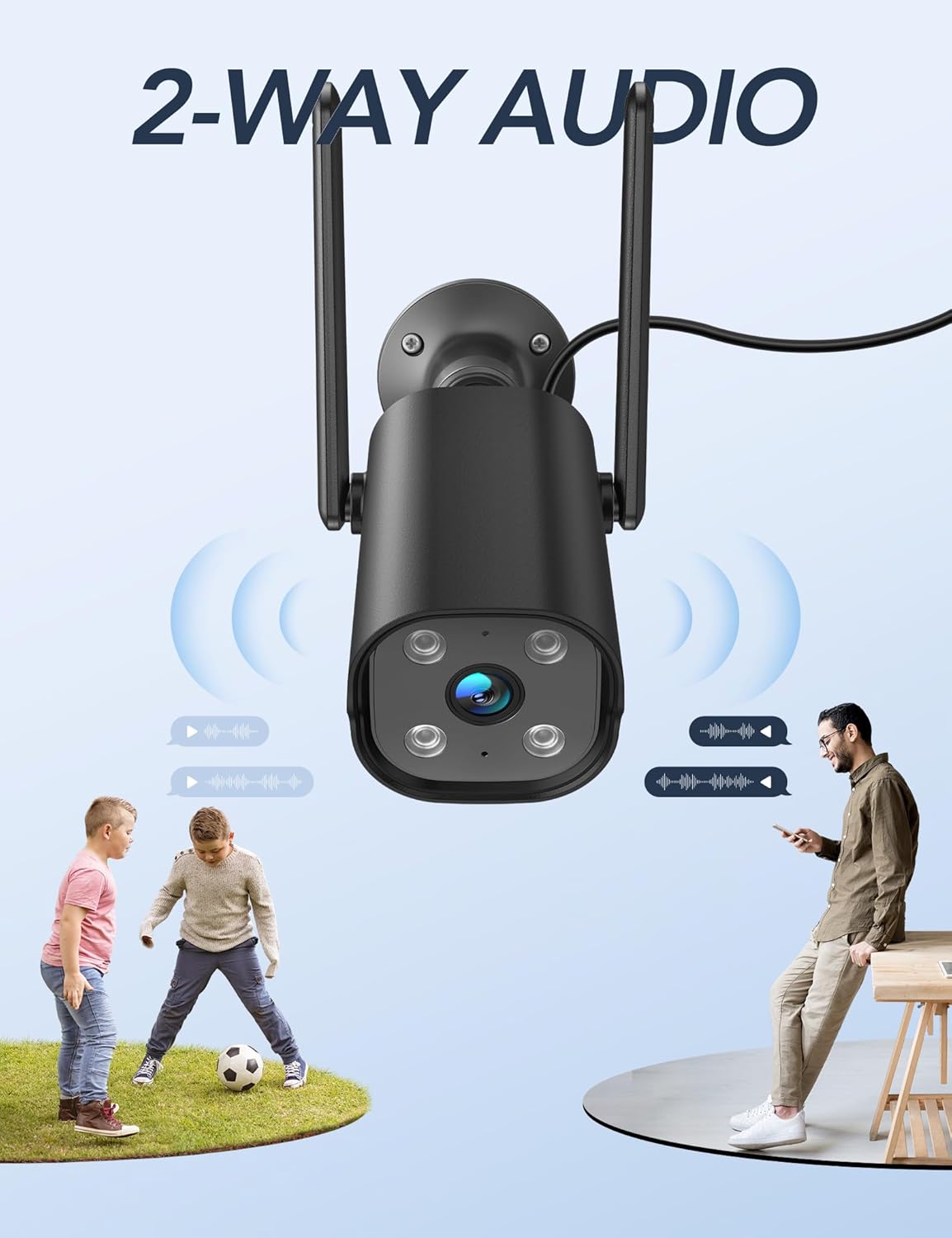
Image: The GNCC 2K Outdoor Security Camera illustrating its two-way audio capability, showing communication between the camera and individuals.
4.4. Naktinis matymas
The camera provides enhanced night vision, allowing you to see clearly up to 50 feet (15 meters) even in complete darkness, ensuring 24/7 surveillance.
4.5. Įrašymas ir saugojimas
The camera supports 24/7 recording. Footage can be stored securely on a Micro SD card (up to 128GB, not included) or via encrypted cloud storage with a free 14-day trial. You can review past recordings through the Osaio app.

Image: A visual representation of the GNCC 2K Outdoor Security Camera's 24/7 recording capability, showing continuous video capture.

Image: Diagram illustrating the GNCC 2K Outdoor Security Camera's flexible storage options: cloud storage (with a 14-day free trial) and local SD card storage (up to 128GB, not included).
4.6. Išmaniųjų namų integracija
The GNCC 2K Outdoor Security Camera is compatible with Alexa and Google Home, allowing for convenient hands-free voice control. You can also remotely manage the camera and share live feeds with family members through the Osaio app.
Vaizdo įrašas: Viršijimasview of the GNCC 2K Outdoor Security Camera (GT1Pro), highlighting its features including 2K HDR, siren, 2.4GHz WiFi, IP65, AI detection, night vision, motion detection, and 2-way audio.
5. Priežiūra
- Valymas: Reguliariai valykite fotoaparato objektyvą ir korpusą minkšta,amp šluoste dulkėms ir šiukšlėms pašalinti. Venkite naudoti stiprias chemines medžiagas.
- Ryšio patikrinimas: Periodically check the power cable and Wi-Fi connection to ensure stable operation.
- Firmware atnaujinimai: Keep the Osaio app updated to the latest version. The app will notify you of any available firmware updates for the camera, which can improve performance and add new features.
6. Problemų sprendimas
- Kamera neprisijungia prie programėlės:
- Įsitikinkite, kad jūsų „Wi-Fi“ tinklas yra 2.4 GHz dažnio. Kamera nepalaiko 5 GHz „Wi-Fi“.
- Patikrinkite, ar programoje teisingai įvestas „Wi-Fi“ slaptažodis.
- Make sure the camera's indicator light is flashing red before attempting to connect. If not, reset the camera.
- Įsitikinkite, kad kamera yra jūsų „Wi-Fi“ maršrutizatoriaus veikimo diapazone.
- Nėra įrašymo / saugojimo problemų:
- If using an SD card, ensure it is properly inserted and formatted within the app. Check if the SD card has sufficient storage space.
- If using cloud storage, verify your subscription status and internet connection.
- False Motion/Sound Alerts:
- Adjust the sensitivity settings for motion and sound detection in the Osaio app.
- Define specific detection zones to exclude areas with frequent irrelevant movement (e.g., busy streets, swaying trees).
- Prasta naktinio matymo kokybė:
- Ensure there are no obstructions directly in front of the camera lens that could interfere with the infrared lights.
- Nuvalykite fotoaparato objektyvą, kad pašalintumėte dėmes ar nešvarumus.
7. Specifikacijos
| Funkcija | Detalė |
|---|---|
| Prekės ženklas | GNCC |
| Modelio pavadinimas | GT1ProB |
| Naudojimas viduje / lauke | Lauko (IP65 atsparumas oro sąlygoms) |
| Vaizdo įrašymo raiška | 2K (3 MP efektyvi nuotraukų raiška) |
| Naktinio matymo diapazonas | 50 pėdų |
| Ryšio technologija | Belaidis (tik 2.4 GHz „Wi-Fi“) |
| Maitinimo šaltinis | Laidinis elektrinis (5 voltų, 5 vatų) |
| Dvipusis garsas | Taip |
| Judesio / garso aptikimas | Yes (Smart AI Detection) |
| Saugojimo parinktys | „Micro SD“ kortelė (iki 128 GB), debesies saugykla |
| Išmaniųjų namų suderinamumas | Alexa, „Google Home“ |
| Matmenys (I x P x A) | 4.33 x 3.07 x 2.09 colio |
| Prekės svoris | 7.4 uncijos (210 gramų) |
| Viewing kampas | 110 laipsnių |
| Kadrų dažnis | 15 kadrų per sekundę |
| Vaizdo įrašų kodavimas | H.265 |
| Priartinimo tipas | Skaitmeninis priartinimas (4 kartus) |
8. Garantija ir palaikymas
For any questions or support regarding your GNCC 2K Outdoor Security Camera, please contact GNCC customer service.
El. paštas: support@gncchome.com
Please refer to the product packaging or official GNCC websvetainėje, kur rasite konkrečios garantijos informacijos.
Ask a question about this manual
Ask about setup, troubleshooting, compatibility, parts, safety, or missing instructions. Manuals+ will review the question and use this page’s manual context to help answer it.