
SUAAT S10
„SUAAT S10“ 10 colių „Android 14“ planšetinio kompiuterio naudotojo vadovas
Modelis: S10
1. Įvadas
This manual provides comprehensive instructions for the setup, operation, maintenance, and troubleshooting of your SUAAT S10 Android 14 Tablet. Please read this manual carefully before using your device to ensure proper functionality and to maximize your user experience.
2. Pakuotės turinys
Verify that all items listed below are included in your package. If any items are missing or damaged, please contact SUAAT customer support.
- SUAAT S10 planšetė
- Planšetinio kompiuterio dėklas
- Bluetooth klaviatūra
- Pelė
- C tipo USB adapteris
- C tipo duomenų kabelis
- European Standard Charger
- OTG adapteris
- Ekrano apsauga
- Instrukcijų vadovas (šis dokumentas)

2.1 pav.: Pakuotės turinys
3. Produktas baigtasview
The SUAAT S10 tablet features a 10.1-inch IPS display, an Octa-Core processor, and runs on Android 14. It is designed for versatile use, from entertainment to productivity.
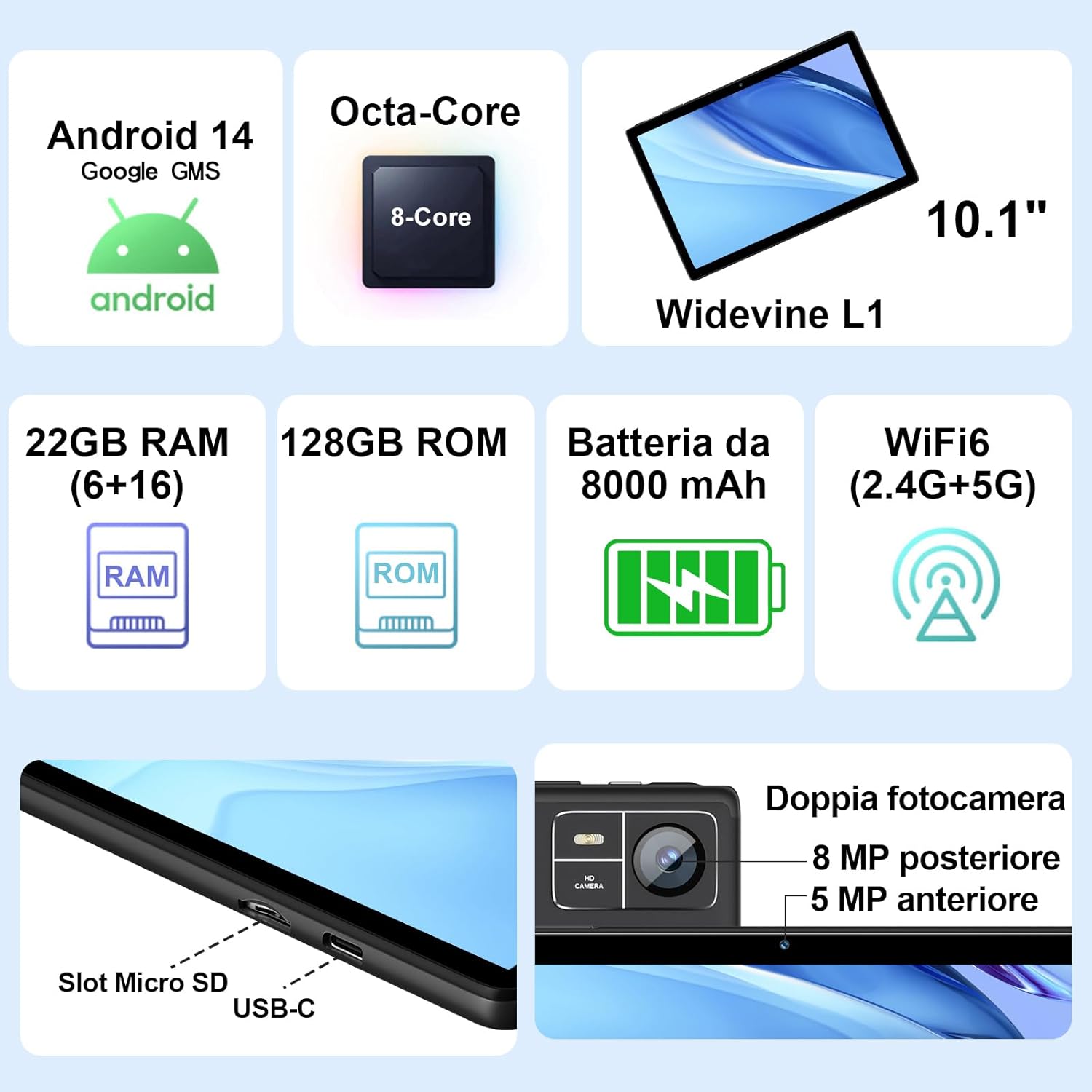
Figure 3.1: Key Features and Ports
3.1 Fizinės savybės
- Ekranas: 10.1-inch IPS screen (1280 x 800 resolution)
- Kameros: 5 MP Front Camera, 8 MP Rear Camera
- Prievadai: USB Type-C, MicroSD Card Slot
- Mygtukai: Power Button, Volume Up/Down
4. Sąranka
4.1 Pradinis įkrovimas
Before first use, fully charge your tablet using the provided Type-C data cable and European standard charger. The battery indicator on the screen will show charging status.
4.2 Maitinimo įjungimas/išjungimas
- Norėdami įjungti: Press and hold the Power button until the SUAAT logo appears.
- Norėdami išjungti: Paspauskite ir palaikykite maitinimo mygtuką, kol pasirodys maitinimo parinktys, tada pasirinkite „Išjungti“.
- Norėdami paleisti iš naujo: Paspauskite ir palaikykite maitinimo mygtuką, kol pasirodys maitinimo parinktys, tada pasirinkite „Paleisti iš naujo“.
4.3 Pradinio nustatymo vedlys
Pirmą kartą įjungus planšetinį kompiuterį, jis atliks pradinį nustatymo procesą:
- Pasirinkite norimą kalbą.
- Prisijunkite prie „Wi-Fi“ tinklo.
- Prisijunkite naudodami „Google“ paskyrą arba sukurkite naują. Tai būtina norint pasiekti „Google Play“ parduotuvę ir kitas „Google“ paslaugas.
- Nustatykite ekrano užraktą (PIN kodą, šabloną arba slaptažodį).
- Review and accept Google services terms.
4.4 „MicroSD“ kortelės įdėjimas
Planšetinis kompiuteris palaiko iki 1 TB talpos „MicroSD“ korteles, kad būtų galima išplėsti atmintį.
- Planšetinio kompiuterio šone raskite „MicroSD“ kortelės lizdą.
- Švelniai įkiškite „MicroSD“ kortelę į lizdą, kol ji spragtelės į vietą. Įsitikinkite, kad kortelė yra tinkamai orientuota.
- Norėdami išimti, švelniai stumkite kortelę, kol ji iššoks.
4.5 Connecting Accessories (Keyboard and Mouse)
The included Bluetooth keyboard and mouse can be easily paired with your tablet.
- Eikite į Nustatymai > Prijungti įrenginiai > Bluetooth planšetiniame kompiuteryje.
- Turn on the Bluetooth keyboard and mouse. Put them into pairing mode (refer to their individual manuals if needed).
- On the tablet, tap "Pair new device" and select the keyboard or mouse from the list of available devices.
- Vykdykite visus ekrane pateikiamus nurodymus, kad užbaigtumėte susiejimo procesą.

Figure 4.1: Tablet with Keyboard and Mouse
5. Planšetinio kompiuterio valdymas
5.1 „Android 14“ funkcijos
Your SUAAT S10 tablet runs on the latest Android 14 operating system, offering enhanced privacy, customizable themes, and improved performance.
- GMS Certified: Pre-installed Google Play Store allows easy download of your favorite apps.
- Privatumas ir saugumas: Enhanced privacy controls to manage app permissions and data access.
- Tinkinimas: Personalize themes and app icons.
- Produktyvumo savybės: Supports multi-users, multi-windows, and split-screen functionality for efficient multitasking.
- Tėvų kontrolė: Tools to manage content and screen time for children.
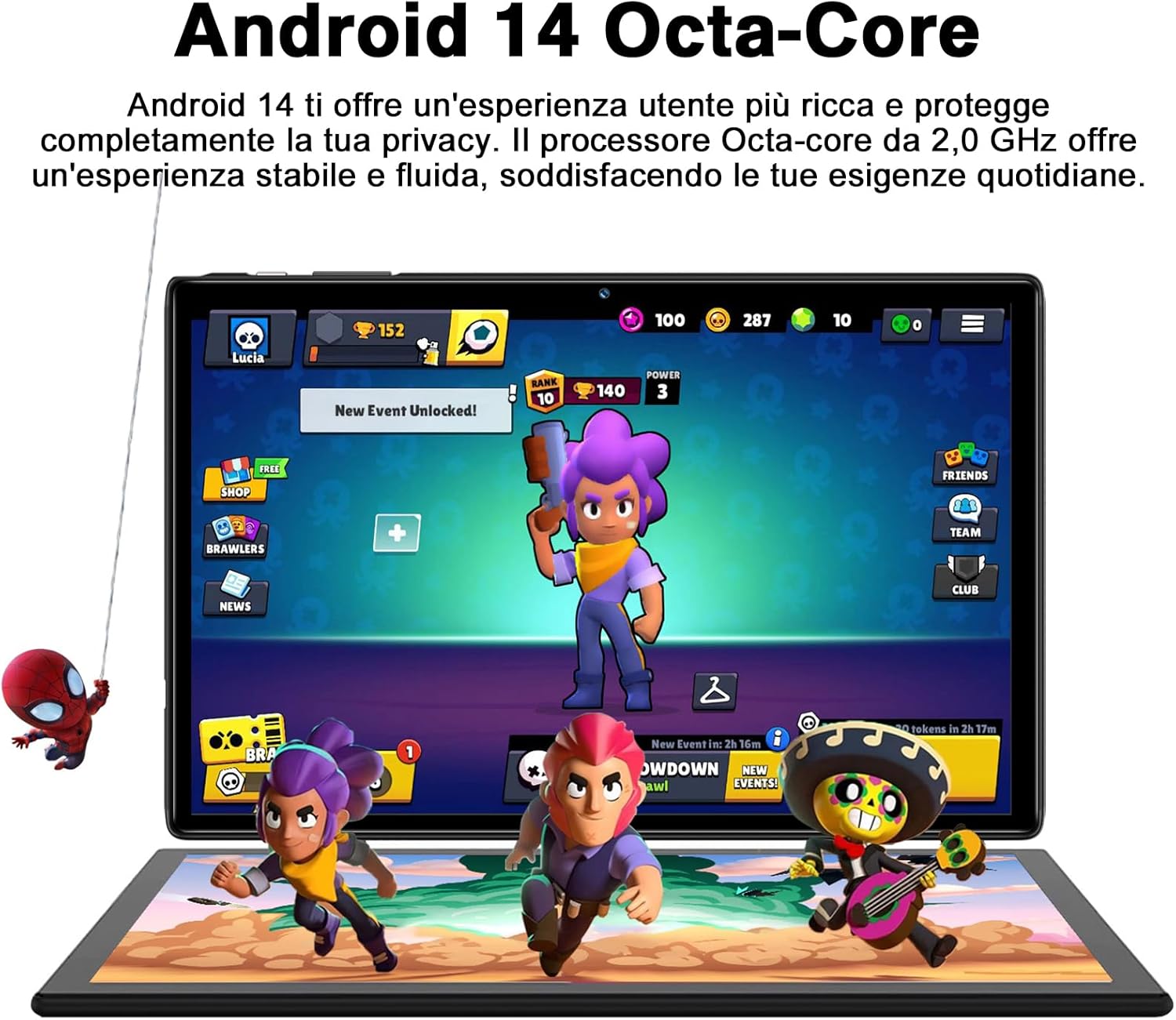
Figure 5.1: Android 14 Interface with Gaming Example
5.2 Ekrano funkcijos
The 10.1-inch IPS display provides clear visuals and rich colors.
- IPS technologija: Siūlo platus viewkampus ir tikslų spalvų atkūrimą.
- WideVine L1 Support: Enables high-definition video streaming (up to 1280p) from platforms like YouTube and Netflix.

Figure 5.2: Displaying Apps on the IPS Screen
5.3 Kameros naudojimas
The tablet is equipped with a 5 MP front camera and an 8 MP rear camera for photos and video calls.
- Atidarykite programėlę „Kamera“ iš pagrindinio ekrano arba programėlių stalčiaus.
- Perjunkite priekinę ir galinę kameras naudodami kameros piktogramą.
- Palieskite užrakto mygtuką, kad nufotografuotumėte arba pradėtumėte / sustabdytumėte vaizdo įrašymą.
- Explore various camera modes and editing options within the app.
5.4 Ryšys
- „Wi-Fi“: Supports 2.4GHz and 5GHz Wi-Fi for fast and stable internet connection. Access Wi-Fi settings via Nustatymai > Tinklas ir internetas > Internetas.
- "Bluetooth 5.0": Connect to Bluetooth headphones, speakers, printers, and other devices. Manage connections via Nustatymai > Prijungti įrenginiai > Bluetooth.
- OTG (kelyje): Use the included OTG adapter to connect USB flash drives, external hard drives, or other USB peripherals.
- GPS: Integrated GPS for navigation and location-based services.
- FM radijas: Built-in FM receiver for listening to radio broadcasts.
5.5 Pritaikymo neįgaliesiems funkcijos
The tablet includes features to assist users with different needs:
- Pasirinkite norėdami kalbėti: Kai įjungta (Nustatymai > Prieinamumas > Pasirinkite norėdami kalbėti), you can tap text on the screen, and the tablet will read it aloud.
- Atsakyti: Provides spoken feedback for all actions and screen elements, allowing navigation without visual input. Supports Braille displays via Bluetooth. Enable via Nustatymai > Prieinamumas > „TalkBack“..
5.6 File Perdavimas
Galite lengvai perkelti files between your tablet and other devices like computers or mobile phones.
- Per USB: Connect the tablet to a computer using the Type-C data cable. On the tablet, select "File transfer" from the USB connection options in the notification panel.
- Per Bluetooth: Pair with another Bluetooth-enabled device and use the file sharing option.
6. Priežiūra
6.1 Valymas
Planšetiniam kompiuteriui valyti naudokite minkštą, nepūkuotą šluostę. Įsisenėjusias dėmes šiek tiek nuvalykite.ampNuvalykite šluostę vandeniu arba ekrano valikliu. Venkite naudoti stiprias chemines medžiagas ar abrazyvines medžiagas.
6.2 Akumuliatoriaus priežiūra
8000 mAh baterija užtikrina ilgesnį naudojimą. Norėdami pailginti baterijos veikimo laiką:
- Venkite ekstremalių temperatūrų.
- Neleiskite baterijai dažnai visiškai išsikrauti.
- Naudokite originalų įkroviklį ir laidą.
- Uždarykite nenaudojamas programas, veikiančias fone.
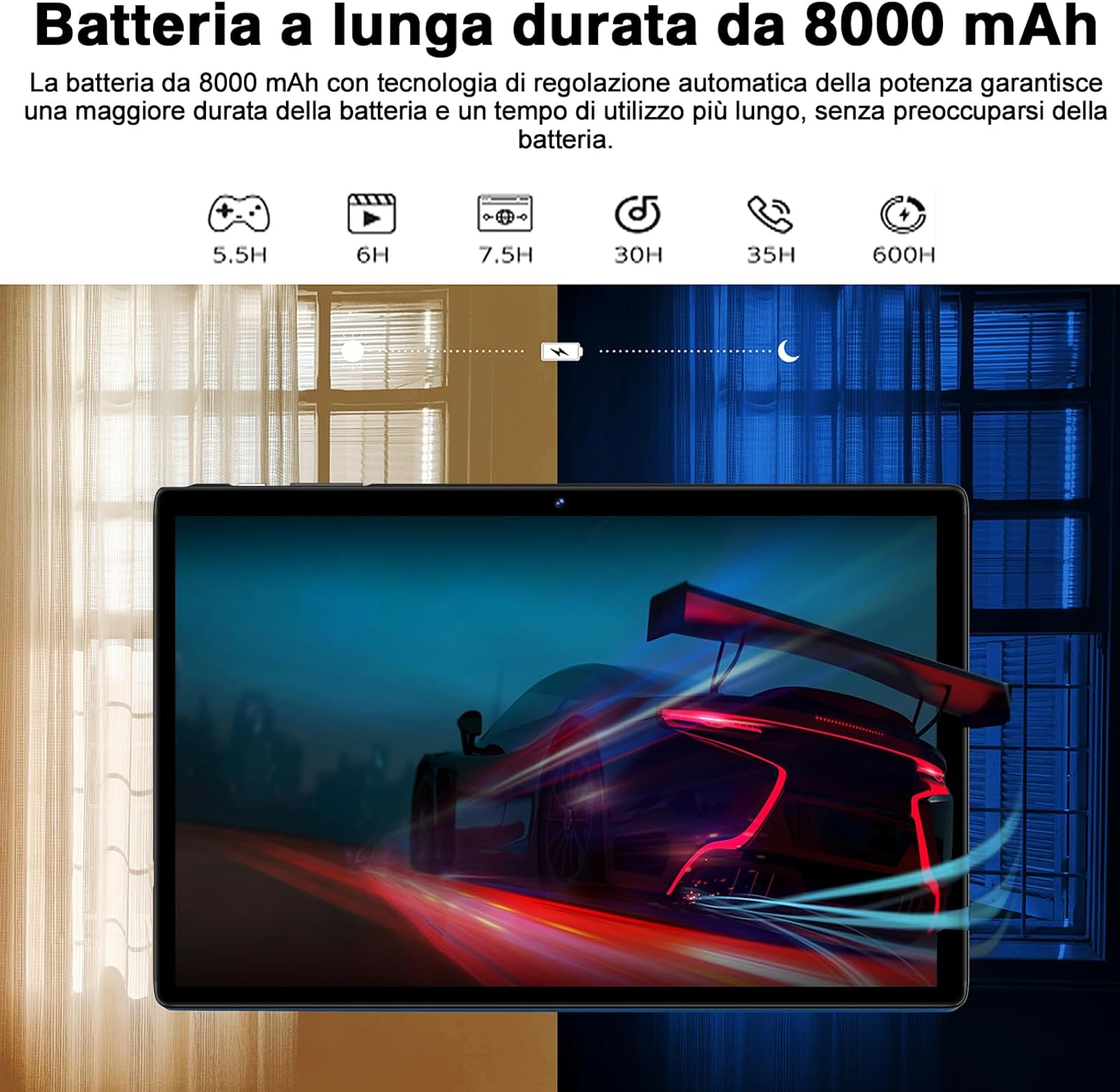
6.1 pav.: 8000 mAh baterijos veikimo laikas viršview
6.3 Programinės įrangos naujiniai
Reguliariai tikrinkite, ar yra sistemos atnaujinimų, kad užtikrintumėte optimalų našumą ir saugumą. Eikite į Nustatymai > Sistema > Sistemos atnaujinimas.
7. Problemų sprendimas
| Problema | Galima priežastis / sprendimas |
|---|---|
| Planšetinis kompiuteris neįsijungia. | Battery might be depleted. Connect the charger and try again after a few minutes. If it still doesn't turn on, press and hold the power button for 10-15 seconds to force a restart. |
| „Wi-Fi“ ryšio problemos. | Ensure Wi-Fi is enabled. Restart your router and the tablet. Forget the network and reconnect. Check if other devices can connect to the same Wi-Fi. |
| Programėlės stringa arba užstringa. | Close background apps. Clear the app's cache (Settings > Apps > [App Name] > Storage & cache > Clear cache). Update the app to the latest version. Restart the tablet. |
| Lėtas veikimas. | Uždarykite nenaudojamas programas. Išvalykite talpyklą ir laikinuosius files. Uninstall unnecessary apps. Ensure sufficient storage space. Restart the tablet regularly. |
| „Bluetooth“ įrenginys nesusijungia. | Ensure Bluetooth is enabled on both devices. Put the accessory in pairing mode. Make sure devices are within range. Restart both devices. |
8. Specifikacijos
| Funkcija | Detalė |
|---|---|
| Prekės ženklas | SUAAT |
| Modelis | S10 |
| Operacinė sistema | Android 14 |
| Procesorius | Octa-Core, 2.0 GHz (Unisoc) |
| RAM | 22 GB (6GB physical + 16GB expansion) |
| Vidinė atmintis (ROM) | 128 GB |
| Išplečiama saugykla | Iki 1 TB per „MicroSD“ kortelę |
| Baterijos talpa | 8000 mAh |
| Ekrano tipas | IPS |
| Ekrano dydis | 10.1 colių |
| Ekrano raiška | 1280 x 800 pikselių |
| Priekinė kamera | 5 MP |
| Galinė kamera | 8 MP |
| Wi-Fi | 2.4 GHz + 5 GHz (802.11ax) |
| Bluetooth | Bluetooth 5.0 |
| Sąsajos | Type-C, MicroSD Card Slot |
| Ypatingos savybės | GMS Certified, WideVine L1, OTG, FM Receiver, GPS |
| Matmenys (I x P x A) | 24.31 x 0.99 x 16.1 cm |
| Svoris | 480 gramų |
9. Garantija ir palaikymas
9.1 Informacija apie garantiją
SUAAT offers a 2-year European standard warranty for each tablet PC. This warranty covers manufacturing defects and ensures your product functions as intended under normal use.
9.2 Pagalba klientams
SUAAT has over 15 years of experience in tablet manufacturing and sales, backed by a professional technical support and assistance team. We are committed to providing excellent pre-sales advice and after-sales service, including product technical support.
If you require any assistance or have questions, please do not hesitate to contact us. We aim to respond within 24 hours and provide satisfactory service.
For support, please refer to the contact information provided on the product packaging or SUAAT's official websvetainę.
10. Svarbi saugos informacija
- Nelaikykite planšetinio kompiuterio ekstremaliose temperatūrose, tiesioginiuose saulės spinduliuose ar didelėje drėgmėje.
- Venkite planšetinio kompiuterio numetimo ar stipraus smūgio.
- Do not attempt to disassemble or repair the tablet yourself. This will void the warranty.
- Naudokite tik originalius arba sertifikuotus suderinamus įkroviklius ir priedus.
- Laikykite tabletę atokiau nuo vandens ir kitų skysčių.
- Planšetinį kompiuterį ir jo bateriją utilizuokite atsakingai, laikydamiesi vietinių taisyklių.
Ask a question about this manual
Ask about setup, troubleshooting, compatibility, parts, safety, or missing instructions. Manuals+ will review the question and use this page’s manual context to help answer it.