
Įvadas
The MOBAPAD D1 is a Bluetooth 5.2 wireless controller adapter designed to enhance your gaming experience by allowing you to connect various controllers to multiple platforms. This adapter enables the use of original Switch Joy-Cons and Pro Controllers with Windows 10/11 PCs, Nintendo Switch consoles, and Android devices. It features ultra-low latency connectivity and supports dual controller connections for a seamless gaming experience.
Sąranka
Kas yra dėžutėje
Prieš pradėdami, įsitikinkite, kad yra visi komponentai:
- MOBAPAD D1 Bluetooth Wireless Controller Adapter
- Vartotojo vadovas (šis dokumentas)
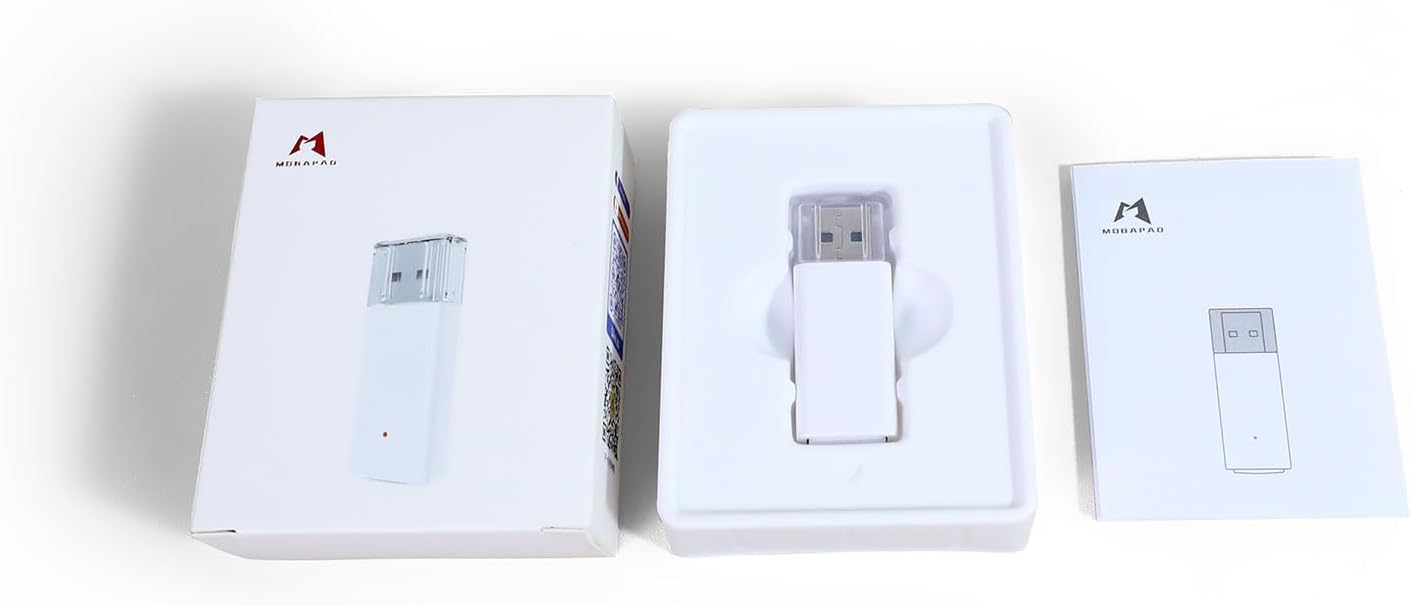
Image: The MOBAPAD D1 adapter shown with its retail packaging and a small printed manual.
Pradinis ryšys
The MOBAPAD D1 adapter is plug-and-play. No drivers or software installations are required.
- Insert the MOBAPAD D1 adapter into an available USB Type-A port on your desired device (PC, Nintendo Switch dock, Android device via OTG adapter).
- The adapter's indicator light will begin to flash, indicating it is ready for pairing.
Valdiklių susiejimas
The adapter supports pairing with original Nintendo Switch Joy-Cons and Pro Controllers.
Pairing Joy-Cons

Image: Illustration of how to connect a pair of Nintendo Joy-Cons to the MOBAPAD D1 adapter.
- Ensure your Joy-Cons are charged and not currently paired to another device.
- Press and hold the small circular pairing button on the side of each Joy-Con until the indicator lights begin to flash.
- The Joy-Cons will automatically connect to the MOBAPAD D1 adapter. The indicator light on the adapter will change to a solid color, and the player indicator lights on the Joy-Cons will illuminate.
Pairing Pro Controllers

Image: Illustration of how to connect two Nintendo Switch Pro Controllers to the MOBAPAD D1 adapter.
- Ensure your Pro Controller is charged and not currently paired to another device.
- Press and hold the small circular pairing button on the top of the Pro Controller until the indicator lights begin to flash.
- The Pro Controller will automatically connect to the MOBAPAD D1 adapter. The indicator light on the adapter will change to a solid color, and the player indicator lights on the Pro Controller will illuminate.
The adapter can remember up to 4 controller pairings.
Veikimo režimai
The MOBAPAD D1 adapter supports multiple operating modes to ensure compatibility across various platforms:
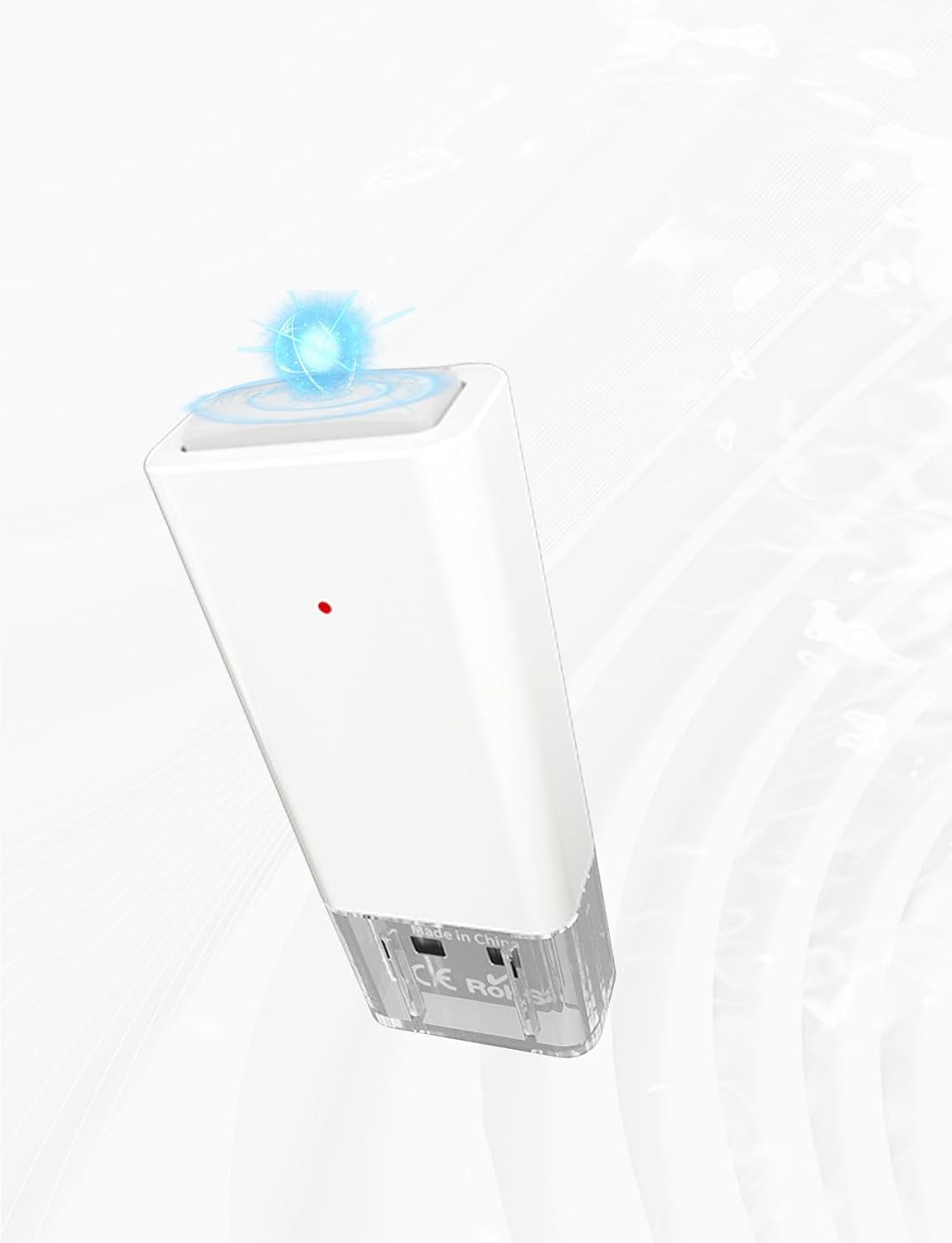
Image: The MOBAPAD D1 adapter supports XINPUT for Windows, Pro Controller mode for Steam, and Gamepad mode for Android.
- XINPUT režimas: For Windows 10/11 PCs. This mode provides broad compatibility with PC games.
- Switch Pro Mode: For Nintendo Switch consoles and Steam. This mode emulates a Nintendo Switch Pro Controller.
- Android Gamepad Mode: For Android phones and tablets. This mode provides standard gamepad functionality for Android games.
The adapter automatically detects the connected platform and switches to the appropriate mode. No manual switching is required.
Adapter Status Indicator
The small LED light on the adapter indicates its status:

Image: The MOBAPAD D1 adapter displaying its blue indicator light, signifying an active connection.
- Mirksinčios šviesos: The adapter is in pairing mode, searching for controllers.
- Tvirta šviesa: The adapter is successfully connected to one or more controllers.
Priežiūra
Valymas
To maintain the adapter's performance and appearance:
- Use a soft, dry cloth to wipe the surface of the adapter.
- Nenaudokite skystų valiklių, tirpiklių ar abrazyvinių medžiagų, nes jos gali pažeisti prietaisą.
Sandėliavimas
When not in use, store the adapter in a cool, dry place away from direct sunlight and extreme temperatures. Keep it away from dust and moisture.
Trikčių šalinimas
Adapter Not Connecting to Device
- Įsitikinkite, kad adapteris yra visiškai įkištas į veikiantį USB prievadą.
- Išbandykite kitą įrenginio USB prievadą.
- If using with an Android device, ensure your device supports USB OTG (On-The-Go) and that the OTG adapter is working correctly.
Controllers Not Pairing
- Ensure the adapter's indicator light is flashing, indicating it is in pairing mode.
- Make sure the controllers are charged and not currently connected to another device (e.g., the Nintendo Switch console).
- Press and hold the pairing button on the controller until its indicator lights flash.
- Move the controller closer to the adapter during the pairing process.
- Restart the host device (PC, Switch, Android) and re-attempt pairing.
Įvesties delsa arba atjungimai
- Ensure there are no significant obstructions between the controller and the adapter.
- Minimize interference from other wireless devices (Wi-Fi routers, other Bluetooth devices) by moving them further away.
- Įsitikinkite, kad valdiklio baterija yra pakankamai įkrauta.
- If multiple controllers are connected, ensure they are within optimal range.
Specifikacijos
| Funkcija | Detalė |
|---|---|
| Modelio numeris | Mobapad D1 |
| Ryšys | Bluetooth 5.2 |
| Jungties tipas | A tipo USB |
| Suderinami įrenginiai | Gaming Console (Nintendo Switch), Windows 10/11 PCs, Android devices |
| Palaikomi valdikliai | Original Switch Joy-Cons, Switch Pro Controllers |
| Matmenys (I x P x A) | 0.75 x 0.39 x 1.93 colio |
| Svoris | 25 gramų |
| Spalva | Baltas |
| Maitinimo įvestis | 5V 500mA (via USB) |
Informacija apie garantiją
The MOBAPAD D1 Bluetooth 5.2 Wireless Controller Adapter comes with a 1 metų ribota garantija from the date of purchase. This warranty covers manufacturing defects and malfunctions under normal use. It does not cover damage caused by misuse, accidents, unauthorized modifications, or external causes.
Išsaugokite pirkimo įrodymą, kad galėtumėte kreiptis dėl garantijos.
Palaikymas
For further assistance, technical support, or warranty inquiries, please contact MOBAPAD customer service through the retailer where the product was purchased or visit the official MOBAPAD websvetainė kontaktinei informacijai.