
1. Įvadas
This manual provides detailed instructions for the setup, operation, maintenance, and troubleshooting of your TUOHAITIME Android 14 Tablet, Model K10. Please read this manual thoroughly before using your device to ensure proper functionality and to maximize your user experience. Keep this manual for future reference.
2. Pakuotės turinys
Atidarę pakuotę, patikrinkite, ar yra visi šie daiktai:
- 1 x TUOHAITIME Android 14 Tablet (Model K10)
- 1 x Tablet Protective Case
- 1 x „Bluetooth“ klaviatūra
- 1 x belaidė pelė
- 1 x Stylus Pen
- 1 x USB-C duomenų kabelis
- 1 x USA Standard Charger
- 1 x Vartotojo vadovas
- 1 x Pre-installed Screen Protector
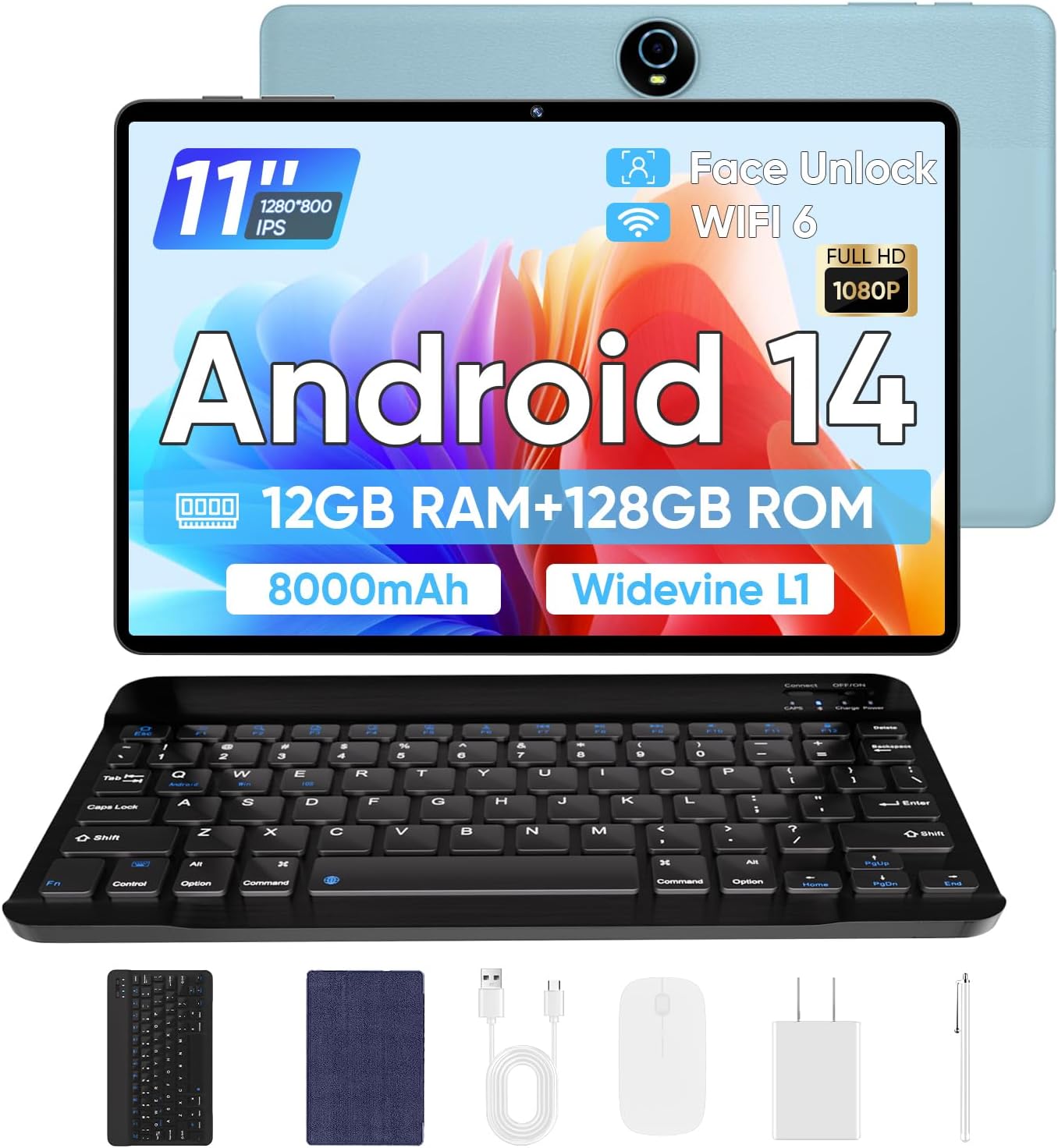
Image: The TUOHAITIME Android 14 Tablet shown with its full set of accessories, including the Bluetooth keyboard, wireless mouse, stylus, protective case, USB-C cable, and charger.
3. Produktas baigtasview ir Savybės
The TUOHAITIME Android 14 Tablet is designed for versatile use, offering a blend of performance, display quality, and connectivity. Below are its key features:
3.1 Ekranas
The tablet features an 11-inch IPS touchscreen display with a resolution of 1280x800 pixels, providing clear and vibrant visuals. It supports Widevine L1 for high-quality streaming content.
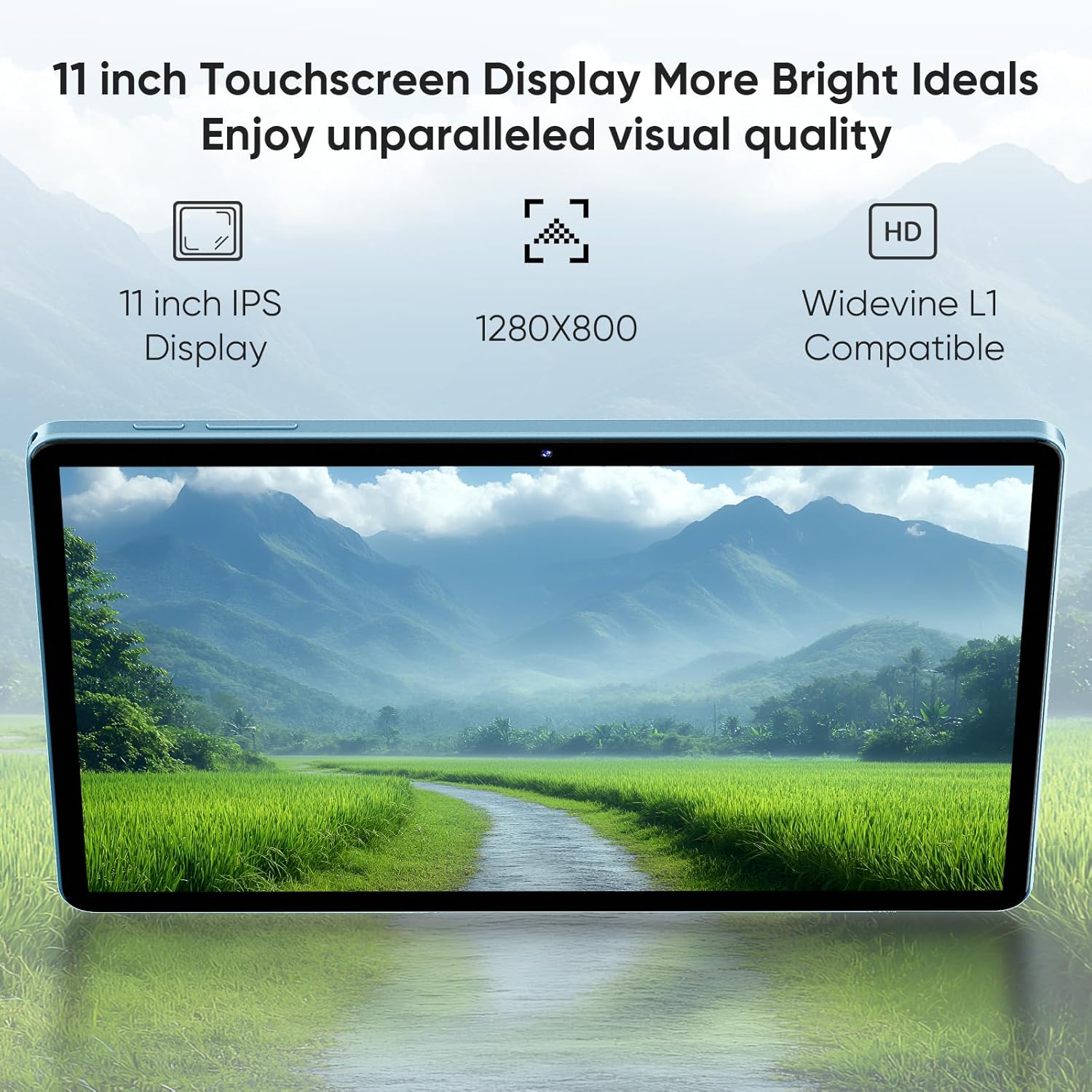
Image: A close-up of the tablet's 11-inch screen displaying a scenic landscape, highlighting its IPS technology, 1280x800 resolution, and Widevine L1 compatibility.
3.2 Našumas ir saugykla
Equipped with a 2.0GHz Octa-Core processor and 12GB (6GB+6GB expansion) RAM, the tablet ensures smooth multitasking and application performance. It comes with 128GB of internal storage (ROM), expandable up to 1TB via a TF (MicroSD) card, offering ampvietos programoms, medijai ir dokumentams.

Image: Visual representation of the tablet's memory specifications, showing 12GB RAM (6GB+6GB Expansion), 128GB ROM Fast Storage, and Micro SD card support up to 1TB, with examples of media consumption on the tablet.
3.3 Baterija ir įkrovimas
The tablet is powered by an 8000mAh battery, providing extended usage time. It supports 18W fast charging via its Type-C port.

Image: The tablet connected to a charger, illustrating its 8000mAh large battery capacity and 18W fast Type-C charging capability.
3.4 fotoaparatai
The tablet features dual cameras: an 8MP rear camera with autofocus and AI sub-cameras for optimized image processing, and a 5MP front camera suitable for video calls and selfies. It also supports Face Unlock for convenient access.

Image: A user engaging in a video call on the tablet, demonstrating the Face Unlock feature and highlighting the 5MP front camera for HD video calls and the 8MP rear camera for capturing moments.
3.5 Ryšys
The tablet supports dual-band Wi-Fi 6 (2.4GHz + 5GHz) for fast and reliable internet access, and Bluetooth 5.0 for connecting wireless peripherals such as the included keyboard and mouse.

Image: A visual representation emphasizing the tablet's support for Dual-band WiFi 6 (2.4GHz + 5.0GHz WiFi) and Bluetooth 5.4, indicating fast and stable wireless connections.
3.6 Operacinė sistema
Running on Android 14, the tablet offers enhanced personalization options, updated privacy features, and improved accessibility. It includes features like multi-window mode, eye protection mode, 3-finger screenshots, Parental Control, and Google Kids Space.

Image: The tablet displaying the Android 14 interface, highlighting features such as Taskbar, Privacy & Security, Parental Control, Google Kids Space, and Parallel View.
4. Darbo pradžia (sąranka)
4.1 Pradinis įkrovimas
Before first use, fully charge the tablet using the provided USB-C cable and charger. Connect the USB-C cable to the tablet's charging port and the charger to a power outlet. The battery indicator on the screen will show charging progress.
4.2 Maitinimo įjungimas/išjungimas
- Norėdami įjungti: Press and hold the Power button (usually located on the side or top edge) until the TUOHAITIME logo appears on the screen.
- Norėdami išjungti: Press and hold the Power button until a power menu appears. Select "Power off" or "Shut down".
- Norėdami paleisti iš naujo: Maitinimo meniu pasirinkite „Paleisti iš naujo“.
4.3 Pradinio nustatymo vedlys
Pirmą kartą įjungus planšetinį kompiuterį, bus pateiktas pradinio nustatymo vedlys. Vykdykite ekrane pateikiamus nurodymus, kad atliktumėte toliau nurodytus veiksmus.
- Pasirinkite savo kalbą.
- Prisijunkite prie „Wi-Fi“ tinklo.
- Prisijunkite naudodami „Google“ paskyrą arba sukurkite naują.
- Nustatykite ekrano užraktą (PIN kodą, šabloną, slaptažodį arba veido atrakinimą).
- Review ir sutikite su sąlygomis ir nuostatomis.
4.4 Priedų prijungimas
The included Bluetooth keyboard and wireless mouse can be paired with your tablet for enhanced productivity.
- „Bluetooth“ klaviatūra / pelė: Turn on the accessory and put it into pairing mode (refer to the accessory's specific instructions). On your tablet, go to Nustatymai > Prijungti įrenginiai > Susieti naują įrenginį. Select the accessory from the list and follow the pairing prompts.
- Rašiklis: The stylus is generally passive and does not require pairing. Simply use it directly on the screen.
4.5 „MicroSD“ kortelės įdėjimas
To expand storage, locate the MicroSD card slot on the tablet (often covered by a small tray or flap). Insert the MicroSD card gently until it clicks into place. The tablet will prompt you to format the card for use.
5. Pagrindinė operacija
5.1 Vartotojo sąsajos naršymas
The Android 14 interface is primarily touch-based:
- Bakstelėkite: Pasirinkite elementą arba atidarykite programėlę.
- Perbraukimas: Slinkite per ekranus, sąrašus arba puslapius.
- Žiupsnelis, norint priartinti: Norėdami priartinti arba atitolinti vaizdus, naudokite du pirštus. web puslapių.
- Ilgas paspaudimas: Pasiekite kontekstinius meniu arba perkelkite programų piktogramas.
- 3-Finger Screenshot: Swipe down with three fingers to capture a screenshot.
5.2 „Wi-Fi“ ryšys
Norėdami prisijungti prie „Wi-Fi“ tinklo:
- Eikite į Nustatymai > Tinklas ir internetas > Internetas.
- Ensure Wi-Fi is turned on.
- Iš sąrašo pasirinkite norimą tinklą.
- Jei būsite paraginti, įveskite slaptažodį ir palieskite „Prisijungti“.
5.3 Bluetooth poravimas
Norėdami susieti Bluetooth įrenginį:
- Eikite į Nustatymai> Prijungti įrenginiai> Ryšio nuostatos> „Bluetooth“.
- Įsitikinkite, kad „Bluetooth“ įjungtas.
- Įjunkite „Bluetooth“ įrenginį į poravimo režimą.
- Tap "Pair new device" on your tablet and select your device from the list.
5.4 Kameros naudojimas
Open the "Camera" app to take photos or record videos. You can switch between the front and rear cameras using the icon on the screen. Tap the shutter button to capture an image or start/stop recording.
5.5 Parental Control and Google Kids Space
Android 14 offers robust parental control features. Navigate to Nustatymai > Skaitmeninė gerovė ir tėvų kontrolė to set screen time limits, manage app access, and monitor usage. Google Kids Space provides a safe and curated environment for children with age-appropriate content.
5.6 Multi-Window Mode
To use two apps simultaneously, open the first app, then swipe up from the bottom of the screen and hold to access the recent apps view. Tap the app icon at the top of the first app's card and select "Split screen". Choose the second app to open in the other half of the screen.
5.7 Eye Protection Mode
To reduce eye strain, especially in low light, enable Eye Protection Mode. Go to Settings > Display > Eye comfort shield (or similar, depending on specific Android 14 build) and toggle it on. You can often schedule it or adjust its intensity.
6. Priežiūra ir priežiūra
6.1 Valymas
Planšetinio kompiuterio ekraną ir korpusą valykite minkšta, nepūkuota šluoste. Įsisenėjusias dėmes šiek tiek nuvalykite.ampNuvalykite šluostę vandeniu arba ekrano valikliu. Venkite naudoti stiprias chemines medžiagas, abrazyvines medžiagas ir per didelį drėgnumą.
6.2 Akumuliatoriaus priežiūra
- Venkite ekstremalių temperatūrų, nes jos gali pabloginti akumuliatoriaus veikimo laiką.
- Nepalikite planšetinio kompiuterio ilgai krautis, kai jis pasiekia 100 % įkrovą.
- Naudokite tik pateiktą įkroviklį ir laidą arba sertifikuotus suderinamus priedus.
6.3 Programinės įrangos naujiniai
Regularly check for system updates to ensure optimal performance, security, and access to new features. Go to Nustatymai > Sistema > Sistemos naujinimas , kad patikrintumėte, ar yra atnaujinimų, ir įdiegtumėte juos.
6.4 Saugyklos optimizavimas
To maintain performance, periodically clear cached data, uninstall unused apps, and transfer large files (like photos and videos) to your MicroSD card or cloud storage. Go to Nustatymai > Saugykla , kad galėtumėte valdyti savo įrenginio saugyklą.
7. Problemų sprendimas
Šiame skyriuje aptariamos dažniausiai pasitaikančios problemos, su kuriomis galite susidurti naudodami planšetinį kompiuterį.
| Problema | Galimas sprendimas |
|---|---|
| Planšetinis kompiuteris neįsijungia. | Ensure the tablet is fully charged. Press and hold the Power button for at least 10-15 seconds to force a restart. |
| Planšetinis kompiuteris veikia lėtai arba nereaguoja. | Close unused apps. Restart the tablet. Clear cached data (Settings > Storage). Check for system updates. |
| Nepavyksta prisijungti prie „Wi-Fi“. | Ensure Wi-Fi is enabled on the tablet. Restart your Wi-Fi router. Forget the network and reconnect. |
| Baterija greitai išsikrauna. | Reduce screen brightness. Close background apps. Disable unused features like Bluetooth or GPS. Check battery usage in Settings to identify power-hungry apps. |
| Accessories (keyboard/mouse) not connecting. | Ensure accessories are charged and in pairing mode. Unpair and re-pair the devices. Restart the tablet. |
| MicroSD card not detected. | Ensure the card is inserted correctly. Try reinserting it. Test with another MicroSD card if possible. |
8. Techninės specifikacijos
| Funkcija | Specifikacija |
|---|---|
| Prekės ženklas | TUOHAITIME |
| Modelio pavadinimas | Android 14 Tablet (K10) |
| Operacinė sistema | Android 14 |
| Ekrano dydis | 11 colių |
| Ekrano raiška | 1280 x 800 pikselių |
| Procesorius | 2 GHz Octa-Core (Unisoc chipset) |
| RAM | 12 GB (6 GB + 6 GB išplėtimo galimybė) |
| Vidinė atmintis (ROM) | 128 GB |
| Išplečiama saugykla | Iki 1 TB per „MicroSD“ kortelę |
| Galinės kameros skiriamoji geba | 8 MP |
| Priekinės kameros skiriamoji geba | 5 MP |
| Belaidis tipas | 802.11ax (Dual-band Wi-Fi 6) |
| Bluetooth | Bluetooth 5.0 |
| Baterijos talpa | 8000 mAh |
| Įkrovimas | 18 W greitas įkrovimas (C tipo) |
| Prekės svoris | 2.97 svaro |
| Gaminio matmenys | 11 x 4 x 0.35 colio |
9. Garantija ir palaikymas
Your TUOHAITIME Android 14 Tablet comes with a 2 metų garantija covering manufacturing defects. This warranty does not cover damage caused by human error, misuse, or unauthorized repairs.
For technical support, warranty claims, or any inquiries regarding your product, please contact TUOHAITIME customer service through the retailer's platform where you purchased the device or refer to the contact information provided in the product packaging.
Prašome išsaugoti pirkimo įrodymą garantijos galiojimui.