
1. Įvadas
This manual provides detailed instructions for the installation, operation, and maintenance of your Surakey 10-inch Android 13 Car Stereo. Please read this manual thoroughly before using the product to ensure proper function and safety. This car stereo is designed for Nissan Versa Sedan models from 2015 to 2019, offering advanced features such as Wireless Carplay, Android Auto, GPS Navigation, and a high-resolution IPS touch screen.
2. Kas yra dėžutėje
Atsargiai išpakuokite dėžę ir įsitikinkite, kad visi toliau išvardyti daiktai yra pakuotėje ir yra geros būklės. Jei kokių nors daiktų trūksta arba jie pažeisti, susisiekite su klientų aptarnavimo tarnyba.
- 1 x automobilio stereofoninis įrenginys
- 1x maitinimo laidas
- 1 x RCA įvesties / išvesties kabelis
- 2 x USB kabeliai
- 1 x Kameros įvesties kabelis
- 1x GPS antena
- 1 x naudojimo instrukcija (šis dokumentas)

Image: Contents of the package, showing the car stereo unit and all included accessories for installation.
3. Sąranka ir diegimas
Professional installation is recommended for this car stereo. Ensure the vehicle's power is disconnected before beginning installation. Refer to your vehicle's specific wiring diagrams if necessary.
3.1 Laidų jungtys
- Connect the main power cable to the vehicle's power harness.
- Attach the RCA input/output cables for external audio/video devices.
- Connect the USB cables for media playback and device charging.
- GPS anteną sumontuokite vietoje, kur nėra view dangaus optimaliam signalo priėmimui.
- If using a backup camera (optional, not included), connect the camera input cable.

Image: Rear connections of the car stereo, illustrating where various cables like power, RCA, USB, and GPS antenna connect.
3.2 Įrenginio montavimas
The car stereo is designed to fit the dashboard of Nissan Versa Sedan models from 2015-2019. Carefully remove the original stereo and install the new unit, ensuring all connections are secure and the unit is properly seated in the dashboard.

Image: Before and after installation view of the car stereo in a Nissan Versa Sedan dashboard, showing the seamless integration.
4. Naudojimo instrukcijos
The Surakey car stereo features an intuitive Android 13 interface. Navigate through menus using the touch screen. Key functions are detailed below.
4.1 Belaidis „Carplay“ ir „Android Auto“
Connect your smartphone wirelessly via Bluetooth to access Apple CarPlay or Android Auto. This allows you to use your phone's navigation, music, messages, and other compatible apps directly on the car stereo's display.

Image: Display showing both Apple CarPlay and Android Auto interfaces, highlighting app integration.
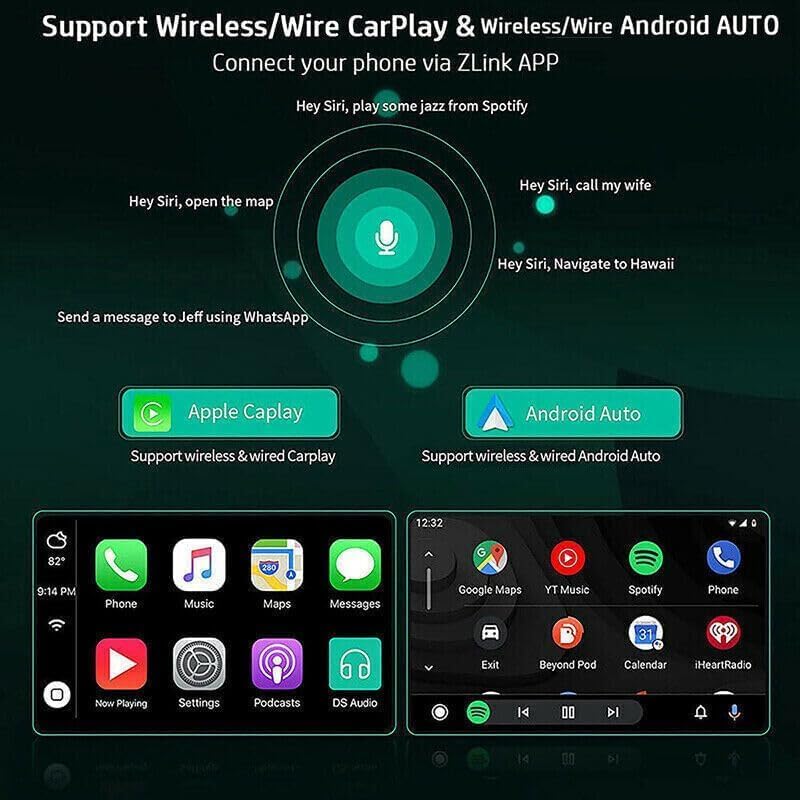
Image: Voice command functionality for CarPlay and Android Auto, demonstrating hands-free operation.
4.2 GPS navigacija ir „Wi-Fi“ ryšys
The unit supports both online and offline GPS navigation. Download offline maps for use without an internet connection, or connect to a mobile hotspot via WiFi for real-time map updates and access to online services.

Image: GPS navigation interface and WiFi connection feature, showing how to access maps and internet.
4.3 FM/RDS radijas
Access FM radio stations with RDS (Radio Data System) support. Tune into your favorite stations for news, music, and traffic updates. The unit allows for easy station scanning and saving presets.

Image: FM/RDS radio interface on the car stereo screen, displaying current frequency and controls.
4.4 „Bluetooth“ funkcionalumas
Connect your phone via Bluetooth 5.0 for hands-free calling, music streaming (A2DP), and automatic phonebook loading. This enhances safety and convenience while driving.
4.5 Padalinto ekrano rodinys
The split-screen feature allows you to run two applications simultaneously on the display, such as navigation and music playback, or a video and another app. Long-press an app icon to activate split-screen mode.
4.6 Ekvalaizerio reguliavimas
Customize your audio experience with the built-in Equalizer (EQ) adjustment. Select from various preset sound modes (e.g., Jazz, Pop, Rock) or manually adjust frequency bands to suit your preferences.
4.7 Sistemos nustatymai
Access the system settings menu to configure various aspects of the stereo, including Wi-Fi, device settings, general preferences (like default volume, boot volume, lantern settings), and user profiles. The factory setting keyword is 8888, 3368, or 1234.
Video: Demonstration of key operating features including media playback, FM radio, EQ adjustment, system settings, map navigation selection, and split-screen display.
5. Specifikacijos
| Funkcija | Specifikacija |
|---|---|
| Sistema | Android 13 |
| Ekrano dydis | 10 colių |
| Atmintis (RAM+ROM) | 2 GB RAM + 32 GB ROM |
| Ekrano raiška | 1024x600 |
| Ekrano tipas | IPS 2.5D HD Capacitive Touch Screen |
| Radijo grupė | FM/RDS |
| Maitinimo išvestis | 4x45W |
| Bluetooth versija | 5.0 |
| Ryšys | „Bluetooth“, USB, „Wi-Fi“ |
| Navigacija | GPS (Offline maps supported) |
| Darbinė temperatūra | -40 ℃ iki 80 ℃ |
| Vairo valdymas | Palaikoma |
| Vaizdo išvestis | Palaikoma |
| Garso formatai | APE/FLAC/WAV/MP3/WMA ir kt. |
| Vaizdo įrašų formatai | MKV / RMVB / AVI / MP4 / MDV ir kt. |
| Paveikslėlių formatai | PNG / JPEG / JPG / GIF / WBMP / BNP ir kt. |
| Kalbos | Multi-language support (Chinese, English, French, Italian, Korean, Japanese, Arabic, Spanish, Portuguese, Russian, Turkish, Vietnamese, Hebrew, Polish, German) |
| Suderinama transporto priemonė | Nissan Versa Sedan 2015-2019 |

Image: Screen comparison highlighting color gamut and resolution differences between standard IPS and QLED displays.
6. Problemų sprendimas
Jei kyla problemų dėl automobilio garso sistemos, vadovaukitės šiais įprastais trikčių šalinimo veiksmais:
- Nėra galios: Check all power connections and ensure the vehicle's ignition is on. Verify the fuse is intact.
- Nėra garso: Check speaker connections and volume settings. Ensure the mute function is not active.
- GPS signalo problemos: Įsitikinkite, kad GPS antena yra sumontuota vietoje, kurioje nėra laisvos vietos. view dangaus. Patikrinkite antenos jungtį.
- „Bluetooth“ ryšio problemos: Ensure Bluetooth is enabled on both the stereo and your smartphone. Try unpairing and re-pairing the devices.
- Jutiklinis ekranas nereaguoja: Try restarting the unit. If the issue persists, a factory reset may be necessary (refer to System Settings).
- Sistemos lėtėjimas / užstrigimas: Close unnecessary applications. If the problem continues, consider a factory reset.
For persistent issues not resolved by these steps, please contact Surakey customer support.
7. Garantija ir palaikymas
Your Surakey car stereo comes with a standard manufacturer's warranty. Please retain your proof of purchase for warranty claims. For technical support, warranty inquiries, or service, please refer to the contact information provided with your purchase or visit the official Surakey websvetainę.