
1. Įvadas
This manual provides instructions for the OMOTON Magic Keyboard. Please read this manual carefully before use to ensure proper operation and to maximize the product's lifespan. Keep this manual for future reference.
2. Suderinamumas
The OMOTON Magic Keyboard is compatible with the following iPad models:
- iPad Air 11-inch M3 2025, M2 2024 (Models: A2902, A2903, A2904)
- iPad Air 5th Generation (Models: A2588, A2591, A2589)
- iPad Air 4th Generation (Models: A2316, A2324, A2325, A2072)
- iPad Pro 11-inch 4th Generation (Models: A2759, A2435, A2761, A2762)
- iPad Pro 11-inch 3rd Generation (Models: A2377, A2459, A2301, A2460)
- iPad Pro 11-inch 2nd Generation (Models: A2228, A2068, A2230, A2231)
- iPad Pro 11-inch 1st Generation (Models: A1980, A2013, A1934, A1979)
Pastaba: This keyboard is NE compatible with iPad 10th generation or iPad Pro 11-inch M4 2024.
To verify your iPad model number, check the "Axxxx" number on the back of your iPad.

Image: Compatibility chart for OMOTON Magic Keyboard, detailing compatible iPad Air and iPad Pro 11-inch models by generation and model number. It also explicitly states models that are not compatible.
3. Pakuotės turinys
Į paketą įeina:
- OMOTON Magic Keyboard
- USB-C įkrovimo laidas
- Vartotojo vadovas (šis dokumentas)
4. Sąrankos instrukcijos
4.1 „iPad“ prijungimas
The keyboard case features a magnetic design for secure attachment. Align your iPad's camera with the camera cutout on the keyboard case for optimal magnetic connection.
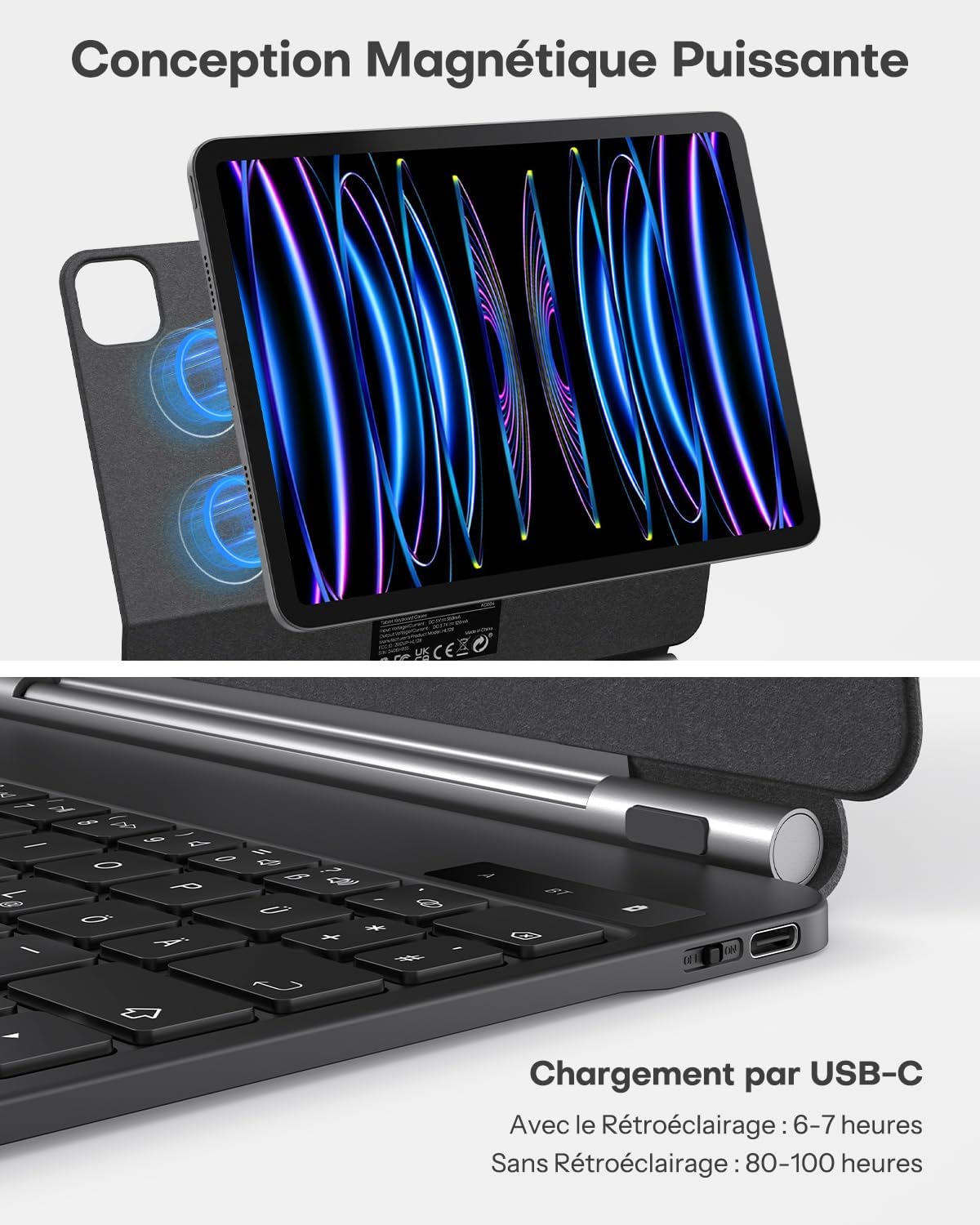
Image: An iPad is shown magnetically attached to the OMOTON Magic Keyboard case, highlighting the strong magnetic connection points on the back of the case.
4.2 Bluetooth poravimas
- Ensure the keyboard is charged (refer to Section 6: Charging).
- Įjunkite klaviatūrą naudodami maitinimo jungiklį.
- Paspauskite ir palaikykite Fn raktas ir Bluetooth ryšio klavišas (usually marked with a Bluetooth icon) simultaneously for 3 seconds until the Bluetooth indicator light flashes, indicating it's in pairing mode.
- Savo „iPad“ įrenginyje eikite į Nustatymai > Bluetooth ir įjunkite „Bluetooth“.
- In the "OTHER DEVICES" list, select "BT Keyboard" to connect.
- Prijungus, klaviatūros „Bluetooth“ indikatoriaus lemputė nustos mirksėti.
Video: A quick guide demonstrating how to attach the iPad to the OMOTON Magic Keyboard, adjust the viewing angle, type, browse the web, and connect the keyboard via Bluetooth. It also shows the multi-touch trackpad functionality and adjustable backlight.
5. Naudojimo instrukcijos
5.1 Keyboard Layout and Functions
The keyboard features an AZERTY layout with standard function keys for iPadOS. Specific function keys allow quick access to features like screen brightness, volume control, and media playback.

Paveikslėlis: detalus view of the OMOTON Magic Keyboard, highlighting its AZERTY key layout and dedicated function keys for iPad control.
5.2 Trackpad Multi-Touch Gestures
The integrated multi-touch trackpad supports various gestures to enhance your iPad experience. These gestures allow for precise navigation and efficient task management.
- Slinkimas dviem pirštais: Swipe up/down or left/right with two fingers to scroll through content.
- Suspauskite, kad padidintumėte: Pinch in or out with two fingers to zoom on photos or web puslapių.
- Braukite aukštyn trimis pirštais: Grįžkite į pagrindinį ekraną.
- Swipe left/right with three fingers: Perjungti atidarytas programas.
- Swipe up and hold with three fingers: Access the App Switcher.

Image: A visual guide demonstrating common multi-touch gestures for the trackpad, including scrolling, zooming, and switching applications.
5.3 Reguliuojamas foninis apšvietimas
The keyboard features a customizable backlight with 7 colors and 3 adjustable brightness levels. This allows for comfortable typing in various lighting conditions.
- Paspauskite lemputės piktogramos raktas , kad būtų galima perjungti foninio apšvietimo spalvas.
- Paspauskite Fn + lemputės piktogramos klavišas to adjust brightness levels (low, medium, high, off).
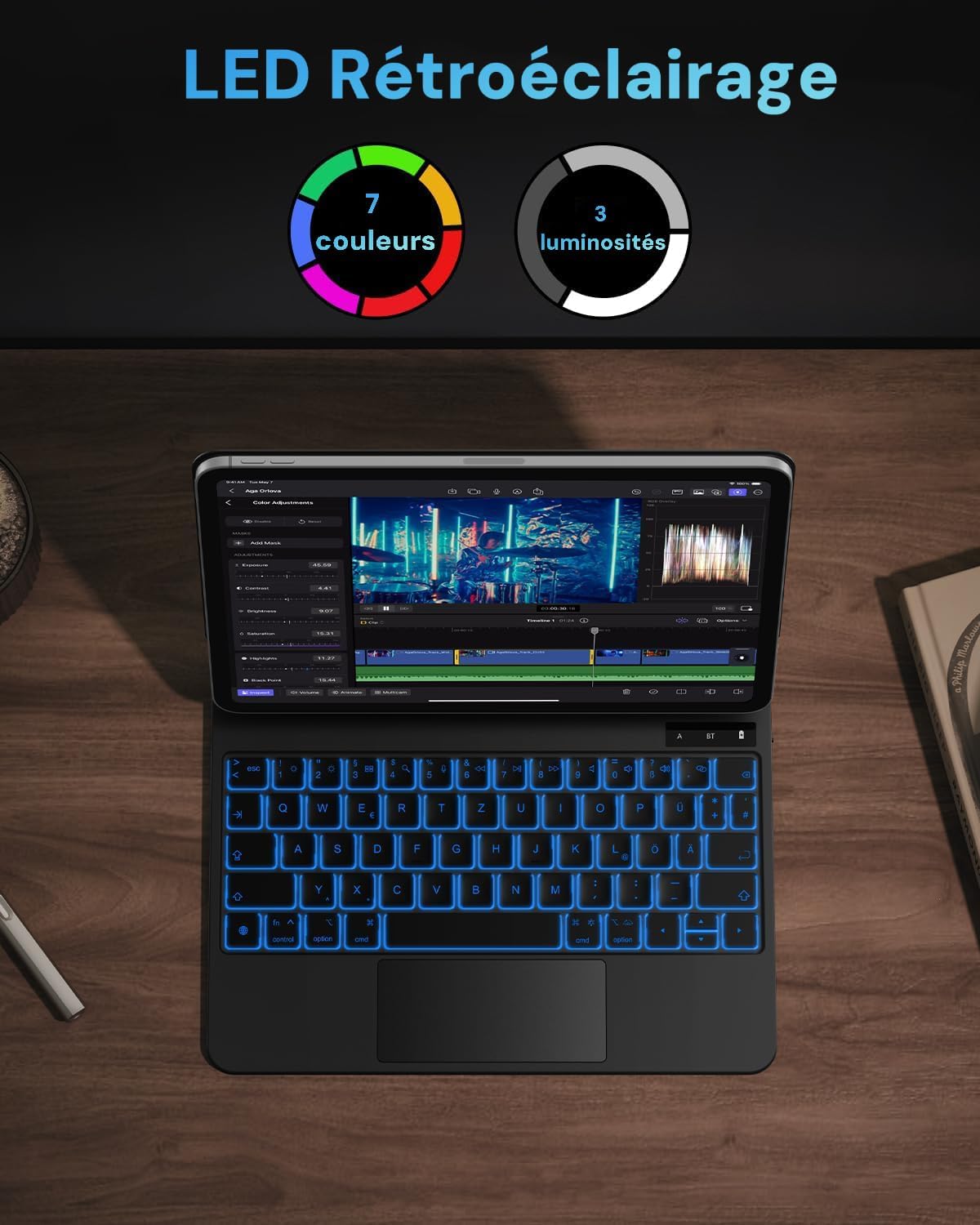
Image: The OMOTON Magic Keyboard displaying its backlit keys in blue, with indicators for 7 available colors and 3 brightness levels.
6. Įkrovimas
To charge the keyboard, connect the provided USB-C cable to the charging port on the keyboard and to a power source (e.g., a USB wall adapter or computer USB port).
- Įkrovimo laikas: apie 2-3 valandas.
- Battery life (without backlight): Approximately 80-100 hours.
- Battery life (with backlight): Approximately 6-8 hours.
- Budėjimo laikas: iki 100 dienų.

Image: A hand connecting a USB-C charging cable to the charging port located on the side of the OMOTON Magic Keyboard.
7. Pagrindinės savybės
7.1 Floating Cantilever Design
The keyboard features a floating cantilever design, allowing your iPad to appear to float above the keyboard. This design provides a stable and comfortable viewpatirtį.

Image: The OMOTON Magic Keyboard with an iPad attached, illustrating its floating cantilever design that positions the iPad above the keyboard for an ergonomic viewing kampas.
7.2 Reguliuojamas Viewing kampas
The ergonomic pivot allows for smooth adjustment of the iPad's viewing angle up to 130 degrees, providing flexibility for various tasks such as typing, drawing, or watching videos.

Paveikslėlis: Šalutinis profesionalasfile of the OMOTON Magic Keyboard with an iPad, showing the range of adjustable viewing angles, indicated by a 130-degree arc.
7.3 Automatic Sleep/Wake Function
The keyboard case supports automatic sleep/wake functionality. Closing the case puts your iPad to sleep, and opening it wakes your iPad, conserving battery life.

Image: A three-panel image demonstrating the keyboard's ultra-thin design, automatic sleep/wake function when opening and closing the case, and the secure magnetic fixation of the iPad.
8. Problemų sprendimas
| Problema | Sprendimas |
|---|---|
| Klaviatūra neįsijungia. | Ensure the keyboard is charged. Connect it to a power source using the USB-C cable. |
| Nepavyksta susieti per „Bluetooth“. |
|
| Raktai nereaguoja. |
|
| Trackpad is not working. |
|
9. Specifikacijos
| Funkcija | Detalė |
|---|---|
| Prekės ženklas | OMOTON |
| Modelio pavadinimas | Magiška klaviatūra |
| Ryšio technologija | Bluetooth |
| Klaviatūros aprašymas | Daugiafunkcinis |
| Ypatingos savybės | Rechargeable, Backlit, Silent, Case |
| Spalva | Juoda |
| Klaviatūros foninio apšvietimo spalvų valdymas | RGB (7 spalvos, 3 ryškumo lygiai) |
| Klaviatūros išdėstymas | AZERTY (French Style) |
| Gaminio matmenys (I x P x A) | 25 L x 19.2 W x 1.8 A cm |
| Maitinimo šaltinis | Battery powered with USB recharge option |
| Minimum OS Requirement | iOS 12 |
| Suderinama OS šeima | iPadOS |
| Raktų skaičius | 64 |
| Vidinė medžiaga | Plastikas, Guma |
10. Garantija ir palaikymas
This OMOTON product comes with a 1 metų garantija from the date of purchase. For warranty claims or technical support, please contact OMOTON customer service through the retailer where the product was purchased or visit the official OMOTON websvetainę.
Prašome išsaugoti pirkimo įrodymą garantijos tikslais.