
1. Įvadas
This manual provides detailed instructions for the setup, operation, and maintenance of your Phomemo WiFi Thermal Label Printer Model 249. This printer is designed for efficient and versatile label printing, compatible with various operating systems and e-commerce platforms. Please read this manual thoroughly to ensure proper use and to maximize the printer's performance.
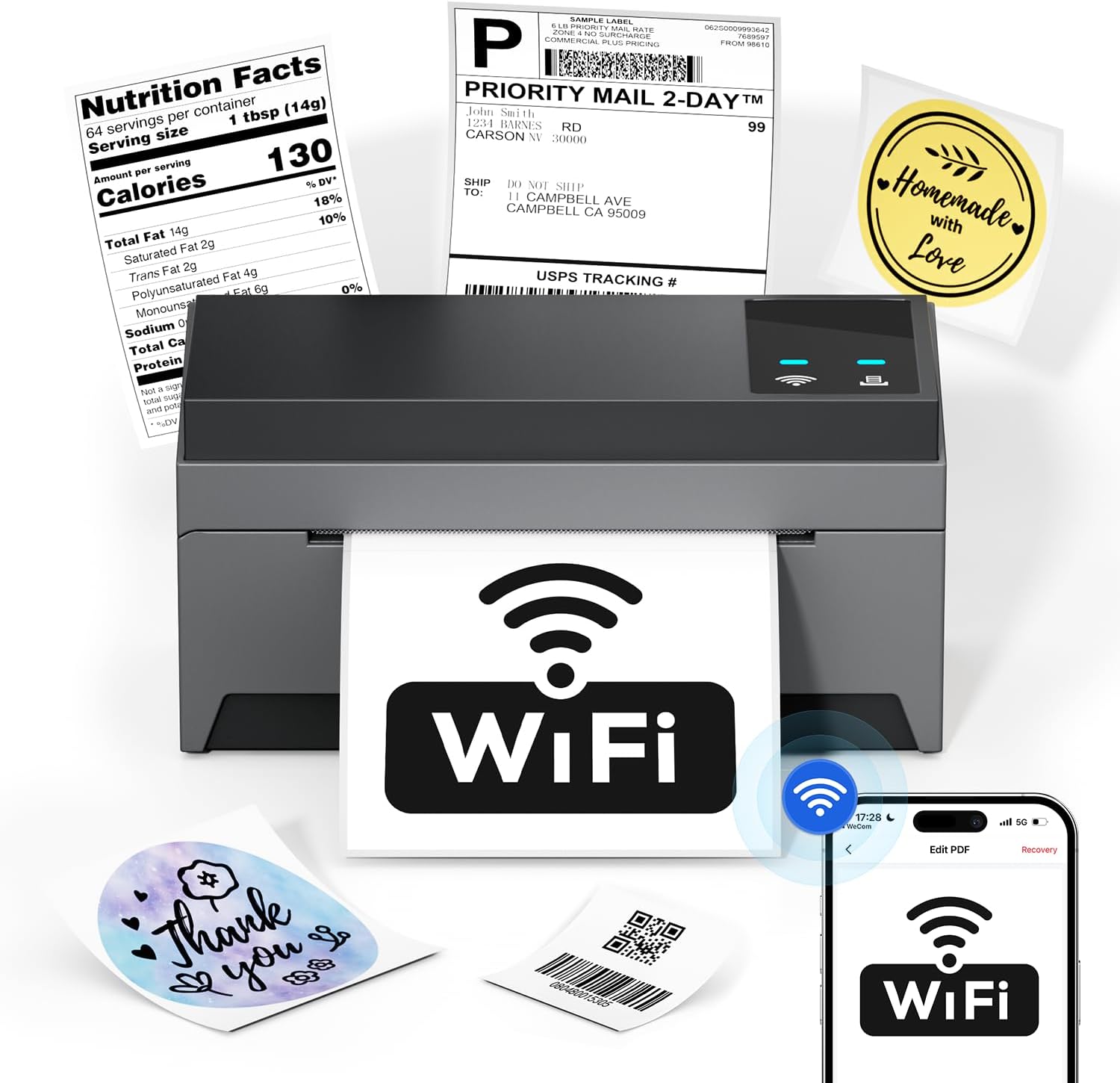
Image: The Phomemo Model 249 printer in operation, demonstrating its capability to print diverse label types such as shipping labels, product information, and custom designs.
2. Pakuotės turinys
Patikrinkite, ar pakuotėje yra visi toliau išvardyti daiktai:
- 1 Phomemo 249 WiFi label printer
- 1 USB-C Data cable
- 1 Power cord (US/UK/EU) with Adapters
- 10 pcs 4x6 shipping labels
- 1 Trumpas vadovas
- 1 USB-C adapteris

Image: All components included in the Phomemo 249 printer package, neatly arranged on a wooden desk.
3. Sąrankos vadovas
3.1 Fizinė konfigūracija
- Prijunkite maitinimą: Prijunkite maitinimo laidą prie spausdintuvo, o tada – prie maitinimo lizdo.
- Įkelti etiketes: Open the printer cover. Insert the thermal labels with the printable side facing up. Adjust the label guides to fit the width of your labels. Close the cover.
3.2 Programinės įrangos diegimas
The Phomemo 249 printer can be operated via the Labelife mobile app or a Printer Setting Tool for computers.
For Mobile Devices (iOS & Android) - Labelife App
- Atsisiųsti programą: Scan the QR code or search for "Labelife" in the App Store (iOS) or Google Play Store (Android).
Download Labelife App - Enable Connectivity: Turn on Bluetooth and WiFi on your mobile device.
- Prijunkite spausdintuvą: Open the Labelife app. Select the "Internet Connection" option and choose your printer from the list (e.g., PM-249-WF).
- Konfigūruoti WiFi: Enter your WiFi password to connect the printer to your network.

Image: Visual guide demonstrating the steps to connect the printer using the Labelife mobile application.
For Computers (MacOS & Windows) - Printer Setting Tool
- Atsisiuntimo įrankis: Apsilankykite oficialioje „Phomemo“ svetainėje website or the link provided in your quick guide to download the Printer Setting Tool for your operating system (Windows or MacOS).
- USB Connection (Initial Setup): Connect your computer to the printer using the provided USB-C cable. This is often required for the initial WiFi configuration from a computer.
- Konfigūruoti WiFi: Use the Printer Setting Tool to select your WiFi network and enter the password. Once configured, the printer will automatically connect to WiFi for future use, eliminating the need for repeated USB connections unless the WiFi settings change.

Image: Instructions for setting up the printer's WiFi connection using the Printer Setting Tool on a computer.
3.3 Ryšio parinktys
- WiFi (5GHz): Supports fast and reliable wireless printing from Android, iOS, Mac, Windows, and Linux devices. Up to 10 devices can connect simultaneously.
- USB: Provides a direct wired connection for all computer systems, including Chrome OS.
- Bluetooth: Note that Bluetooth is for auxiliary WiFi connection setup only and does not support direct printing.

Image: Visual representation of the printer's versatile connectivity via WiFi and USB, compatible with various operating systems.
4. Naudojimo vadovas
4.1 Spausdinimo procesas
Once your printer is connected and labels are loaded, you can initiate printing from your chosen device:
- Paruoškite savo dokumentą: Open the label file (e.g., PDF, image) on your computer or mobile device.
- Pasirinkite spausdintuvą: In your application's print dialog, select the Phomemo 249 printer.
- Nustatykite nustatymus: Ensure the label size and orientation are correctly set to match your physical labels.
- Spausdinti: Confirm settings and send the print job to the printer.
4.2 Labelife App Features
The Labelife app provides tools for creating and customizing labels:
- Access a library of free label styles.
- Design custom shipping labels, product tags, and other personalized labels.
- Importuoti PDF files spausdinimui.
- Edit labels with various fonts, shapes, and barcodes.
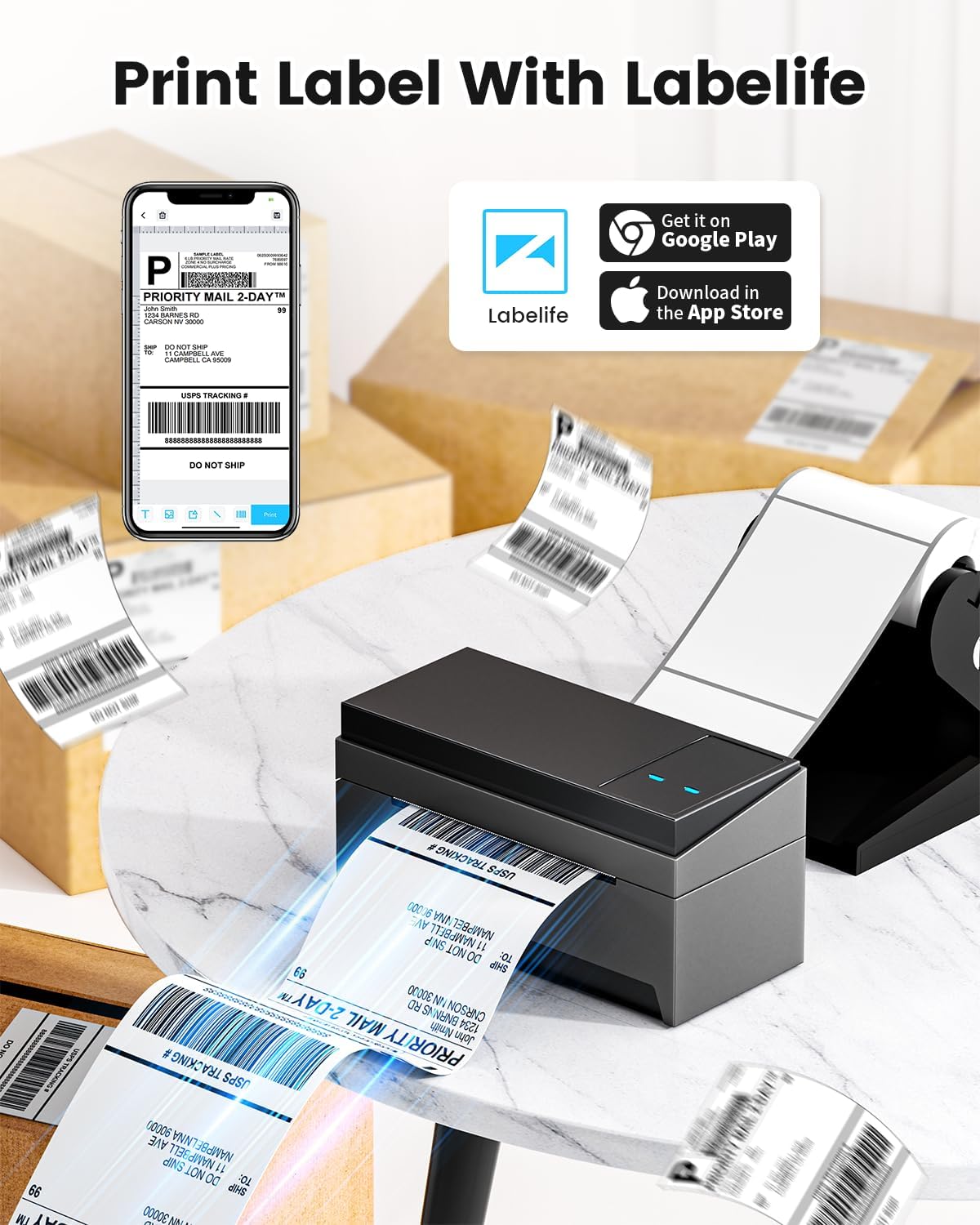
Image: A smartphone displaying the Labelife app, ready to print a shipping label, with the Phomemo printer in the background.
4.3 Palaikomos platformos
The Phomemo 249 printer is compatible with a wide range of e-commerce and logistics platforms, ensuring accurate label generation for your needs:
- eBay
- Amazon
- Walmart
- Shopify
- USPS
- Etsy
- PayPal
- FedEx
- DHL
- UPS
- Ir daug daugiau.
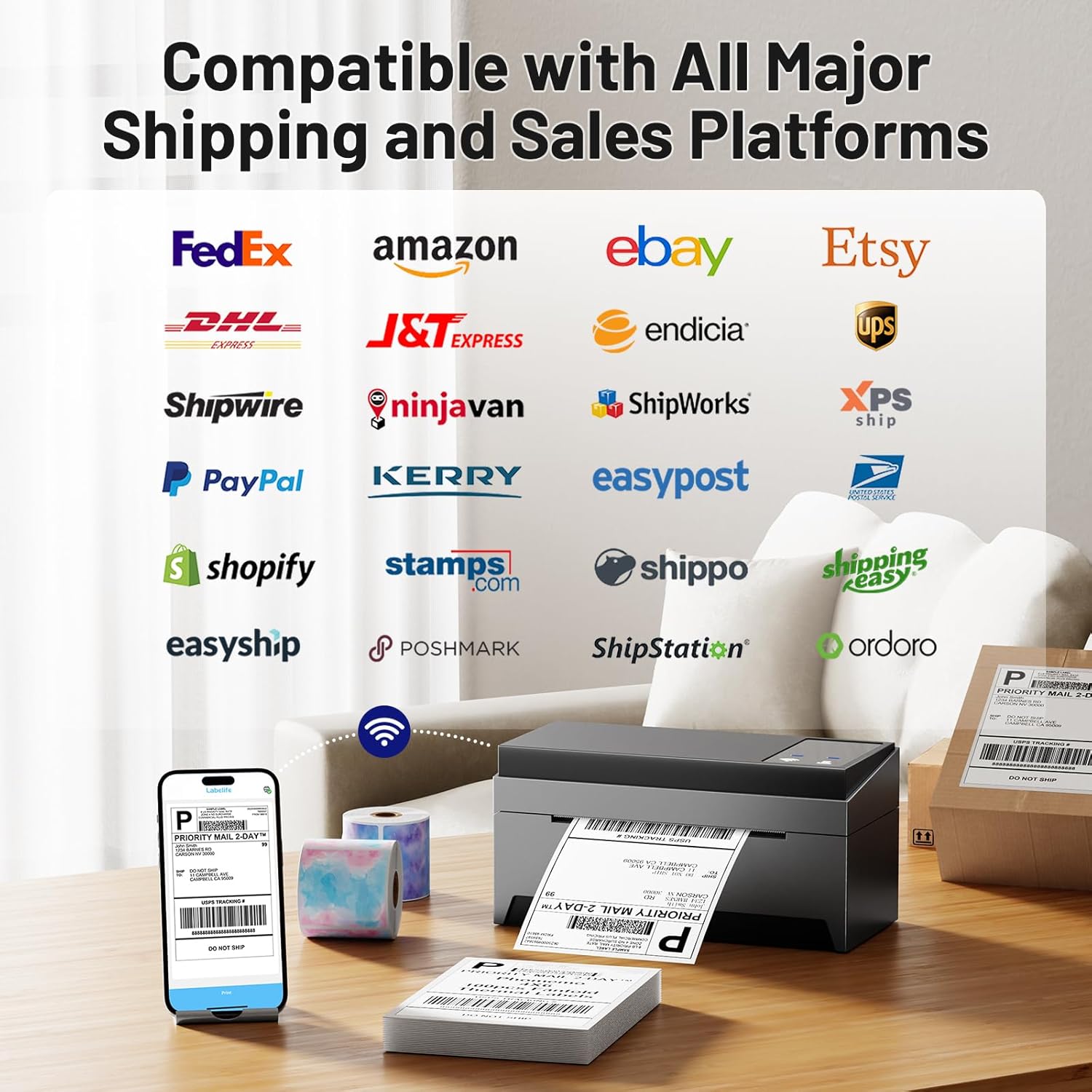
Image: A collage of logos from major e-commerce and logistics platforms, highlighting the printer's broad compatibility.
4.4 Label Types and Sizes
The printer supports various label sizes and types, with a printing range from 1 inch to 4.6 inches in width. This includes standard 4x6 inch shipping labels, smaller product labels, and custom shapes.
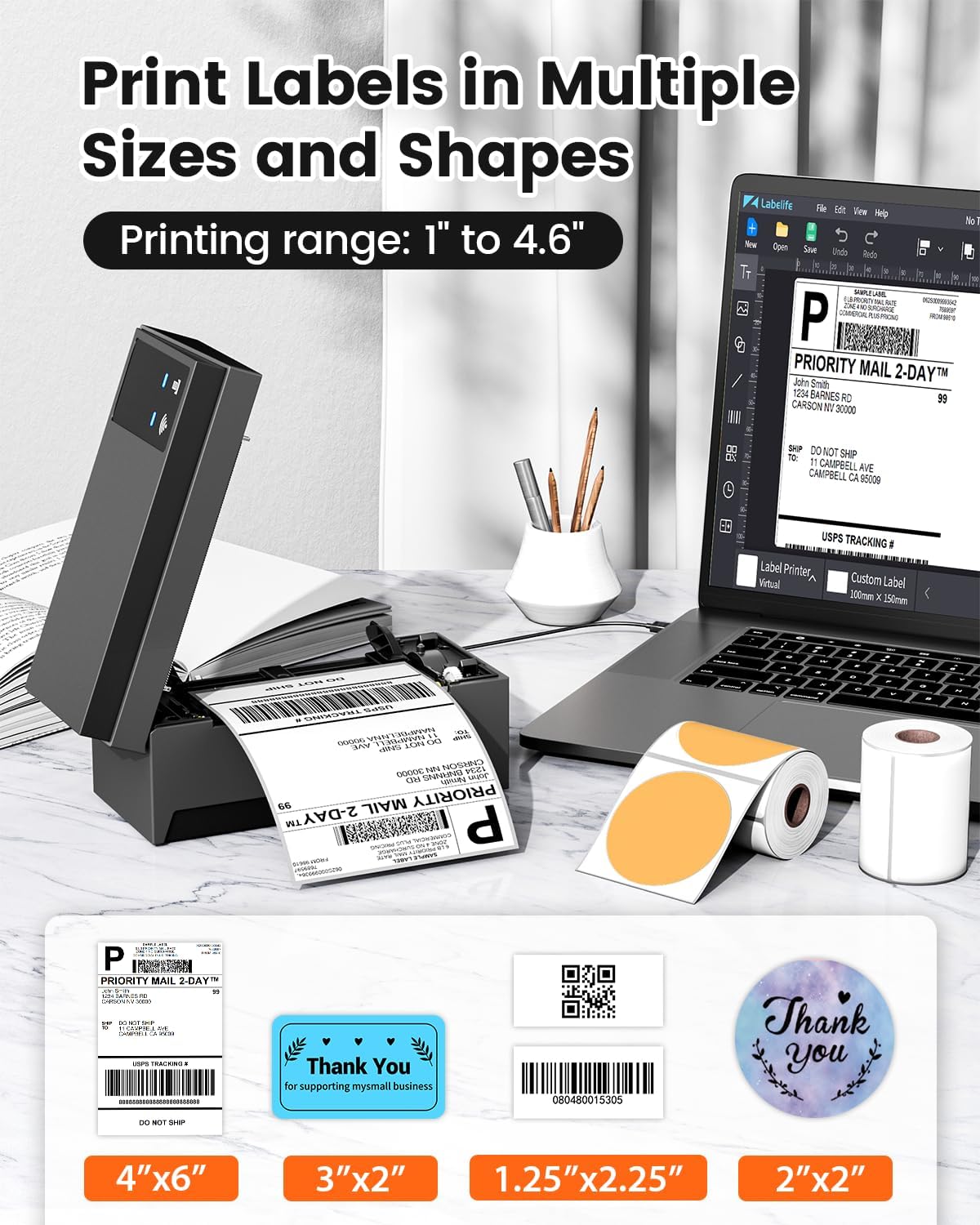
Image: A display of various label sizes and shapes, such as 4x6 inch, 3x2 inch, and round labels, demonstrating the printer's versatility.
5. Priežiūra
5.1 Spausdinimo galvutės valymas
To maintain print quality, regularly clean the print head:
- Išjunkite spausdintuvą ir atjunkite jį nuo maitinimo šaltinio.
- Atidarykite spausdintuvo dangtį.
- Švelniai nuvalykite spausdinimo galvutę vatos tamponu, lengvai dampapipiltas alkoholiu.
- Prieš uždarydami dangtį ir vėl įjungdami spausdintuvą, leiskite spausdinimo galvutei visiškai išdžiūti.
5.2 Bendroji priežiūra
- Spausdintuvą laikykite švarioje, be dulkių aplinkoje.
- Venkite spausdintuvo tiesioginių saulės spindulių ar ekstremalių temperatūrų.
- Naudokite tik aukštos kokybės termines etiketes, kad nepažeistumėte spausdinimo galvutės.
6. Problemų sprendimas
If you encounter issues with your Phomemo 249 printer, refer to the following common problems and solutions:
| Problema | Galima priežastis | Sprendimas |
|---|---|---|
| Printer not connecting via WiFi | Incorrect WiFi password, printer not on the same network, Bluetooth not enabled (for app setup). | Ensure correct WiFi password. Verify printer and device are on the same 5GHz network. For app setup, enable Bluetooth. Re-run WiFi configuration via Labelife app or Printer Setting Tool. |
| Printer prints blank labels | Incorrect label loading, print head dirty, software settings. | Ensure labels are loaded with the printable side up. Clean the print head (refer to Section 5.1). Check print settings in your software (e.g., ensure image is not set to print in color if it's a monochrome thermal printer). Restart printer and device. |
| Labels are faded or unclear | Low quality labels, dirty print head, incorrect print density settings. | Use high-quality thermal labels. Clean the print head. Adjust print density settings in your printer driver or app. |
| Printer not detected by computer via USB | Faulty USB cable, driver not installed correctly, incorrect USB port. | Try a different USB cable or port. Reinstall the printer driver. Ensure the USB-C adapter is correctly used if needed. |
For further assistance, please contact customer support (refer to Section 8).
7. Specifikacijos
Key technical specifications for the Phomemo WiFi Thermal Label Printer Model 249:
| Funkcija | Specifikacija |
|---|---|
| Modelio pavadinimas | 249 |
| Prekės ženklas | Phomemo |
| Ryšio technologija | USB, Wi-Fi (5GHz) |
| Spausdinimo technologija | Šiluminis |
| Spausdintuvo išvestis | Vienspalvis |
| Didžiausia spausdinimo raiška | 203 dpi |
| Maksimalus spausdinimo greitis (vienspalvis) | 72 ppm (puslapių per minutę) |
| Maksimalus laikmenos dydis | 4x6 colių |
| Lapo dydis | 4x6 colių |
| Maksimali įvesties lapo talpa | 100 |
| Suderinami įrenginiai | Nešiojamieji kompiuteriai, asmeniniai kompiuteriai, išmanieji telefonai, planšetiniai kompiuteriai |
| Techninės įrangos sąsaja | C tipo USB |
| Gaminio matmenys | 9 x 14 x 19 colio |
| Prekės svoris | 3.03 svaro |
| Spausdintuvo rašalo tipas | No Ink (Thermal) |
| Ypatinga funkcija | Decal-Printing |
8. Informacija apie garantiją
The Phomemo WiFi Thermal Label Printer Model 249 comes with a ribota garantija. Please refer to the warranty card included in your package or contact customer support for specific terms and conditions.
9. Pagalba klientams
For any questions, technical assistance, or support, please contact the Phomemo professional support team:
- Pagalba telefonu: Available 9:00 AM - 5:00 PM EST, Monday - Friday.
- Pagalba el. paštu: Available for inquiries.
- Tiesioginis pokalbis: Available 7:30 PM - 4:30 AM EST, Monday - Friday.
- Remote Desktop Assistance: Offered for complex issues.
Detailed video tutorials and additional manuals are also available to assist with setup and operation.