
OWC OWCTB5HUB5P
OWC Thunderbolt 5 Hub
Instrukcijų vadovas
Produktas baigtasview
The OWC Thunderbolt 5 Hub is designed to expand connectivity for your Mac, PC, or iPad Pro. It offers high-speed data transfer, support for multiple high-resolution displays, and robust power delivery for connected devices. This manual provides essential information for setting up, operating, and maintaining your OWC Thunderbolt 5 Hub.

Figure 1: OWC Thunderbolt 5 Hub. This image displays the compact and durable aluminum chassis of the hub, highlighting its minimalist design and the accessible USB-A port on the front.
Sąranka
Pakuotės turinys
Prieš pradėdami, įsitikinkite, kad pakuotėje yra visi komponentai:
- OWC Thunderbolt 5 Hub
- Maitinimo adapteris (140 W)
- Thunderbolt 5 kabelis
Fiziniai ryšiai
Follow these steps to connect your OWC Thunderbolt 5 Hub:
- Prijunkite maitinimą: Plug the provided 140W power adapter into the DC IN port on the rear of the hub, then connect it to a power outlet.
- Prijungti prie pagrindinio įrenginio: Use the included Thunderbolt 5 cable to connect one of the Thunderbolt 5 (USB-C) ports on the hub to a compatible Thunderbolt 5, Thunderbolt 4, Thunderbolt 3, USB4, or USB-C port on your computer or iPad Pro. This port will also deliver power to your host device.
- Prijunkite išorinius įrenginius: Utilize the remaining Thunderbolt 5 (USB-C) ports and the USB-A port to connect your external drives, displays, and other USB devices.

2 pav.: Perkėlimasview. This image illustrates the five available ports on the OWC Thunderbolt 5 Hub: three Thunderbolt 5 (USB-C) ports, one of which is the host port with 140W power delivery, and one USB-A 10Gb/s port with 1.5A charging capability.
Stebulės valdymas
Greitas duomenų perdavimas
The OWC Thunderbolt 5 Hub supports bi-directional data speeds of up to 80Gb/s, with up to 120Gb/s for higher display bandwidth needs. This allows for rapid transfer of large files and smooth performance for demanding applications.

Figure 3: Speed Capabilities. This image highlights the hub's impressive data transfer speeds, indicating it is 2x faster than Thunderbolt 4 and USB4, ensuring efficient workflow for data-intensive tasks.
Stulbinantis vaizdas
The hub supports connecting up to three 8K displays at 60Hz or two 8K displays at 120Hz for an immersive visual experience. The hub's display capabilities are ideal for creative professionals and users requiring extensive screen real estate.
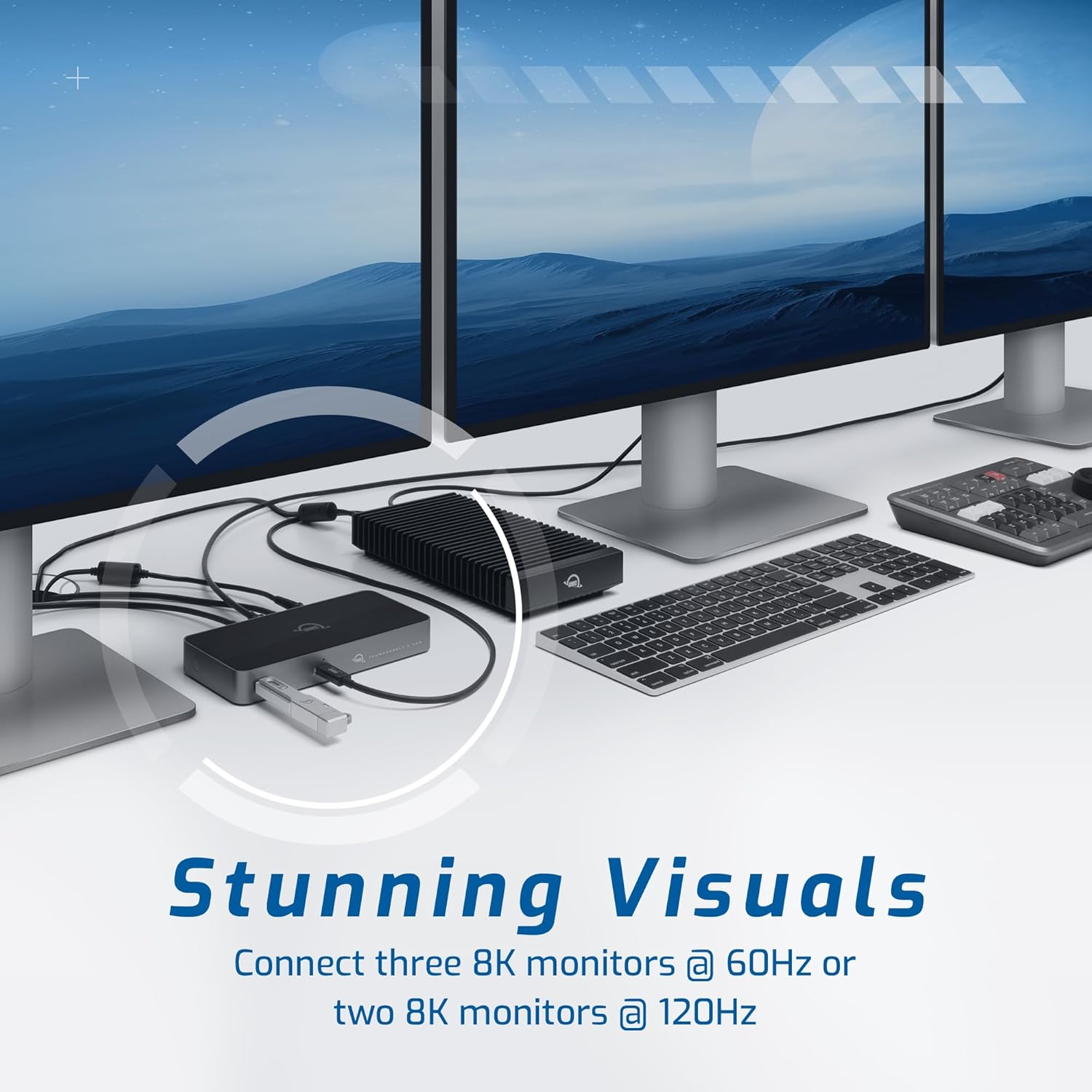
Figure 4: Multi-Display Support. This image demonstrates the hub's ability to connect multiple high-resolution monitors, providing a versatile setup for enhanced productivity and visual clarity.
Power Delivery and Charging
The hub safely delivers up to 140 watts of power, ensuring your notebook computer remains charged while connected. It also provides charging capabilities for other connected devices through its USB ports.
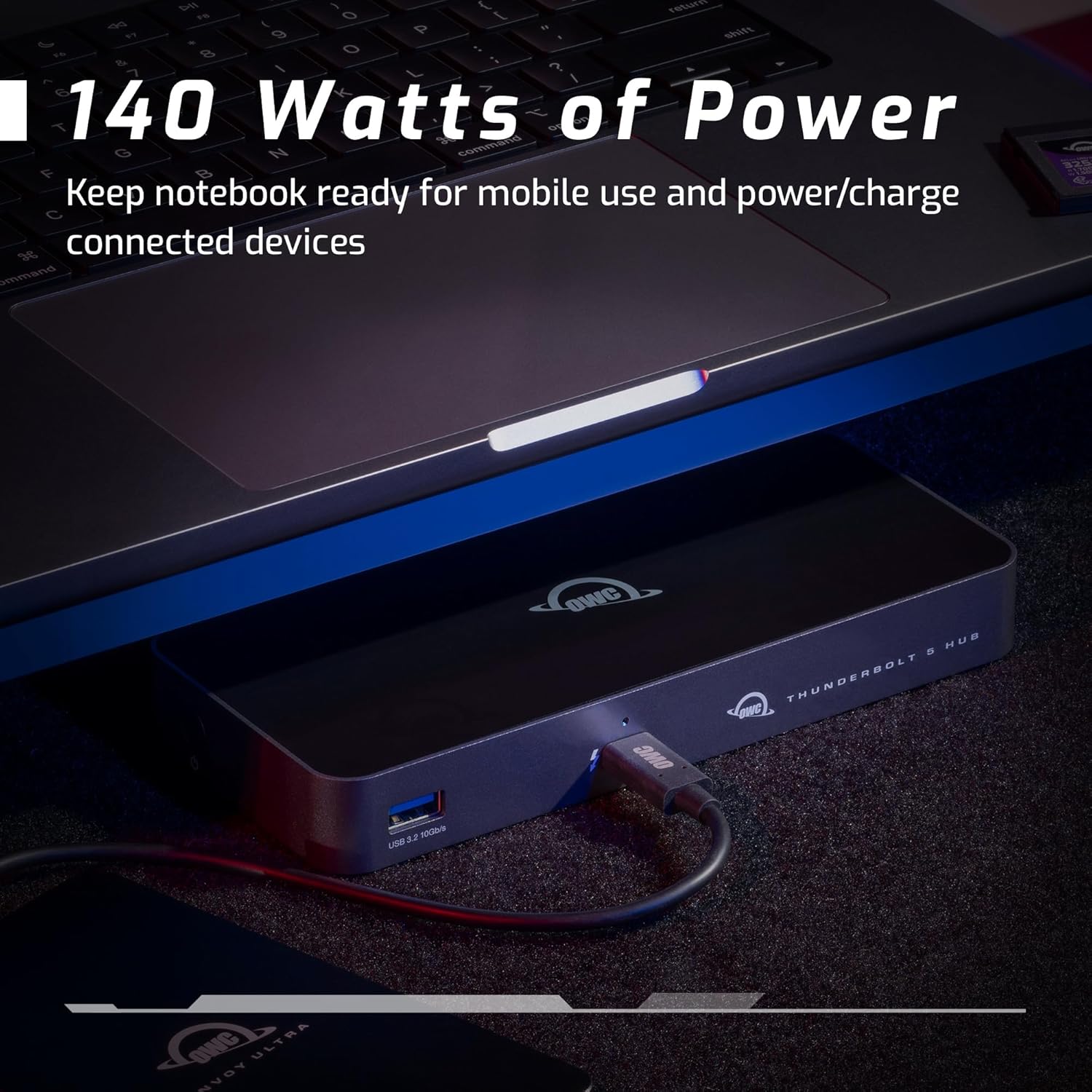
Figure 5: Power and Charging. This image shows the OWC Thunderbolt 5 Hub connected to a laptop, illustrating its capability to keep the notebook charged and power/charge other connected devices.
Daisy Chains
You can create three separate daisy chains of devices, including bus-powered devices. This feature allows you to remove devices from one chain without affecting the others, providing flexible connectivity options.
Certified Compatibility
The OWC Thunderbolt 5 Hub offers 100% compatibility with Thunderbolt 5, Thunderbolt 4, Thunderbolt 3, USB4, and USB-C machines and devices, ensuring seamless integration into your existing setup.

Figure 6: Certified Compatibility. This image visually represents the hub's broad compatibility with various devices and connection types, ensuring versatile use across different systems.
Priežiūra
The OWC Thunderbolt 5 Hub features a fanless aluminum enclosure, contributing to quiet and cool operation. To maintain the device, simply wipe the exterior with a soft, dry cloth as needed. Avoid using harsh chemicals or abrasive materials.
Trikčių šalinimas
If you encounter issues with your OWC Thunderbolt 5 Hub, consider the following general troubleshooting steps:
- Nėra galios: Ensure the power adapter is securely connected to both the hub and a working power outlet.
- Įrenginys neatpažintas: Verify that the Thunderbolt 5 cable is firmly connected to both the hub and your host device. Try connecting to a different port on your host device if available. Ensure your operating system's drivers are up to date.
- Rodymo problemos: Check all display cable connections. Ensure your display settings on your computer are correctly configured for the connected monitors.
- Pertraukiamas ryšys: Disconnect and reconnect all cables. Ensure the hub is placed on a stable surface with adequate ventilation.
For persistent issues, refer to the OWC support websvetainėje arba susisiekite su jų klientų aptarnavimo tarnyba, jei reikia daugiau pagalbos.
Specifikacijos
| Prekės ženklas | OWC |
| Modelio numeris | OWCTB5HUB5P |
| Gaminio matmenys | 7 x 3.1 x 0.9 colio (17.78 x 7.87 x 2.29 cm) |
| Prekės svoris | 13.5 uncijos (382 gramų) |
| Techninės įrangos sąsaja | Perkūnas |
| Iš viso USB prievadų | 5 (3 x Thunderbolt 5, 1 x USB-A 10Gb/s, 1 x Host Thunderbolt 5) |
| Vattage | 140 watts (Power Delivery) |
| Suderinamumas | Thunderbolt 5, Thunderbolt 4, Thunderbolt 3, USB4, USB-C (Macs, iPads, PCs, Chromebooks, Android tablets, Surface devices) |
Garantija ir palaikymas
The OWC Thunderbolt 5 Hub comes with a 2 metų OWC ribota garantija. For detailed warranty information, product registration, and technical support, please visit the official OWC websvetainėje arba susisiekite su klientų aptarnavimo skyriumi.
OWC Official Websvetainė: www.owcdigital.com
Ask a question about this manual
Ask about setup, troubleshooting, compatibility, parts, safety, or missing instructions. Manuals+ will review the question and use this page’s manual context to help answer it.