
Įvadas
This manual provides instructions for the setup, operation, and maintenance of your Phomemo M834 Bluetooth Thermal Printer. Please read this manual thoroughly before using the device to ensure proper function and longevity.
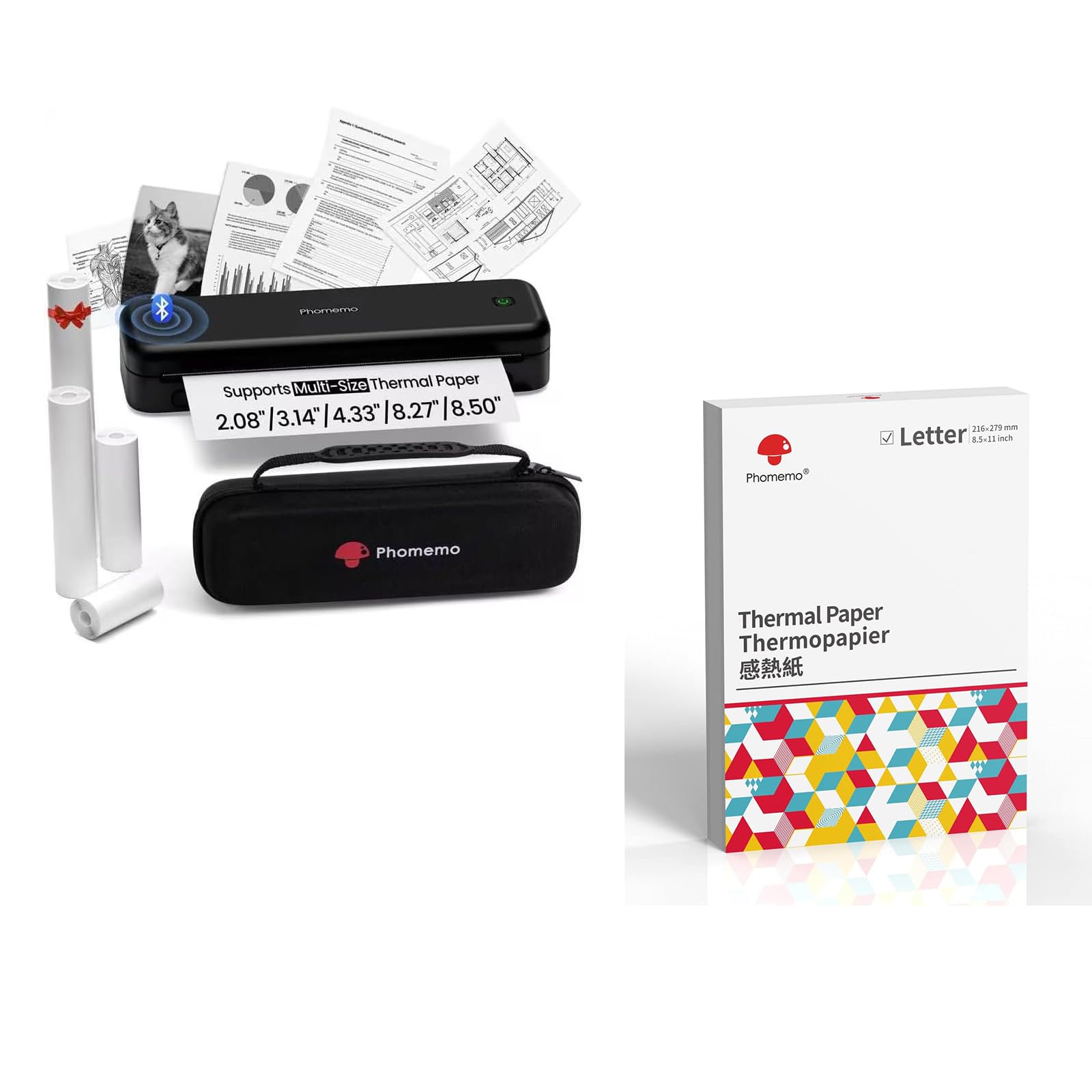
Image: The Phomemo M834 thermal printer, demonstrating its compatibility with multiple paper sizes and including its dedicated carry case.
Pakuotės turinys
Patikrinkite, ar pakuotėje yra visi reikalingi daiktai:
- 1 x nešiojamas „Phomemo M834“ spausdintuvas
- "1 x Carry Case"
- 1 x Roll of 8.5" Thermal Paper
- 1 x Roll of 4.33" Thermal Paper
- 1 x Roll of 3.14" Thermal Paper
- 1 x Roll of 2.08" Thermal Paper
Sąrankos vadovas
1. Spausdintuvo įkrovimas
The M834 printer is equipped with a 2600mAh rechargeable battery. Before initial use, fully charge the printer using the provided charging cable. A full charge allows for over 160 pages of continuous printing.
2. Terminio popieriaus įdėjimas
The Phomemo M834 supports various thermal paper sizes, including US Letter, A4, 4.33'', 3.14'', and 2.08''. It is compatible with roll, fold, and ordinary thermal paper types. Important: This printer is designed exclusively for thermal paper and is not compatible with standard laser or inkjet printer paper.
- Atidarykite popieriaus skyriaus dangtį.
- Insert the thermal paper roll or stack, ensuring the printable side faces the print head.
- Tvirtai uždarykite popieriaus skyriaus dangtelį.

Image: A box of Phomemo Letter size thermal paper, indicating its 8.5 x 11 inch dimensions.
3. Spausdintuvo prijungimas
The M834 printer offers both Bluetooth and USB connectivity.
„Bluetooth“ ryšys:
- Įsitikinkite, kad spausdintuvas įjungtas.
- Enable Bluetooth on your mobile device (iOS, Android, Tablets) or computer.
- Open the Phomemo app or your device's Bluetooth settings and select "M834" to pair.
USB jungtis:
- Connect the printer to your computer (Windows, macOS, Chrome OS, Linux) using a USB cable.
- Įdiekite reikiamas tvarkykles, jei to ragina jūsų operacinė sistema.

Image: The Phomemo M834 printer connected to various devices, illustrating its compatibility with iOS, Android, Tablets via Bluetooth, and Windows, macOS, Chrome OS, Linux via USB.
Naudojimo instrukcijos
Dokumentų spausdinimas
Once connected, you can print documents from your device. The M834 printer offers a print resolution of 300 dpi, providing clear and sharp prints for various uses.
- Atidarykite dokumentą arba vaizdą, kurį norite spausdinti, prijungtame įrenginyje.
- Pasirinkite spausdinimo parinktį iš savo programos.
- Choose "Phomemo M834" as your printer.
- Jei reikia, pakoreguokite spausdinimo nustatymus (pvz., popieriaus dydį, orientaciją).
- Pradėkite spausdinimo užduotį.

Image: A visual comparison highlighting the enhanced print clarity of 300 DPI output from the Phomemo M834 compared to a 203 DPI printer.
Supported Paper Types and Sizes
The M834 is versatile in its paper support:
- Dydžiai: US Letter (8.5" x 11"), A4, 4.33'', 3.14'', 2.08''
- Tipai: Roll thermal paper, Fold thermal paper, Ordinary thermal paper
Ensure you use only Phomemo thermal paper for optimal results. Thermal prints are quick-drying, allowing for immediate handling and writing.

Image: A hand writing on a document printed with the Phomemo M834, demonstrating the quick-dry nature of thermal prints.
Priežiūra
Spausdinimo galvutės valymas
Norėdami išlaikyti spausdinimo kokybę, reguliariai valykite spausdinimo galvutę. Naudokite minkštą, nepūkuotą šluostę, lengvai nuvalytą.ampsuvilgytą izopropilo alkoholiu. Švelniai nuvalykite spausdinimo galvutės paviršių. Prieš valydami įsitikinkite, kad spausdintuvas išjungtas ir atjungtas nuo maitinimo šaltinio.
Akumuliatoriaus priežiūra
To prolong battery life, avoid fully discharging the printer frequently. If storing the printer for an extended period, charge it to approximately 50% and store it in a cool, dry place.
Trikčių šalinimas
If you encounter issues with your Phomemo M834 printer, refer to the following common solutions:
- Spausdintuvas neįsijungia: Ensure the battery is charged. Connect the printer to a power source and allow it to charge for at least 30 minutes before attempting to power it on again.
- Prasta spausdinimo kokybė: Check if the thermal paper is loaded correctly with the printable side facing the print head. Clean the print head as described in the Maintenance section. Ensure you are using genuine Phomemo thermal paper.
- Nepavyksta prisijungti per „Bluetooth“: Make sure Bluetooth is enabled on both the printer and your device. Ensure the printer is within range. Try restarting both the printer and your device.
- Popieriaus strigtis: Turn off the printer and carefully open the paper compartment. Remove any jammed paper. Ensure paper is loaded correctly and not creased or bent.
- Printer not recognized by computer (USB): Verify the USB cable is securely connected. Try a different USB port or cable. Ensure necessary drivers are installed for your operating system.
Specifikacijos
| Modelio pavadinimas | M834 |
| Spausdinimo technologija | Šiluminis |
| Ryšio technologija | Bluetooth, USB |
| Didžiausia spausdinimo raiška | 300 dpi (juodai balta) |
| Spausdintuvo išvestis | Vienspalvis |
| Maksimalus laikmenos dydis | US Letter (8.5" x 11") |
| Palaikomi popieriaus dydžiai | US Letter, A4, 4.33'', 3.14'', 2.08'' |
| Maksimali įvesties lapo talpa | 100 sheets (for folded thermal paper) |
| Baterijos talpa | 2600 mAh |
| Funkcijos | Tik spausdinti |
| Spalva | Juoda |
Garantija ir palaikymas
The Phomemo M834 printer comes with a limited warranty. For specific warranty terms and conditions, please refer to the warranty card included in your package or visit the official Phomemo websvetainę.
For technical support or customer service inquiries, please contact Phomemo customer support through their official channels.