
Įvadas
This manual provides essential information for the proper setup, operation, maintenance, and troubleshooting of your KTC H27T27 27-inch WQHD IPS Flat Monitor. Please read this manual thoroughly before using the product to ensure optimal performance and safety.
The KTC H27T27 monitor features a 27-inch WQHD (2560x1440) IPS panel with a 100Hz refresh rate, designed to deliver clear and detailed images with smooth motion. It includes FreeSync technology for enhanced visual fluidity during dynamic content. The IPS panel ensures vivid colors and wide viewkampų.

Figure 1: KTC H27T27 27-inch WQHD IPS Flat Monitor Front View
Sąranka
1. Išpakavimas
Atsargiai išimkite visus komponentus iš pakuotės. Įsitikinkite, kad visi pakavimo sąraše išvardyti elementai yra pakuotėje ir nepažeisti. Išsaugokite originalią pakuotę būsimam transportavimui ar techninės priežiūros poreikiui.
2. Stovo surinkimas
- Padėkite monitorių ekranu žemyn ant minkšto, švaraus paviršiaus, kad nesusibraižytumėte.
- Pritvirtinkite stovo pagrindą prie stovo kaklelio naudodami pateiktus varžtus.
- Align the assembled stand with the mounting slot on the back of the monitor and secure it firmly.
3. VESA tvirtinimas (pasirinktinai)
The monitor supports VESA 100x100mm mounting. If using a VESA mount, remove the stand and attach the VESA compatible bracket to the monitor's rear panel using appropriate screws.
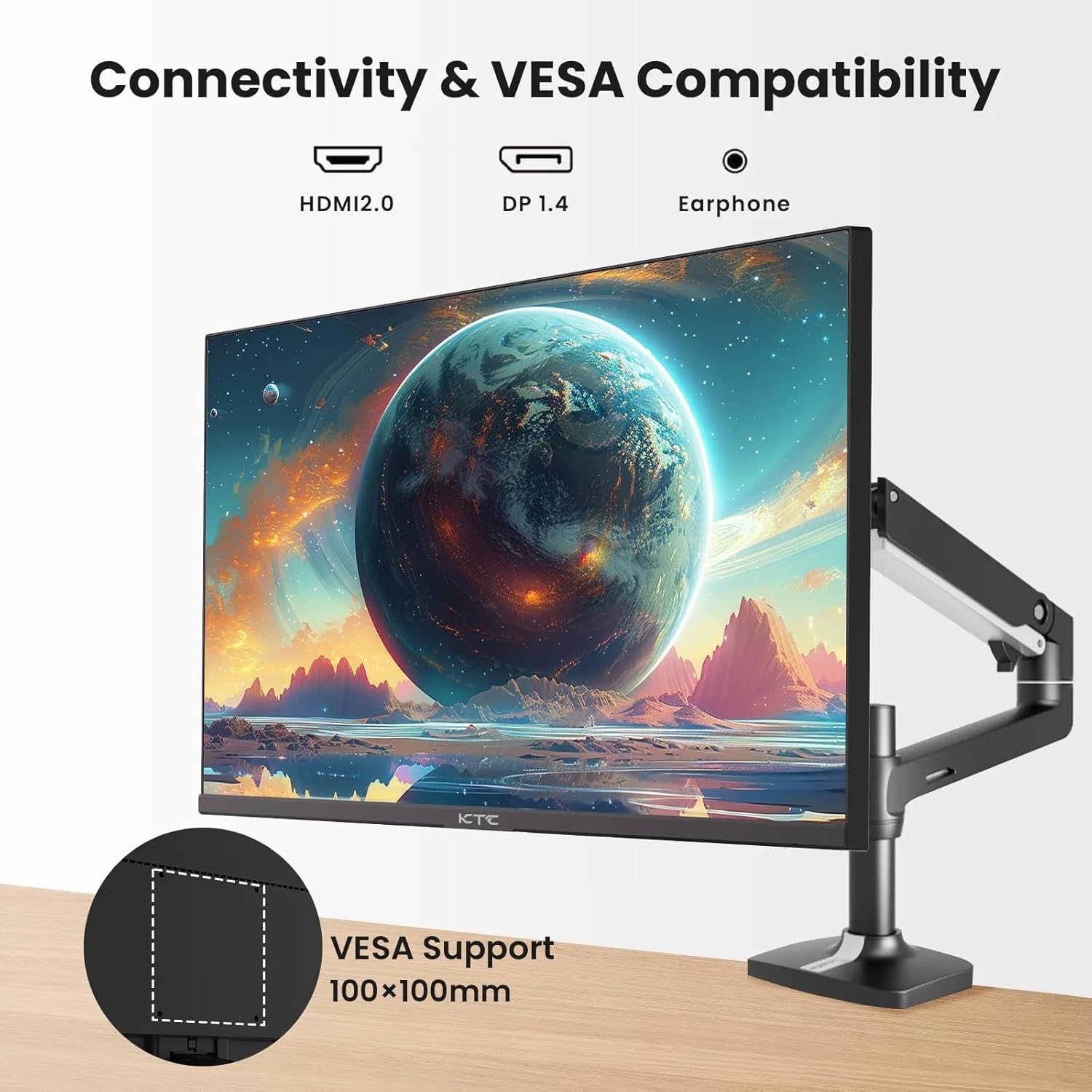
Figure 2: VESA Compatibility and Connectivity Ports
4. Jungiamieji kabeliai
Prijunkite reikiamus laidus prie monitoriaus ir kompiuterio ar kitų įrenginių. Įsitikinkite, kad visos jungtys yra tvirtos.
- Maitinimo kabelis: Connect the power adapter to the monitor's DC input port, then plug the power cable into a power outlet.
- Vaizdo kabelis: Connect either an HDMI cable (HDMI 2.0) or a DisplayPort cable (DP 1.4) from your computer's graphics card to the corresponding input port on the monitor.
- Garso išvestis: If desired, connect headphones or external speakers to the 3.5mm audio output jack.

3 pav.: Monitoriaus įvesties prievadai
5. Pradinis įjungimas
Press the power button on the monitor. The power indicator light will illuminate. If no image appears, ensure your computer is powered on and the correct input source is selected on the monitor.
Veikiantis
1. Maitinimo įjungimas/išjungimas
Press the power button located on the monitor to turn it on or off. The power indicator will show the monitor's status.
2. Ekrano ekrano (OSD) meniu
OSD meniu leidžia reguliuoti įvairius monitoriaus nustatymus. Meniu naršymui naudokite valdymo mygtukus (paprastai esančius monitoriaus gale arba apačioje).
- Paspauskite mygtuką, kad suaktyvintumėte OSD meniu.
- Norėdami pereiti per meniu parinktis, naudokite naršymo mygtukus.
- Press a selection button to enter a sub-menu or confirm a setting.
- Press an exit button to close the OSD menu.
3. Nustatymų reguliavimas
Įprasti reguliuojami nustatymai apima:
- Ryškumas / kontrastas: Sureguliuokite bendrą šviesumą ir skirtumą tarp šviesių ir tamsių sričių.
- Spalvų nustatymai: Keisti spalvų temperatūrą, gamą ir atskiras RGB vertes.
- Įvesties šaltinis: Rankiniu būdu pasirinkite tarp HDMI 1, HDMI 2 arba DisplayPort įvesčių.
- Vaizdo režimas: Pasirinkite iš anksto nustatytus rodymo režimus (pvz., Standartinis, Žaidimas, Filmas).
4. Atnaujinimo dažnis
The KTC H27T27 supports a 100Hz refresh rate, providing smoother motion compared to standard 60Hz displays. Ensure your graphics card and operating system are configured to output at 100Hz for the best experience.

Figure 4: 100Hz Refresh Rate Benefit
5. FreeSync Technology
This monitor is compatible with AMD FreeSync technology, which synchronizes the monitor's refresh rate with your graphics card's frame rate. This helps eliminate screen tearing and stuttering for a smoother gaming and video experience. Ensure FreeSync is enabled in both the monitor's OSD menu and your graphics card's control panel.
Figure 5: FreeSync Technology in Action
Priežiūra
1. Ekrano valymas
- Išjunkite monitorių ir atjunkite maitinimo laidą.
- Švelniai nuvalykite ekraną minkšta, be pūkelių šluoste.
- Įsisenėjusioms dėmėms lengvai nuvalykiteampNuvalykite šluostę vandeniu arba specializuotu ekrano valikliu (nepurkškite tiesiai ant ekrano).
- Venkite naudoti abrazyvinius valiklius, alkoholio ar amoniako pagrindu pagamintus tirpalus, nes jie gali pažeisti ekrano paviršių.
2. Bendroji priežiūra
- Laikykite monitorių atokiau nuo tiesioginių saulės spindulių, per didelio karščio ir drėgmės.
- Užtikrinkite tinkamą vėdinimą aplink monitorių, kad jis neperkaistų.
- Venkite dėti sunkių daiktų ant monitoriaus ar jo laidų.
Trikčių šalinimas
Jei kyla problemų dėl monitoriaus, žr. šias dažniausiai pasitaikančias problemas ir sprendimus:
- Nėra galios:
- Ensure the power cable is securely connected to both the monitor and the power outlet.
- Verify the power outlet is functional. - Nėra signalo:
- Check that the video cable (HDMI or DisplayPort) is securely connected to both the monitor and your computer.
- Ensure your computer is powered on and not in sleep mode.
- Select the correct input source via the monitor's OSD menu. - Mirgantis arba iškreiptas vaizdas:
- Check the video cable for damage or loose connections.
- Adjust the refresh rate settings on your computer.
- Disable or enable FreeSync in the OSD menu and graphics card settings to test. - Neteisingos spalvos:
- Reset color settings to factory defaults in the OSD menu.
- Adjust color temperature or individual RGB values.
Jei problema išlieka ir išbandžius šiuos sprendimus, susisiekite su klientų aptarnavimo tarnyba.
Specifikacijos
| Funkcija | Specifikacija |
|---|---|
| Prekės ženklas | KTC plėtinys |
| Modelio numeris | H27T27 |
| Ekrano dydis | 27 colių |
| Rezoliucija | 2560 1440 x XNUMX XNUMX (WQHD) |
| Atnaujinimo dažnis | 100 Hz |
| Ekrano tipas | IPS |
| Reagavimo laikas | 7 milisekundės |
| Adaptyvusis sinchronizavimas | FreeSync |
| Ryšys | 2x HDMI 2.0, 1x DisplayPort 1.4, 1x 3.5mm Audio Out |
| Krašto santykis | 1.78:1 |
| Ekrano paviršius | Matinis |
| Elemento matmenys (D x P x A) | 1.85 "D x 24.25" P x 14.33" A |
| Prekės svoris | 4 kilogramo |
Garantija ir palaikymas
Informacija apie garantiją
This KTC monitor is covered by a manufacturer's warranty. Please refer to the warranty card included in your product packaging for specific terms, conditions, and duration of coverage. Keep your purchase receipt as proof of purchase for warranty claims.
Pagalba klientams
For technical assistance, warranty service, or any product-related inquiries, please contact KTC customer support. Contact details can typically be found on the official KTC websvetainėje arba garantijos kortelėje.
When contacting support, please have your monitor's model number (H27T27) and serial number ready.


