
Įvadas
Thank you for choosing the Phomemo M221 Bluetooth Thermal Label Printer. This manual provides essential information for the safe and efficient operation of your device. Please read it thoroughly before use and retain it for future reference. The Phomemo M221 is designed for fast, clear, and smart label printing, supporting various label types and applications for small businesses, home, and school use.
Saugos informacija
Norėdami užtikrinti saugų darbą ir išvengti žalos, laikykitės šių atsargumo priemonių:
- Neardykite, neremontuokite ir nemodifikuokite spausdintuvo.
- Laikykite spausdintuvą atokiau nuo vandens, drėgmės ir tiesioginių saulės spindulių.
- Use only Phomemo-approved power adapters and accessories.
- Nelieskite spausdinimo galvutės iškart po spausdinimo, nes ji gali būti karšta.
- Spausdintuvą ir etiketes laikykite vėsioje, sausoje vietoje.
Pakuotės turinys
Patikrinkite, ar pakuotėje yra visi reikalingi daiktai:
- Etikečių spausdintuvas Phomemo M221
- C tipo USB įkrovimo laidas
- 1 roll of 40 x 30 mm thermal labels
- 1 roll of 50 x 80 mm thermal labels
- 1 roll of 70 x 80 mm thermal labels
- Nešiojamas dėklas
- Vartotojo vadovas (šis dokumentas)
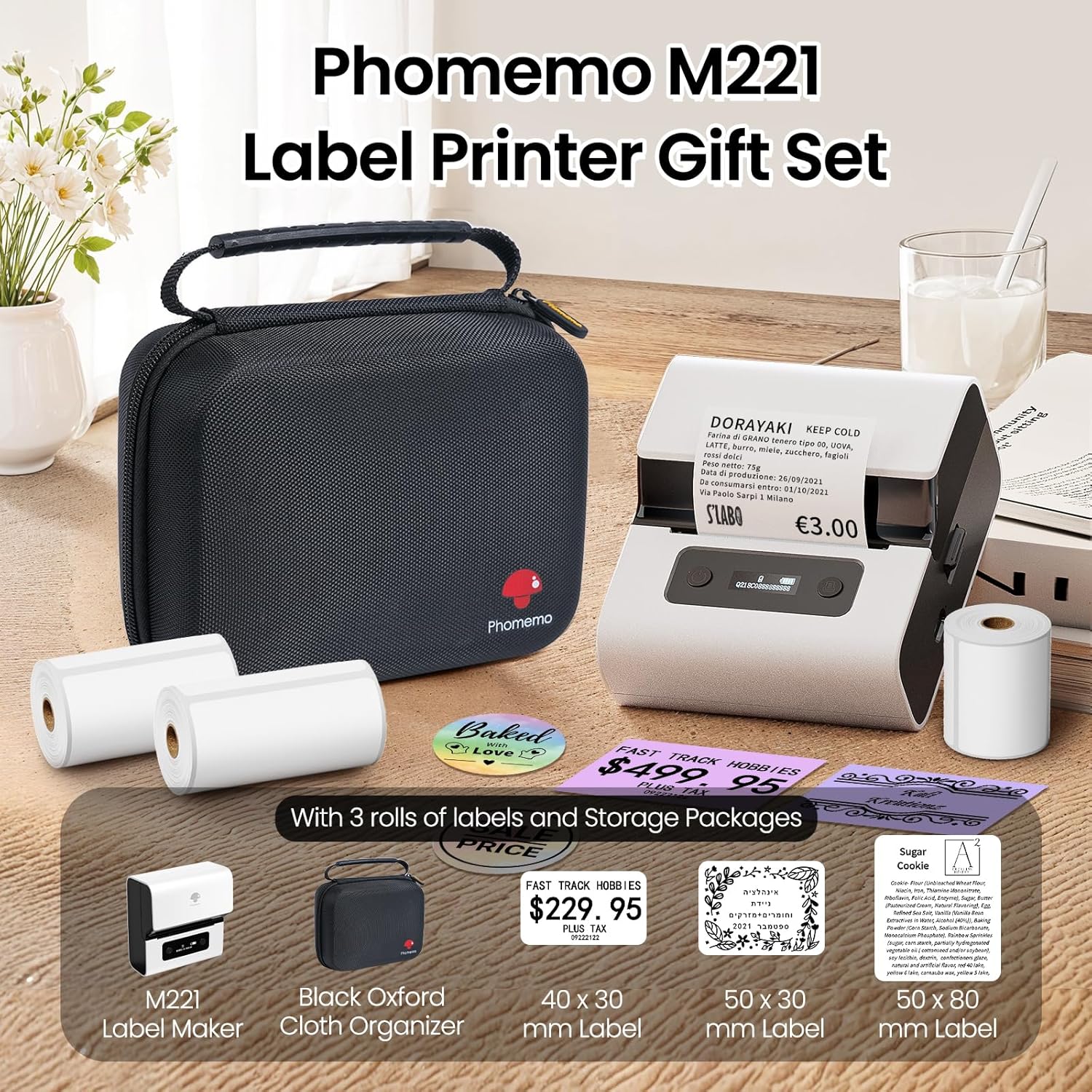
Image: Phomemo M221 Label Printer Gift Set, showing the printer, a black carrying case, and three rolls of white thermal labels.
Produktas baigtasview
The Phomemo M221 is a compact and efficient thermal label printer. Key features include:
- Terminio spausdinimo technologija: Nereikia rašalo ar tonerio.
- Platus etikečių suderinamumas: Supports labels from 20mm to 80mm (0.78" to 3.14") wide, including rectangular, round, transparent, and colored types.
- Ryšys: Bluetooth for iOS/Android smartphones and tablets, USB for Windows PCs.
- Didelės talpos baterija: 2200 mAh battery with Type-C fast charging.
- Greitas ir tylus veikimas: Prints at 50 mm/s with reduced noise.
- Patogus vartotojui dizainas: Easy label loading and automatic gap detection.

Image: Phomemo M221 Label Maker Set, illustrating its features such as no ink requirement, large battery capacity, Bluetooth wireless printing, and its suitability as a gift.
Sąranka
1. Spausdintuvo įkrovimas
Before first use, fully charge the Phomemo M221 printer.
- Connect the provided USB Type-C cable to the printer's charging port.
- Kitą laido galą prijunkite prie 5 V USB maitinimo adapterio (nepridedamas) arba kompiuterio USB prievado.
- The indicator light will show charging status. A full charge typically takes several hours. The 2200 mAh battery supports extended use.
2. Etikečių įkėlimas
The M221 features an integrated label fixing structure for easy loading.
- Atidarykite spausdintuvo dangtį.
- Insert the label roll into the compartment, ensuring the printing side faces upwards and the labels feed smoothly.
- Adjust the side guide plates to secure the label roll in place.
- Close the printer cover. The printer will automatically detect and calibrate the label gap.
3. Prisijungimas prie įrenginio
The Phomemo M221 supports both Bluetooth and USB connections.
Bluetooth Connection (Smartphones/Tablets)
- Įsitikinkite, kad jūsų „iOS“ arba „Android“ įrenginyje įjungtas „Bluetooth“.
- Download and install the "Print Master" application from your device's app store.
- Open the "Print Master" app and follow the on-screen instructions to search for and connect to your M221 printer.

Image: Phomemo M221 printer demonstrating Bluetooth wireless connection with a tablet and a smartphone.
USB Connection (Windows PC)
- Connect the USB Type-C cable from the printer to an available USB port on your Windows PC.
- Download and install the "Labelife" software and printer drivers from the official Phomemo websvetainę.
- Follow the software installation prompts. Once installed, you can select the M221 as your printer.

Image: Phomemo M221 printer connected to a laptop using a USB cable, indicating wired connectivity.
Naudojimo instrukcijos
1. Basic Printing with "Print Master" App (Mobile)
- Ensure your M221 printer is connected via Bluetooth to your mobile device.
- Open the "Print Master" app.
- Select a template or create a new label design. The app offers various templates for text, images, barcodes, QR codes, and more.
- Customize your label content.
- Tap the print icon. Confirm print settings such as quantity.
- The printer will begin printing your labels.
2. Printing with "Labelife" Software (PC)
- Ensure your M221 printer is connected via USB to your Windows PC.
- Open the "Labelife" software.
- Design your label using the software's features, including text, images, barcodes, and QR codes.
- Eikite į „File" > „Spausdinti“ arba spustelėkite spausdinimo piktogramą.
- Select the Phomemo M221 from the list of available printers and adjust any necessary print settings.
- Norėdami pradėti spausdinti, spustelėkite „Spausdinti“.
3. Paketinis spausdinimas
Both "Print Master" and "Labelife" support batch printing for efficiency.
- In the print dialogue, specify the desired number of copies.
- The printer will automatically print multiple labels consecutively.

Image: Phomemo M221 printer demonstrating its versatility with examples of address labels, price tags, ingredient labels, and gift tags.

Image: Phomemo M221 printer showcasing its compatibility with over 50 types of thermal labels, including various shapes and designs.
Priežiūra
1. Spausdinimo galvutės valymas
Regular cleaning of the print head ensures optimal print quality.
- Išjunkite spausdintuvą ir atjunkite maitinimo laidą.
- Atidarykite spausdintuvo dangtį.
- Švelniai nuvalykite spausdinimo galvutę vatos tamponu, lengvai dampsu izopropilo alkoholiu.
- Prieš uždarydami dangtį ir įjungdami spausdintuvą, leiskite spausdinimo galvutei visiškai išdžiūti.
2. Sandėliavimas
Store the printer in a clean, dry environment, away from extreme temperatures and direct sunlight. When not in use for extended periods, ensure the printer is fully charged and then powered off.

Image: A man holding the Phomemo M221 printer's carrying case, illustrating its portable design.
Trikčių šalinimas
Printer Does Not Turn On or Charge
- Patikrinkite maitinimo jungtį: Ensure the USB Type-C cable is securely connected to both the printer and a working power source (5V adapter or PC USB port).
- Patikrinkite maitinimo adapterį: Use a reliable 5V USB power adapter.
- Apmokestinimo trukmė: Allow sufficient time for charging. The battery indicator should show charging status.
No Printing or Blank Output
- Check Label Orientation: Ensure the thermal labels are loaded correctly with the printing side facing upwards.
- Etiketės tipas: Confirm you are using thermal labels. The M221 does not use ink.
- Print Head Cleanliness: A dirty print head can cause blank lines or poor print quality. Refer to the Maintenance section for cleaning instructions.
- Etiketės lygiavimas: Ensure the label roll is properly seated and aligned by the side guide plates to prevent misalignment errors.
„Bluetooth“ ryšio problemos
- Printer On: Ensure the printer is powered on and within Bluetooth range of your device.
- „Bluetooth“ įjungtas: Verify Bluetooth is active on your smartphone or tablet.
- Programos ryšys: Connect through the "Print Master" app, not directly through your device's Bluetooth settings.
- Iš naujo paleiskite įrenginius: Try restarting both the printer and your mobile device.
Prasta spausdinimo kokybė
- Print Head Cleanliness: Išvalykite spausdinimo galvutę, kaip aprašyta skyriuje „Priežiūra“.
- Etiketės kokybė: Use high-quality thermal labels.
- Print Density Settings: Adjust print density settings within the "Print Master" app or "Labelife" software if available.
Specifikacijos
| Funkcija | Detalė |
|---|---|
| Modelio numeris | M221 |
| Prekės ženklas | Phomemo |
| Ryšio technologija | „Bluetooth“, C tipo USB |
| Spausdinimo technologija | Šiluminis |
| Spausdinimo išvestis | Vienspalvis |
| Maksimalus spausdinimo greitis (vienspalvis) | 15.0 pages per minute (50 mm/s) |
| Maksimali spausdinimo raiška (vienspalvis) | 203 dpi |
| Palaikomas etiketės plotis | 20mm - 80mm (0.78" - 3.14") |
| Baterija | 2200 mAh (1 D - included) |
| Prekės svoris | 820 gramų |
| Gaminio matmenys (I x P x A) | 12.9 x 6.7 x 11.9 centimetro |
| Control Device Type | Smartphone/PC |
| Medijos tipas | Etiketės |
Garantija ir palaikymas
Dėl garantijos informacijos ir techninės pagalbos kreipkitės į oficialią „Phomemo“ svetainę. websvetainėje arba susisiekite tiesiogiai su jų klientų aptarnavimo tarnyba. Išsaugokite pirkimo kvitą kaip pirkimo įrodymą.
Internetiniai ištekliai: Aplankykite „Phomemo“ parduotuvė „Amazon“ platformoje for product updates and FAQs.