
Taiahiro Bk6301
„Taiahiro Bk6301“ belaidės mechaninės žaidimų klaviatūros ir pelės derinio naudotojo vadovas
Model: Bk6301
1. Įvadas
Thank you for choosing the Taiahiro Bk6301 Wireless Mechanical Gaming Keyboard and Mouse Combo. This manual provides detailed instructions for setting up, operating, and maintaining your new peripheral devices. This combo offers versatile connectivity options including 2.4G wireless, Bluetooth 5.0, and wired USB-C, ensuring compatibility with various devices.
2. Pakuotės turinys
Prašome patikrinti, ar pakuotėje yra visi reikalingi daiktai:
- Taiahiro Bk6301 Wireless Mechanical Gaming Keyboard
- Taiahiro Wireless Gaming Mouse
- USB 2.4G Receiver (stored in mouse battery compartment)
- USB-C į USB-A įkrovimo / duomenų kabelis
- Vartotojo vadovas
- 1 AA Battery (for mouse, may be pre-installed or included separately)

Image 2.1: Contents of the Taiahiro Bk6301 Keyboard and Mouse Combo package, including the keyboard, mouse, USB receiver, and USB-C cable.
3. Produktas baigtasview
3.1 Klaviatūros funkcijos
- 98 klavišų išdėstymas: Compact design with a full numeric keypad.
- Mechaniniai mėlyni jungikliai: Provide tactile and audible feedback for typing.
- RGB foninis apšvietimas: Pritaikomi apšvietimo efektai.
- Adjustable Keyboard Stand: Leidžia ergonomiškai išdėstyti.
- Multi-Mode Connectivity: Supports 2.4G wireless, Bluetooth 5.0, and wired USB-C.
- Įkraunama baterija: Built-in 2000mAh battery for wireless operation.
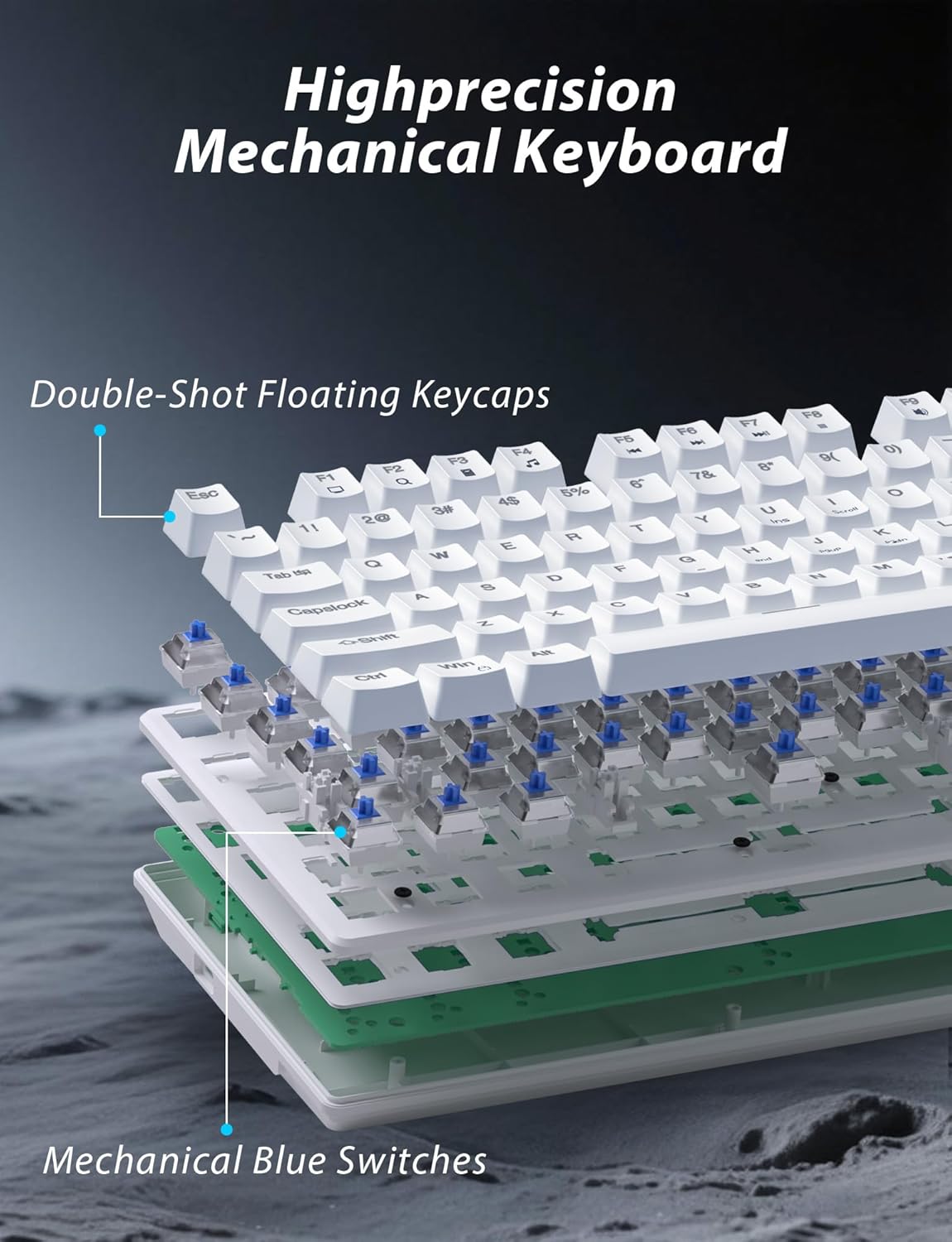
3.1 paveikslas: Išsklaidytas view illustrating the internal structure of the mechanical keyboard, highlighting the double-shot floating keycaps and mechanical blue switches.

3.2 paveikslėlis: Šonas view of the keyboard demonstrating its ergonomic design and adjustable stand for comfortable use.
3.2 Pelės funkcijos
- Ergonomiškas dizainas: Shaped for comfortable grip.
- Reguliuojamas DPI: Four levels (800/1600/2400/3200) for precision control.
- Pirmyn/atgal mygtukai: Convenient side buttons for navigation.
- Dviejų režimų ryšys: Supports 2.4G wireless and Bluetooth.
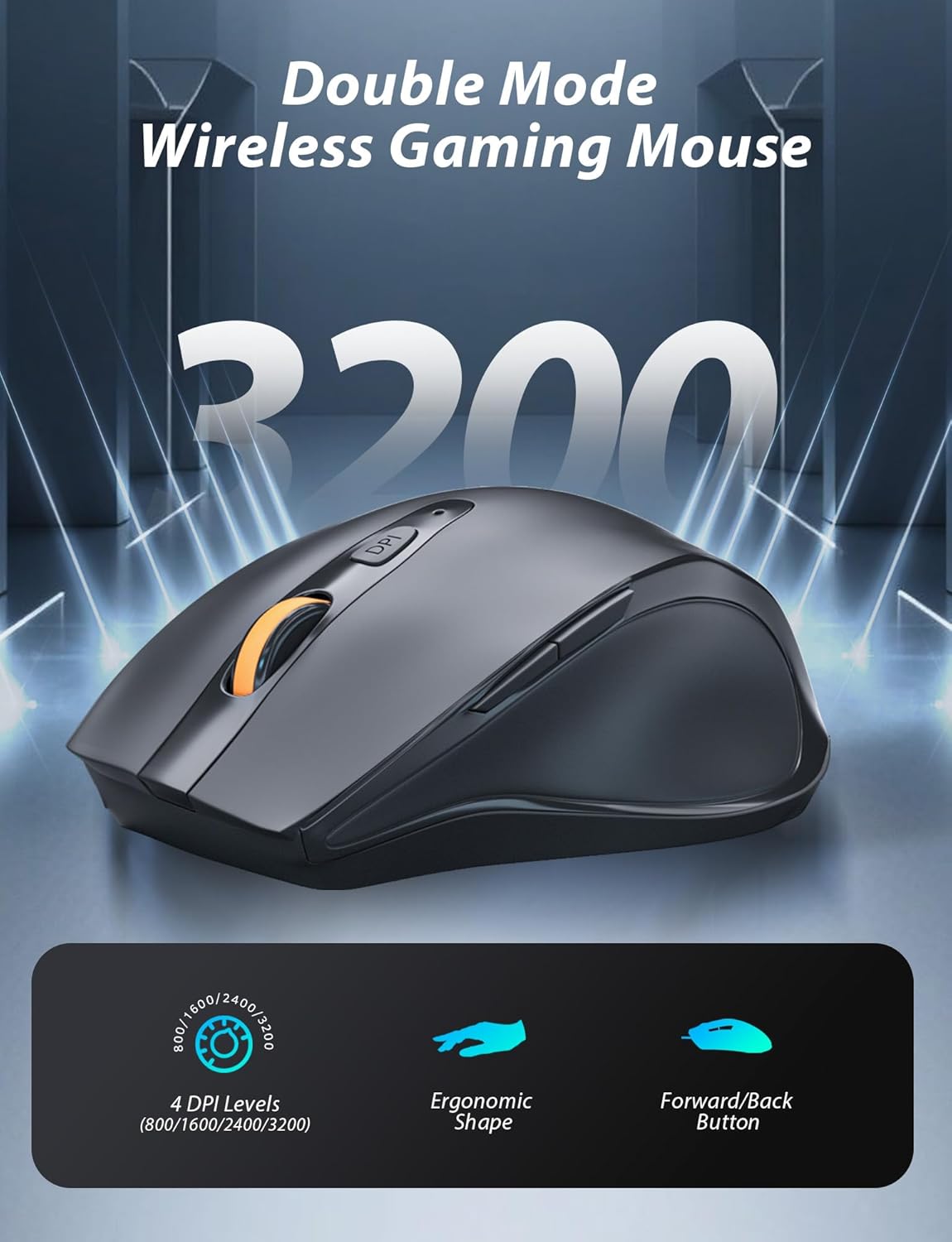
Image 3.3: The wireless gaming mouse, highlighting its ergonomic shape and four adjustable DPI levels.
4. Sąrankos instrukcijos
4.1 Keyboard Connection
The keyboard supports three connection modes: 2.4G wireless, Bluetooth, and wired USB-C.

Image 4.1: The keyboard displaying its three connectivity options: Bluetooth, 2.4GHz wireless, and USB-C wired connection.
2.4G belaidis režimas:
- Locate the USB 2.4G receiver, typically stored in the mouse's battery compartment.
- Įkiškite USB imtuvą į laisvą kompiuterio USB prievadą.
- On the keyboard, slide the mode switch (usually located on the top edge or bottom) to the '2.4G' position.
- Klaviatūra turėtų automatiškai prisijungti.
„Bluetooth“ režimas:
- Slide the mode switch on the keyboard to the 'BT' (Bluetooth) position.
- The keyboard's indicator light will flash, indicating it is in pairing mode.
- On your device (computer, laptop, smartphone), open Bluetooth settings and search for new devices.
- Select "Taiahiro Bk6301" or a similar name from the list of available devices to pair.
- Suporavus, indikatoriaus lemputė ims šviesti nepertraukiamai.
Wired USB-C Mode:
- Prijunkite pateiktą USB-C laidą prie klaviatūros USB-C prievado.
- Kitą galą (USB-A) prijunkite prie laisvo kompiuterio USB prievado.
- The keyboard will function as a wired device and will charge simultaneously.
4.2 Mouse Connection
The mouse supports 2.4G wireless and Bluetooth connectivity.

Image 4.2: The underside of the mouse, illustrating the battery compartment for one AA battery and the storage slot for the tiny USB receiver.
Akumuliatoriaus montavimas:
- Atidarykite baterijų skyrių pelės apačioje.
- Insert one AA battery, ensuring correct polarity.
- Uždarykite akumuliatoriaus skyrių.
2.4G belaidis režimas:
- Ensure the USB 2.4G receiver is plugged into your computer.
- Slide the mode switch on the underside of the mouse to the '2.4G' position.
- Pelė turėtų automatiškai prisijungti.
„Bluetooth“ režimas:
- Slide the mode switch on the underside of the mouse to the 'BT' (Bluetooth) position.
- The mouse will enter pairing mode.
- On your device, open Bluetooth settings and search for new devices.
- Select "Taiahiro Mouse" or a similar name from the list to pair.
5. Naudojimo instrukcijos
5.1 Klaviatūros funkcijos
Foninio apšvietimo valdymas:
The keyboard features customizable RGB backlighting.
- Pakeiskite foninio apšvietimo režimą: Paspauskite Fn + Pagrindinis , kad galėtumėte perjungti 18 skirtingų apšvietimo efektų.
- Sureguliuokite ryškumą: Paspauskite Fn + ↑ (Up Arrow) or Fn + ↓ (Down Arrow) to adjust between 5 brightness levels.
- Sureguliuokite greitį: Paspauskite Fn + ← (Left Arrow) or Fn + → (Right Arrow) to adjust between 5 lighting speed levels.

Image 5.1: Keyboard layout highlighting the function key combinations for controlling backlight modes, brightness, and speed.
Multimedijos funkcijos:
Access multimedia controls by pressing the Fn key in combination with the designated F-keys (F1-F12).
- Fn + F1: Media Player
- Fn + F2: Sumažinti garsumą
- Fn + F3: Padidinti garsumą
- Fn + F4: Nutildyti
- Fn + F5: Sustok
- Fn + F6: Ankstesnis takelis
- Fn + F7: Leisti / pristabdyti
- Fn + F8: Kitas takelis
- Fn + F9: El. paštas
- Fn + F10: Web Naršyklė
- Fn + F11: Mano kompiuteris
- Fn + F12: Skaičiuoklė
5.2 Pelės funkcijos
DPI reguliavimas:
Paspauskite DPI mygtukas (located behind the scroll wheel) to cycle through the four DPI settings: 800, 1600, 2400, and 3200. Each press changes the sensitivity, allowing you to adjust cursor speed to your preference.
6. Priežiūra
6.1 Valymas
- Klaviatūra: Use a soft, dry cloth to wipe the surface. For deeper cleaning, use compressed air to remove debris from between keys. Avoid using harsh chemicals or abrasive materials.
- Pelė: Nuvalykite pelės paviršių minkšta, šiek tiek drėgna šluosteamp audiniu. Įsitikinkite, kad į vidinius komponentus nepatenka skysčio.
6.2 Akumuliatoriaus valdymas
- Klaviatūra: The keyboard has a built-in rechargeable battery. Connect the USB-C cable to a power source (e.g., computer USB port, USB wall adapter) to charge. The indicator light will show charging status.
- Pelė: The mouse uses one AA battery. Replace the battery when the mouse performance degrades or it stops responding. Ensure proper polarity when inserting a new battery.
7. Problemų sprendimas
If you encounter issues with your Taiahiro keyboard and mouse combo, please refer to the following solutions:
| Problema | Galimas sprendimas |
|---|---|
| Keyboard/Mouse not responding (2.4G) |
|
| Keyboard/Mouse not connecting (Bluetooth) |
|
| Keyboard backlight not working or stuck |
|
| Keys not responding or double-typing |
|
8. Specifikacijos
| Funkcija | Detalė |
|---|---|
| Modelio numeris | Bk6301 |
| Ryšys | „Bluetooth 5.0“, 2.4G belaidis ryšys, USB-C laidinis ryšys |
| Klaviatūros tipas | Mechaninė žaidimų klaviatūra |
| Raktų išdėstymas | 98 Keys (with Numeric Keypad) |
| Jungiklio tipas | Mechaniniai mėlyni jungikliai |
| Foninis klaviatūros apšvietimas | RGB (18 modes, 5 brightness, 5 speed levels) |
| Klaviatūros baterija | 2000mAh įkraunama |
| Pelės DPI lygiai | 800/1600/2400/3200 |
| Pelės baterija | 1 x AA baterija |
| Suderinami įrenginiai | Personal Computer, Laptop, Smartphone |
| Prekės svoris | 2.72 svaro (kombinuotas) |
| Pakuotės matmenys | 15 x 5.59 x 3.11 colio |
9. Garantija ir palaikymas
9.1 Informacija apie garantiją
Taiahiro products are covered by a limited warranty from the date of purchase. Please refer to the warranty card included in your package or visit the official Taiahiro website for detailed warranty terms and conditions. This warranty typically covers manufacturing defects and material faults under normal use.
9.2 Pagalba klientams
For technical assistance, troubleshooting, or any questions regarding your Taiahiro Bk6301 combo, please contact our customer support team. You can find contact information on the Taiahiro official website or through your purchase platform. When contacting support, please have your product model number (Bk6301) and purchase details ready.
Ask a question about this manual
Ask about setup, troubleshooting, compatibility, parts, safety, or missing instructions. Manuals+ will review the question and use this page’s manual context to help answer it.