
Įvadas
Thank you for choosing the NEWFAST WiFi 6E PCIe Network Card. This card is designed to provide high-speed wireless connectivity and Bluetooth functionality for your desktop PC. Featuring the Intel AX210 chipset, it supports the latest WiFi 6E standard, offering tri-band operation (2.4GHz, 5.8GHz, and 6GHz) with speeds up to 5374Mbps. The integrated Bluetooth 5.3 ensures fast and reliable connections to your wireless peripherals. This manual will guide you through the installation process, operation, and provide troubleshooting tips.

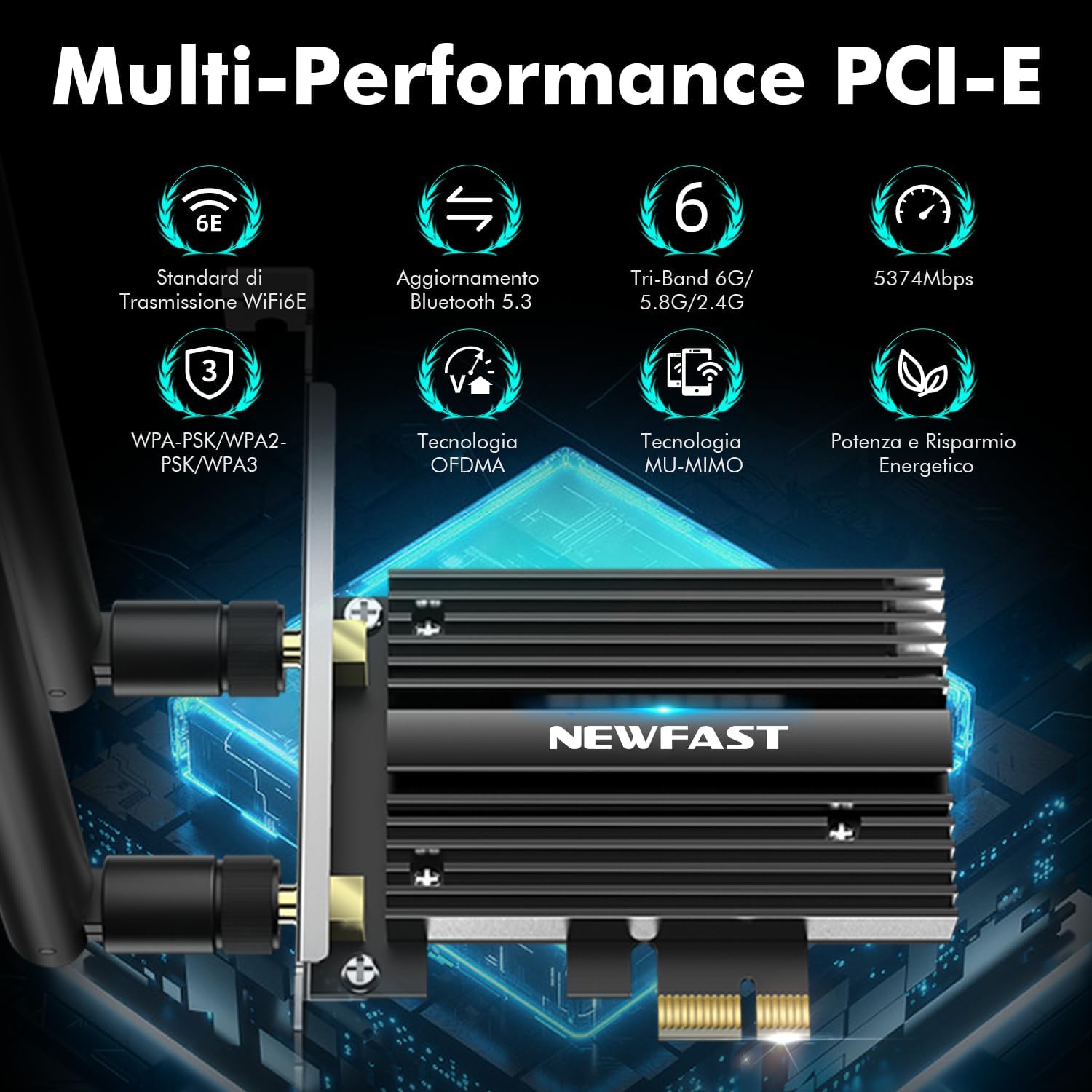
Baigėsiview of the NEWFAST WiFi 6E PCIe Card's multi-performance features, including WiFi 6E standard, Bluetooth 5.3 upgrade, Tri-Band support (6GHz/5.8GHz/2.4GHz), 5374Mbps speed, WPA-PSK/WPA2-PSK/WPA3 security, OFDMA, MU-MIMO technology, and power saving capabilities.
Kas yra dėžutėje
Patikrinkite pakuotės turinį, kad įsitikintumėte, jog yra visi reikalingi daiktai:
- 1 x NEWFAST WiFi 6E PCIe Network Card
- 1 x Multi-language Instruction Manual (this document)
- 1 x Bluetooth Cable
- 2 x 5dBi Antennas
- 2 x Varžtai
Specifikacijos
| Funkcija | Detalė |
|---|---|
| Prekės ženklas | NEWFAST |
| Modelis | NF-P395 |
| Lustų rinkinys | „Intel AX210“ |
| bevielio ryšio standartas | WiFi 6E (IEEE 802.11ax) |
| Duomenų nuorodos protokolas | IEEE 802.11ac/a/b/g/n, IEEE 802.11ax |
| Dažnių juostos | 2.4GHz, 5.8GHz, 6GHz (Tri-Band) |
| Maksimalus duomenų perdavimo greitis | 5374 Mbps (2.4GHz: 574Mbps, 5.8GHz: 2400Mbps, 6GHz: 2400Mbps) |
| Bluetooth versija | Bluetooth 5.3 |
| Techninės įrangos sąsaja | PCI-E X1, X4, X8, X16 (PCI slots not supported) |
| Antenos | 2 x 5 dBi išorinės antenos |
| Apsaugos funkcijos | WPA-PSK/WPA2-PSK/WPA3 |
| Palaikoma OS | „Windows 10“ (64 bitų), „Windows 11“ (64 bitų) |
| Matmenys (paketas) | 19.9 x 11.9 x 3.4 cm |
| Prekės svoris | 230 g |

Detailed breakdown of WiFi 6E speeds across 6GHz, 5.8GHz, and 2.4GHz bands, highlighting the Intel AX210 chip and Bluetooth 5.3 capabilities.
Sąrankos instrukcijos
1. Techninės įrangos diegimas
- Išjunkite kompiuterį: Before starting, ensure your computer is completely powered off and unplugged from the power outlet.
- Atidaryti kompiuterio korpusą: Nuimkite kompiuterio korpuso šoninį skydelį, kad pasiektumėte pagrindinę plokštę.
- Locate a PCI-E Slot: Savo pagrindinėje plokštėje raskite laisvą PCI-E X1, X4, X8 arba X16 lizdą. Note: Standard PCI slots are not compatible.
- Įdėkite „WiFi“ kortelę: Carefully align the NEWFAST WiFi 6E PCIe card with the chosen PCI-E slot and press it firmly until it is securely seated.
- Apsaugokite kortelę: Use the provided screw to fasten the card's bracket to your PC case.
- Prijunkite „Bluetooth“ laidą: Connect one end of the provided Bluetooth cable to the 9-pin USB header on the WiFi card and the other end to an available F_USB header on your motherboard. This connection is essential for Bluetooth functionality.
- Pritvirtinkite antenas: Screw the two 5dBi external antennas onto the connectors at the back of the WiFi card. Adjust their orientation for optimal signal reception.
- Uždaryti kompiuterio korpusą: Uždėkite kompiuterio korpuso šoninį skydelį ir prijunkite maitinimo laidą.

Illustration of compatible PCI-E slots on a desktop motherboard.
The NEWFAST WiFi 6E PCIe Card with its two external antennas.
2. Tvarkyklės diegimas
After hardware installation, power on your PC. You will need to install the drivers for both WiFi and Bluetooth functionality. Drivers are typically available on the manufacturer's website. If you do not have internet access, you may need to download them on another device and transfer them via USB.
- Atsisiųsti tvarkykles: Visit the NEWFAST official website or the Intel support page for the AX210 chipset to download the latest WiFi and Bluetooth drivers for Windows 10 (64-bit) or Windows 11 (64-bit).
- Įdiekite WiFi tvarkyklę: Locate the downloaded WiFi driver file (usually an executable .exe file) and run it. Follow the on-screen instructions to complete the installation.
- Įdiekite „Bluetooth“ tvarkyklę: Similarly, locate and run the Bluetooth driver file. Follow the installation wizard.
- Paleiskite kompiuterį iš naujo: Įdiegę abu tvarkykles, paleiskite kompiuterį iš naujo, kad visi pakeitimai įsigaliotų.

The WiFi card supports Windows 10 (64-bit) and Windows 11 (64-bit).
Naudojimo instrukcijos
1. Prisijungimas prie „Wi-Fi“ tinklo
- Prieigos tinklo nustatymai: On your Windows desktop, click the WiFi icon in the system tray (usually bottom-right corner).
- Pasirinkite tinklą: A list of available WiFi networks will appear. Select your desired network.
- Įveskite slaptažodį: Jei būsite paraginti, įveskite tinklo saugos raktą (slaptažodį) ir spustelėkite „Prisijungti“.
- Patikrinkite ryšį: Once connected, the WiFi icon will indicate an active connection. You can now browse the internet.
2. Naudojant „Bluetooth 5.3“
Ensure the Bluetooth cable is correctly connected to your motherboard's F_USB header for Bluetooth functionality.
- Įjungti Bluetooth: Go to Windows Settings > Devices > Bluetooth & other devices. Ensure Bluetooth is turned 'On'.
- Įrenginio susiejimas: Spustelėkite „Pridėti „Bluetooth“ arba kitą įrenginį“ ir pasirinkite „Bluetooth“.
- Padaryti įrenginį aptinkamą: Put your Bluetooth device (e.g., headphones, mouse, controller) into pairing mode. Refer to your device's manual for specific instructions.
- Pasirinkite ir prijunkite: Your PC will scan for nearby Bluetooth devices. Select your device from the list and follow any on-screen prompts to complete pairing.

The Bluetooth 5.3 feature allows connection to various peripherals with improved speed and range.
Priežiūra
The NEWFAST WiFi 6E PCIe Network Card is designed for reliable, long-term performance with minimal maintenance. Follow these guidelines:
- Atnaujinkite tvarkykles: Regularly check the NEWFAST or Intel website for the latest WiFi and Bluetooth drivers to ensure optimal performance and security.
- Užtikrinkite tinkamą oro srautą: Make sure your PC case has adequate ventilation to prevent overheating, which can affect the card's performance. The card's aluminum heatsink is designed for efficient heat dissipation.
- Clean Antennas: Occasionally wipe the antennas with a soft, dry cloth to remove dust.
- Venkite fizinės žalos: Handle the card with care during installation and avoid bending or stressing the antennas.
Trikčių šalinimas
If you encounter issues with your NEWFAST WiFi 6E PCIe Network Card, refer to the following common problems and solutions:
- Nėra „Wi-Fi“ ryšio:
- Ensure the card is properly seated in the PCI-E slot.
- Verify that WiFi drivers are correctly installed and updated.
- Check if the antennas are securely attached.
- Confirm that your router is powered on and broadcasting a WiFi signal.
- Try restarting your PC and router.
- No Bluetooth Functionality:
- Ensure the Bluetooth cable is securely connected to both the WiFi card and the motherboard's F_USB header. This is crucial for Bluetooth.
- Verify that Bluetooth drivers are correctly installed and updated.
- Check Windows Bluetooth settings to ensure Bluetooth is enabled.
- Pabandykite iš naujo paleisti kompiuterį.
- Lėtas „WiFi“ greitis:
- Ensure you are connected to a WiFi 6E compatible router for optimal speeds.
- Patikrinkite, ar netrukdo kiti elektroniniai prietaisai.
- Adjust antenna orientation for better signal reception.
- Atnaujinkite savo maršrutizatoriaus programinę-aparatinę įrangą.
- Ensure your PC is within a reasonable range of your WiFi router.
- Įrenginys neaptiktas:
- Double-check all physical connections, including the PCI-E slot and Bluetooth cable.
- Ensure your operating system is Windows 10 (64-bit) or Windows 11 (64-bit).
- Check Device Manager in Windows for any unknown devices or driver errors.
Garantija ir palaikymas
NEWFAST products are designed for quality and reliability. For specific warranty information, please refer to the warranty card included with your product or visit the official NEWFAST websvetainę.
If you encounter any configuration issues, technical problems, or require further assistance, please do not hesitate to contact NEWFAST customer support. Our team is ready to help you.
- Palaikymas internetu: Visit the NEWFAST official websvetainė, kurioje rasite DUK, tvarkyklių atsisiuntimo informaciją ir palaikymo komandos kontaktinę informaciją.
- Pagalba el. paštu: Žiūrėkite savo produkto pakuotę arba oficialų webklientų aptarnavimo el. pašto adreso svetainė.


