
1. Įvadas
The Wanbo T2 Ultra is a compact and versatile projector designed for home entertainment. It features Android TV 11.0, offering access to a wide range of streaming applications. With 500 ANSI lumens brightness and native 1080P Full HD resolution, it delivers clear and vibrant images. Advanced features like auto-focus, automatic keystone correction, and integrated HiFi speakers enhance the user experience. This manual provides detailed instructions for setup, operation, and maintenance of your Wanbo T2 Ultra projector.
2. Pakuotės turinys
Pažymėkite langelį prie šių elementų:
- Wanbo T2 Ultra Projector Unit
- Nuotolinio valdymo pultas
- Maitinimo kabelis
- HDMI kabelis
- Vartotojo vadovas (šis dokumentas)
- Cleaning Tools (if included)

Image: Projector and accessories in packaging. Actual contents may vary slightly.
3. Produktas baigtasview
3.1 Projector Unit

Vaizdas: priekis view of the Wanbo T2 Ultra Projector.
3.2 Prievadai ir jungtys

Vaizdas: Galinis view of the Wanbo T2 Ultra Projector showing various input/output ports.
- HDMI (ARC) prievadas: Connect to external devices such as laptops, gaming consoles, or TV boxes. Supports Audio Return Channel.
- USB prievadas: Prijunkite USB atmintines, kad galėtumėte atkurti medijos failus.
- Garso prievadas (3.5 mm): Prijunkite išorines ausines arba garsiakalbius.
- Maitinimo įvestis: Connect the power cable to supply power to the projector.
4. Sąranka
4.1 Maitinimo jungtis
- Connect the power cable to the Power Input port on the projector.
- Kitą maitinimo laido galą įkiškite į elektros lizdą.
- Paspauskite maitinimo mygtuką ant projektoriaus arba nuotolinio valdymo pulto, kad įjungtumėte įrenginį.
4.2 Pradinė sąranka
Upon first use, follow the on-screen prompts to complete the initial setup, including language selection and Wi-Fi connection.
4.2.1 „Wi-Fi“ ryšys
- Eikite į Nustatymai iš pagrindinio ekrano.
- Pasirinkite Tinklas ir internetas.
- Įjunkite „Wi-Fi“ ir iš sąrašo pasirinkite norimą tinklą.
- Įveskite „Wi-Fi“ slaptažodį naudodami ekrano klaviatūrą ir patvirtinkite.
Video: Illustrates Wi-Fi and Bluetooth connection steps. Note: This video may feature a different projector model but demonstrates the general process.
4.3 Fokusavimas ir trapecijos korekcija
The Wanbo T2 Ultra features automatic focus and keystone correction for optimal image clarity and shape.
4.3.1 Automatinis reguliavimas
- The projector automatically adjusts focus and keystone when powered on or moved.
- Obstacle avoidance and automatic screen adjustment features ensure the image fits perfectly on your projection surface.

Image: The projector automatically adjusting focus and keystone correction for a clear, rectangular image.
4.3.2 Manual Adjustment (if needed)
- Eikite į Nustatymai > Vaizdo taisymas.
- Pasirinkite Rankinis trapumo koregavimas to adjust the four corners of the image.
- Pasirinkite Fokusas > Rankinis fokusavimas to fine-tune the image sharpness using the F+ and F- buttons on the remote.
4.4 Ekrano reguliavimas
The projector supports digital zoom to adjust the screen size without moving the unit.
- Eikite į Nustatymai > Vaizdo taisymas.
- Pasirinkite Screen Zoom and Position.
- Use the directional buttons to adjust the position and the volume buttons to adjust the zoom (50% to 100%).
4.5 Projekcijos režimai
The projector can be used in various orientations:
- Priekinė projekcija: Projector placed in front of the screen.
- Galinė projekcija: Projector placed behind a translucent screen.
- Lubų projekcija: Projector mounted upside down on the ceiling. The integrated stand allows for easy adjustment for ceiling or wall projection.
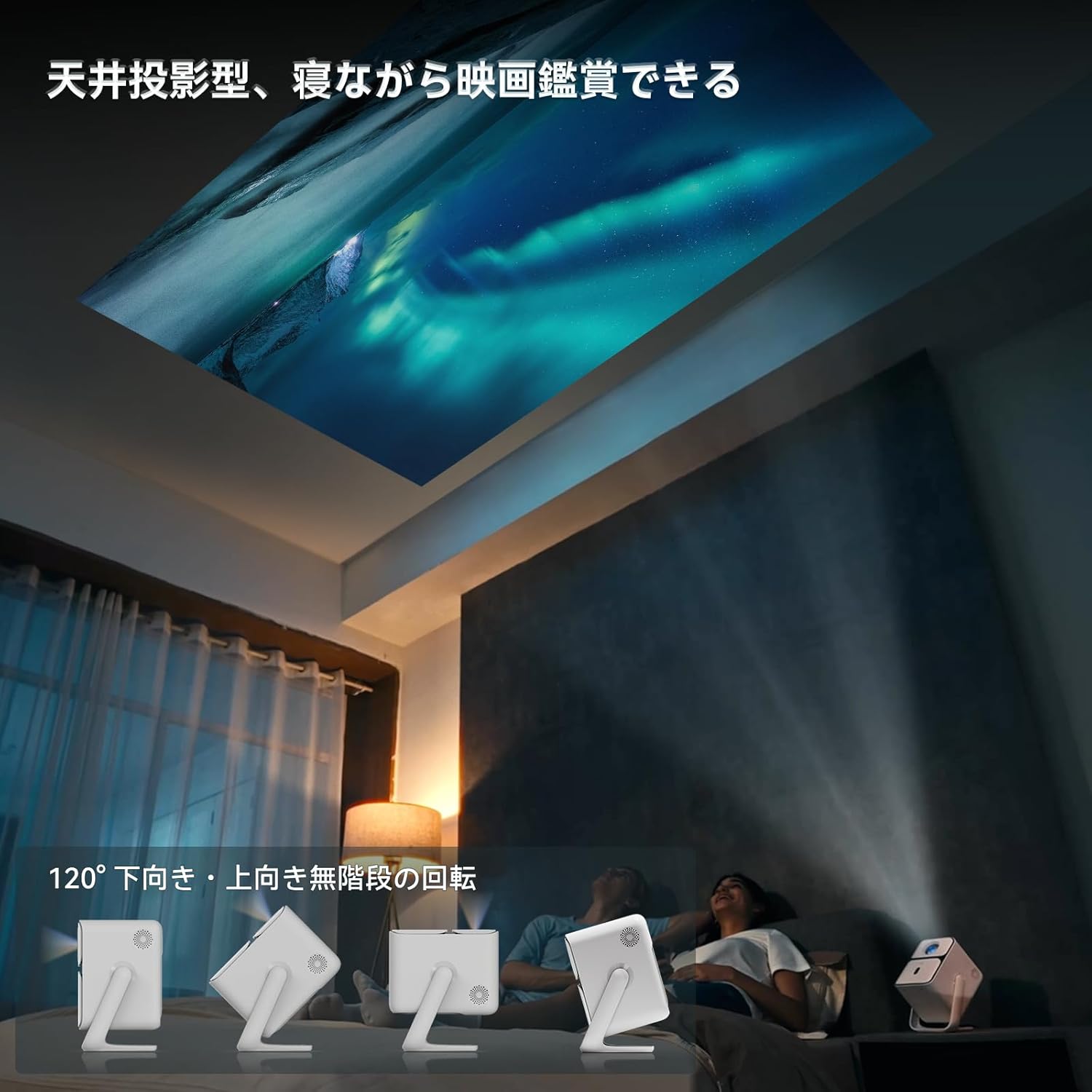
Image: Projector positioned for ceiling projection, allowing viewgulint.
Video: Demonstrates ceiling projection mode. Note: This video may feature a different projector model but demonstrates the general process.
5. Naudojimo instrukcijos
5.1 Nuotolinio valdymo pulto funkcijos

Image: Remote control for the projector, showing buttons for power, navigation, volume, focus, and direct access to streaming apps like Netflix, YouTube, and Prime Video.
- Maitinimo mygtukas: Įjungia/išjungia projektorių.
- Paieška balsu: Įjungia „Google Assistant“ balso komandoms.
- One-Touch Focus: Initiates automatic focus adjustment.
- Directional Keys (Up/Down/Left/Right): Naršyti meniu ir pasirinkimus.
- Gerai mygtukas: Patvirtina pasirinkimus.
- Atgal mygtukas: Grįžta į ankstesnį ekraną.
- Namų mygtukas: Grįžta į pagrindinį ekraną.
- Tūris +/-: Reguliuoja garsumo lygį.
- Focus +/- (F+/F-): Manually adjusts focus.
- Nutildymo mygtukas: Nutildo / įjungia garsą.
- Input Signal Switch: Changes input source.
- Programos nustatymai: Accesses application settings.
- Projekcijos nustatymai: Accesses projection-related settings.
- Direct App Buttons: Dedicated buttons for Netflix, YouTube, Prime Video, and Disney+.
5.2 App Management (Android TV 11.0)
The Wanbo T2 Ultra runs on Android TV 11.0, providing access to the Google Play Store.
- Prieiga prie programų: From the home screen, you can directly launch pre-installed apps or navigate to the Google Play Store to download more.
- Srautinio perdavimo paslaugos: Enjoy popular services like Netflix, Prime Video, YouTube, Disney+, Hulu, U-NEXT, and more. The projector supports Google Widevine DRM L1 for high-quality content playback.
- „Google“ padėjėjas: Press the Voice Search button on the remote to use voice commands for searching content, controlling playback, and more.

Image: The projector displaying the Android TV 11.0 home screen, featuring various streaming applications.
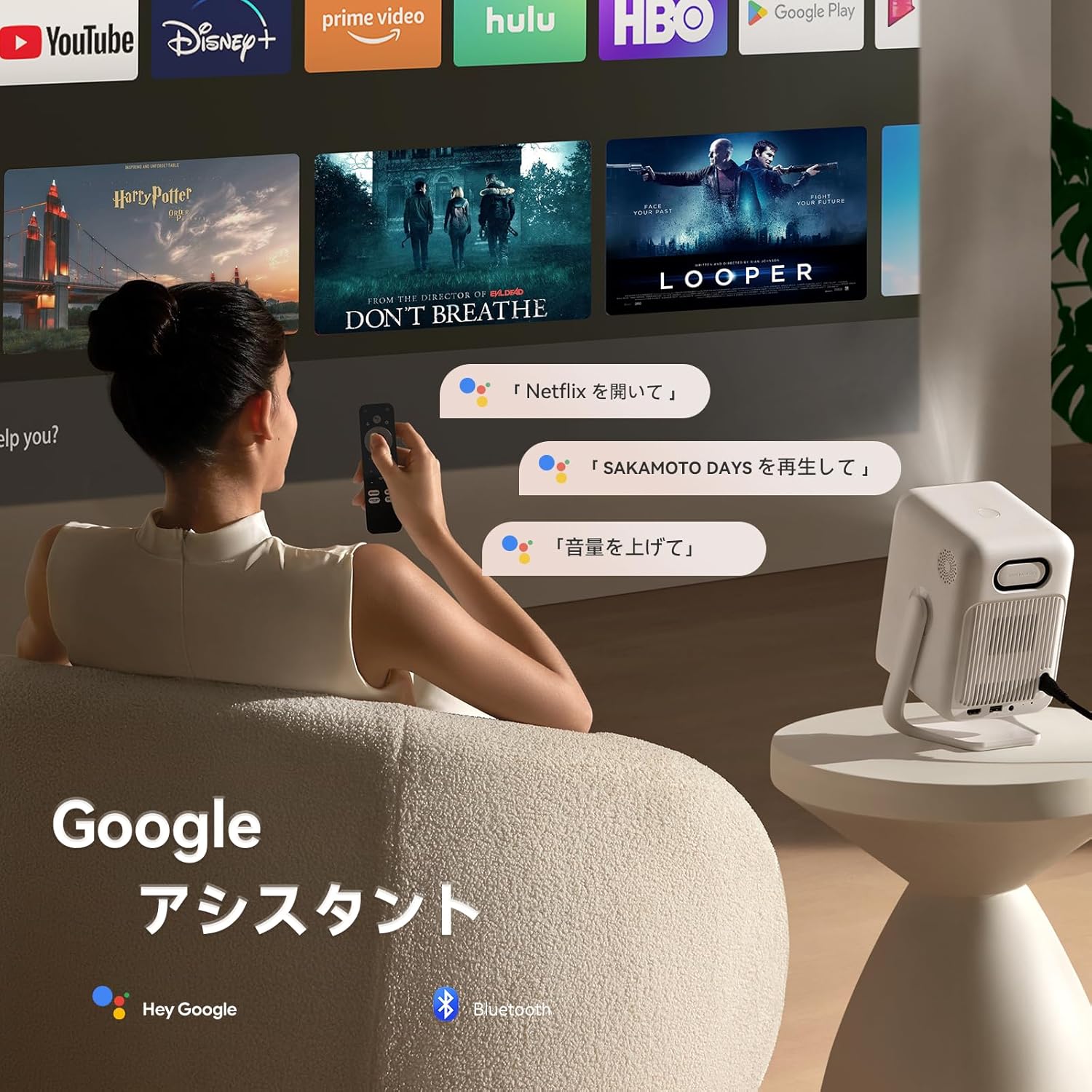
Image: A user utilizing the Google Assistant feature with the remote control to search for content.
5.3 Ryšys
The Wanbo T2 Ultra offers multiple connectivity options for various devices.
5.3.1 HDMI jungtis
- Connect an HDMI cable from your external device (e.g., laptop, game console) to the HDMI port on the projector.
- The projector will automatically detect the HDMI input. If not, navigate to Signalo šaltinis and select the corresponding HDMI input.
Video: Demonstrates HDMI connection. Note: This video may feature a different projector model but demonstrates the general process.
5.3.2 USB jungtis
- Įdėkite USB atmintinę į projektoriaus USB prievadą.
- A notification will appear on the screen. Select to open the file manager and browse your media.
Video: Demonstrates USB connection. Note: This video may feature a different projector model but demonstrates the general process.
5.3.3 Bluetooth ryšys
- Eikite į Nustatymai > Bluetooth & Accessories.
- Įsitikinkite, kad „Bluetooth“ įjungtas.
- Pasirinkite Pridėti įrenginį and choose your Bluetooth device (e.g., headphones, speakers) from the list to pair.
Video: Illustrates Bluetooth connection steps. Note: This video may feature a different projector model but demonstrates the general process.
5.3.4 Wireless Screen Mirroring (Chromecast/AirPlay)
The projector has built-in Chromecast for seamless screen mirroring from iOS and Android devices.
- Ensure your mobile device and projector are connected to the same Wi-Fi network.
- On your mobile device, open a compatible app (e.g., YouTube, Netflix) and tap the Cast icon to select the projector.
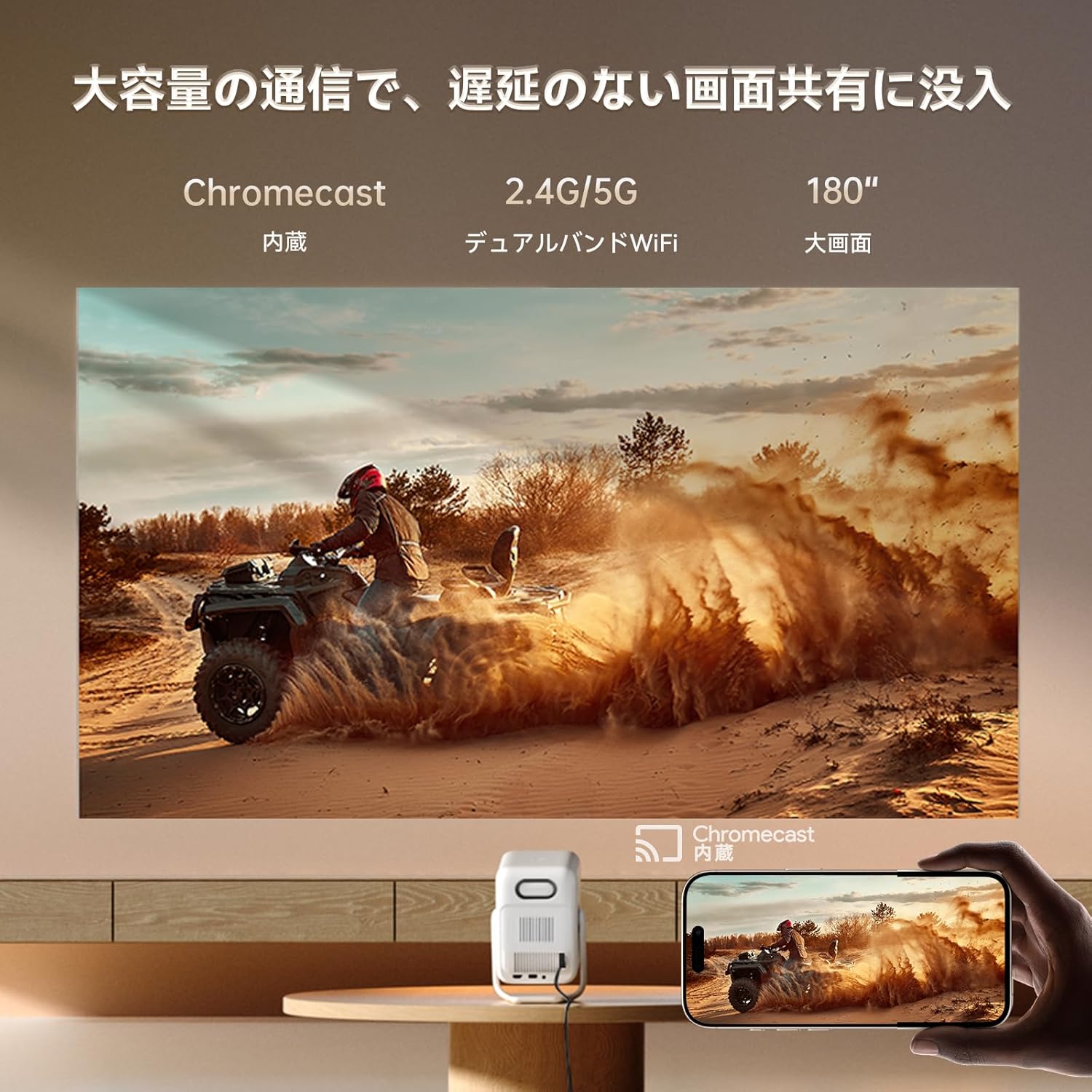
Image: A smartphone wirelessly casting content to the projector, demonstrating Chromecast functionality.
5.4 Garso nustatymai
The projector features dual 5W HiFi speakers (10W total) with an independent DSP amplifier for rich sound. You can also connect external audio devices.
5.4.1 Adjusting Sound Modes
- Eikite į Nustatymai > Ekranas ir garsas > Garso efektai.
- Choose from various sound modes like Standard, Movie, Music, News, or Sports to optimize audio for your content.
5.4.2 „Bluetooth“ garsiakalbio režimas
You can use the projector as a standalone Bluetooth speaker.
- Pradiniame ekrane pasirinkite Bluetooth muzika.
- On your mobile device, enable Bluetooth and connect to the projector (device name: ISINBOX_AC311 or similar).
Video: Demonstrates Bluetooth speaker mode. Note: This video may feature a different projector model but demonstrates the general process.
6. Priežiūra
6.1 Valymas
- Objektyvas: Use a soft, lint-free cloth or lens cleaning paper to gently wipe the lens. Avoid abrasive materials or excessive pressure.
- Išorė: Projektoriaus išorę nuvalykite minkštu, sausu skudurėliu. Nenaudokite skystų valiklių ar tirpiklių.
- angos: Regularly clean the ventilation grilles to prevent dust buildup, which can affect performance and lifespan. Use a soft brush or compressed air.
6.2 Saugykla
- Projektorių laikykite vėsioje, sausoje vietoje, toliau nuo tiesioginių saulės spindulių ir ekstremalių temperatūrų.
- If storing for an extended period, place the projector in its original packaging or a protective case to prevent dust accumulation and damage.
7. Problemų sprendimas
If you encounter issues with your Wanbo T2 Ultra projector, refer to the following common solutions:
| Problema | Galima priežastis | Sprendimas |
|---|---|---|
| No image/Power off | Power cable disconnected; Projector off | Check power connections; Press power button |
| Neryškus vaizdas | Out of focus; Incorrect keystone | Use auto-focus or manual focus; Adjust keystone correction |
| Nėra garso | Volume too low; Muted; Incorrect audio output | Increase volume; Unmute; Check audio settings |
| „Wi-Fi“ / „Bluetooth“ ryšio problemos | Incorrect password; Device out of range; Interference | Verify password; Move closer to router/device; Reduce interference |
| Nuotolinio valdymo pultas neveikia | Low battery; Obstruction; Not paired | Replace batteries; Remove obstructions; Re-pair remote |
8. Specifikacijos
| Funkcija | Specifikacija |
|---|---|
| Prekės ženklas | WANBO |
| Modelis | T2 Ultra |
| Operacinė sistema | Android TV 11.0 |
| Ryškumas | 500 ANSI liumenai |
| Gimtoji raiška | 1920 x 1080 pikselių (Full HD) |
| Metimo santykis | 1.2:1 |
| Pranešėjas | 10W HiFi Stereo (Dual 5W) |
| Ryšys | HDMI (ARC), USB, 3.5mm Audio Jack, 5G Wi-Fi, Bluetooth |
| Ypatingos savybės | Auto-Focus, Auto Keystone Correction, Auto Screen Adjustment, Obstacle Avoidance, Digital Zoom (50-100%), Chromecast Built-in |
| Matmenys (P x G x A) | 14.48 x 14.22 x 21.84 cm |
| Svoris | 2.2 kg |
9. Garantija ir palaikymas
9.1 Gaminio garantija
The Wanbo T2 Ultra projector comes with a 12-month warranty covering quality-related issues. For customers who follow the official Wanbo social media accounts (@wanboglobal), the product warranty is automatically extended to 18 months.
9.2 Pagalba klientams
Jei turite klausimų ar reikia pagalbos, susisiekite su mumis:
- El. paštas: support@szwanbo.net
We aim to respond to all inquiries within 24 hours. Lifetime support is provided for product usage.