
1. Įvadas
Ačiū, kad pirkoteasing the AGPTEK External Blu-ray Drive, Model G01R13. This portable optical drive offers versatile read and write capabilities for Blu-ray, DVD, and CD formats, featuring high-speed USB 3.0 and Type-C connectivity. Its compact design and multi-port functionality make it an ideal solution for various computing needs across Windows, macOS, and Linux operating systems. This manual provides essential information for proper setup, operation, maintenance, and troubleshooting to ensure optimal performance and longevity of your device.

Figure 1: AGPTEK External Blu-ray Drive, Model G01R13
2. Produktas baigtasview
2.1 Pakuotės turinys
- AGPTEK External Blu-ray Drive (Model G01R13) x 1
2.2 Device Features and Components
The AGPTEK External Blu-ray Drive is designed for convenience and functionality. It features an integrated cable for easy storage and dual USB 3.0 and Type-C connectivity. Additionally, it includes multiple ports, allowing it to function as a USB hub.

Figure 2: Key features of the AGPTEK External Blu-ray Drive
The drive incorporates a silent design to minimize noise during operation, making it suitable for quiet environments. Its lightweight and slim profile (approximately 350g) enhance portability.
3. Sąranka
3.1 Prijungimas prie kompiuterio
The drive supports both USB 3.0 (Type-A) and Type-C connections. Use the appropriate cable to connect the drive to an available USB port on your computer.
- For USB Type-A: Connect the USB 3.0 Type-A connector to your computer's USB-A port.
- For USB Type-C: Connect the USB Type-C connector to your computer's USB-C port.

Figure 3: Connecting the drive to a laptop
3.2 Maitinimo šaltinis
The drive is primarily powered via USB bus power. In most cases, a single USB connection will provide sufficient power for operation. However, if you experience unstable operation or power-intensive tasks (e.g., Blu-ray playback or burning), an auxiliary power source can be used.
- Pagalbinė galia: Connect a Micro USB cable (not always included, may require separate purchase) from the drive's auxiliary power port to a USB power adapter or another USB port on your computer. This ensures stable power delivery, especially during extended use or when playing Blu-ray discs.
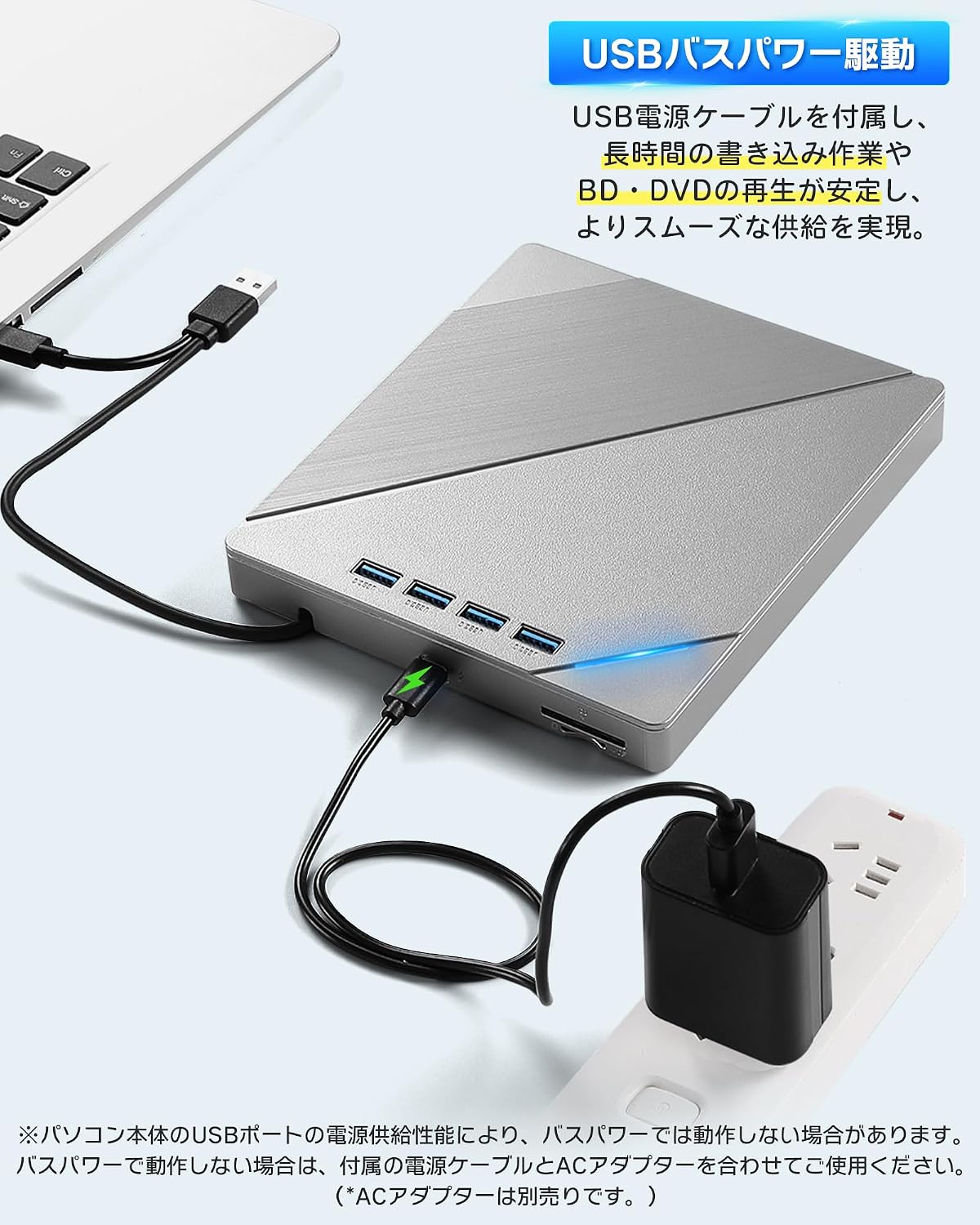
Figure 4: Connecting auxiliary power to the drive
3.3 Operacinės sistemos suderinamumas
The AGPTEK External Blu-ray Drive is compatible with a wide range of operating systems, including:
- Windows (Windows 7, 8, 10, 11, XP)
- macOS
- Linux
No additional drivers are typically required for basic plug-and-play functionality.
4. Naudojimo instrukcijos
4.1 Diskų įdėjimas ir išėmimas
- Norėdami įterpti: Gently press the eject button on the front of the drive to open the disc tray. Place the disc label-side up onto the tray, ensuring it is centered on the spindle. Gently push the tray back into the drive until it clicks into place.
- Išstumti: Press the eject button on the front of the drive. Alternatively, you can eject the disc through your computer's operating system (e.g., right-click the drive icon and select 'Eject').

Figure 5: Inserting a disc
4.2 Playing Discs
After inserting a disc, your computer's operating system should recognize it. You may need compatible software to play Blu-ray movies, DVDs, or audio CDs. This drive does not include playback software.
- For Blu-ray/DVD Movies: Install a third-party Blu-ray/DVD playback software (e.g., Leawo Blu-ray Player, VLC Media Player, CyberLink PowerDVD).
- For Audio CDs: Most operating systems have built-in media players that can play audio CDs.
- For Data Discs: The disc contents should appear in your file explorer/finder.
4.3 Burning Discs
To burn data to a blank Blu-ray, DVD, or CD, you will need compatible burning software. This drive does not include burning software.
- Insert a blank recordable disc (BD-R, DVD-R, CD-R, etc.) into the drive.
- Open your preferred burning software and follow its instructions to select fileir pradėti degimo procesą.
4.4 Using the Integrated USB Hub and Card Readers
The drive features multiple ports, allowing it to function as a USB hub. You can connect various peripherals simultaneously:
- USB prievadai: Connect USB memory sticks, external hard drives, mice, keyboards, or other USB devices.
- SD/TF kortelių lizdai: Insert SD or TF (MicroSD with adapter) cards to access their contents.
Note that while the drive offers expandability, simultaneous heavy usage of all ports and the optical drive might require auxiliary power for stable operation.
5. Priežiūra
5.1 Pavarų dėžės valymas
- Keep the drive clean and free from dust. Use a soft, dry cloth to wipe the exterior.
- Nenaudokite skystų valiklių ar abrazyvinių medžiagų.
- Venkite atidaryti disko casing, as this may void the warranty and expose sensitive components.
5.2 Handling Discs
- Always handle discs by their edges to avoid fingerprints and scratches on the data surface.
- Nenaudojamus diskus laikykite jų dėkluose, kad apsaugotumėte juos nuo dulkių ir pažeidimų.
- Nešvarius diskus valykite minkštu, nepūkuotu skudurėliu, šluostydami nuo centro į išorę.
5.3 Saugykla
When not in use, store the drive in a cool, dry place away from direct sunlight and extreme temperatures. Ensure the integrated cable is neatly stored in its compartment.
6. Problemų sprendimas
6.1 Kompiuteris neatpažįsta disko
- Įsitikinkite, kad USB kabelis yra tvirtai prijungtas tiek prie įrenginio, tiek prie kompiuterio.
- Pabandykite prijungti prie kito kompiuterio USB prievado.
- If using a desktop PC, try connecting to a USB port on the back of the computer, which typically provides more stable power.
- Connect the auxiliary power cable if the drive is not receiving sufficient power from a single USB port.
- Iš naujo paleiskite kompiuterį.
6.2 Disc Read/Write Errors
- Ensure the disc is clean and free from scratches or smudges.
- Verify that the disc type is compatible with the drive (refer to Specifications).
- Ensure you are using appropriate playback or burning software.
- Connect the auxiliary power cable to ensure stable power delivery, especially for Blu-ray discs or during burning.
- Pabandykite kitą diską, kad atmestumėte sugedusio disko priežastį.
6.3 Lėtas veikimas
- Ensure the drive is connected to a USB 3.0 or Type-C port on your computer for optimal speed. Connecting to a USB 2.0 port will result in slower transfer rates.
- Avoid running multiple demanding applications simultaneously.
- If using the integrated USB hub, disconnect other peripherals if you need maximum speed for disc operations.
7. Specifikacijos
| Funkcija | Aprašymas |
|---|---|
| Prekės ženklas | AGPTEK |
| Modelio numeris | G01R13 |
| Optinės atminties įrašymo greitis | 6X (Blu-ray) |
| Optinės atminties skaitymo greitis | 24X (CD), 8X (DVD), 6X (Blu-ray) |
| Duomenų perdavimo sparta | 5 gigabitai per sekundę (USB 3.0) |
| Ryšio sąsaja | USB 3.0, USB Type-C |
| Formos faktorius | Nešiojami |
| Aparatinės įrangos platforma | Desktop PC, Notebook PC |
| Operacinės sistemos palaikymas | Windows, macOS, Linux |
| Supported Disc Formats (Read/Write) | BD-R, BD-R DL, BD-RE, BD-RE DL, DVD-R, DVD-ROM, DVD-R DL, DVD-RW, DVD-RAM, DVD+R, DVD+R9, DVD+RW, CD-R, CD-RW, Blu-ray, 3D Blu-ray, BDXL |
| Įtraukti daiktai | Pagrindinis blokas x 1 |
| Kilmės šalis | Kinija |
8. Garantija ir palaikymas
8.1 Informacija apie garantiją
This AGPTEK External Blu-ray Drive (Model G01R13) comes with a 180-day warranty from the date of purchase. This warranty covers manufacturing defects under normal use. Please retain your proof of purchase for warranty claims.
Garantija neapima žalos, atsiradusios dėl:
- Nelaimingas atsitikimas, piktnaudžiavimas, netinkamas naudojimas arba netinkamas įrengimas.
- Neleistinas remontas ar modifikavimas.
- Power surges or external electrical faults.
- Use with incompatible accessories.
8.2 Pagalba klientams
For technical assistance, warranty claims, or product inquiries, please contact AGPTEK customer support through the retailer's platform where you purchased the product or visit the official AGPTEK websvetainė kontaktinei informacijai.